1. Go to Payroll > Team Payroll > select any payroll, whether draft or complete > select Download Bank file.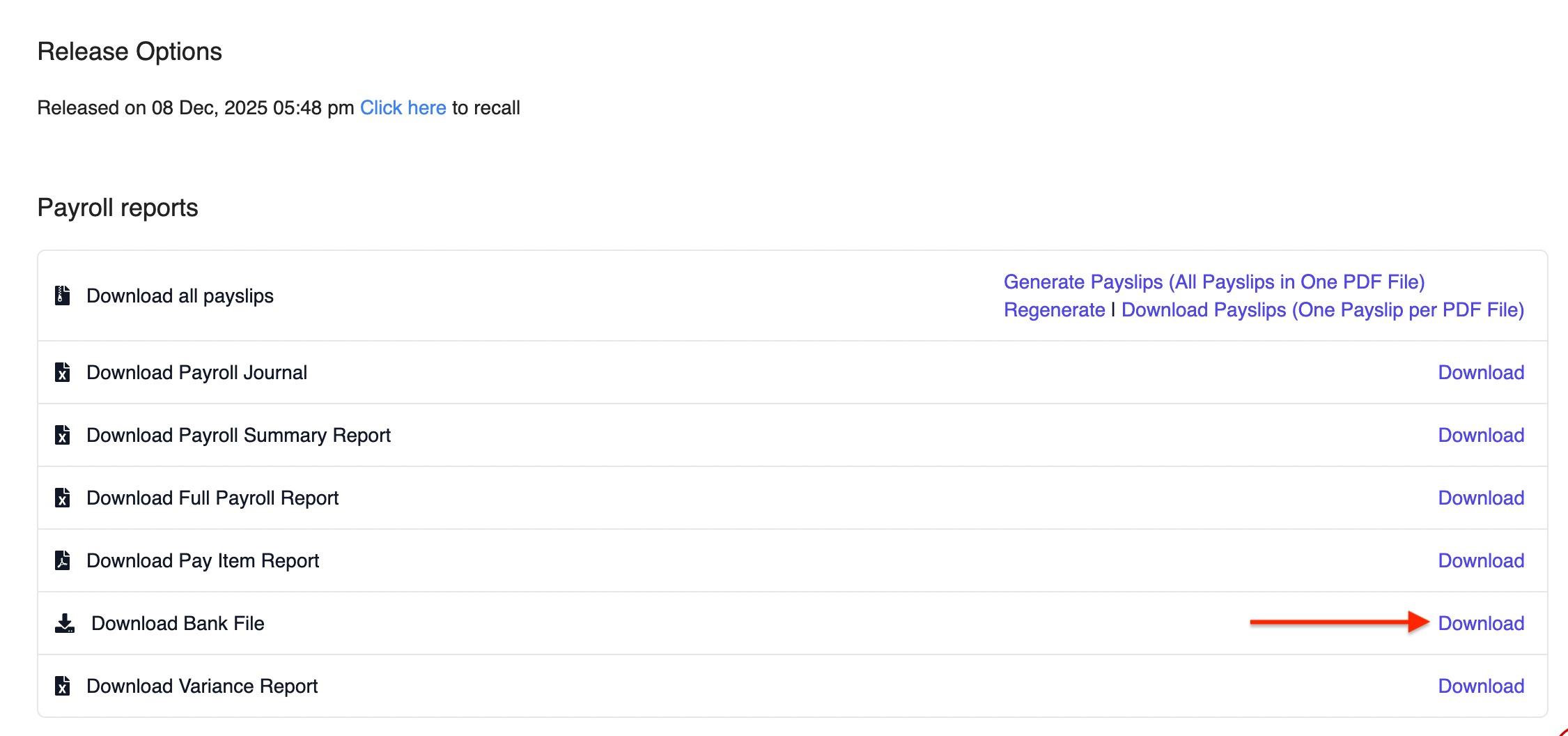
2. A pop-up will appear. Fill in the required details:
- Bank: CIMB BANK BHD
- File Type: Select the file you need to generate:
- GIRO File
- SOCSO File
- EIS File
- EPF File
- MTD File
- GIRO File
- Account Holder Name: Your company name
- Account Number: 10-digit bank account number
- Value Date: The date the bank should process the salary payment
- Organisation Code: 5-digit code provided by CIMB. Existing Autopay users should use the same code.
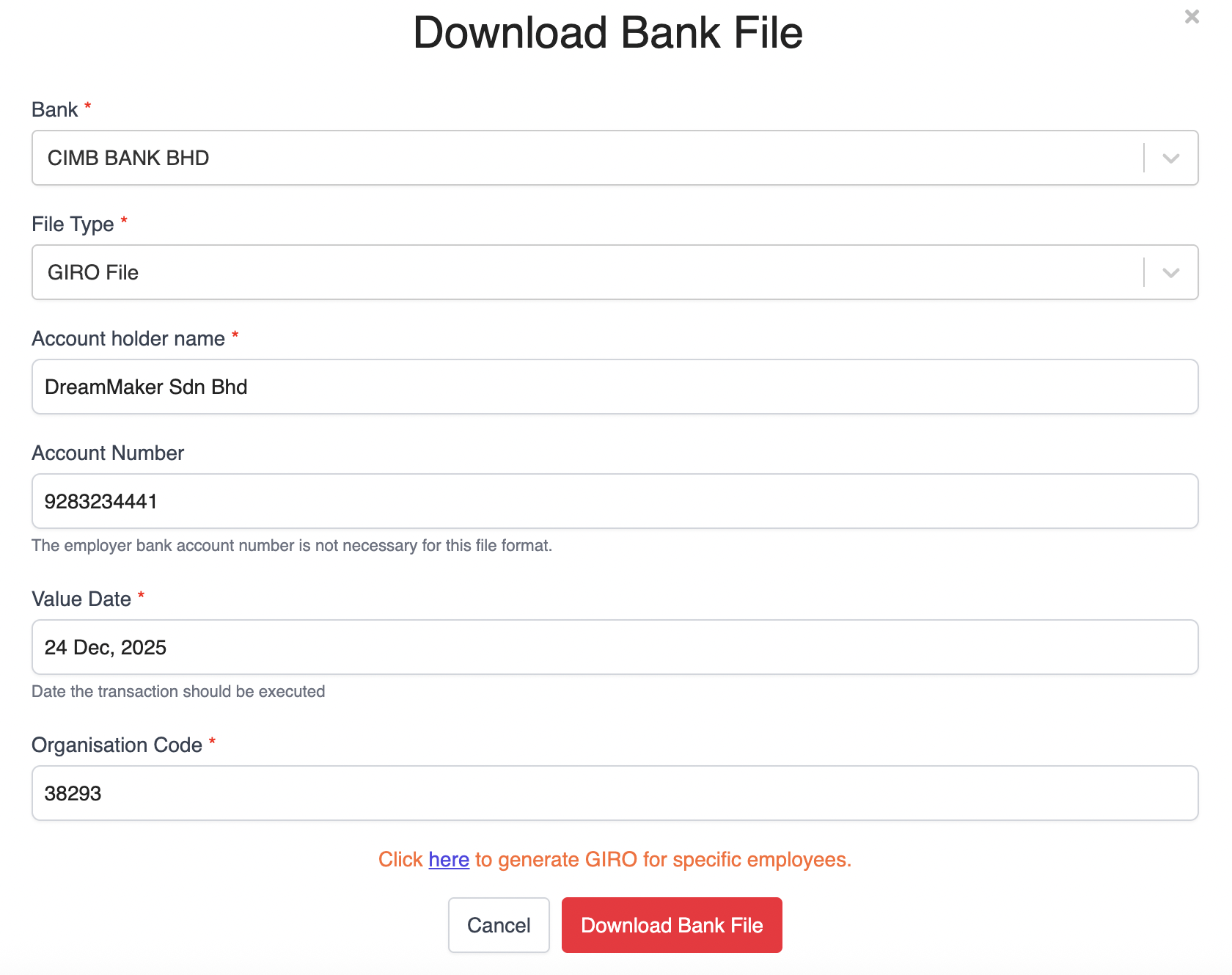
3. Once all details are filled in, click Download Bank File.
⚠️ Important Note: Do not rename the generated GIRO File. Renaming the file may lead to errors when uploading to the bank portals.
Submitting the GIRO File to CIMB Bank
1. Login to BizChannel@CIMB.

2. Click on the Bulk Payments from the left side menu and select Payroll from the dropdown list.

3. Set the File Details section as follows then click on Submit for Acceptance to validate the file:
File Format : Select Autopay TXT
File Type : Select Non Encrypted
File Upload : Upload your Giro file
Pay From : Click on magnifier icon and search for an account to pay from


5. Once the status has changed to Pending Confirmation, click Confirm to submit file for authorization.

Note: Your file has been submitted for acceptance with the status Pending Approval.
6. The authorizer will need to approve or reject the transaction before it is submitted to the Bank for processing.
Was this article helpful?
That’s Great!
Thank you for your feedback
Sorry! We couldn't be helpful
Thank you for your feedback
Feedback sent
We appreciate your effort and will try to fix the article