This guide walks you through generating the UOB salary payment file in HReasily Pro and uploading it to UOB Infinity / Business Internet Banking (BIB). Follow the steps below to ensure smooth processing of payroll payments.
1. Go to Payroll > Team Payroll > select any payroll, whether draft or complete > select Download Bank file.
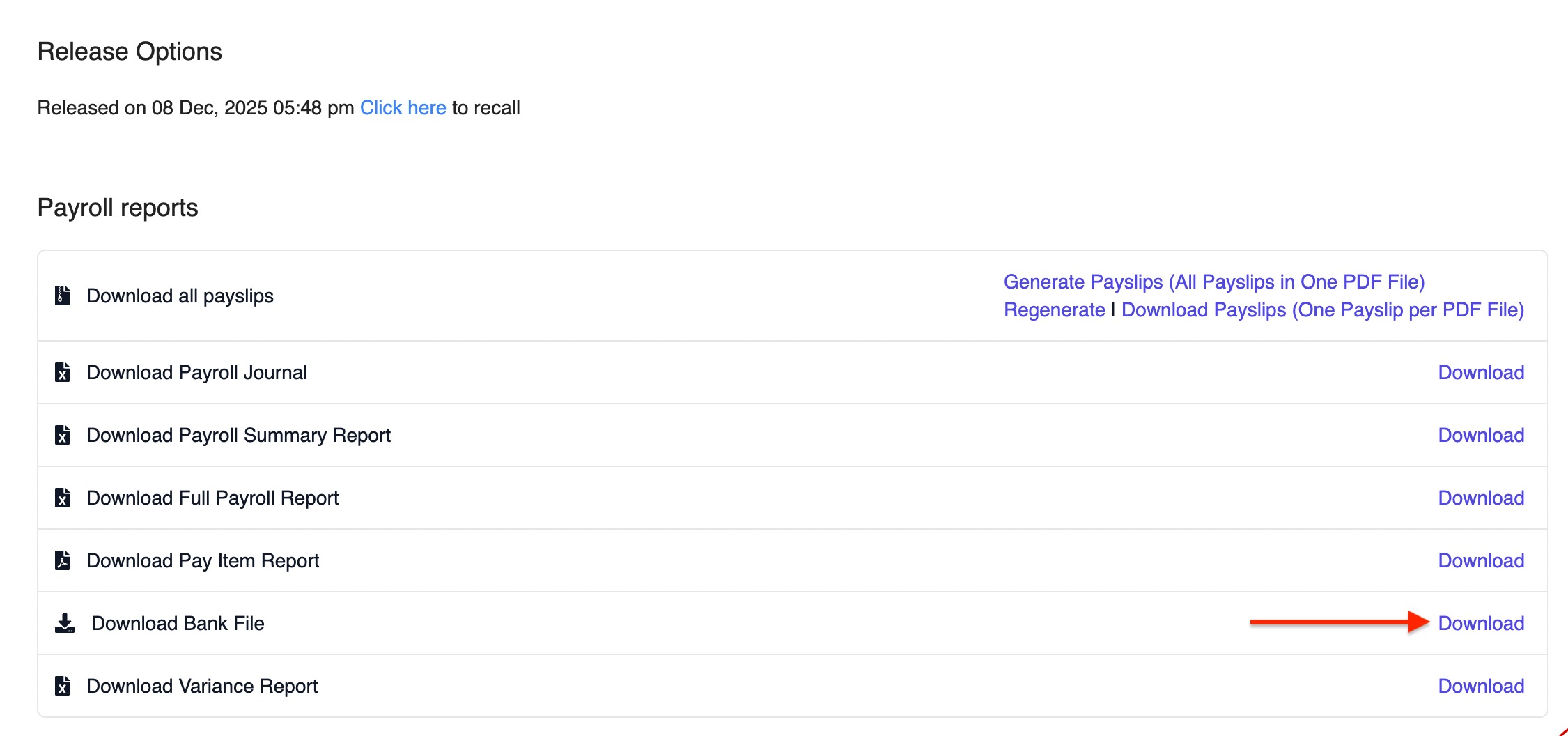
2. A pop-up will appear. Complete the required fields as follows:
Bank: UNITED OVERSEAS BANK MALAYSIA
File Type: IBG UFF GIRO File or IBG XML GIRO File
Account Holder Name: Your company name
Account Number: 10-digit bank account
Value Date: Date the bank should process the salary
Purpose Code:
Payroll – Salary Credit: 22
Payment – Remittance Credit: 24
Sequence Number: Default is 01
Company ID: Uppercase letters only
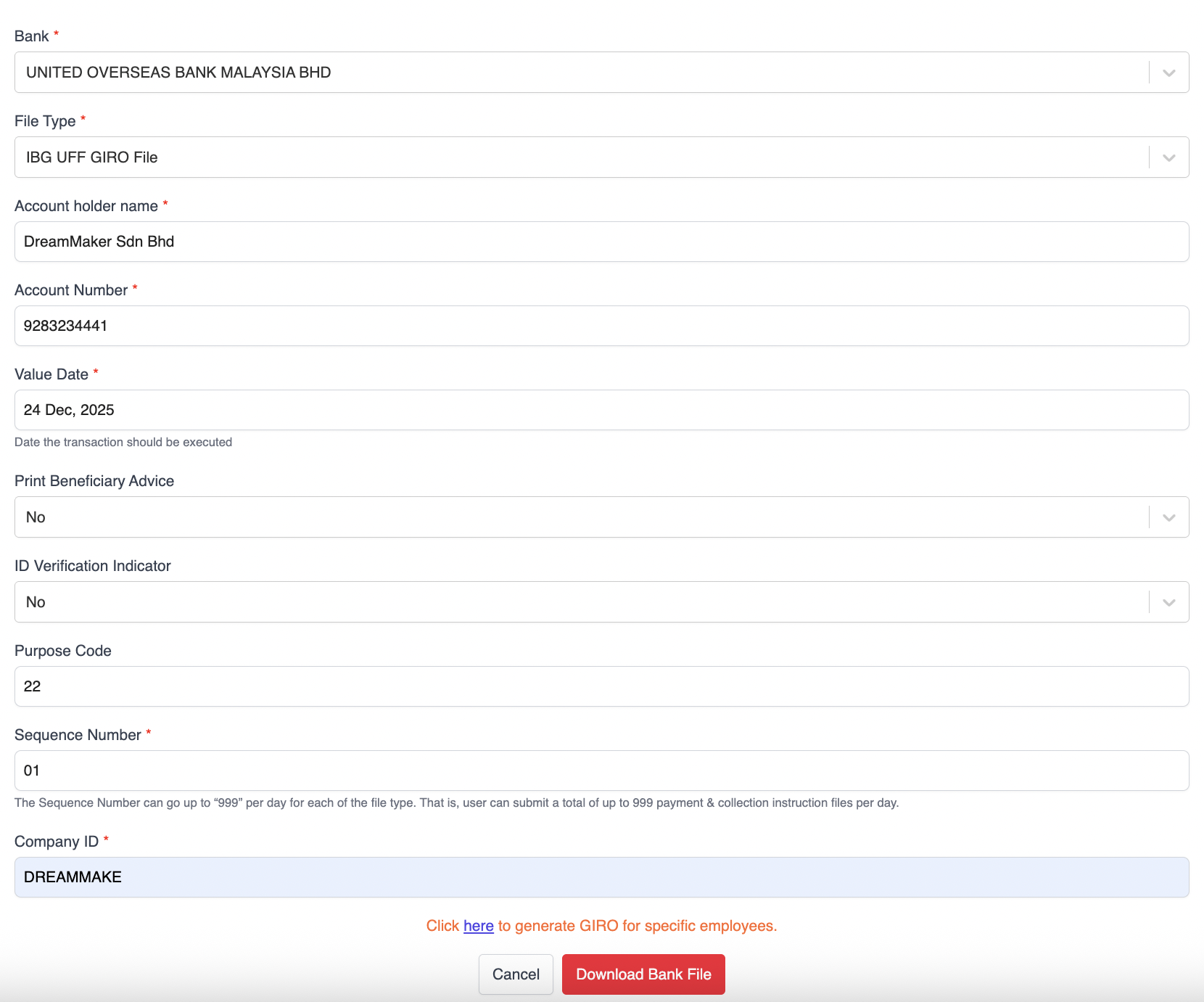
3. After completing the details, click Download Bank File.
⚠️ Important Note: Do not rename the generated GIRO File. Renaming the file may lead to errors when uploading to the bank portals.
Submitting the GIRO File to UOB
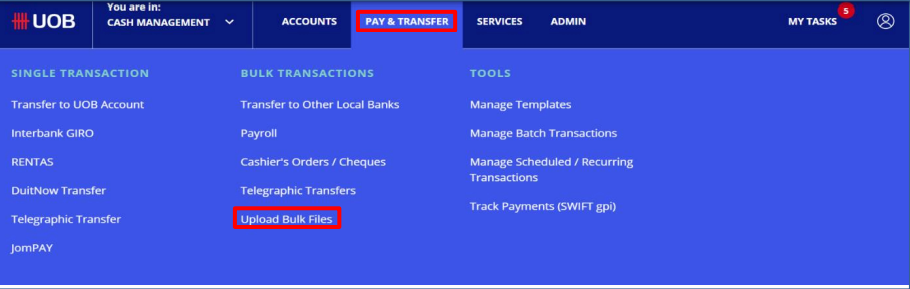
1. Go to PAY & TRANSFER and select Upload Bulk Files.
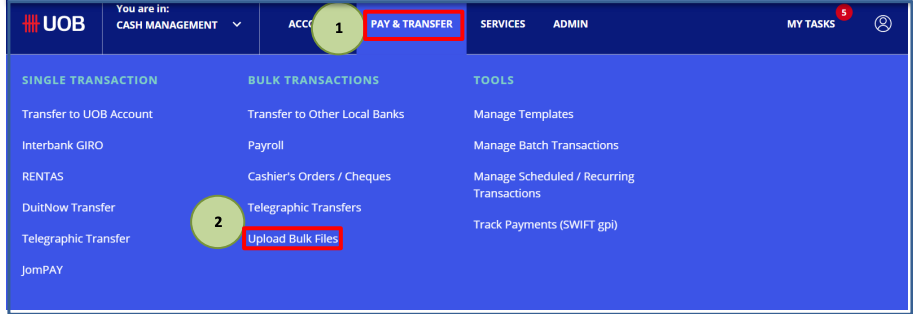
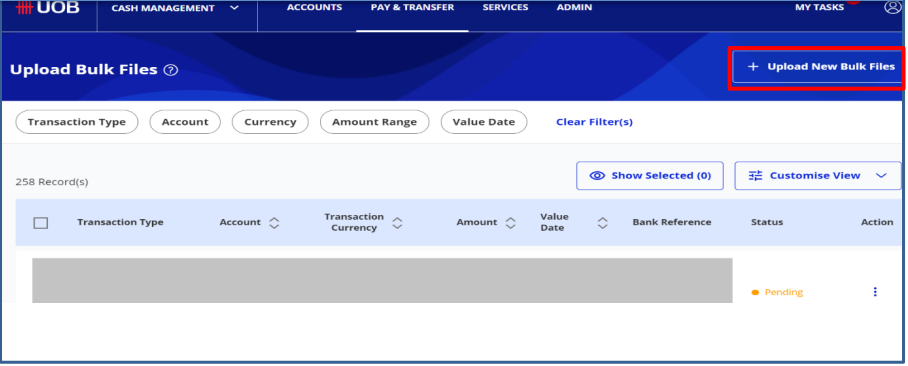
2. Click + Upload New Bulk Files.
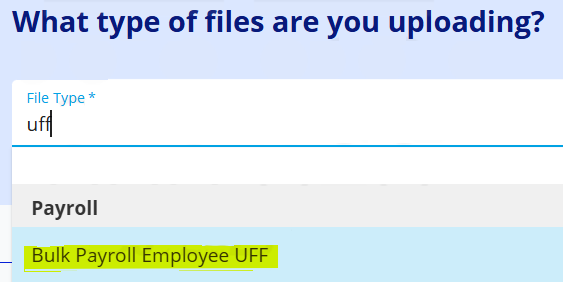
3. From the File Type dropdown, select Bulk Payroll Employee UFF.
4. Click Choose File to upload the salary UFF file.

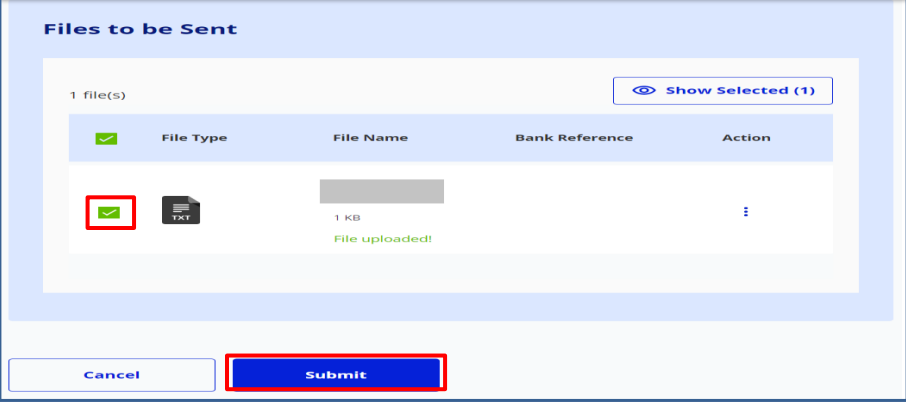
5. Once the file is uploaded, a confirmation message will appear. Tick the checkbox and click Submit.
6. The transaction will appear with the status Upload in Progress.
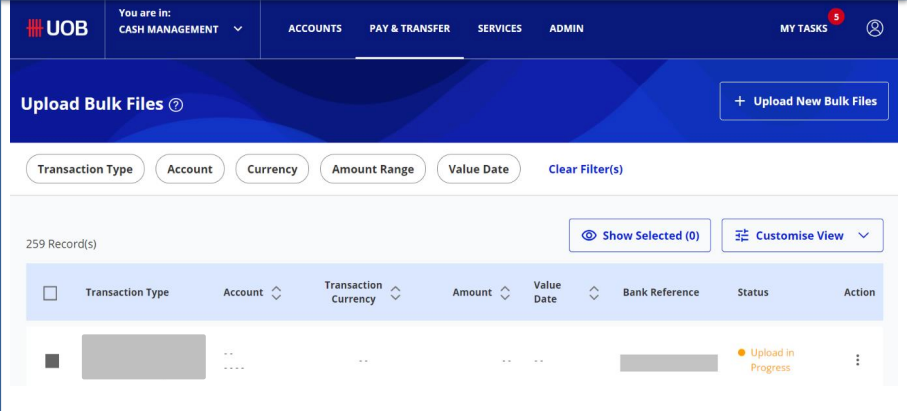
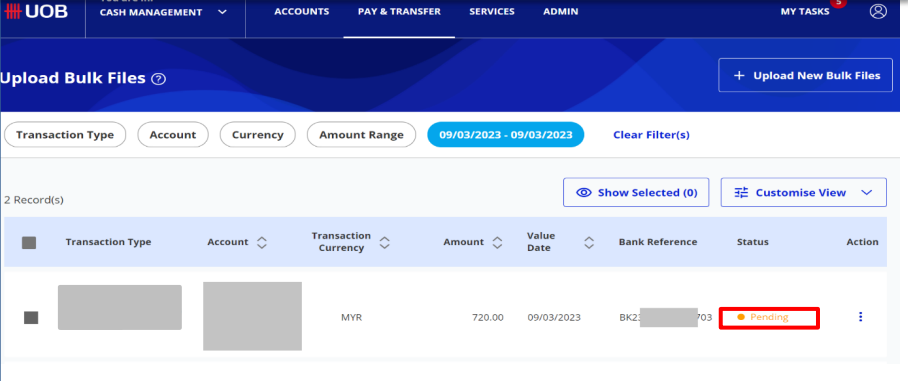
7. To refresh the transaction status, go back to PAY & TRANSFER → Upload Bulk Files.
8. After refreshing, the status will update to Pending. This indicates that the file has been successfully submitted by the Maker and is now awaiting approval from the Authoriser.
Was this article helpful?
That’s Great!
Thank you for your feedback
Sorry! We couldn't be helpful
Thank you for your feedback
Feedback sent
We appreciate your effort and will try to fix the article