When you're setting up the payroll module for the first time, here are the things you need to take note of.
Note: You can click on the links throughout this article to find out more about particular topics.
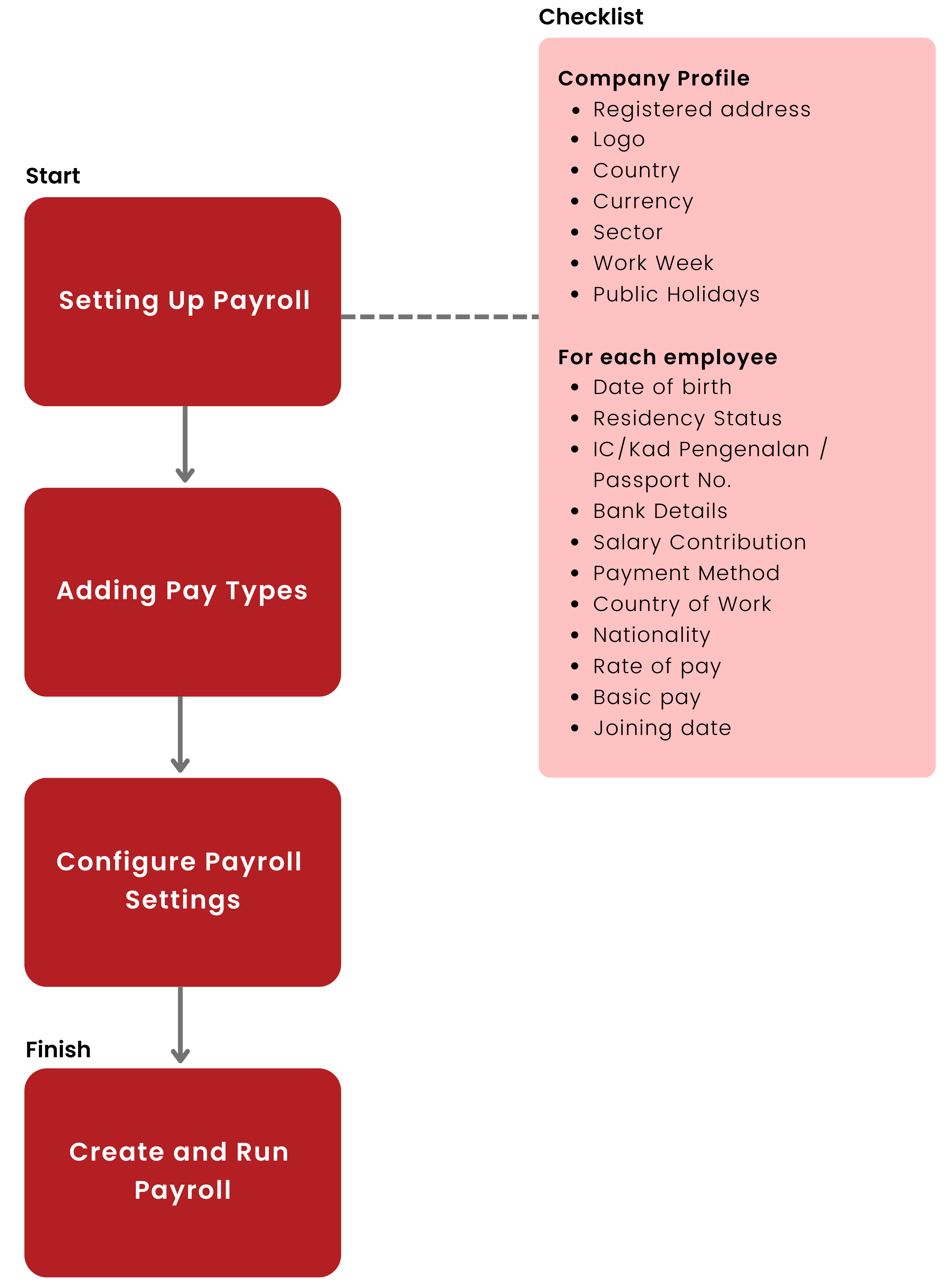
Step 1: Check Key Information
In order for payroll to work properly, the following information is required. Please ensure that all details have been filled out correctly.
For the company
Under Company > Company Settings:
Registered Address
Logo
Country
Currency
Sector
For each employee
Under My Employees > Personal > Profile & Personal Contact Details
Full Name
Date of birth
Under My Employees > Personal > Residency
IC/Kad Pengenalan / Passport No.
Residency Status
Type of Resident
Under My Employees > Payroll
Bank details
Salary Contribution (Tax, EPF, SOCSO, EIS, Zakat & HRDF)
Payment Method
Monthly Pay
Tax Details
Pay Item List
Under My Employees > Employment > Employment Details
Country of work
Currency
Under My Employees > Career Progression
Progression Type
Designation
Rate of pay
Monthly Pay
Joining date
Nationality / Citizenship
Please refer to this guide for instructions on how to bulk update these details.
Step 2: Add Pay Types
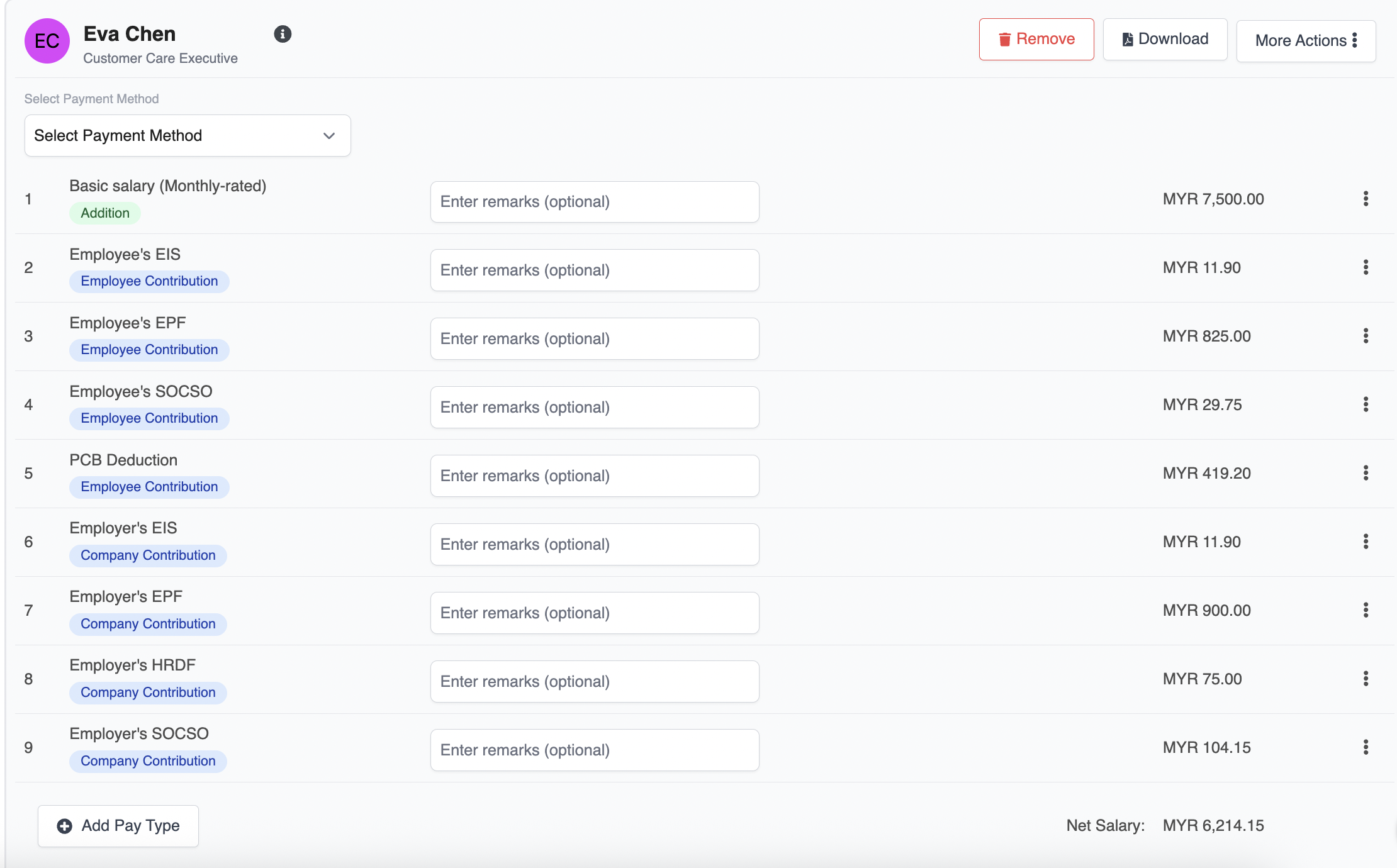
The default pay types such as basic salary, EPF contribution, PCB deduction etc. will already be in the system, so you don't need to set these up.
The basic salary will also be automatically calculated, taking into account any leave that the employee has taken.
If you have any other pay types that are applicable, you can add them in two ways:
1. From the Pay Types Gallery
2. By creating a New Pay Type
1. Adding pay types from the Pay Types Gallery
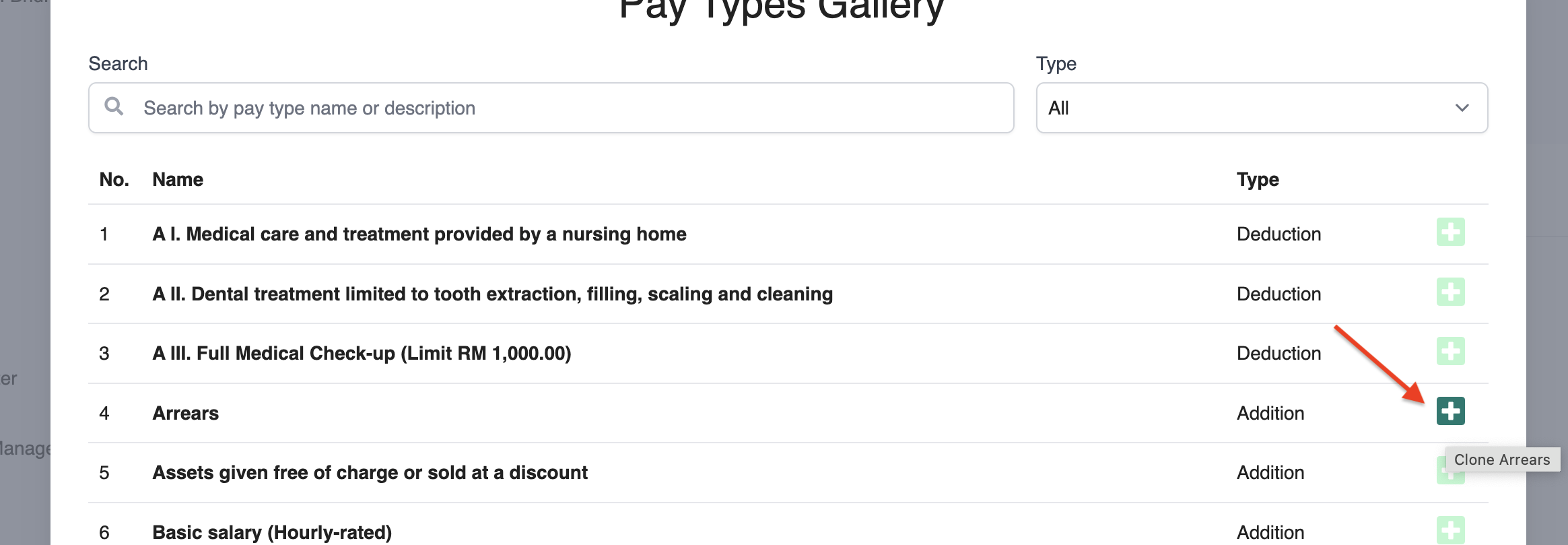
When adding Pay Types, you can first look at our Pay Types Gallery to see if it already exists.
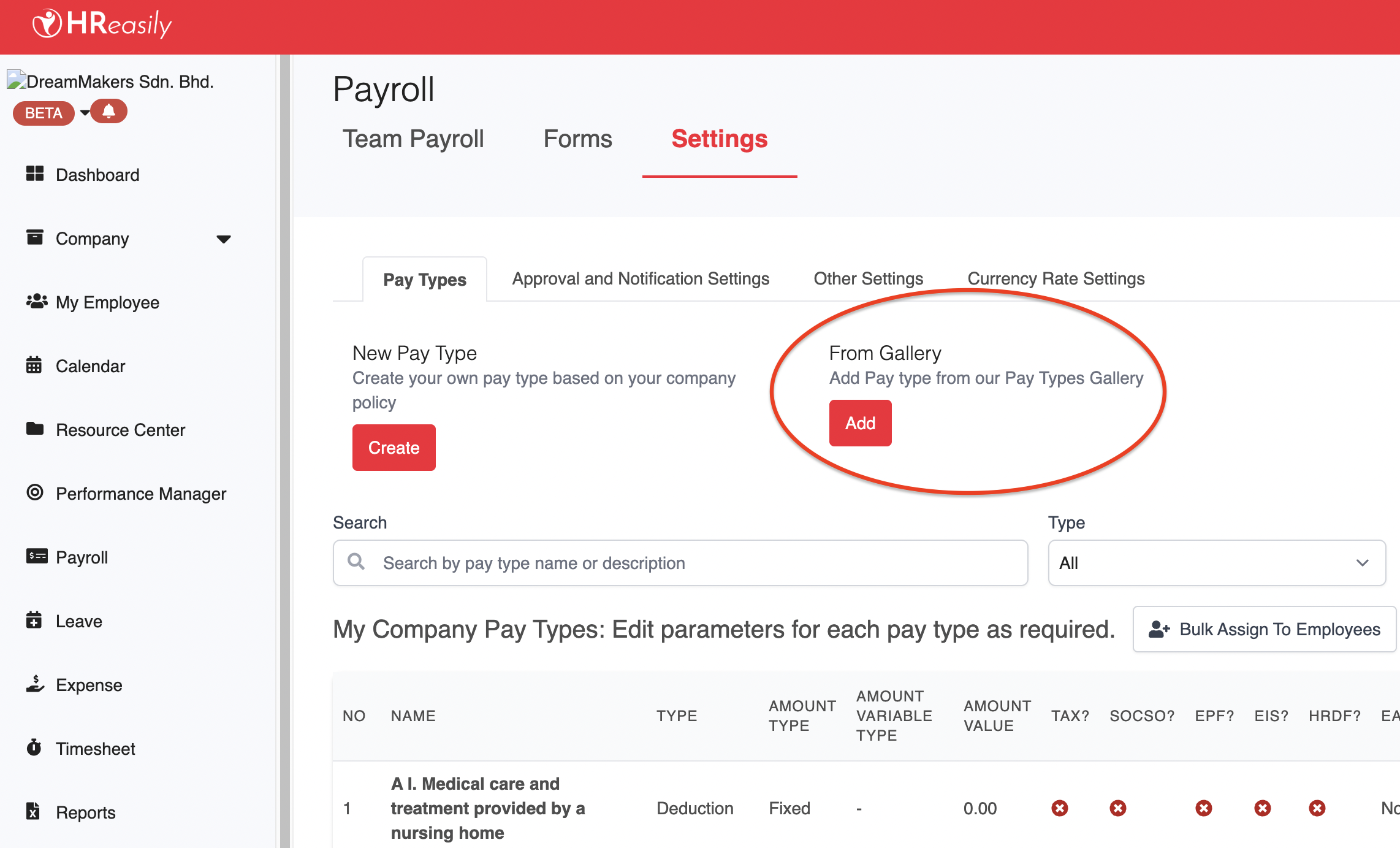
Go to Payroll > Settings > Type > From Gallery.
You can search for a pay type using the search bar, or filter by type.
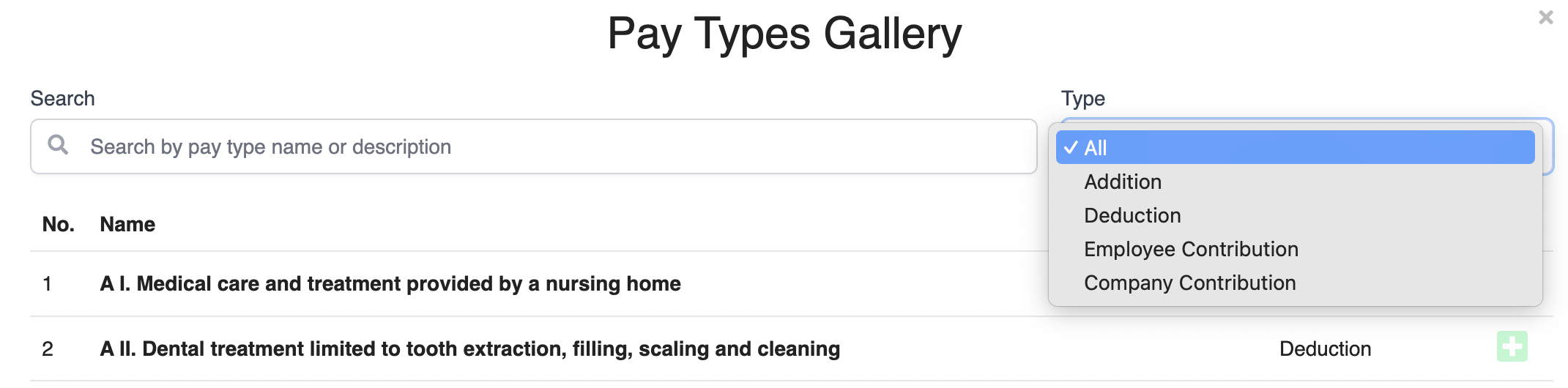
To add a pay type, click on the "+" button.
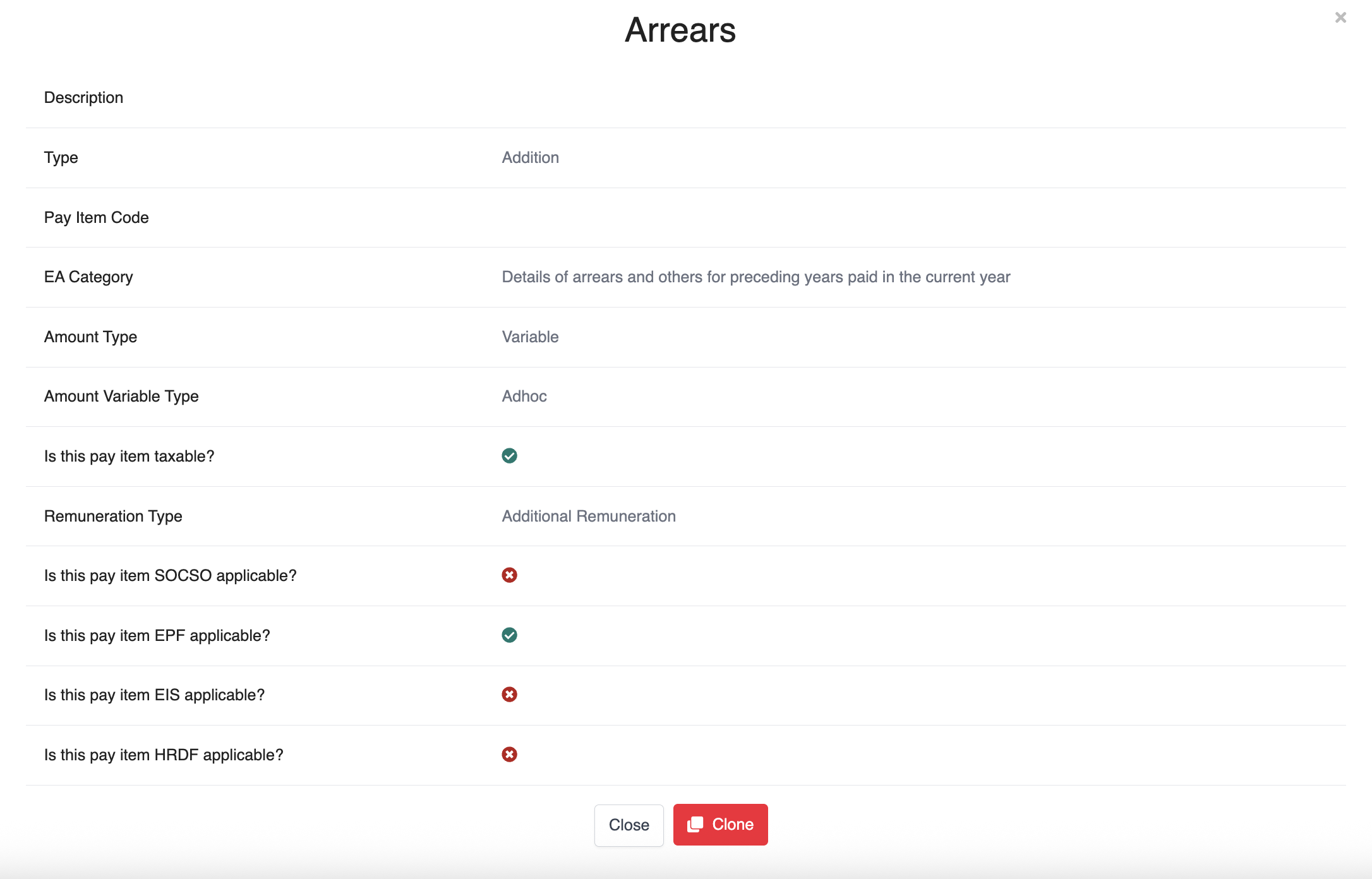
You'll be directed to the Pay Type screen, where the fields are already filled in. Click Clone to proceed.
2. Creating New Pay Type
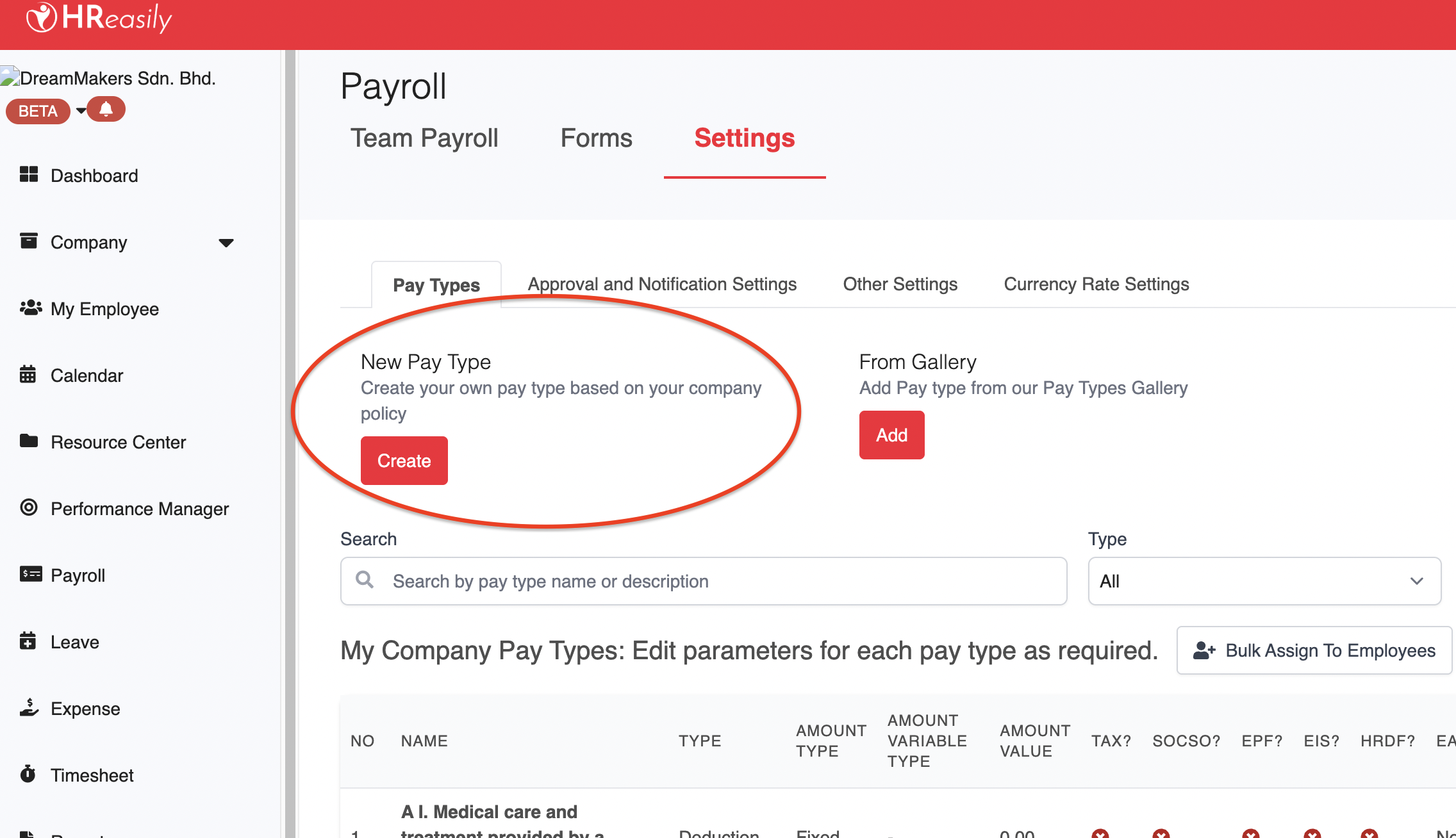
If you don't see what you want in the Pay Types Gallery, you can click on New Pay Type to create one from scratch.
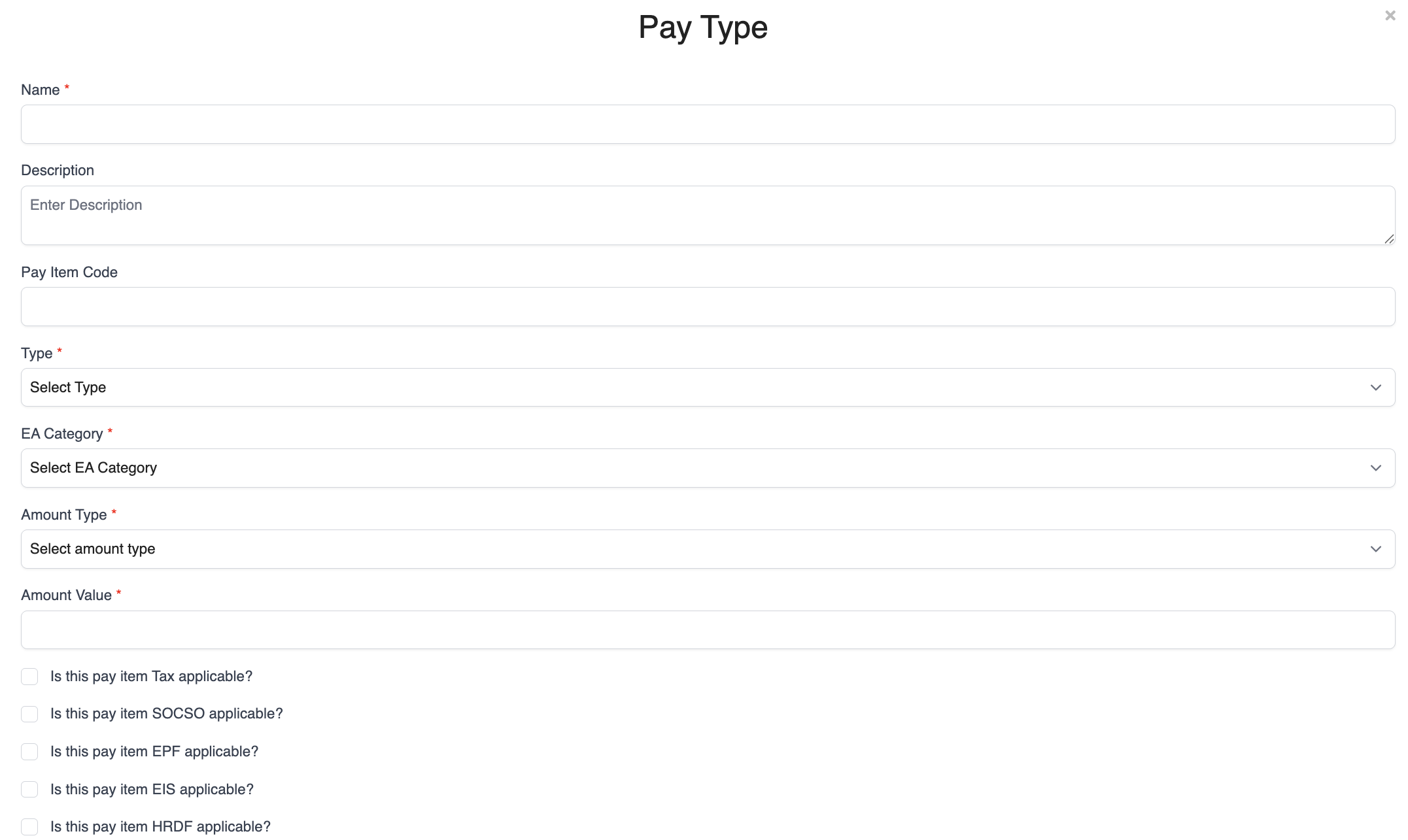
For each Pay Type, make sure to complete the following details:
4. Choose the Amount Type
If yes, you will need to specify whether it falls under Normal Remuneration or Additional Remuneration.
6. Select whether it is applicable for SOCSO.
7. Select whether it is applicable for EPF.
8. Select whether it is applicable for EIS.
9. Select whether it is applicable for HRDF.
Editing Pay Type
If at any time you wish to edit or delete a custom pay type, you can click on the pencil icon to edit, or the bin icon to delete.
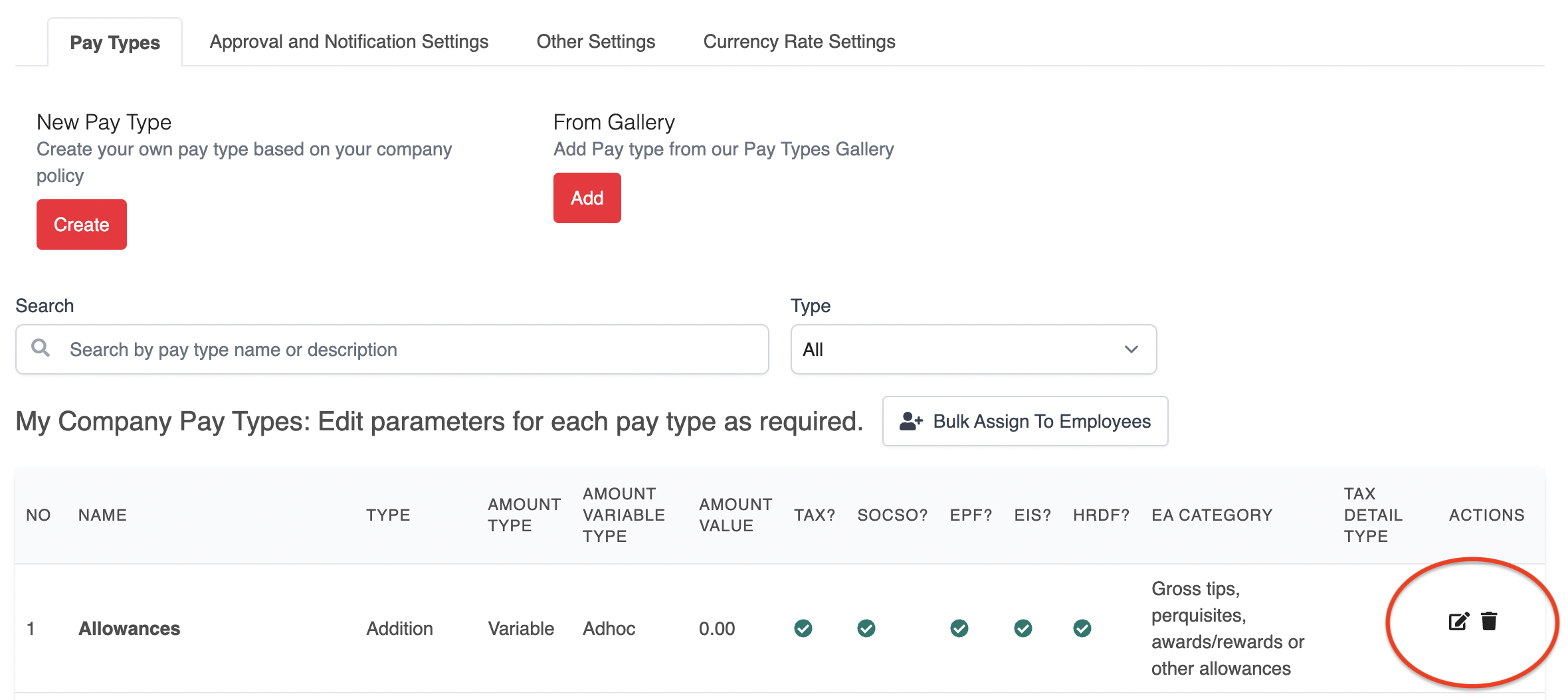
System pay types cannot be edited or deleted. They will not have the pencil or bin icon showing.
Adding Pay Type to Payroll
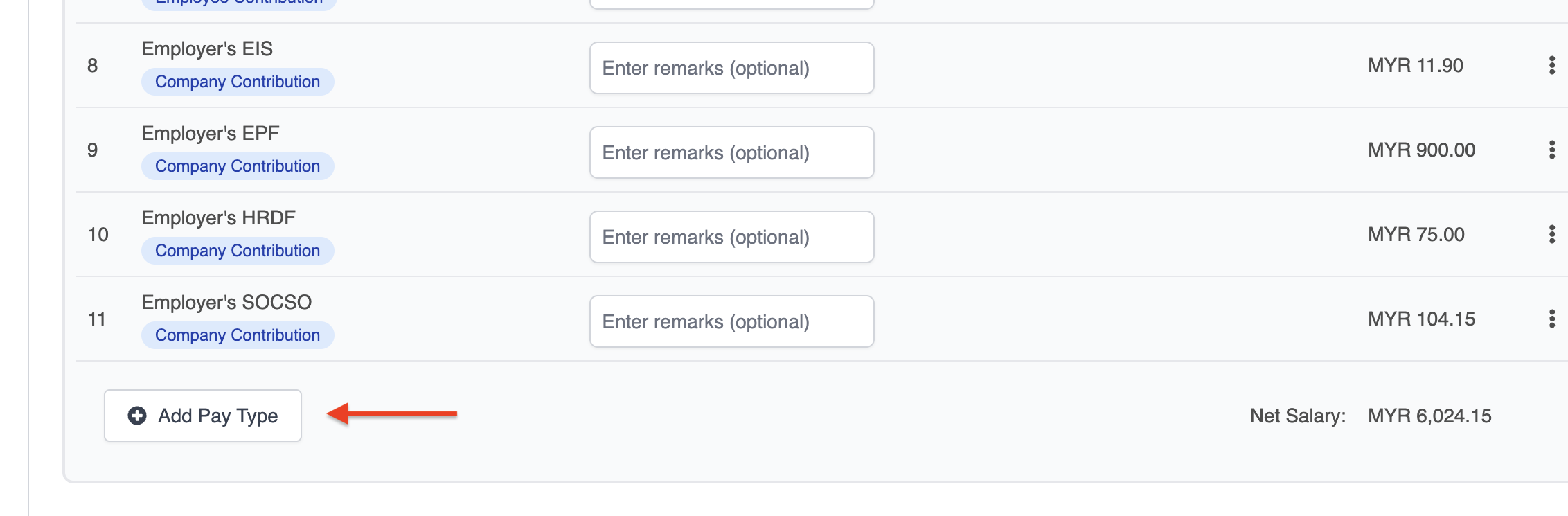
Once the Pay Type is set up, you will be able to add it to a particular employee's payslip by clicking on the Add Pay Type dropdown menu in each payroll.
Step 3: Configure Payroll Settings
Go to Payroll > Settings > Other Settings
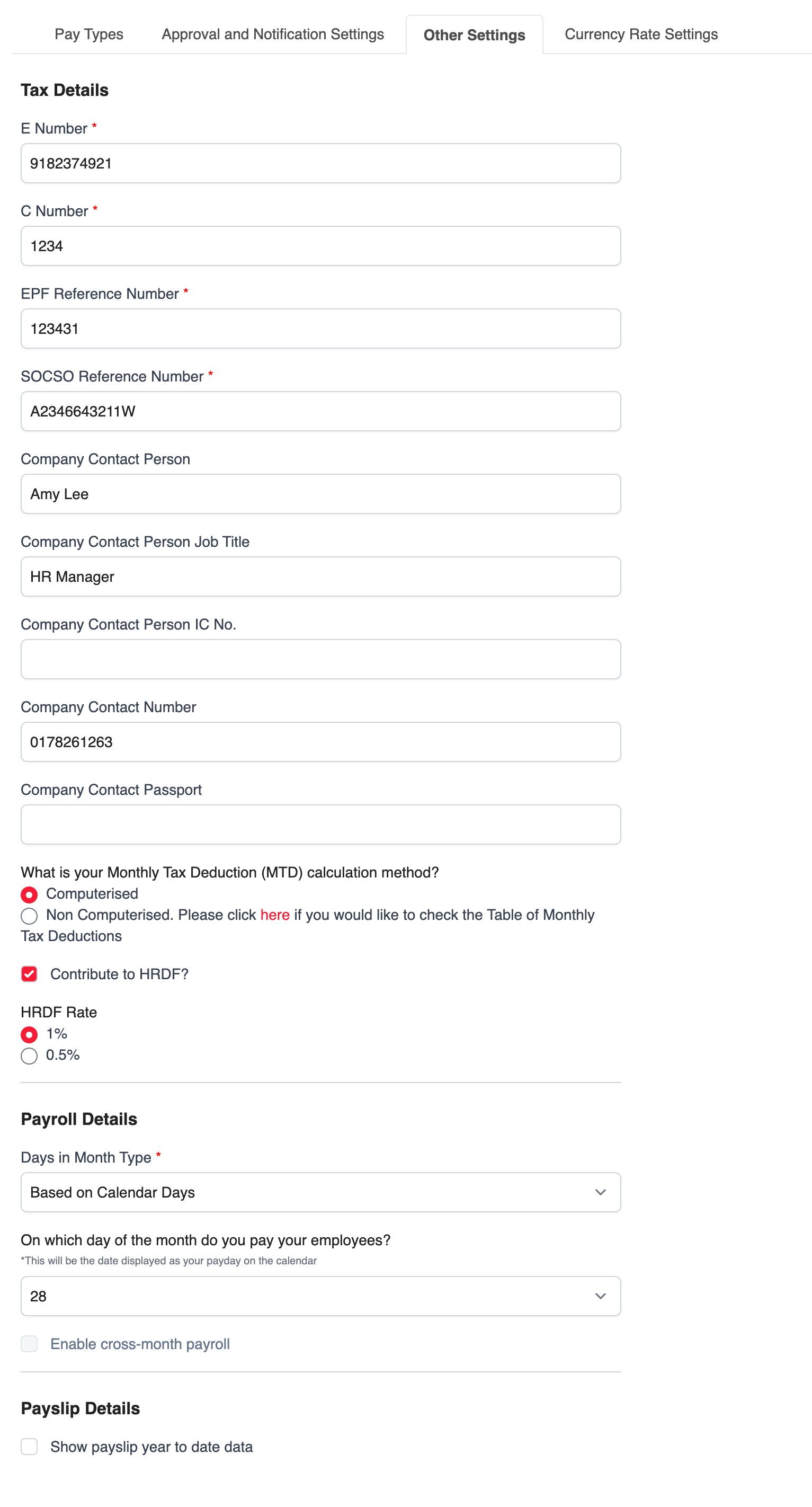
Set up the company's payday, tax information, MTD (PCB) calculation method, days-in-month setting, and any other required payroll details.
Step 4: Create and Run Payroll
When you're ready to run payroll, you can follow the steps outlined in this article.
For a full walkthrough, refer to our video guide:
Was this article helpful?
That’s Great!
Thank you for your feedback
Sorry! We couldn't be helpful
Thank you for your feedback
Feedback sent
We appreciate your effort and will try to fix the article