1. Go to Payroll > Team Payroll > select any payroll, whether draft or complete > select Download Bank file.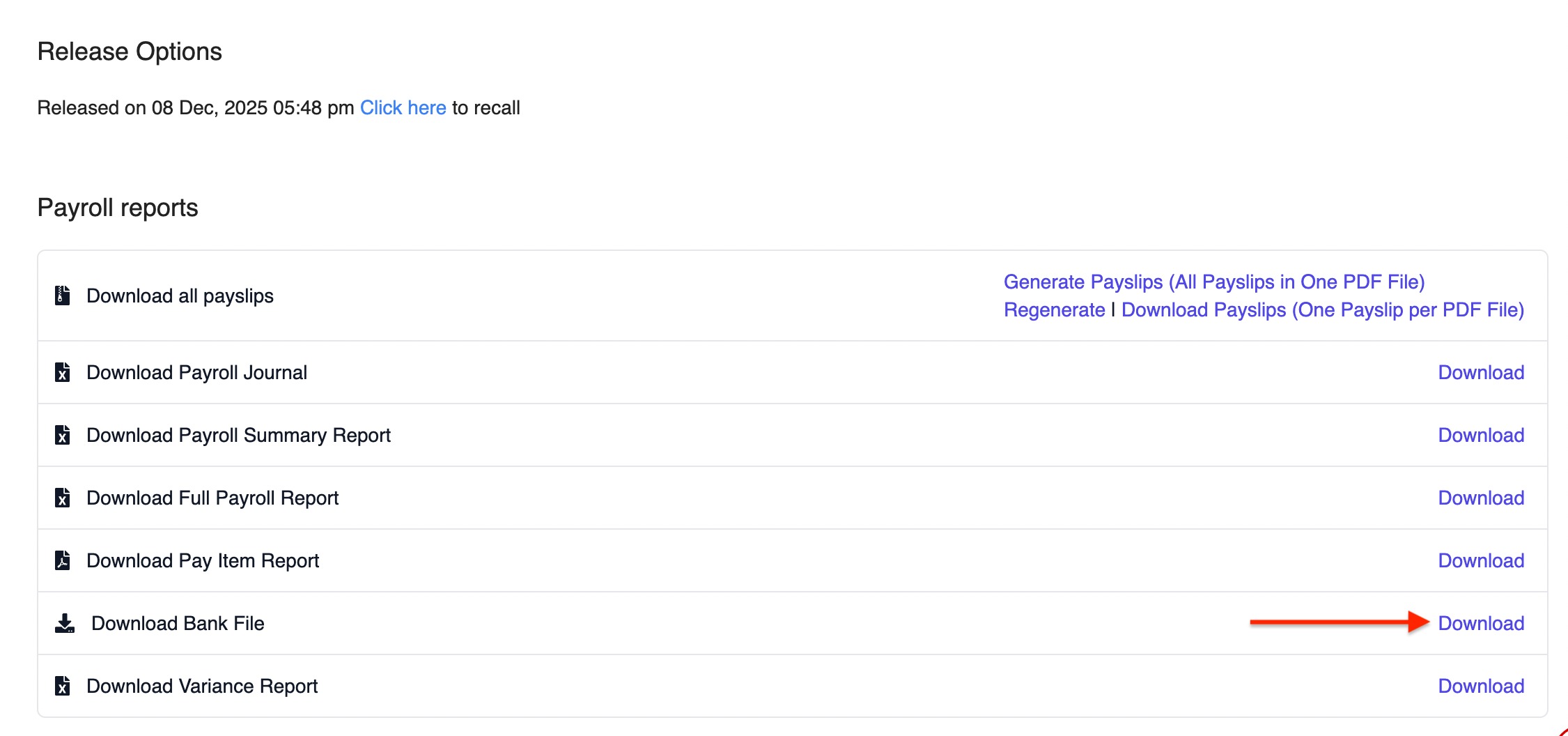
2. Thereafter, there will be a pop up and you would need to complete the necessary fields:
- Bank: MALAYAN BANKING BHD
- File Type: Select the appropriate file type based on what you need to generate:
- GIRO File
- SOCSO File
- EIS File
- EPF File
- MTD File
- GIRO File
- Account Holder Name: Your company name
- Account Number: 12-digit bank account number
- Value Date: The date the bank should process the salary payment
- Sequence Number: Default is 01
- Corporate ID: Company's Corporate ID (M2E)
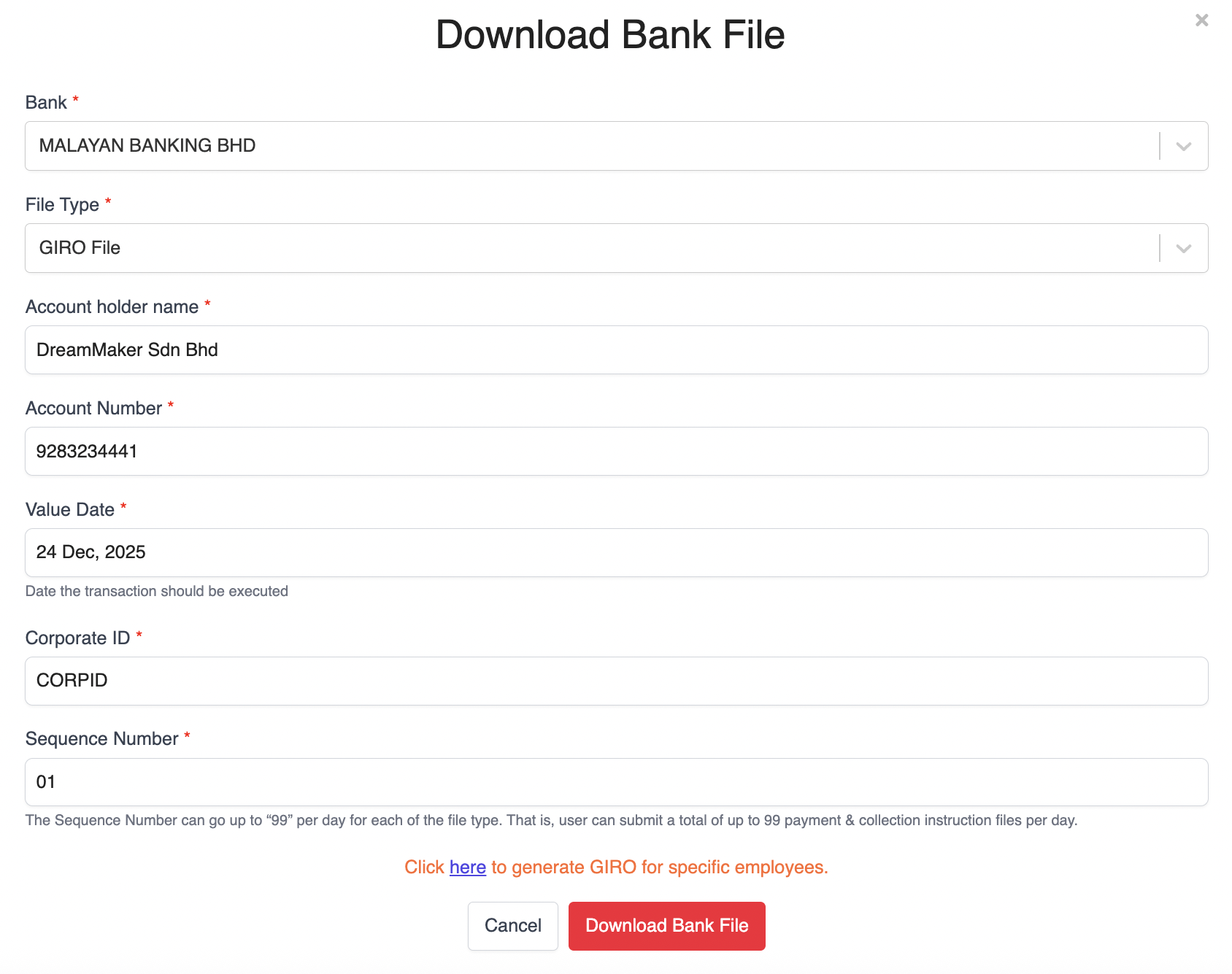
3. Once all details are filled in, click Download Bank File.
⚠️ Important Note: Do not rename the generated GIRO File. Renaming the file may lead to errors when uploading to the bank portals.
Submitting the GIRO File to Maybank2E
1. Login to Maybank Website and choose Cash Management.

2. Fill in login details as required below.

3. Click on Cash then choose File Upload.

4. Then, select Domestic Payments (MY) from the Product dropdown list.

5. Next, select MY File Upload under the File Format dropdown list.

6. Click Browse to upload payment file, then click Upload File(s).

7. Once the record has been successfully submitted, the transaction will be sent to an authorizer for approval. You will receive an acknowledgement message as below.

8. Should you need to know the transaction status, click here on the hyperlink as shown below.

9. It will route you to Task List page with a full list of payments pending for authorization. Should you need to know the transaction details of a particular payment, click any of the Reference No hyperlink.
Was this article helpful?
That’s Great!
Thank you for your feedback
Sorry! We couldn't be helpful
Thank you for your feedback
Feedback sent
We appreciate your effort and will try to fix the article