This guide shows you how to generate and submit a combined SOCSO and EIS contribution file in HReasily Pro. With the new "Combine Contribution" feature, you can submit both at the same time, making the process faster and more efficient.
To generate the combined SOCSO + EIS file in HReasily, follow these steps:
1. Go to Payroll > Forms > SOCSO Forms.
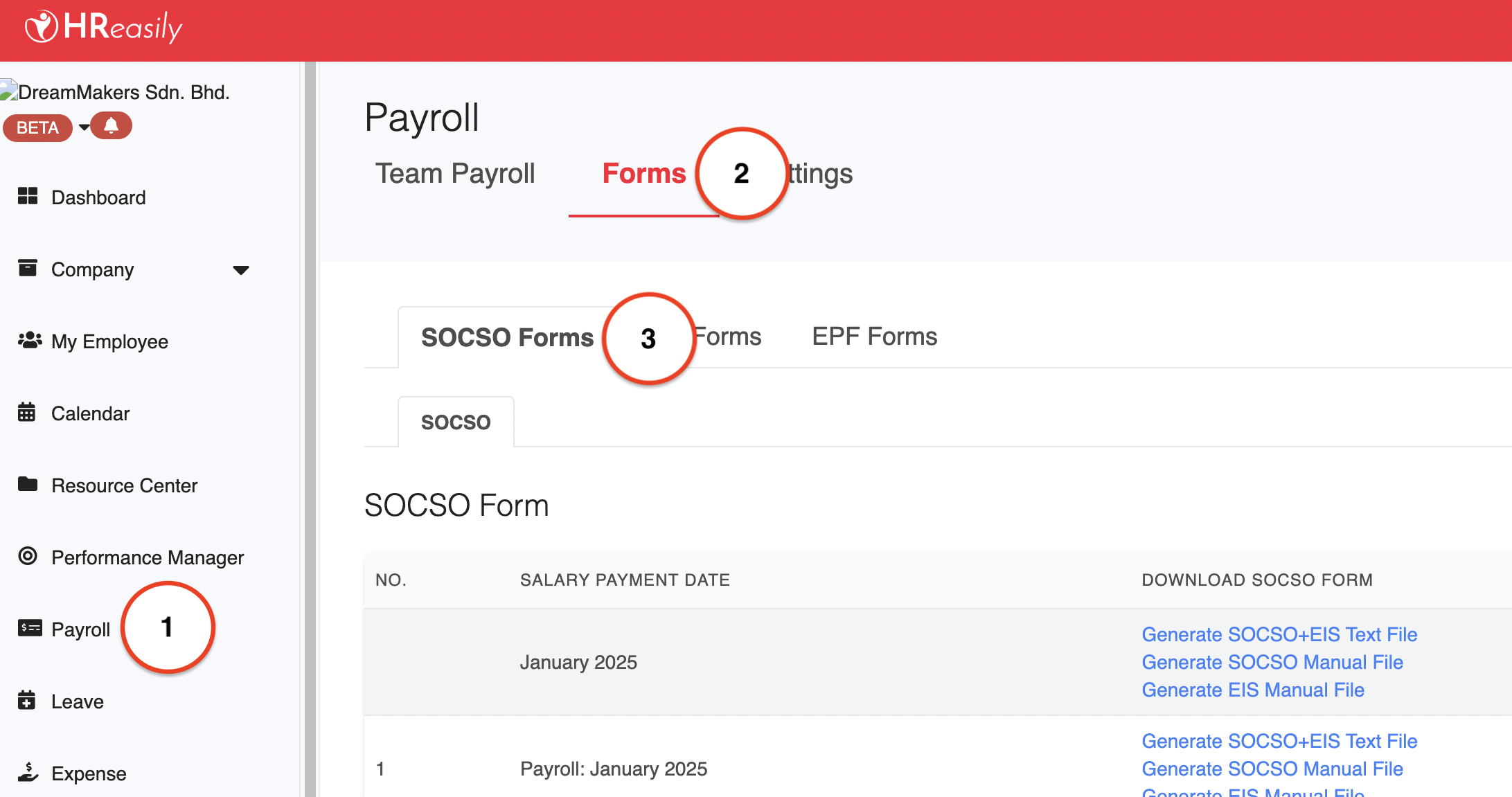
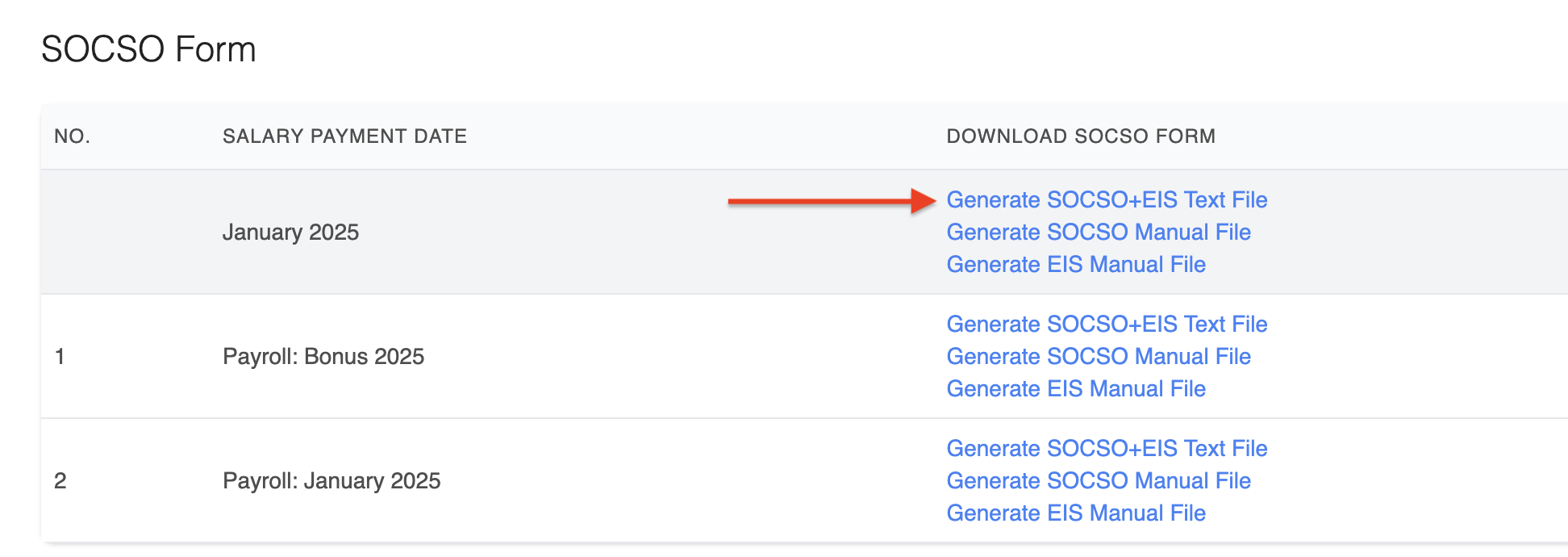
2. Under Download SOCSO Form, click Generate SOCSO+EIS Text File.
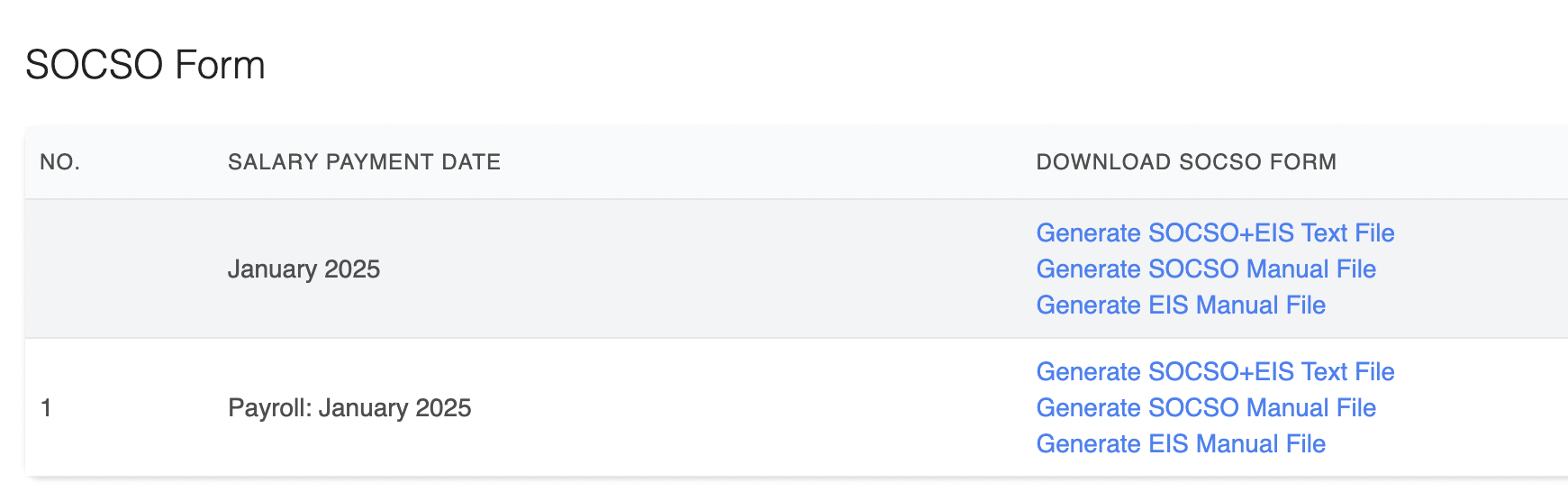
3. If you process multiple payrolls within the same month, use the Generate SOCSO+EIS Text File button under the Month section to produce a combined SOCSO+EIS file.
Submitting SOCSO + EIS file via PERKESO Assist Portal
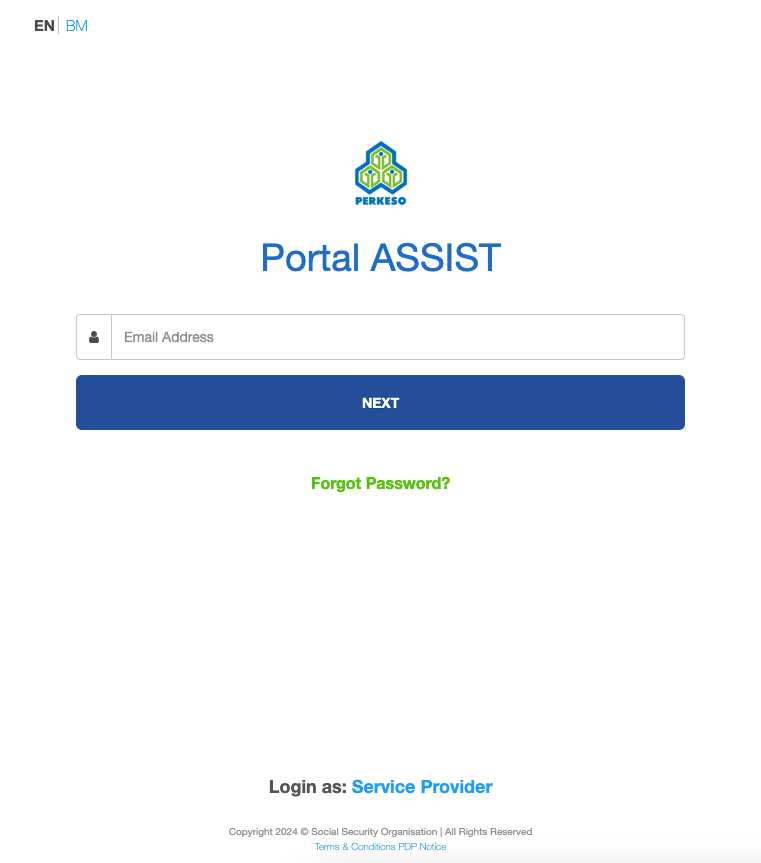
1. Visit the PERKESO Assist Portal and log in to your account.
2. From the main menu, go to MySite > Contribution > Contribution > SOCSO + EIS > Text File.
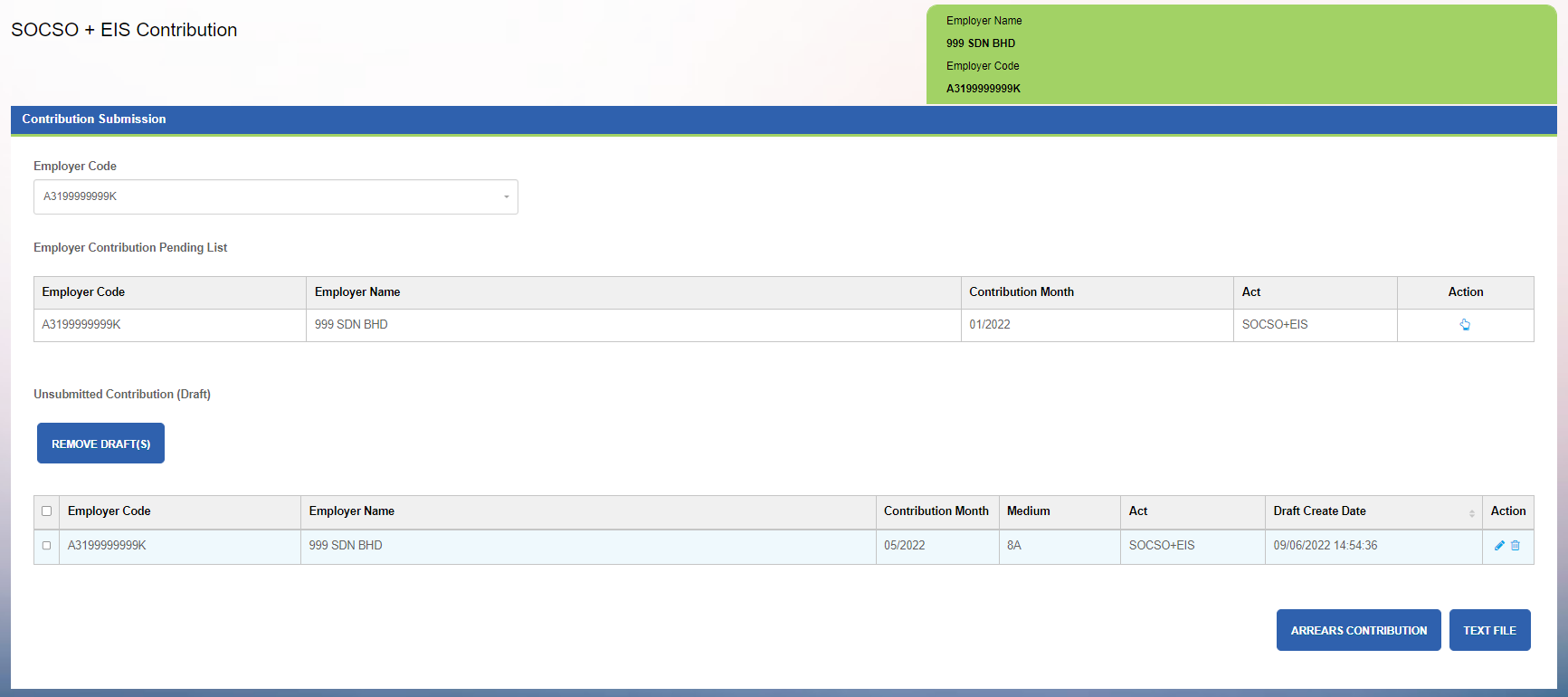
3. Click the Upload button and select the generated SOCSO + EIS text file.
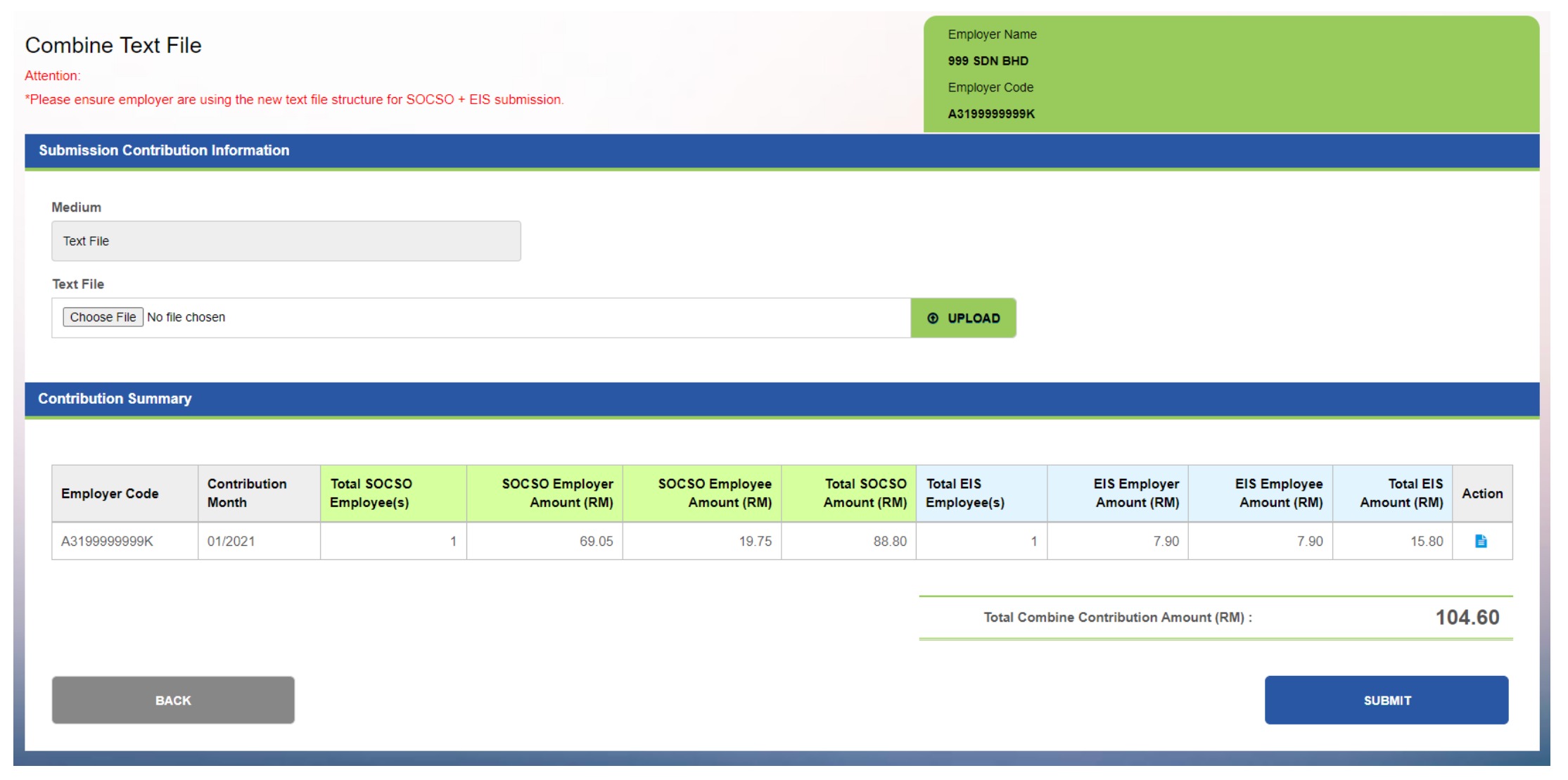
4. After uploading, click the Back button to return to the main page of Combine Contribution.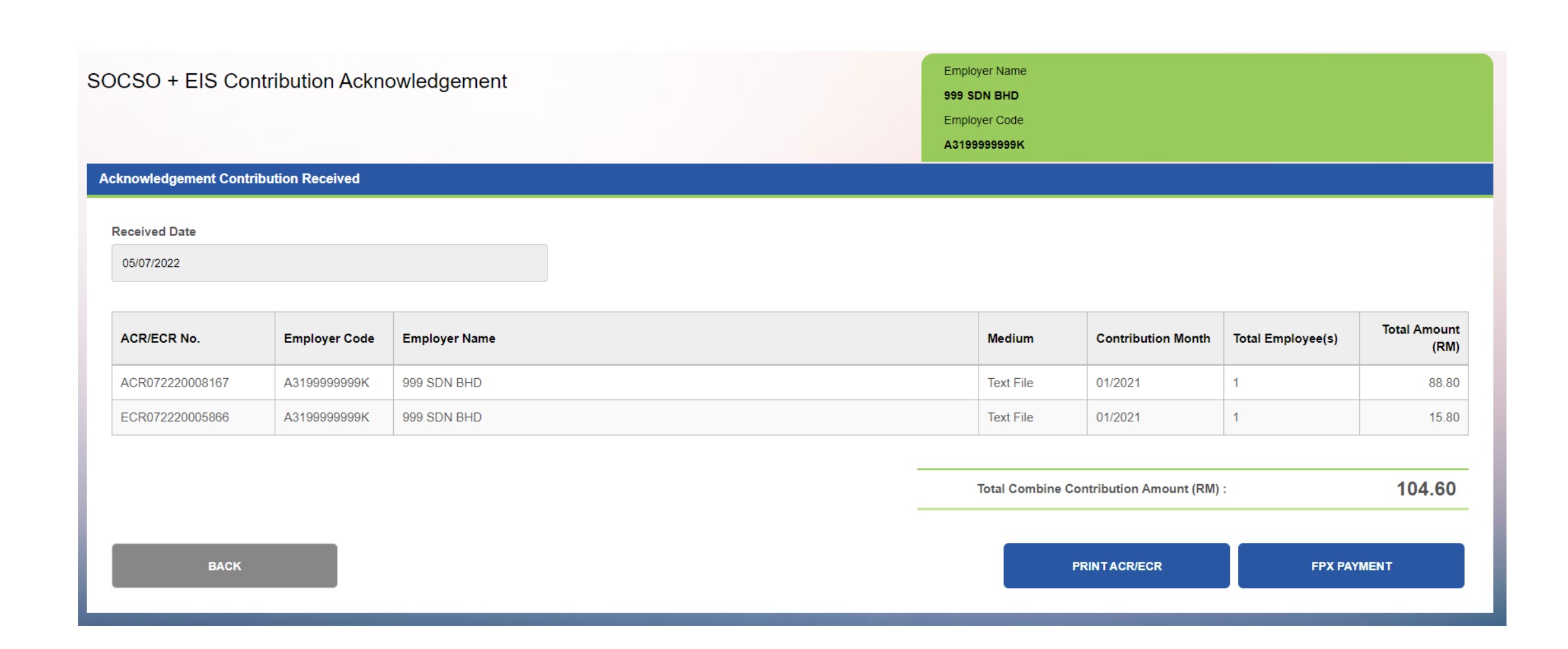
5. Click the Print ACR/ECR button to download the necessary PDF documents, or proceed with payment by clicking the FPX Payment button.
For further details, please refer to the complete user manual available here: PERKESO User Manual.
Was this article helpful?
That’s Great!
Thank you for your feedback
Sorry! We couldn't be helpful
Thank you for your feedback
Feedback sent
We appreciate your effort and will try to fix the article