This guide walks you through how to generate and submit the Employees Provident Fund (EPF) file. To make payments via e-Caruman, you'll need a KWSP i-Akaun. For online banking payments, you will upload the EPF bank file through your bank's portal. Whether you're using online banking or the e-Caruman portal, the steps below will help you complete the submission smoothly.
1. Go to Payroll > Forms > EPF Forms.
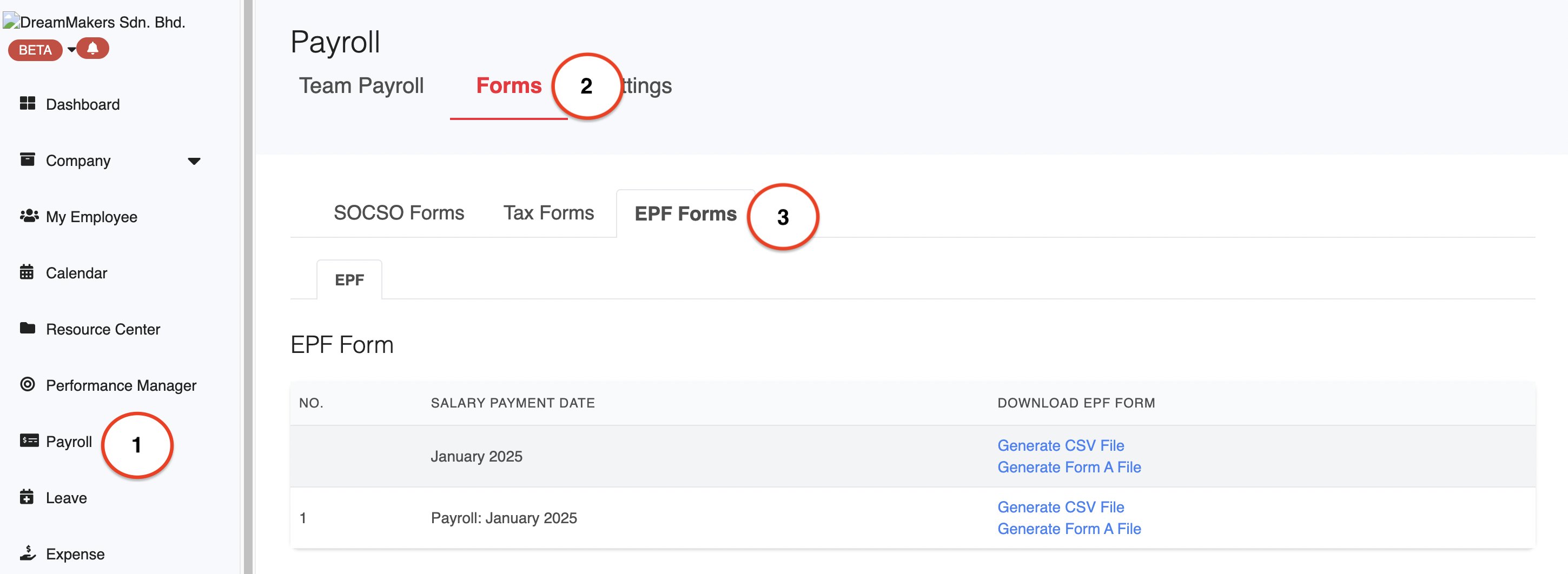
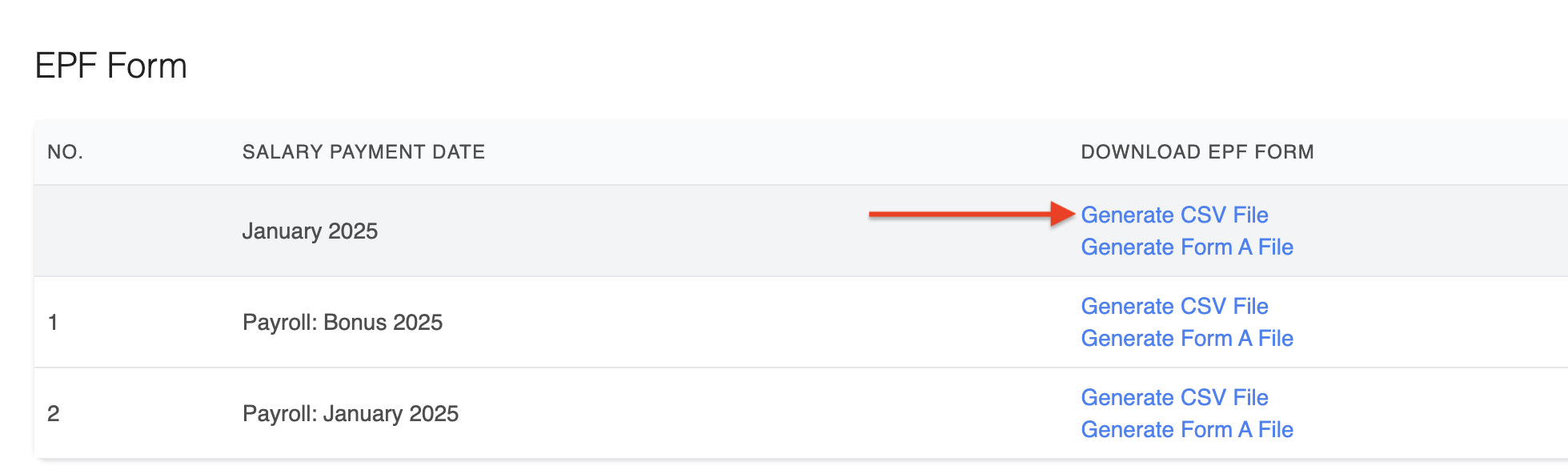
2. Under Download EPF Form, click Generate CSV File.
3. If you process multiple payrolls within the same month, use the Generate CSV File button under the Month section to produce a combined EPF file.
EPF Submission via the e-Caruman Portal
Follow these steps to submit the EPF CSV file through e-Caruman, ensuring you have generated the EPF CSV file from HReasily:
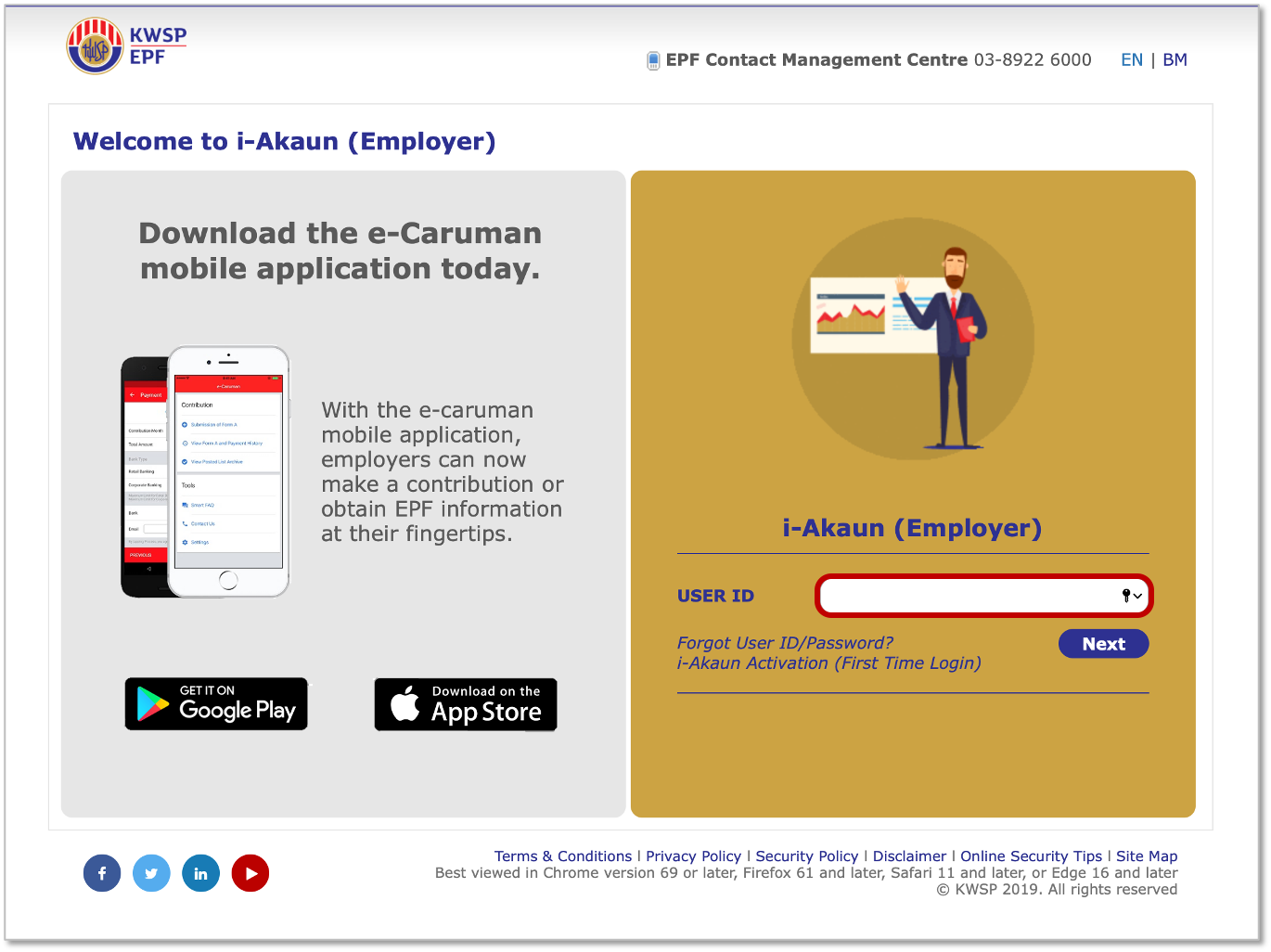
1. Visit the i-Akaun (Employer) and enter your User ID, then click Next.
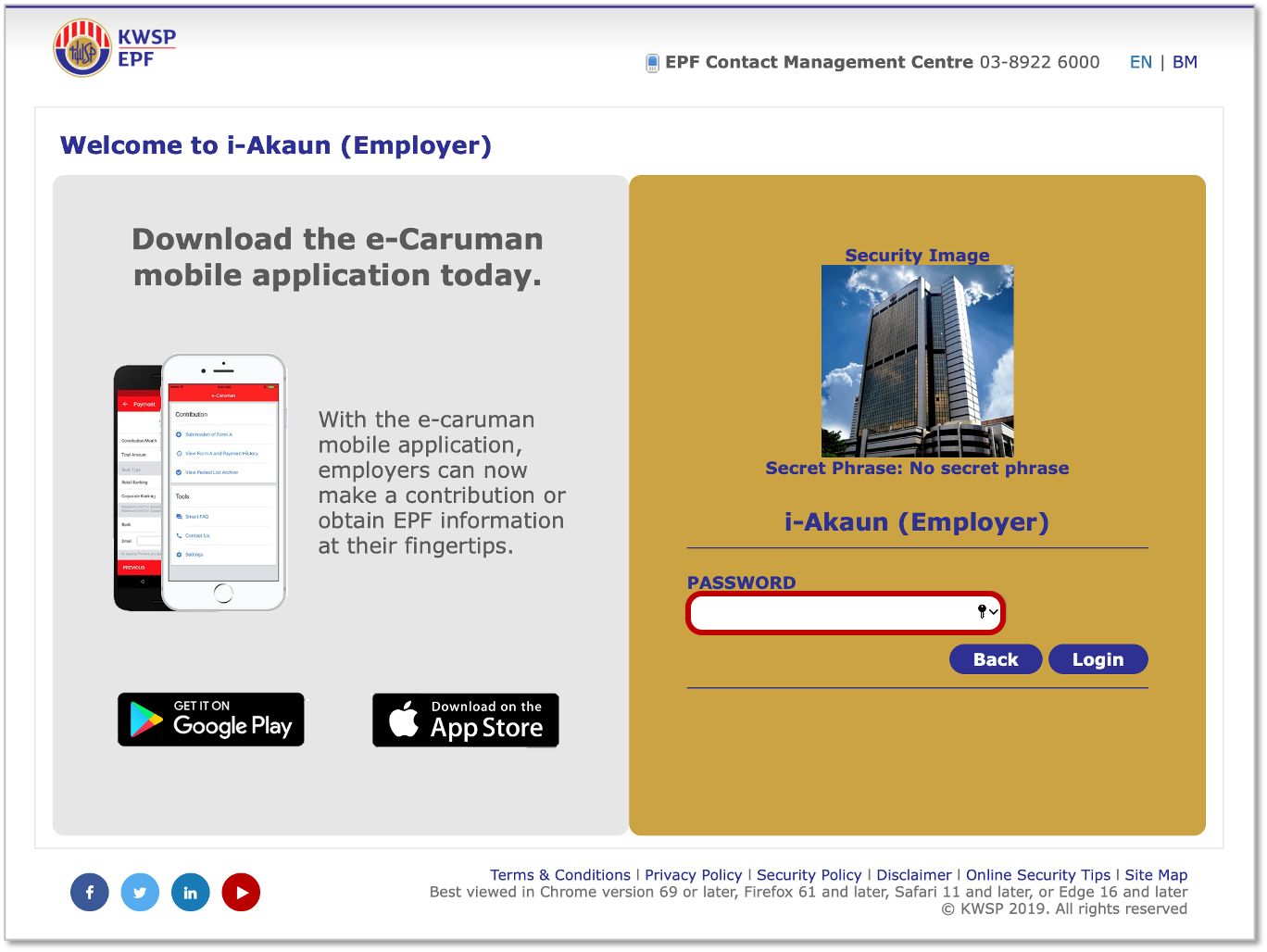
2. Enter your PASSWORD and click Login. Verify that the Secret Phrase is correct before entering your password.
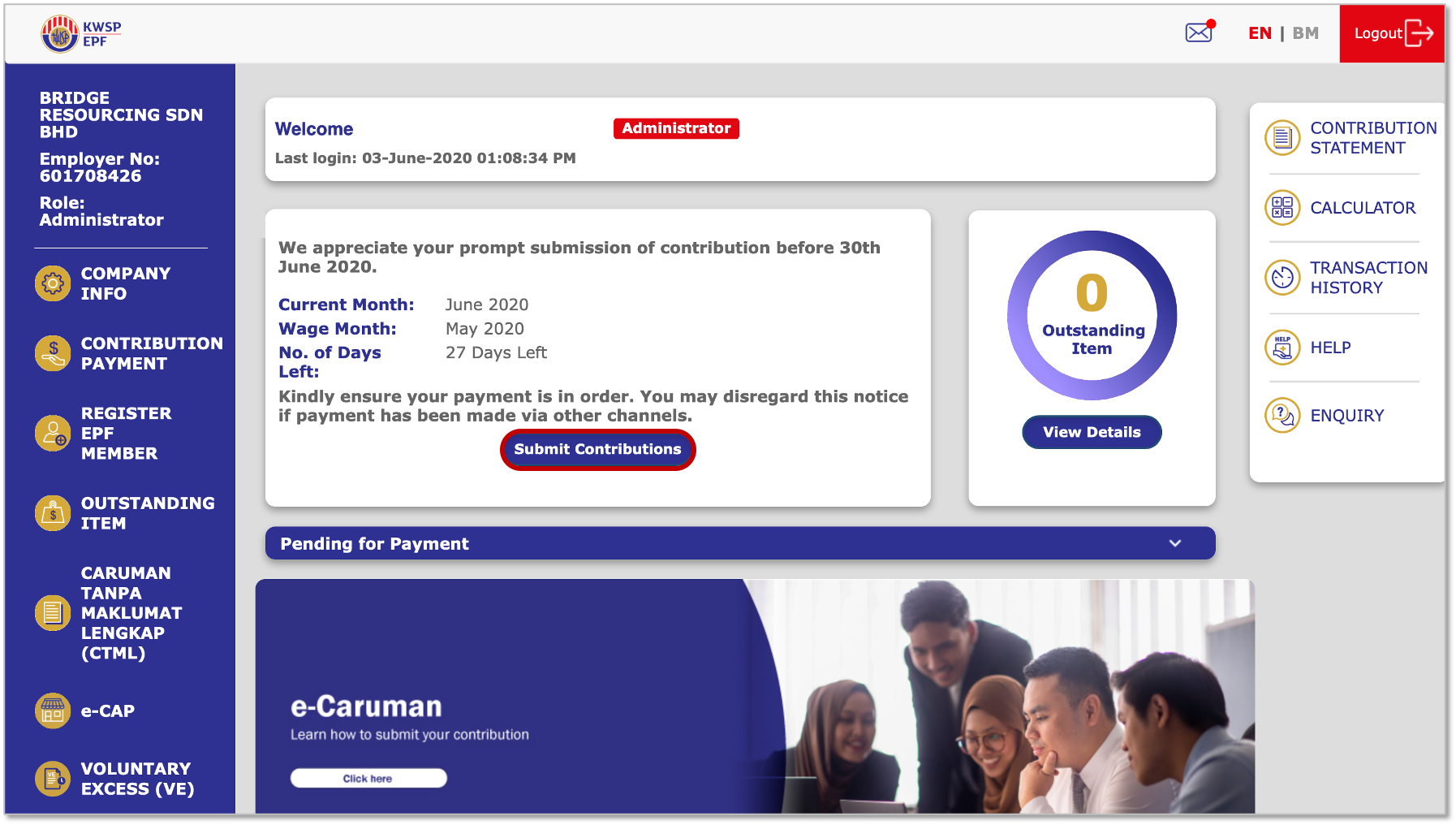
3. After logging in, click on Submit Contributions.
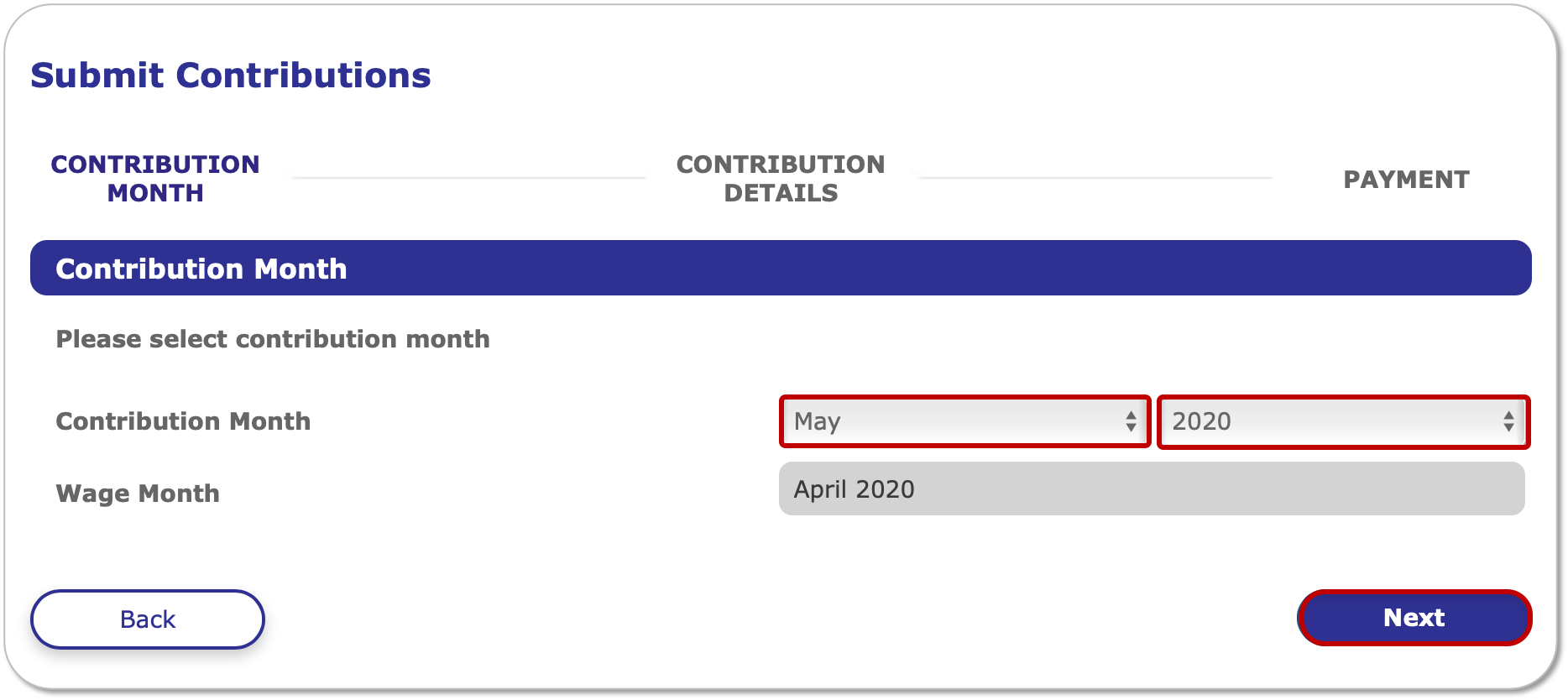
4. Confirm the correct Contribution Month before clicking Next.
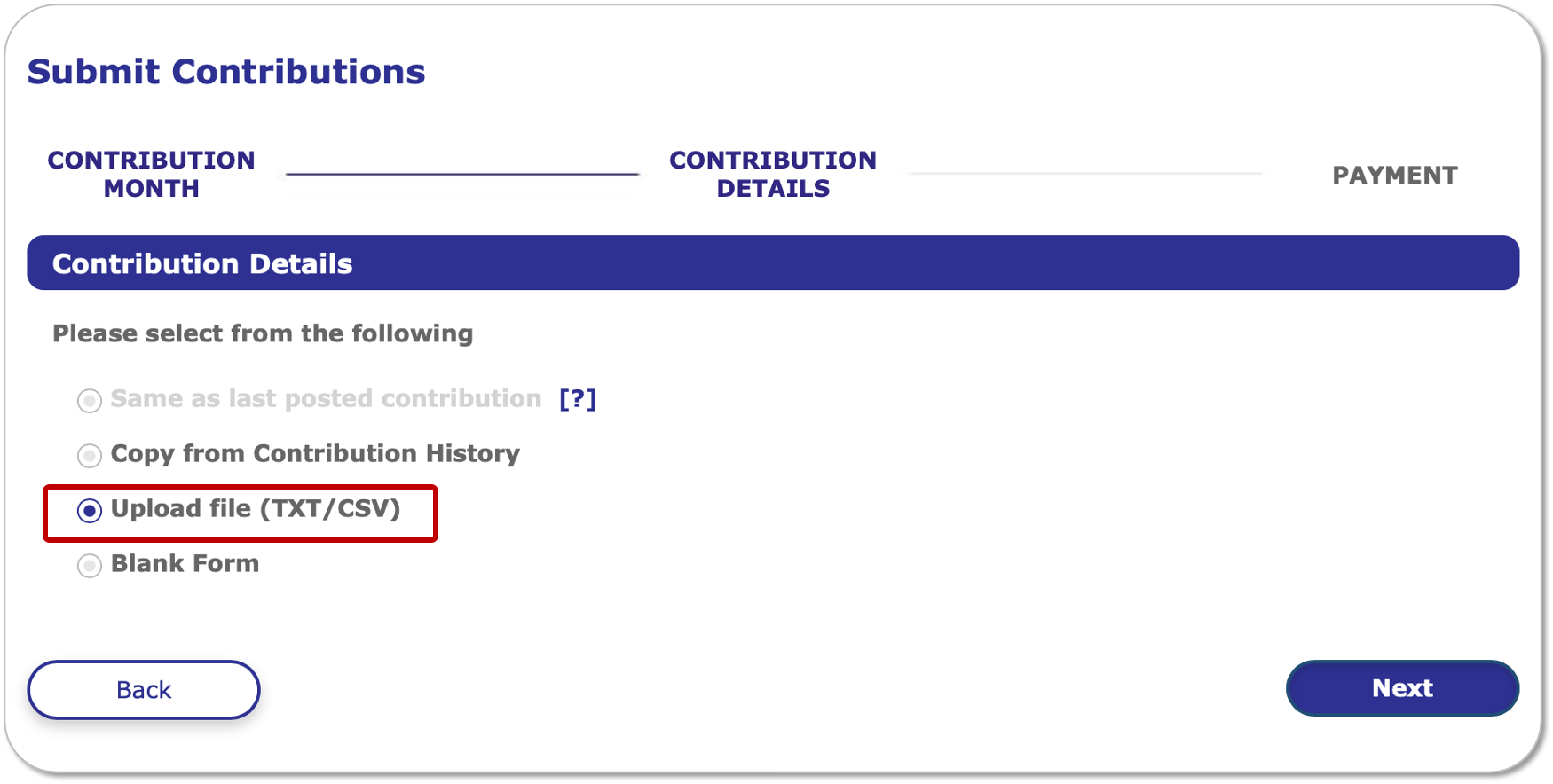
5. Select the Upload file (TXT/CSV) option and click Next.
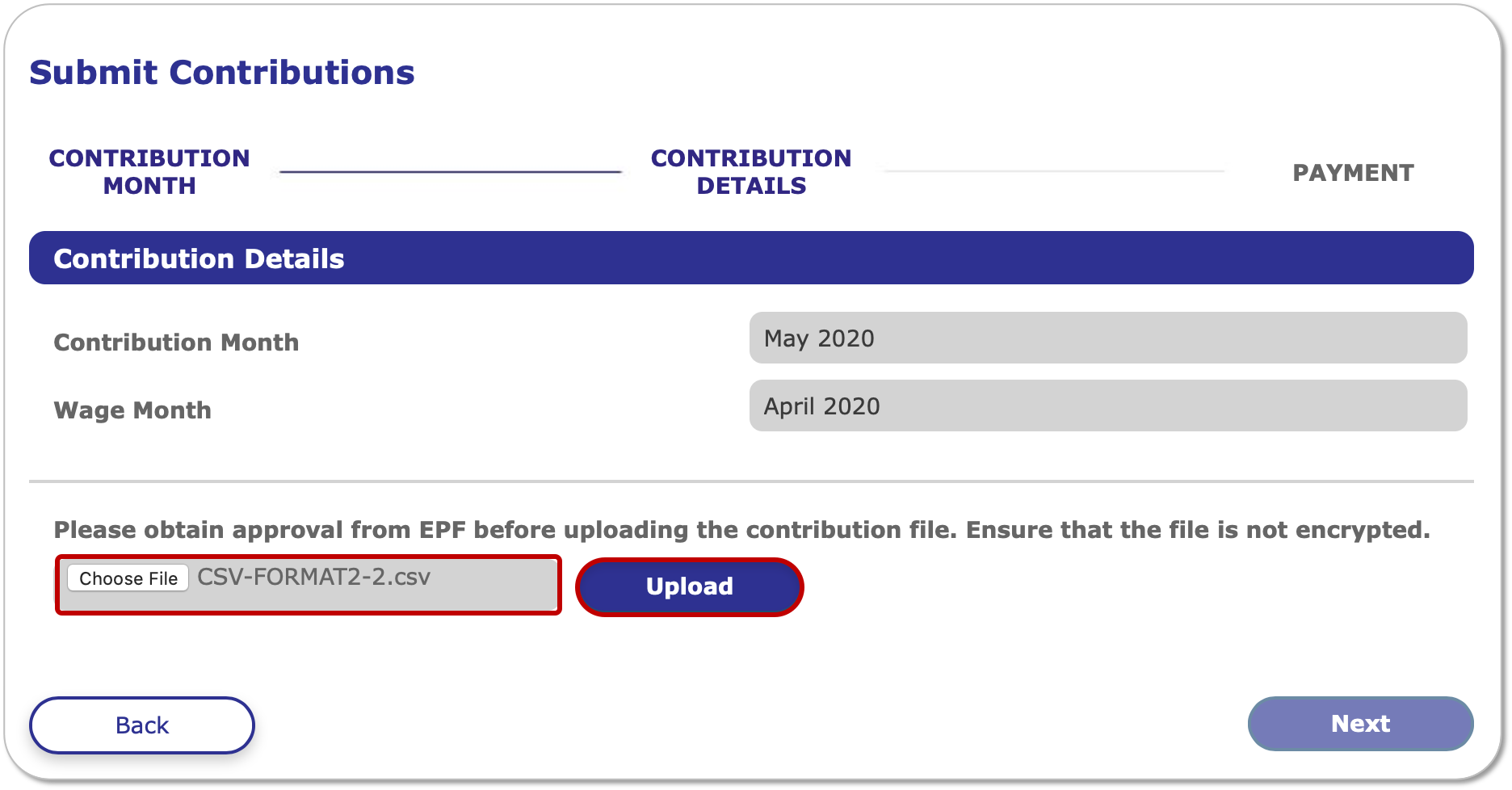
6. Click Choose File, select the .csv file exported from HReasily, then click Upload and Next.
7. Review the employer and employee contribution amounts for accuracy.
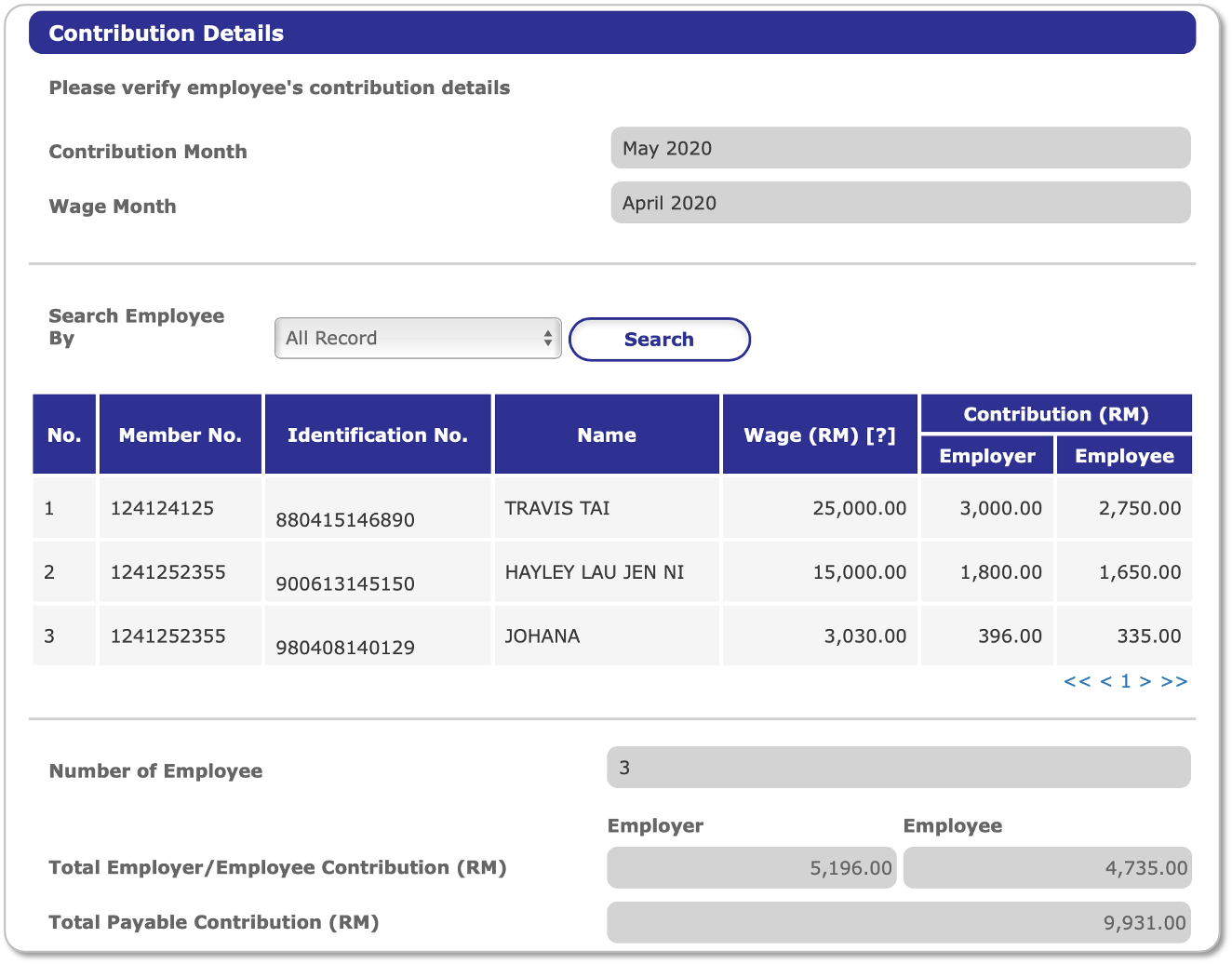
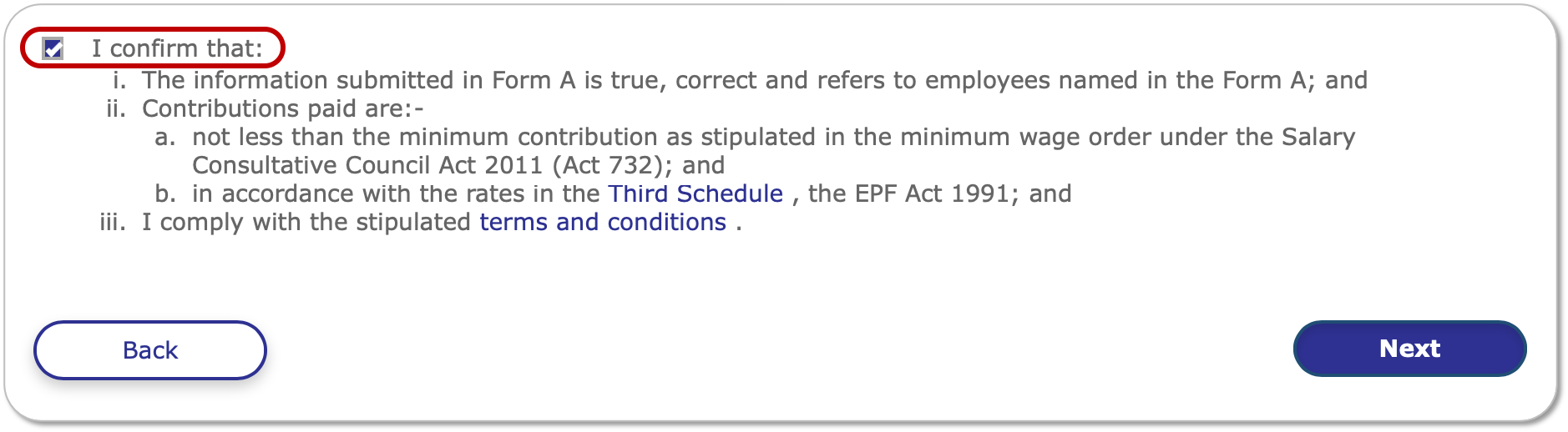
8. Once verified, scroll to the bottom, tick the checkbox to confirm, and click Next.
9. Finally, select a payment method from the available options.
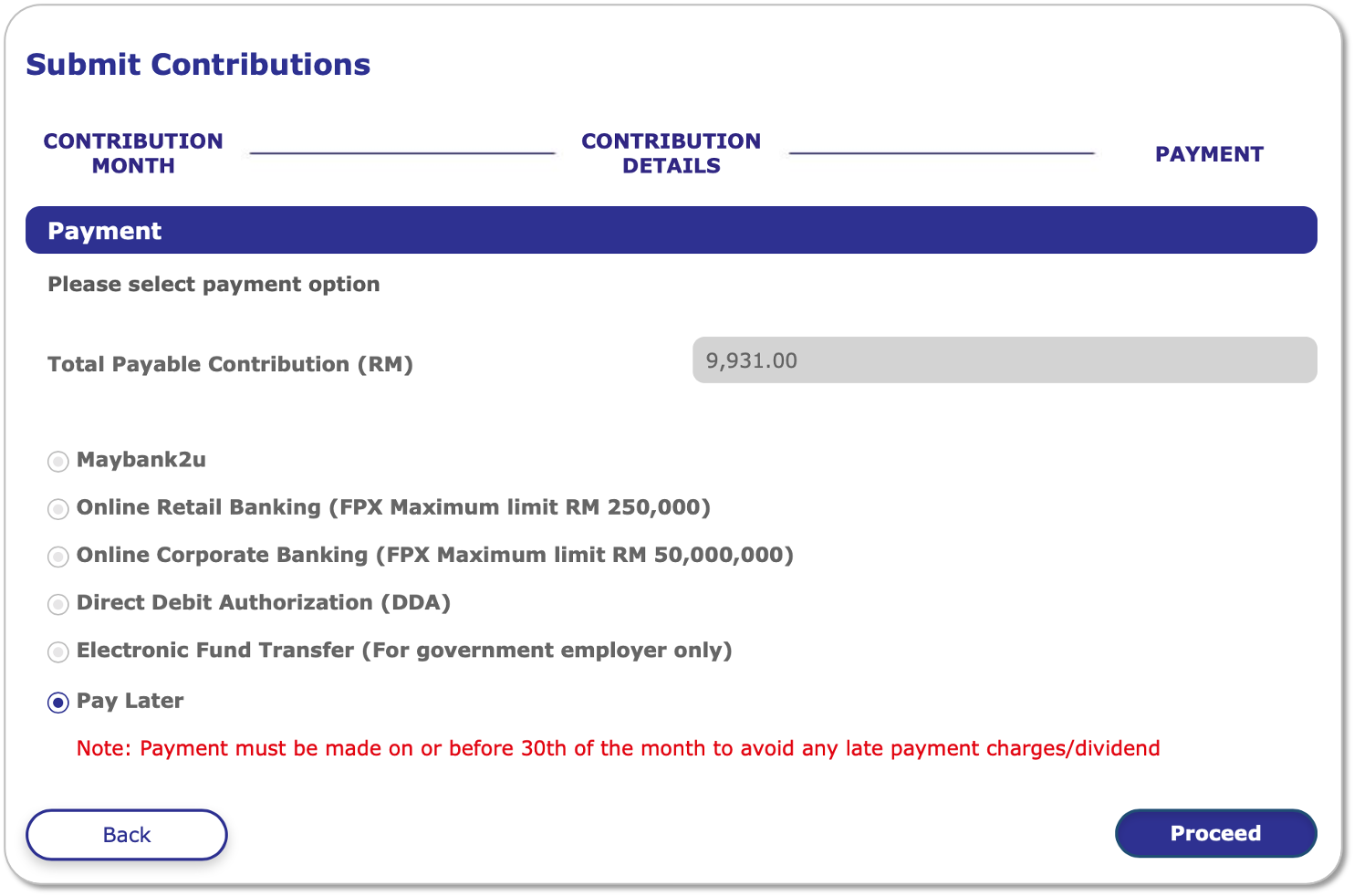
For detailed information on payment methods, please visit: EPF Contribution Payment.
Was this article helpful?
That’s Great!
Thank you for your feedback
Sorry! We couldn't be helpful
Thank you for your feedback
Feedback sent
We appreciate your effort and will try to fix the article