The enhanced bulk import feature is designed to upload employee information by specific field groups instead of using a single large template. This provides flexibility and allows data to be managed in organised batches. Field groups can be uploaded in any order, based on your team's workflow.
Whether new employees are being onboarded or existing records are being updated, the process is streamlined to minimise errors and improve efficiency when handling large volumes of data.
1. Go to My Employees > Add User > Bulk Import.
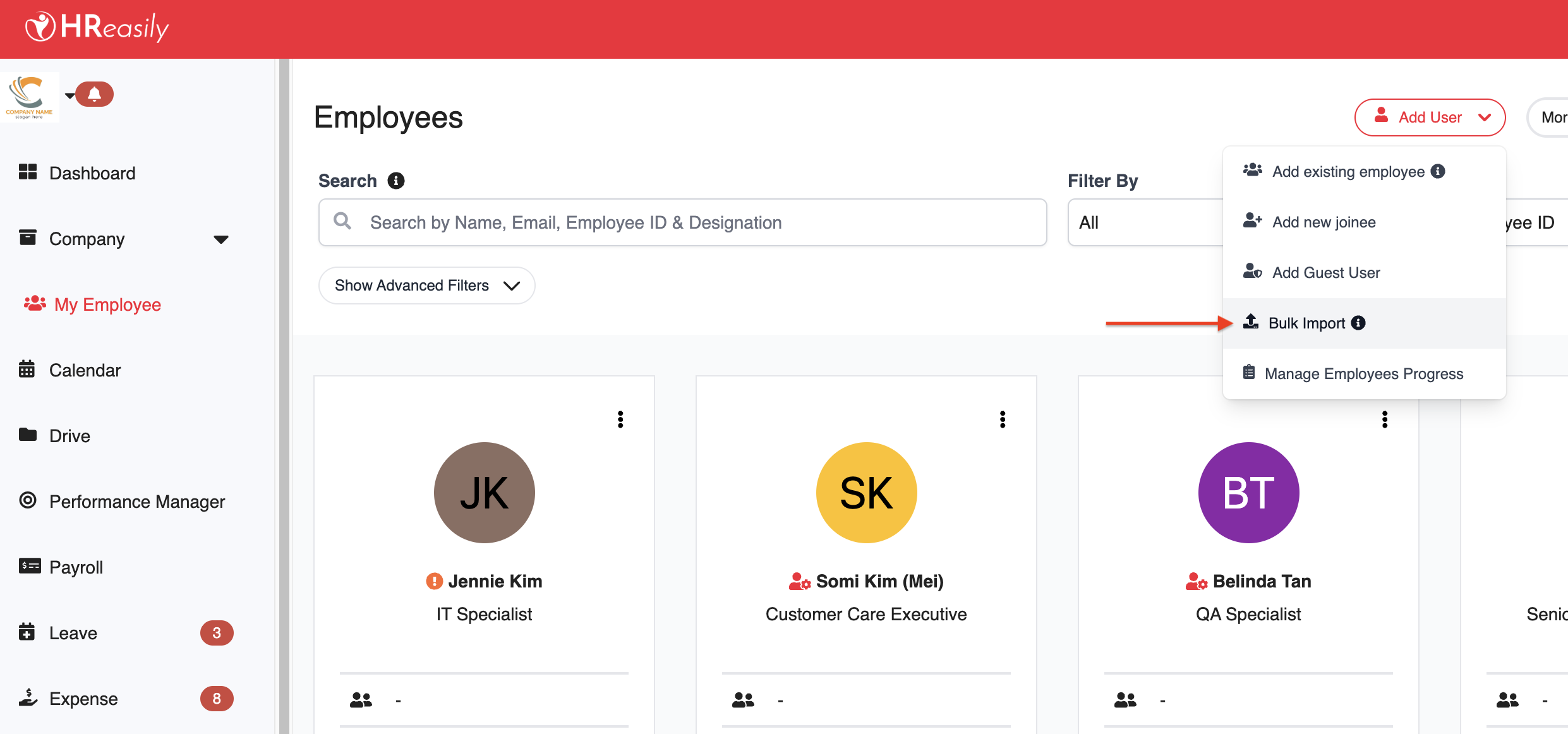
2. On the Bulk Import page, fill in the following details:

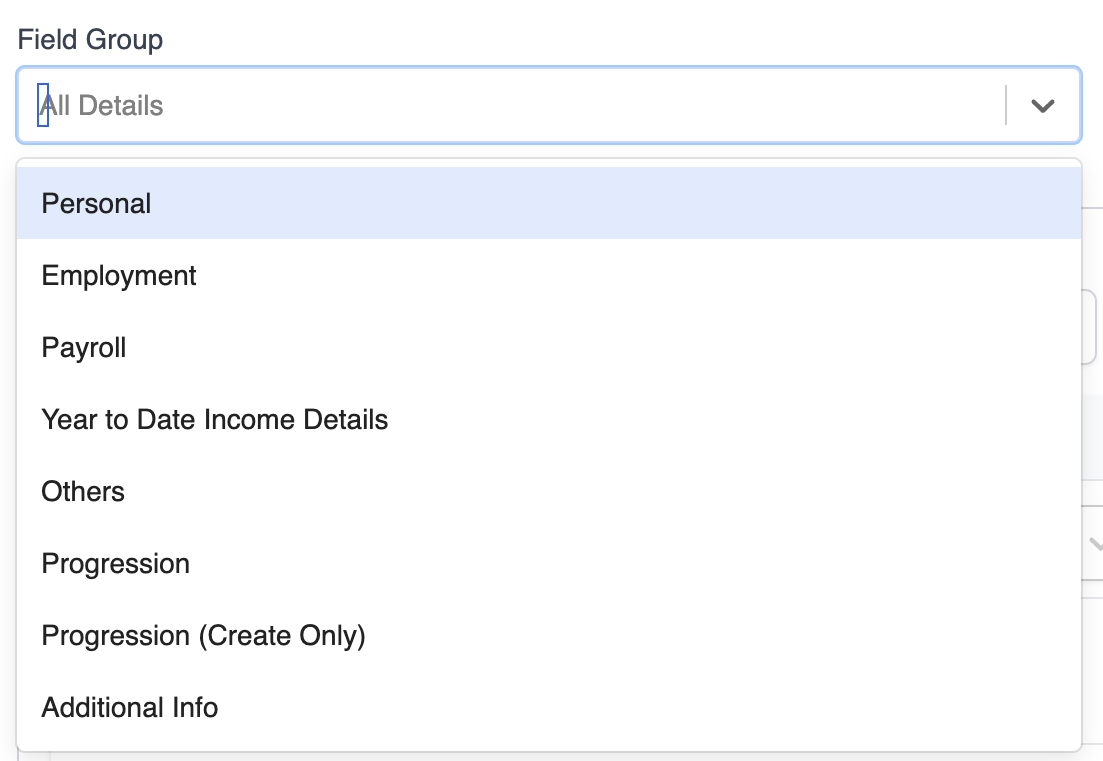
Field Group
Select one or more field groups to upload or update:
Personal: Full Name, IC/NRIC, Date of Birth, Email, Mobile Number, and other personal information.
Employment: Employee Group, Work Week, Work Location, and related employment details.
Payroll: Bank details, residency status, payslip notification settings, statutory contributions, and more.
Tax: Employee tax reliefs, Benefits-in-Kind, tax allowances, and other tax-related fields (Malaysia and Thailand only).
Year to Date: Income carried over from previous software or previous employer (Thailand only).
Others: Areas of Interest, Areas of Expertise, Remarks, and Tags.
Progression: Employee career progression history → Learn more
Progression (Create Only): Add a new career progression record.
Additional Info: Details under the employee's custom fields → Learn more
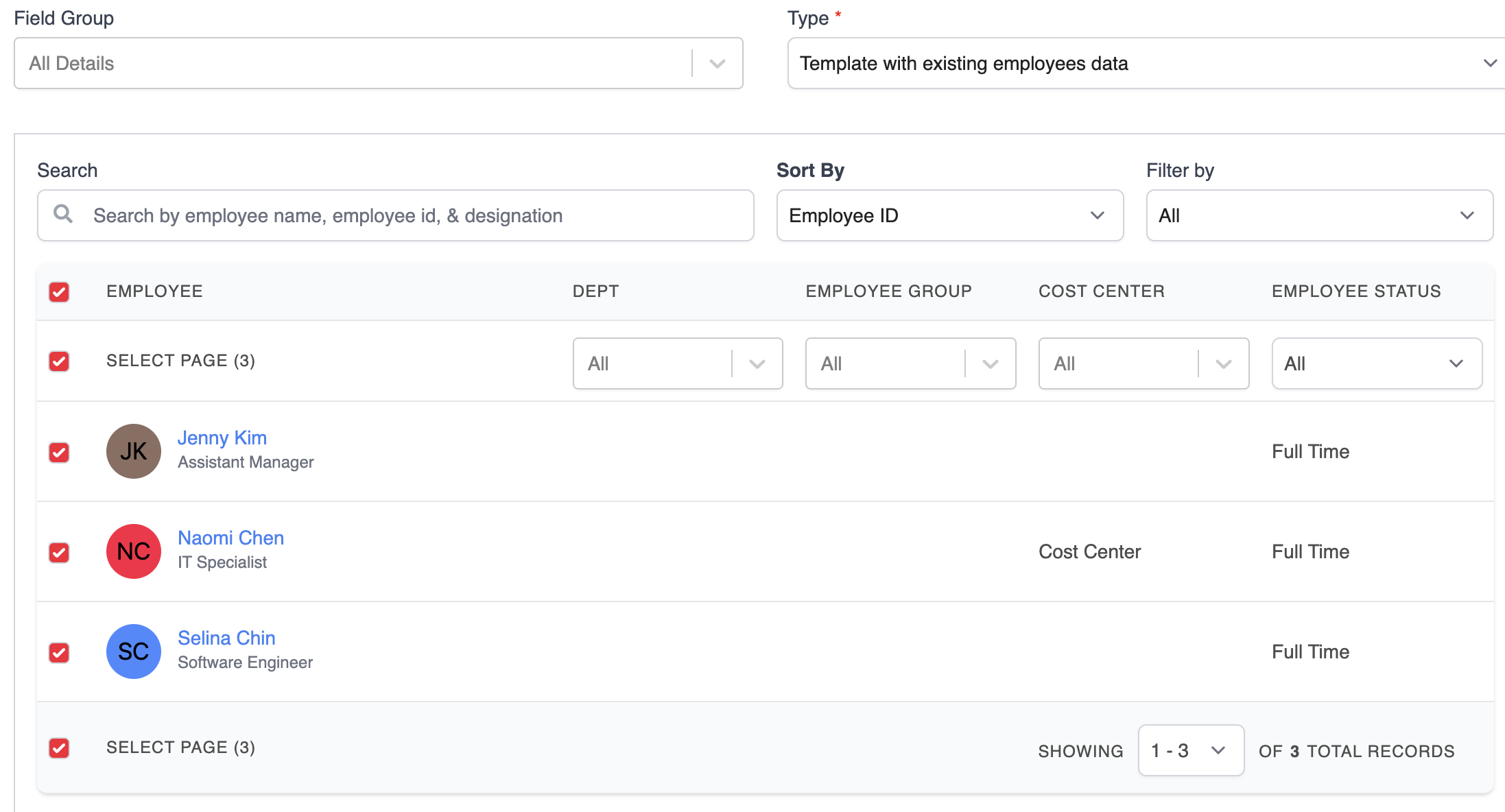
Type
Choose the template type:
Blank Template: For adding new employees
Template with Existing Employee Data: For updating existing employees.
When selected, you can filter the employee list by department, employee group, cost center, or employment status.
Display Mandatory Fields Only
Enable this option to generate a template containing only fields marked as mandatory (*).

3. Click Generate Template.
4. Open the downloaded template and fill in the required employee data.
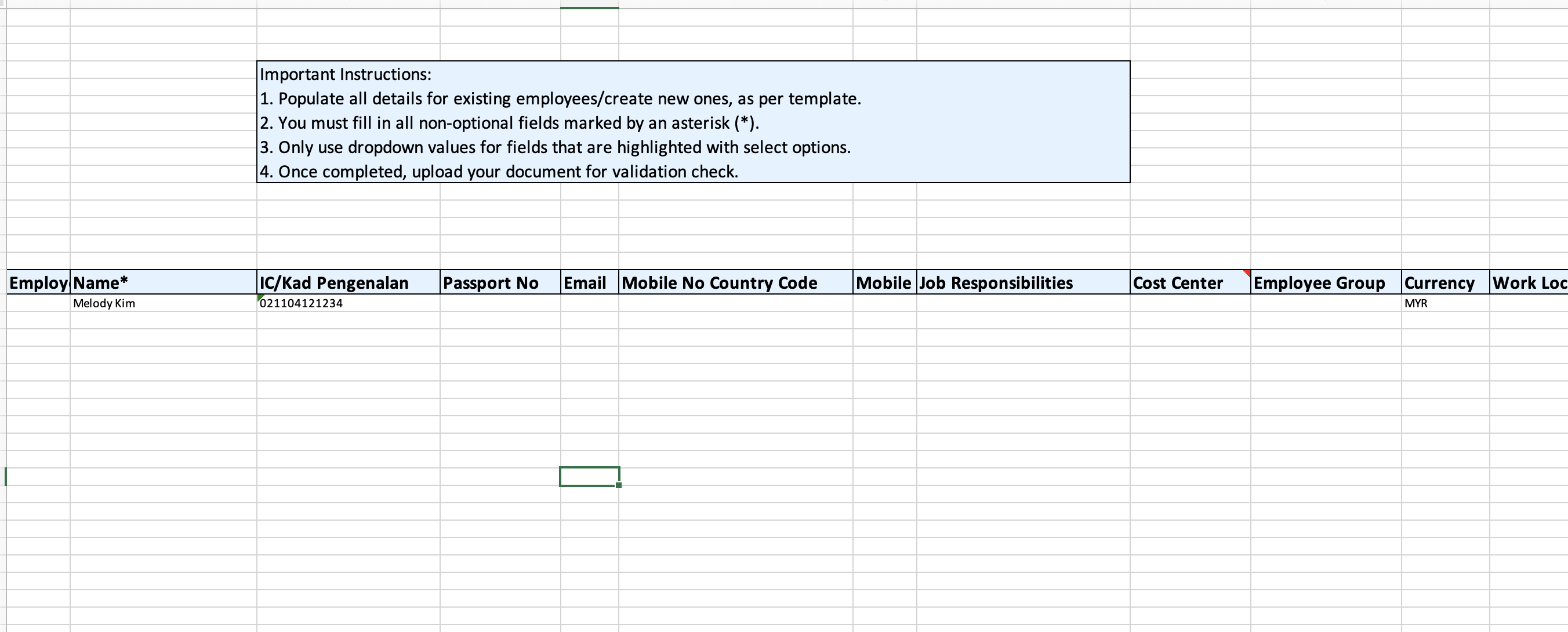
5. Save your completed file and return to the Bulk Import page. Upload your file by dragging and dropping it, or by selecting Click here to upload files.

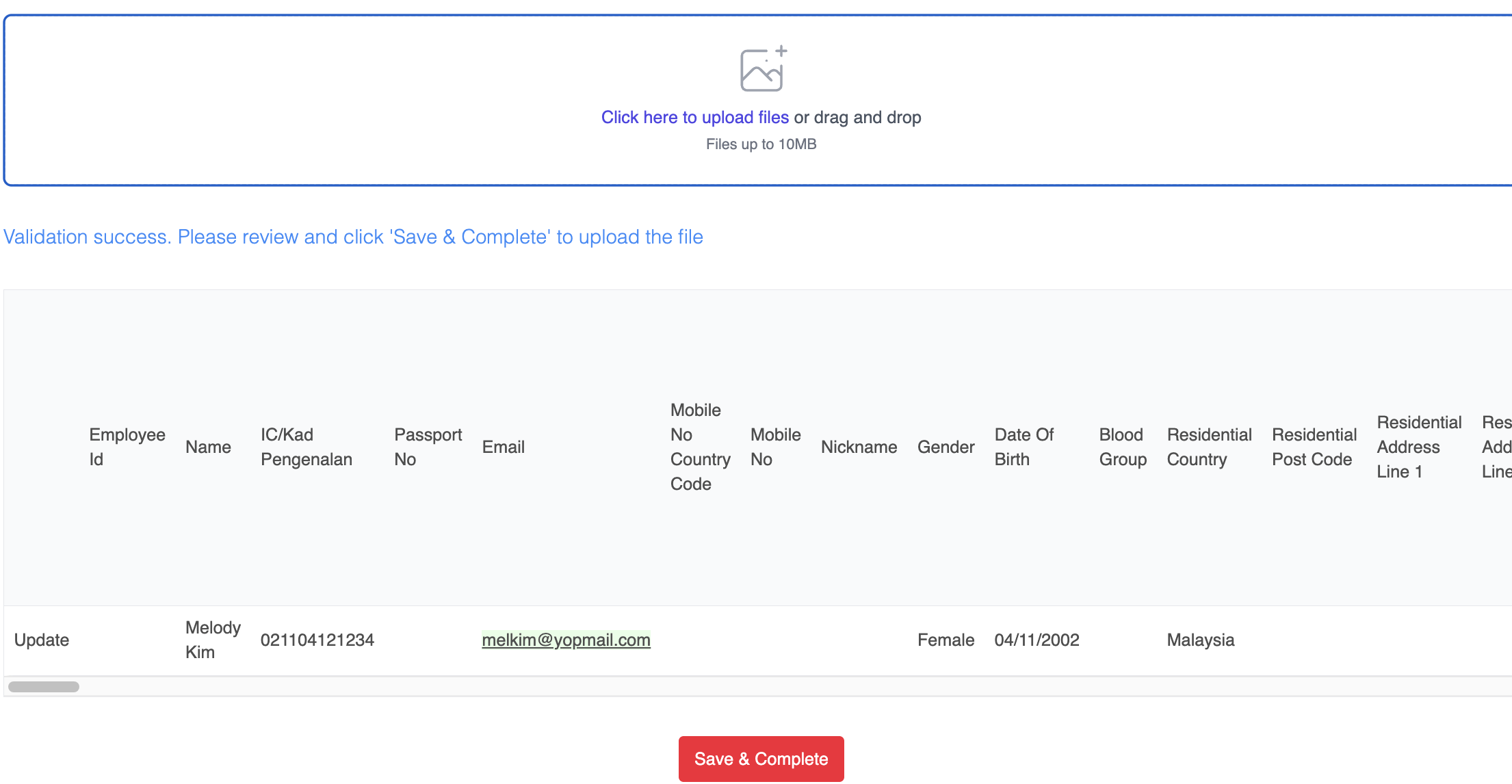
6. Review the preview of your uploaded data. Click Save & Complete to proceed.
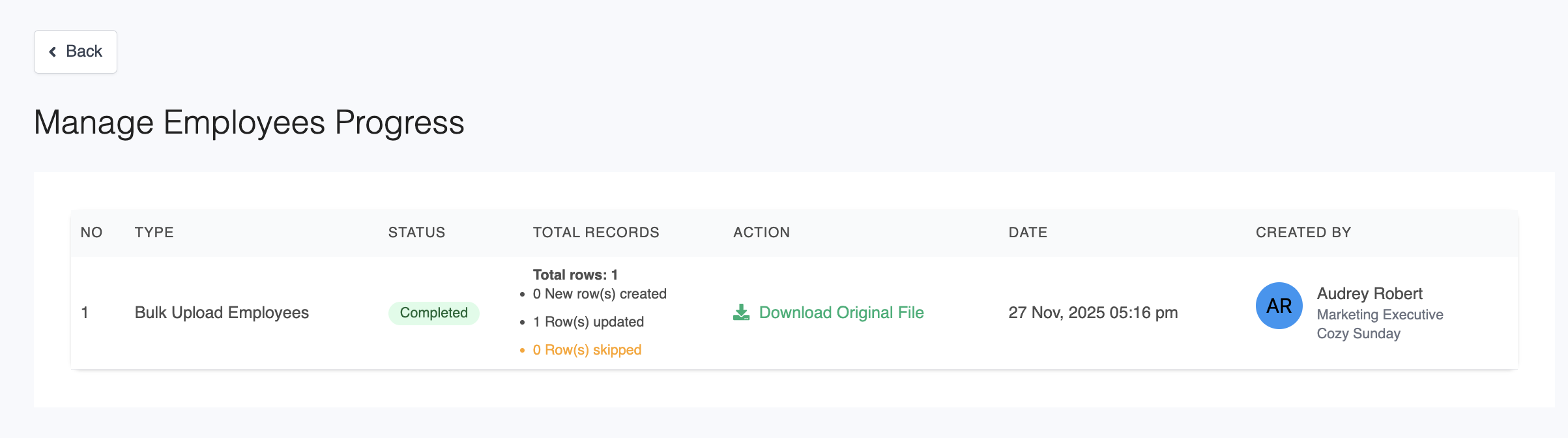
7. You will be redirected to the Manage Employees Progress page. Here, you can view the import status, total records processed, download the original file and check the date of the upload.
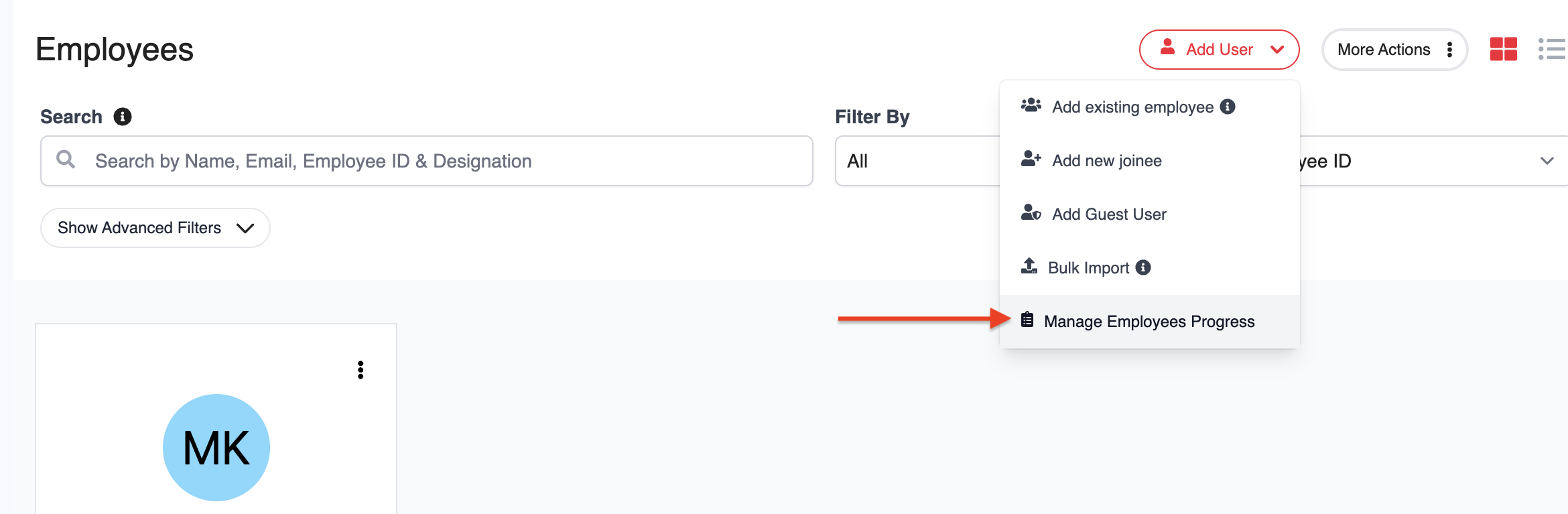
8. To access the Manage Employees Progress page anytime, go to My Employees > Add User > Manage Employees Progress.
Was this article helpful?
That’s Great!
Thank you for your feedback
Sorry! We couldn't be helpful
Thank you for your feedback
Feedback sent
We appreciate your effort and will try to fix the article