Bulk updating allows you to manage multiple employees' career progression records in one go. Follow the steps below to generate, edit, and upload the template.
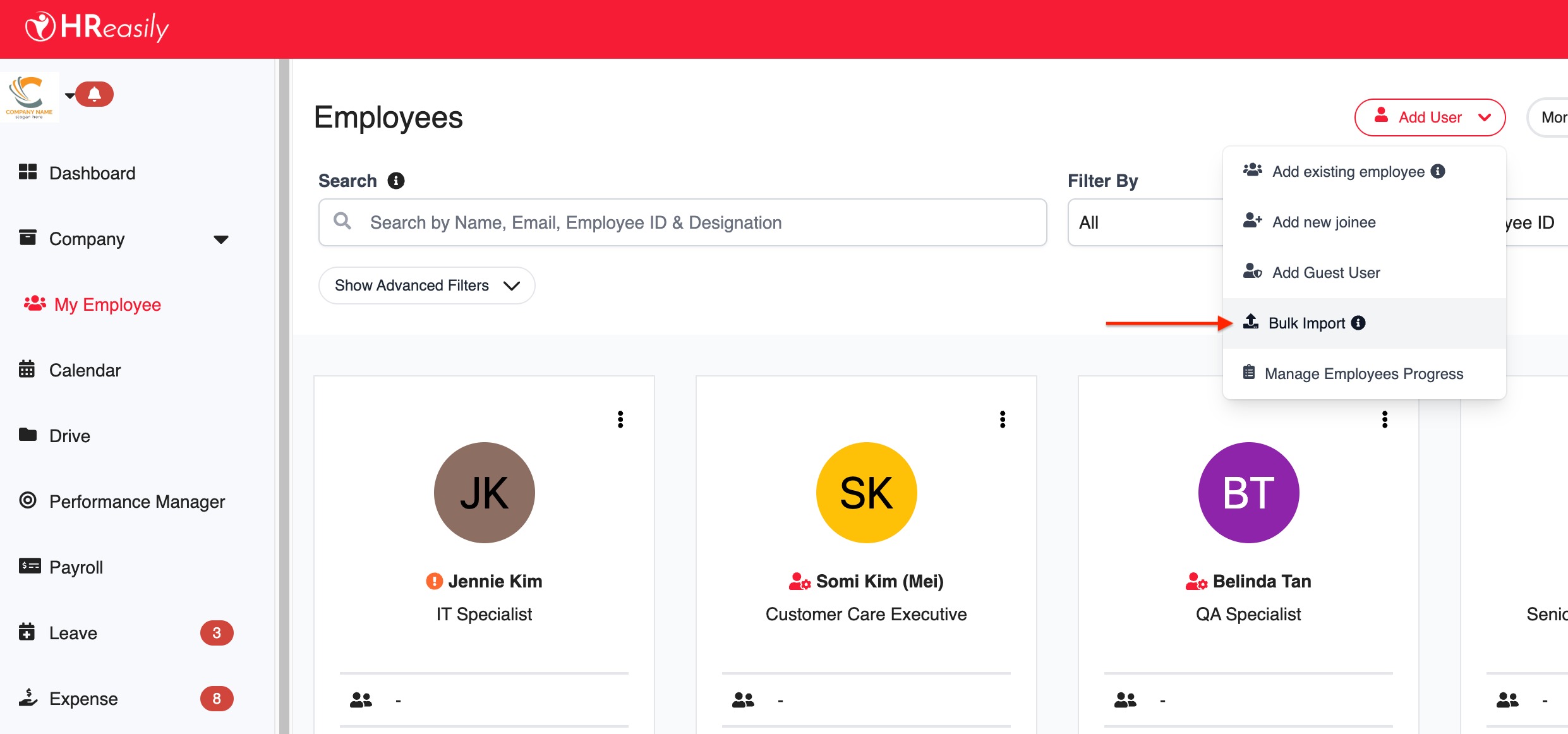
1. Go to My Employees > Add User > Bulk Import.
2. Under Field Group, choose Progression from the dropdown.
Note: Career progression can only be updated using templates for existing employees.
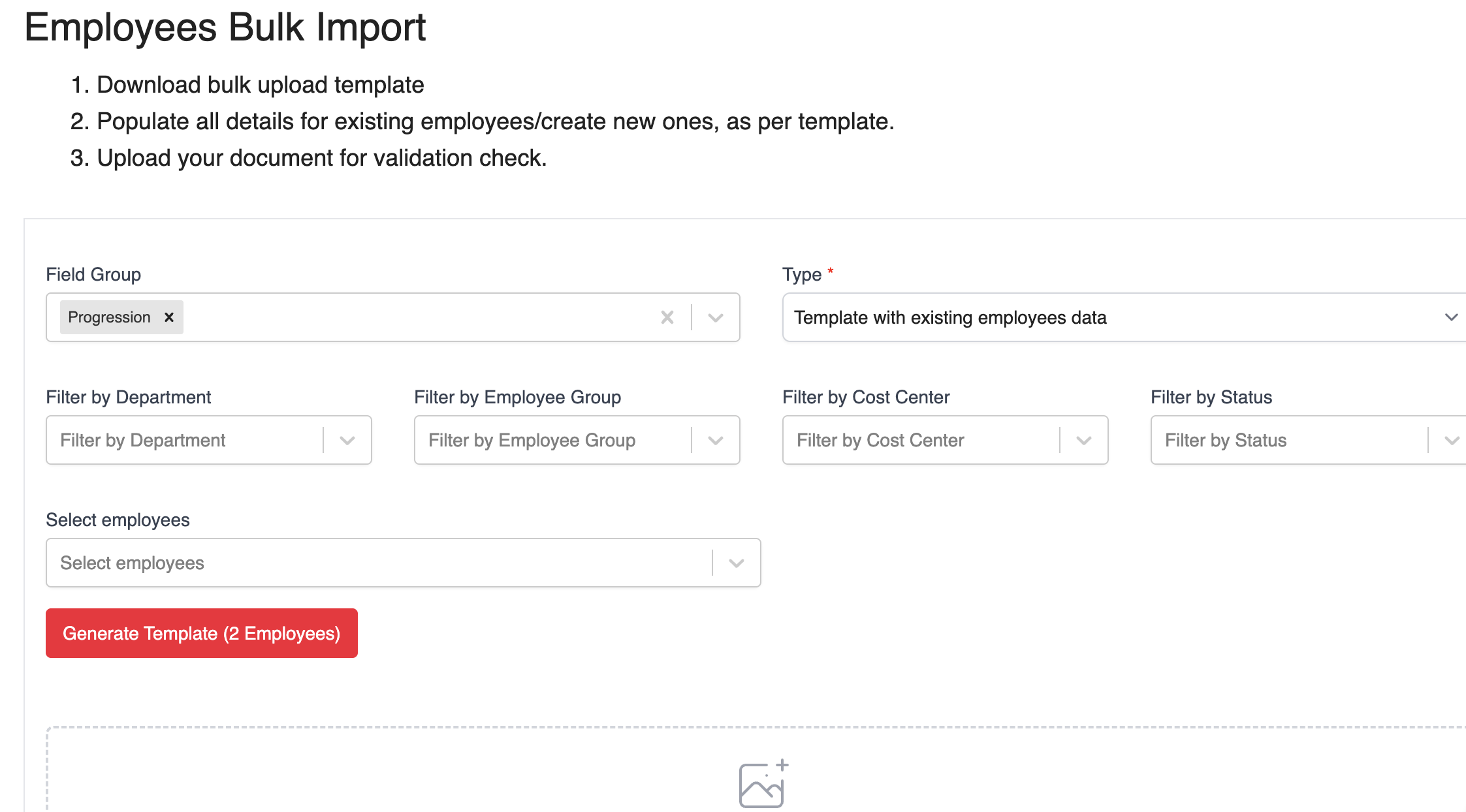
3. Complete the required filter fields and click Generate Template.
4. In the template, update the progression details as needed.
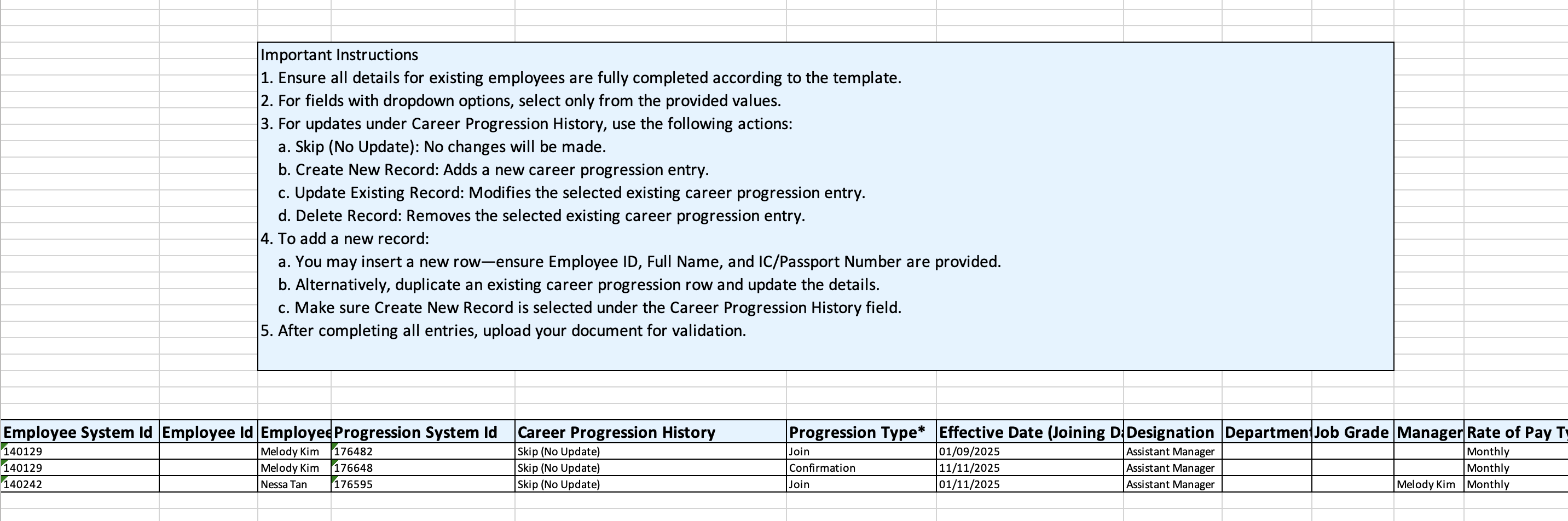
Use the following actions under Career Progression History when updating records:
Skip (No Update): Leaves the record unchanged.
Create New Record: Adds a new progression entry.
Update Existing Record: Edits an existing entry.
Delete Record: Removes an existing entry.
Adding a New Record
You can add new progression entries in either of the following ways:
Option A: Duplicate an existing row
Copy an existing progression row for the same employee.
Change the Career Progression History to Create New Record.
Update fields such as Progression Type, Effective Date, Job Title, Department, or any other relevant details.
Option B: Insert a new row
Provide Employee ID, Full Name, IC/Passport Number and the Progression System Id. The Progression System Id must match the one found in the employee’s previous Career Progression record.
Fill in the progression details.
Set Create New Record under the Career Progression History column.
Example:
If you are adding a promotion effective on 21 November 2025, copy an existing row, set the Career Progression History to Create New Record, then update:
Progression Type: Promotion
Effective Date: 21/11/2025
New Job Title: Manager
Remarks: Optional notes such as "Annual performance promotion"

Was this article helpful?
That’s Great!
Thank you for your feedback
Sorry! We couldn't be helpful
Thank you for your feedback
Feedback sent
We appreciate your effort and will try to fix the article