Setting up work schedules, rosters, and assignments in HReasily Pro is simple and efficient. The Schedule module integrates seamlessly with the Timesheet module, payroll calculations, leave records and expenses, ensuring accurate tracking across the system.
This guide will walk you through the basics to help you get started quickly.
Accessing Scheduling Module
Go to Timesheet from the left menu and select the Schedule Shifts tab.
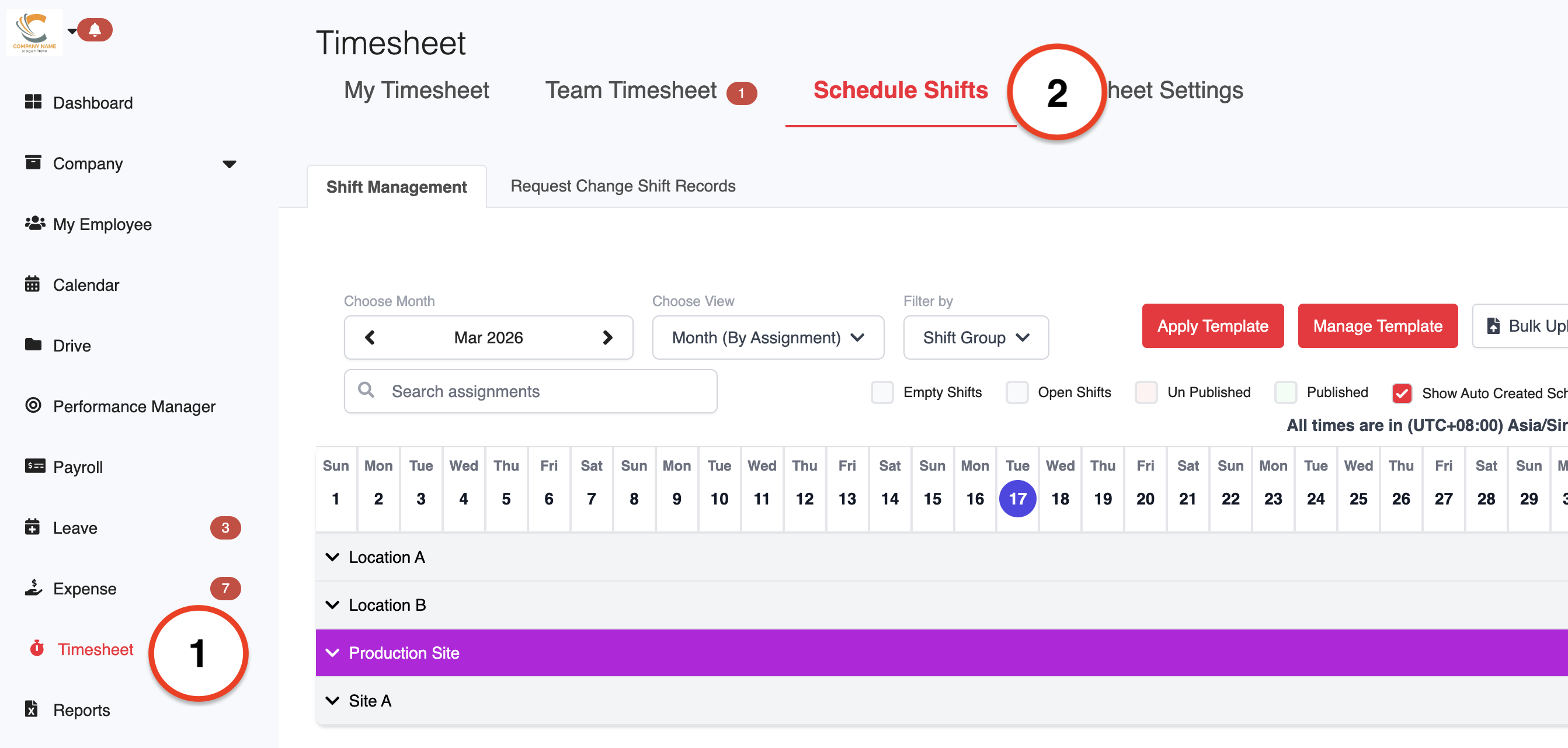
You'll be directed to the Shift Management page, where you can view employee schedules at a glance.
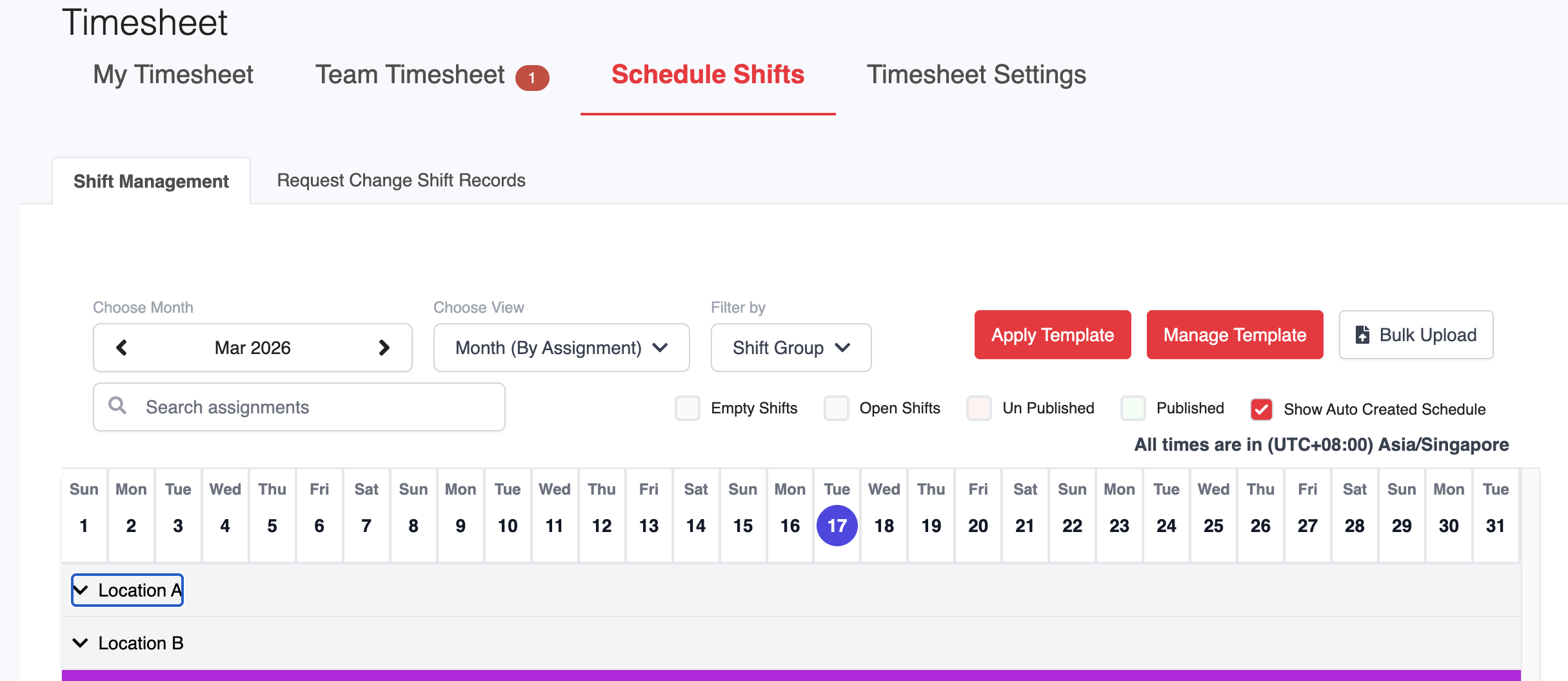
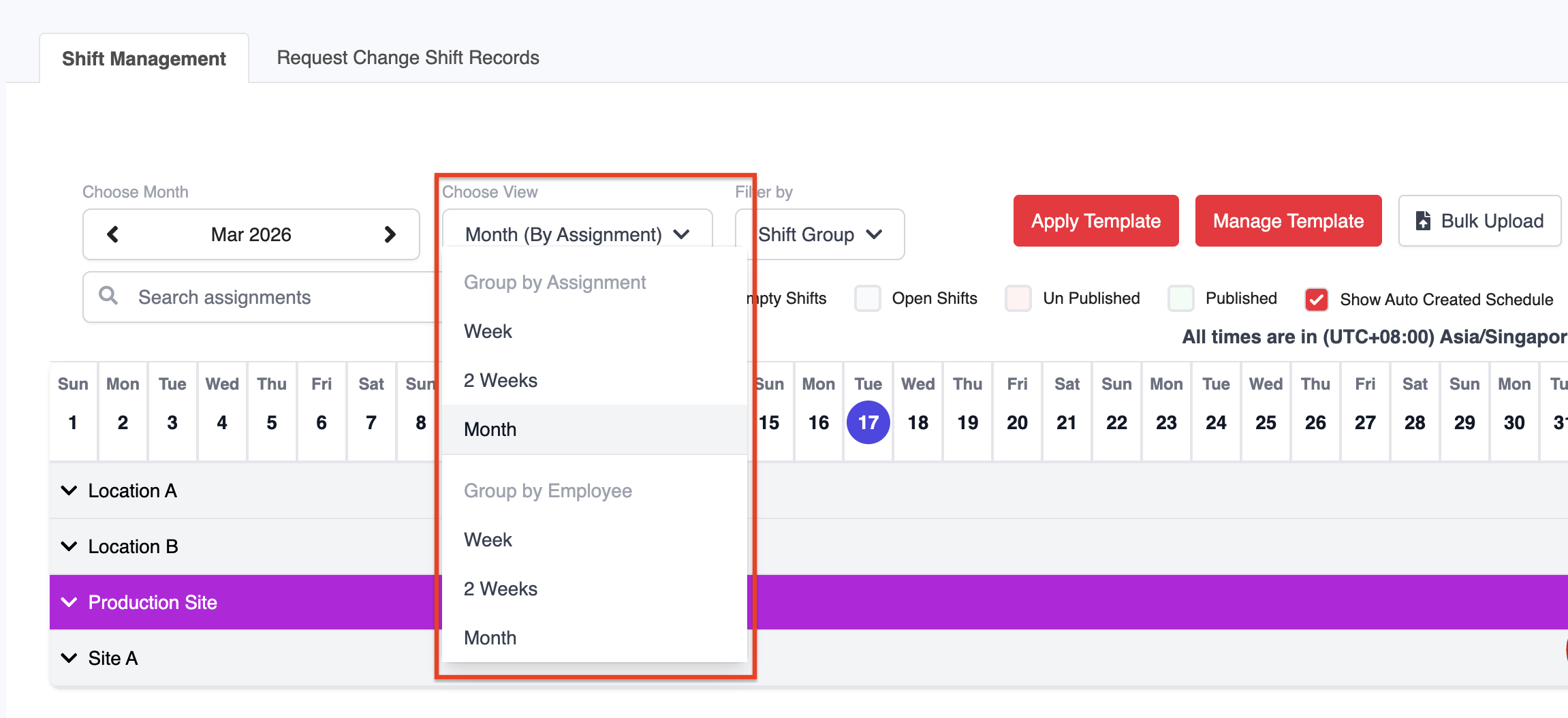
You can also filter the schedule view by:
Monthly
Bi-weekly
Weekly
Note: Scheduling is based on your company's assigned Assignments. Make sure these are set up beforehand. Refer to the assignment setup guide for more details.
Shifts Scheduling
Once assignments are configured, you can begin scheduling shifts.
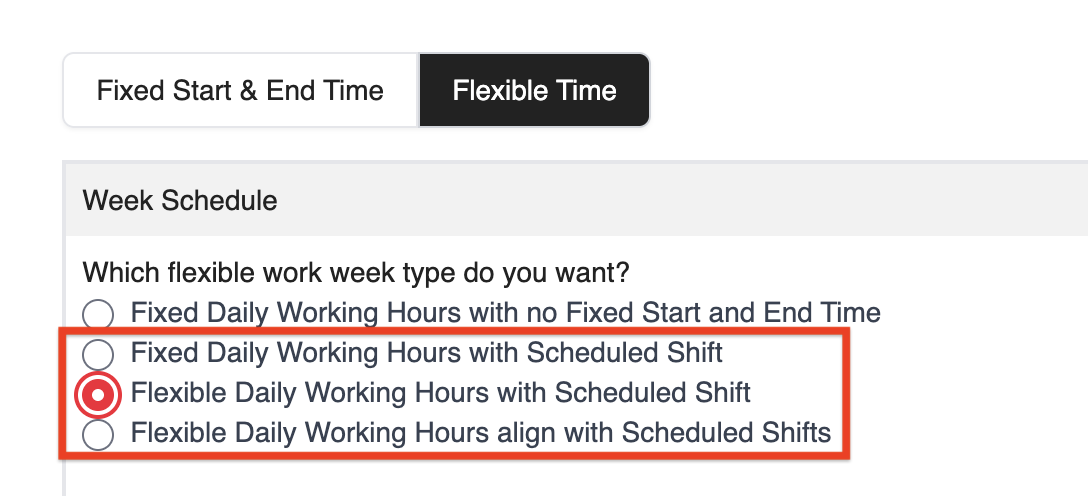
Note: Ensure the employee's work week is set to Schedule Shifts.
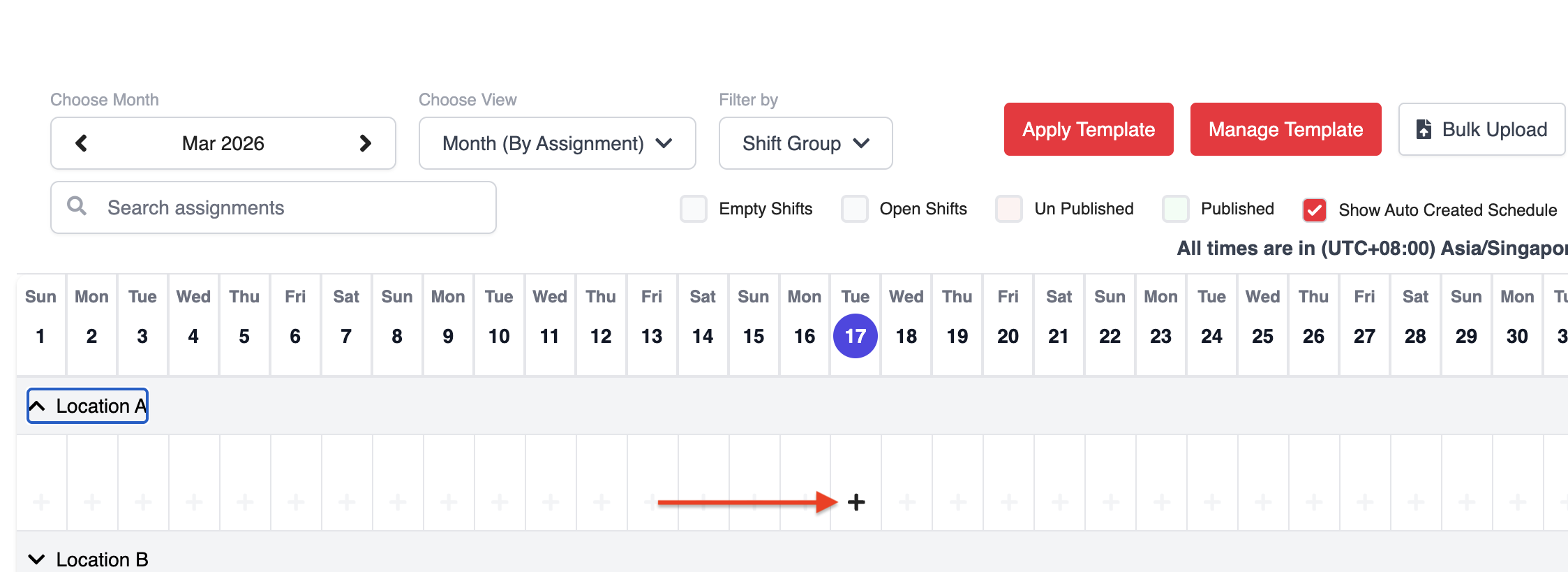
Expand the relevant assignment, hover over your preferred date, and click the + icon to create a schedule entry.
Shift Types
When creating a shift, you'll see three options:
1. Choose Employee
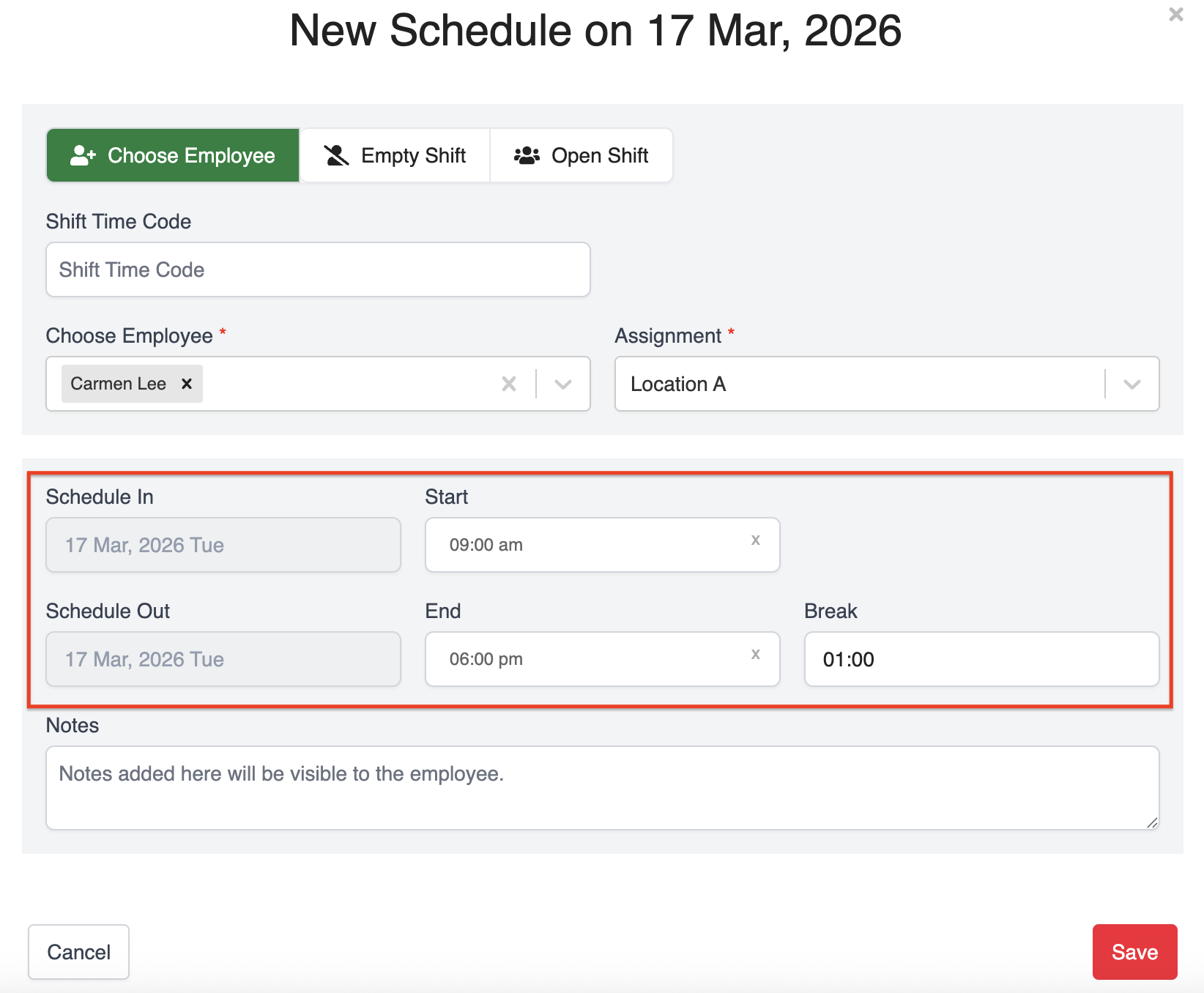
This option allows you to assign a shift to a specific employee. Select the assignment, choose the employee, set the start and end time, and include any notes if required before saving.
Note: If the start time is set to PM, the system will automatically move the Schedule Out date to the following day. It will be considered as an overnight shift.
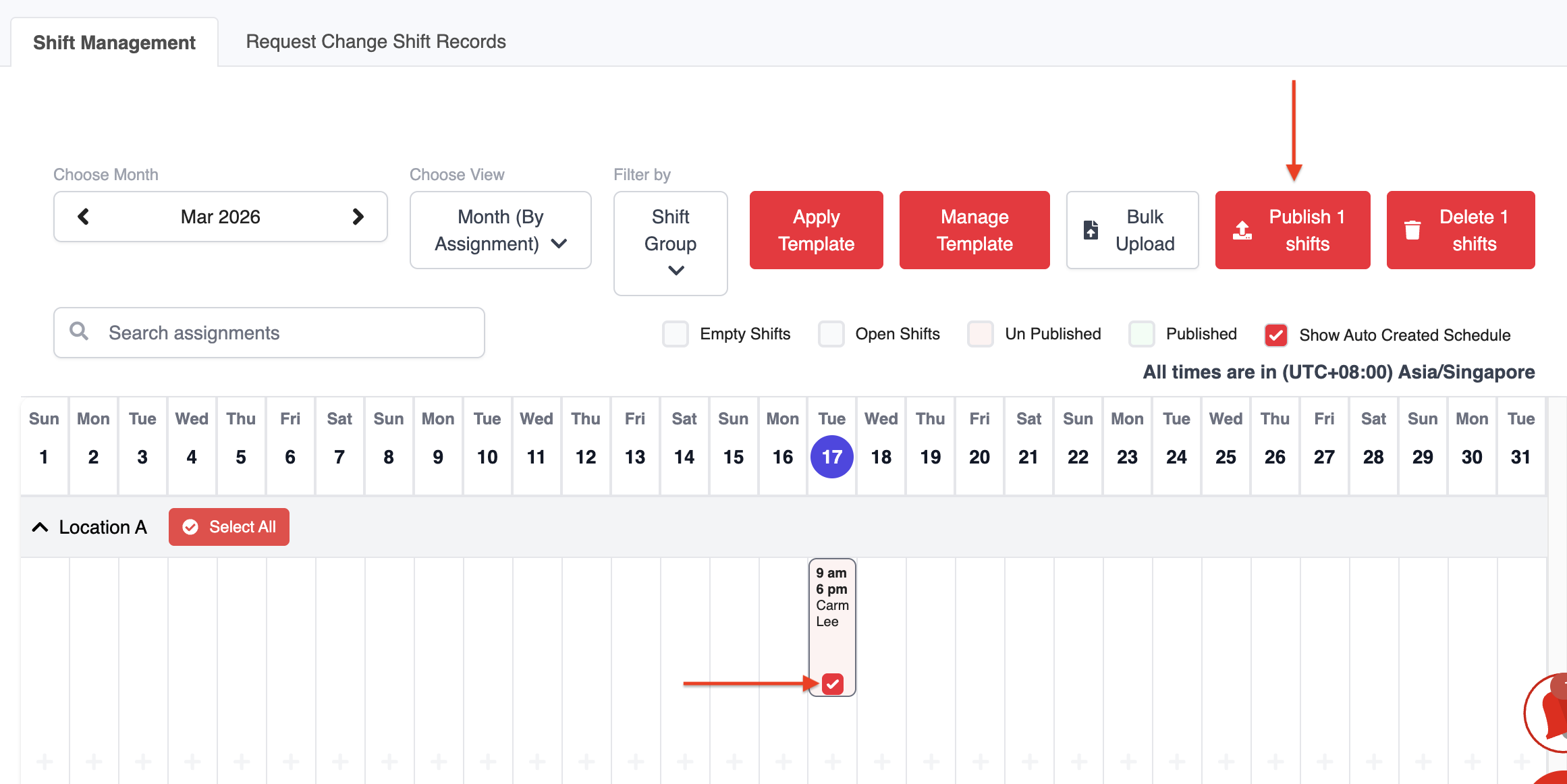
Once saved, the shift must be published. Select the shift, click Publish, review the details, and confirm.
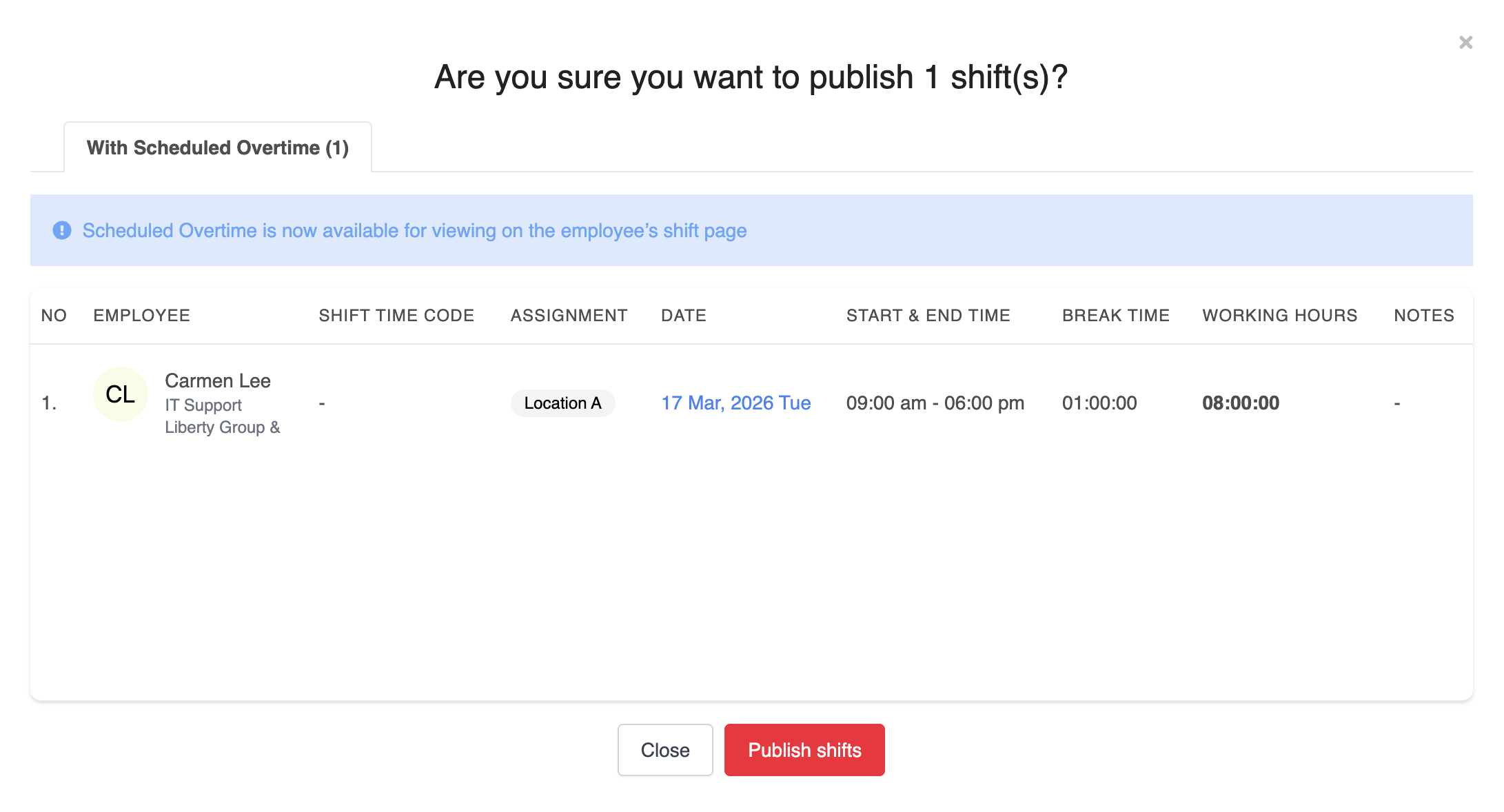
After publishing, the schedule will be reflected in the employee's account, and a notification will be sent via HReasily Pro chat. You may also download the schedule report download the schedule report if needed.
2. Empty Shift
This option acts as a placeholder when no employee is assigned yet. It can be edited later to assign an employee. Empty shifts are not publishable and are only visible to the scheduler.
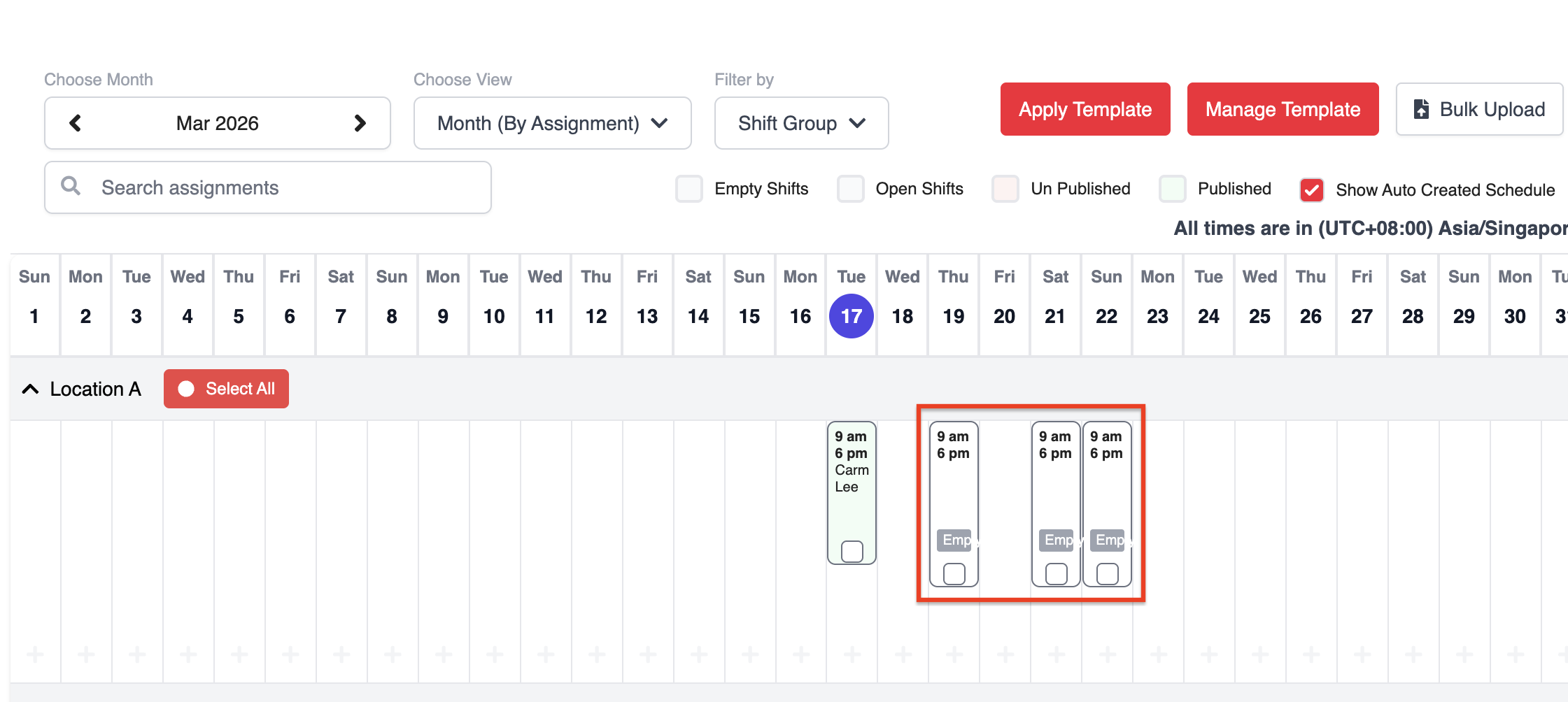
3. Open Shift
Open Shifts, unlike Empty Shifts, can be published and made available for employees to apply. Once published, the shift will appear to employees under the relevant assignment.
Note: Open shifts can only be applied through the web version.

What's Next?
You can further enhance scheduling by configuring Shift Change Requests to manage employee-initiated changes, or set up recurring schedules using Shift Patterns.
For more details, refer to:
For a complete walkthrough, refer to the video guide.
Was this article helpful?
That’s Great!
Thank you for your feedback
Sorry! We couldn't be helpful
Thank you for your feedback
Feedback sent
We appreciate your effort and will try to fix the article