Timesheet assignments help organise employee time entries by project, department, or location and enable accurate tracking and reporting.
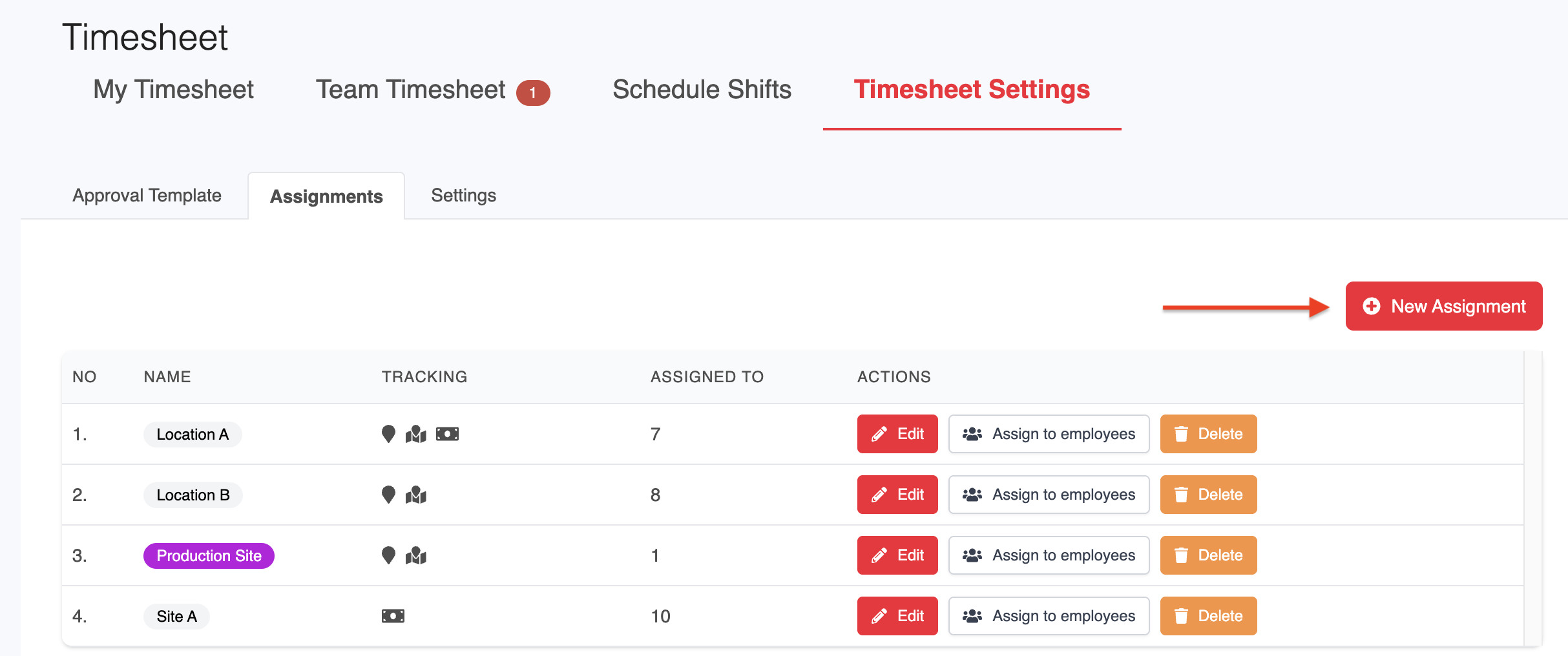
1. Go to Timesheet > Timesheet Settings > Assignments.
2. Click New Assignment to add a new entry.
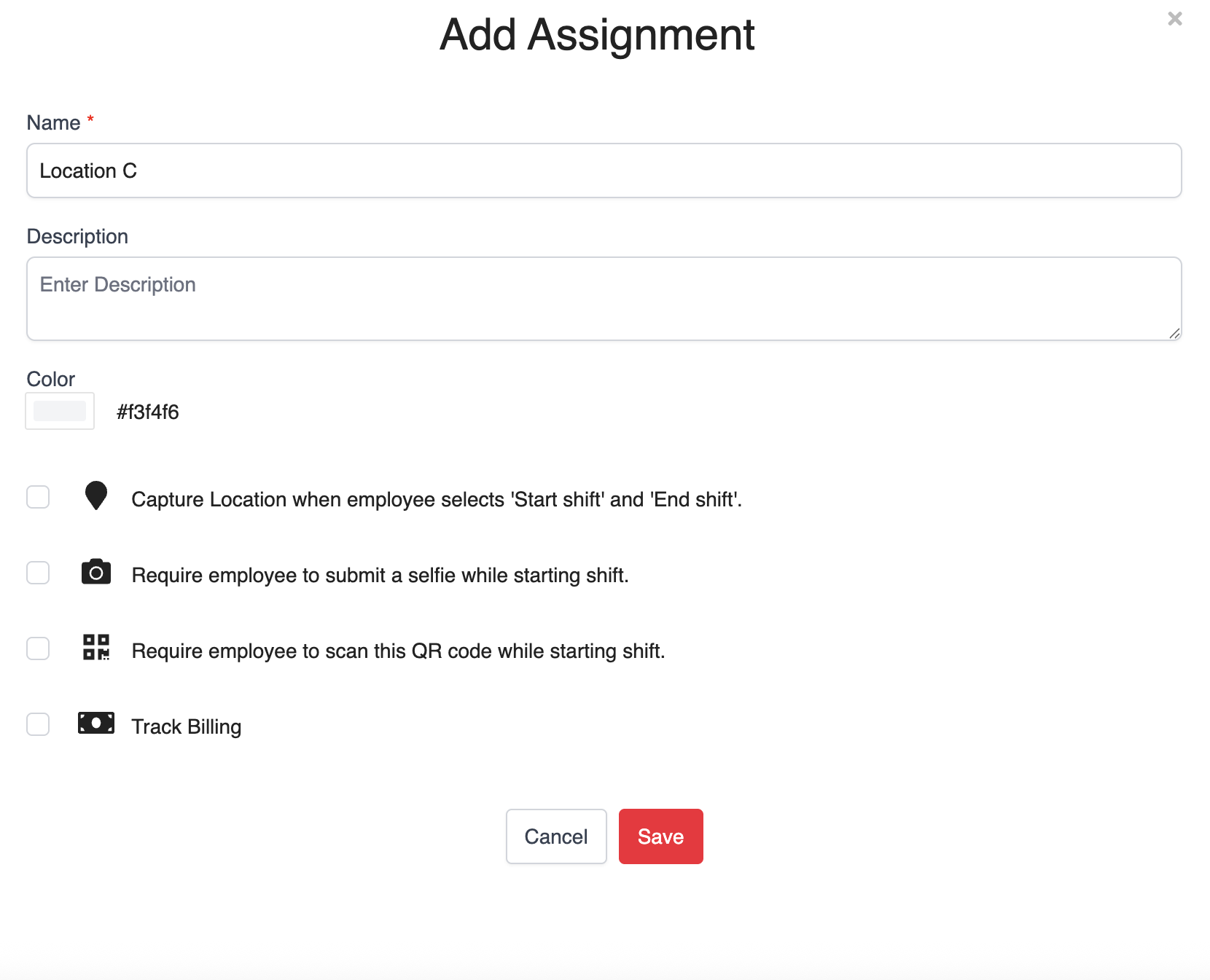
3. Enter the Name, Description, and select a Color. Then configure the relevant options:
Capture Location: Track employee location when starting or ending a shift. When enabled, additional location settings will be available:
- Restrict employee to submit timesheet from within the specified location while starting and ending shifts: Enable this option to restrict employees to starting and ending shifts within the specified locations. You can add up to 5 locations.
- Allow employees to Start & End Shift in different locations: Enable this option to allow employees to start and end their shifts at different locations.
Require Selfie on Start Shift: Employees must submit a selfie when starting a shift. (Refer to the Face Recognition guide to set this up.)
Require QR Code Scan on Start Shift: Employees scan a QR code generated after saving the assignment.
Track Billing: Enable billing tracking for this assignment. (Refer to the Billing Tracking guide for details.)
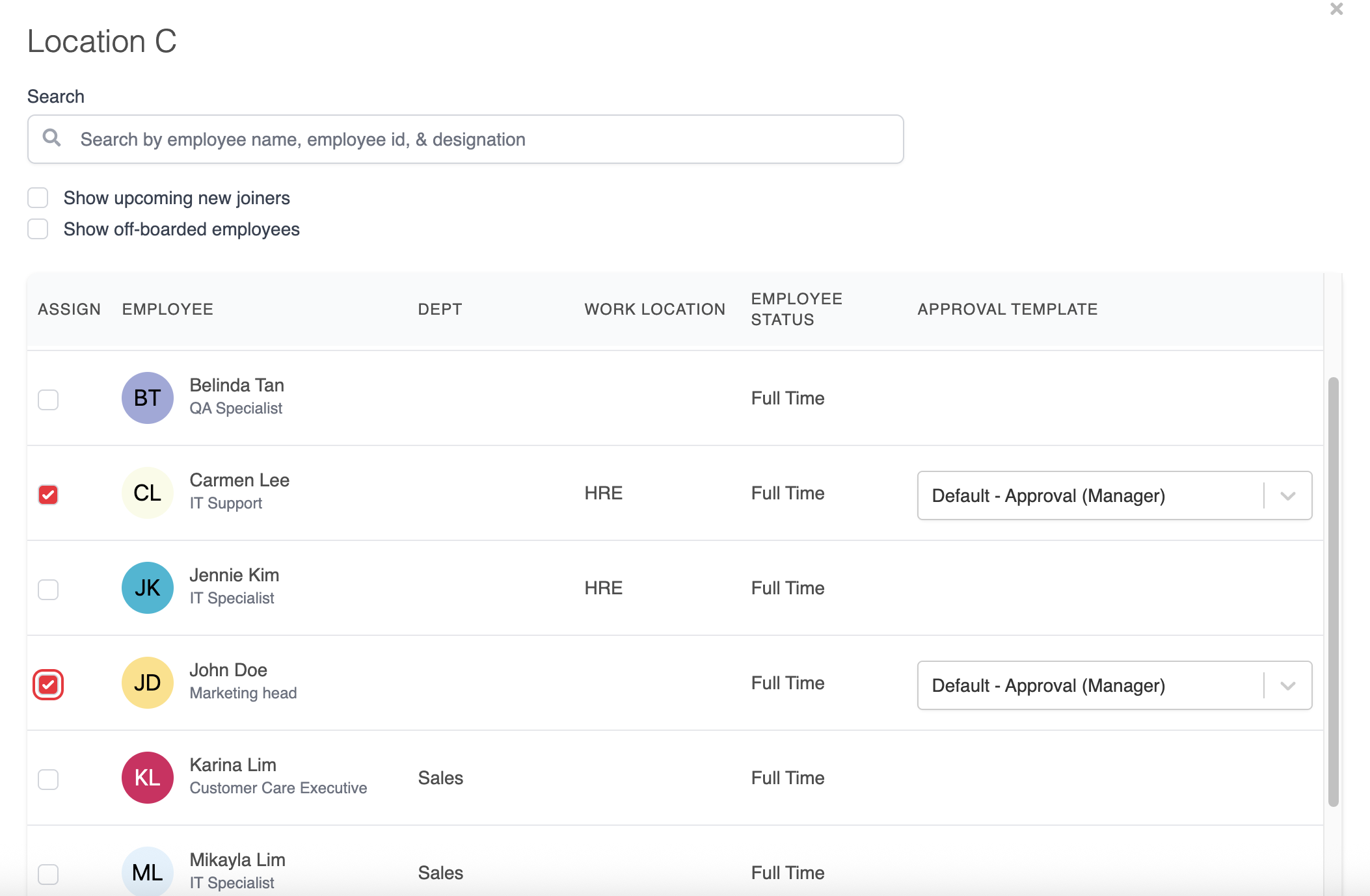
4. After saving, select the relevant employees and assign the appropriate approval template. The system will save your selections automatically.
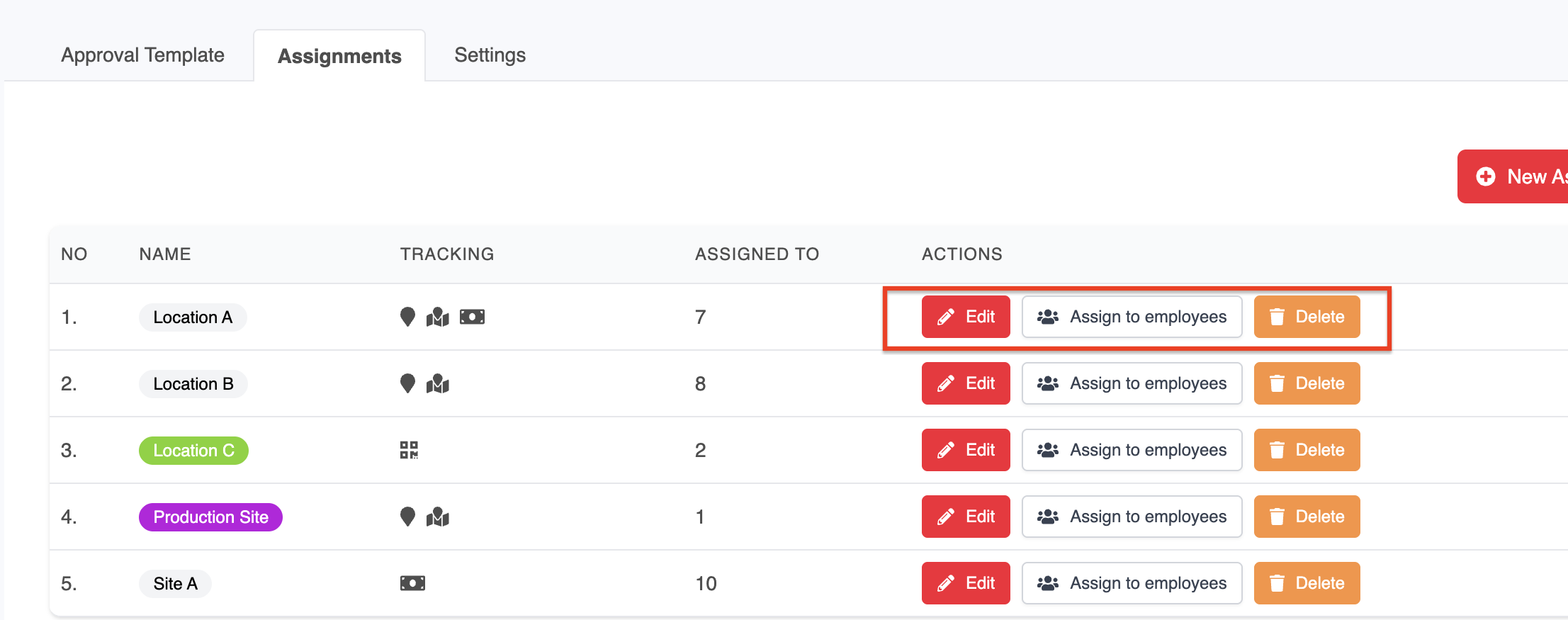
5. Click X to close the window. Your new assignment will appear in the Assignments list.
Use Edit to update an assignment.
Use Delete to remove an assignment.
Use Assign to Employees to bulk assign the assignment to multiple employees.
Was this article helpful?
That’s Great!
Thank you for your feedback
Sorry! We couldn't be helpful
Thank you for your feedback
Feedback sent
We appreciate your effort and will try to fix the article