This guide explains how to create a shift pattern by saving scheduled shifts as a template, and then applying it to other employees.
1. Navigate to Timesheet > Schedule Shifts > Shift Management.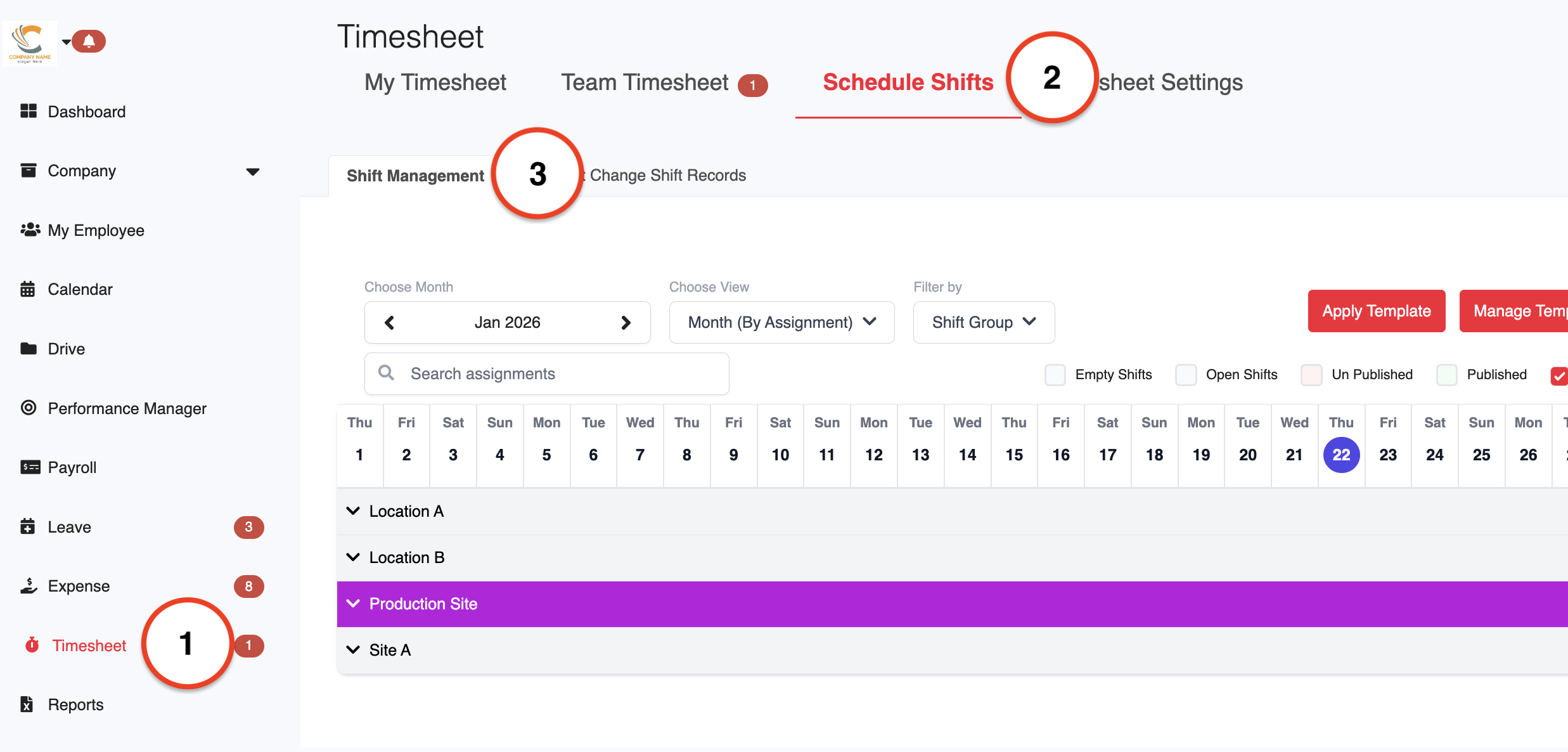
2. Under Choose View, select Group by Employee. You may choose to view the schedule by a week, 2 weeks, or a month, depending on your preference.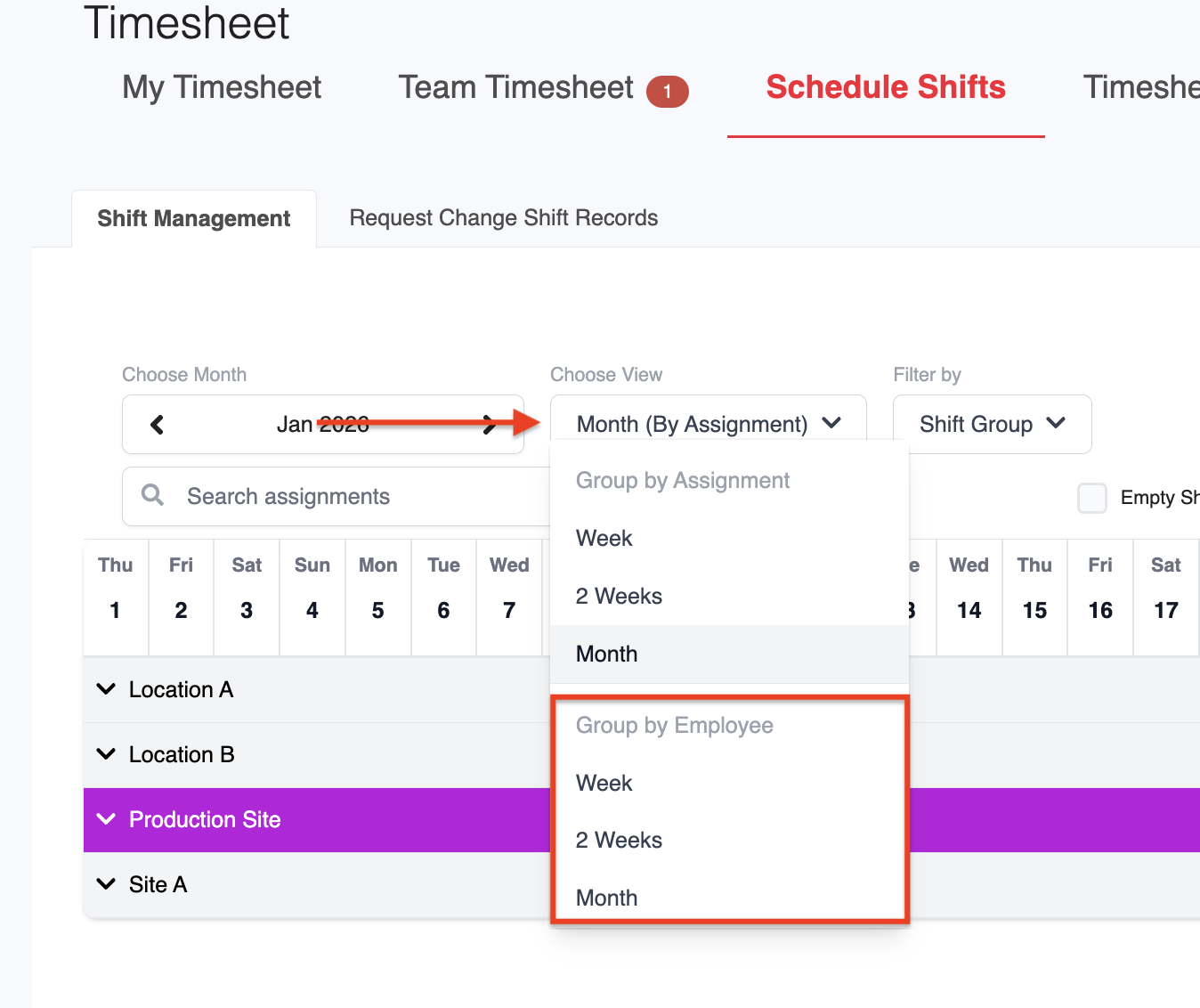
3. Select the shifts you want to include in the shift pattern.
Note: You can select up to 31 days. If the selected month has fewer days (for example, 28 days), the template will automatically adjust to match the month length.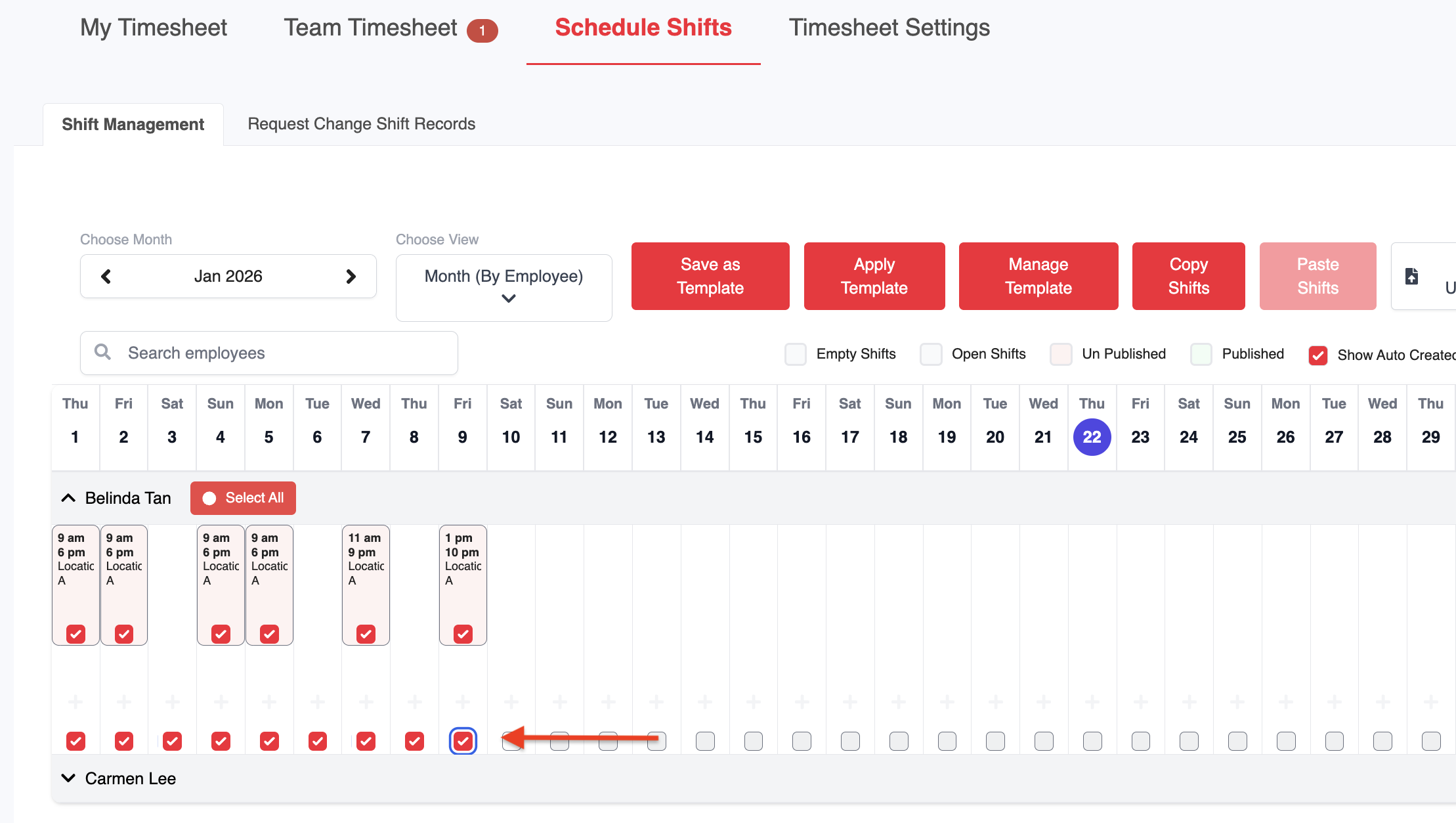
4. Click Save as Template.
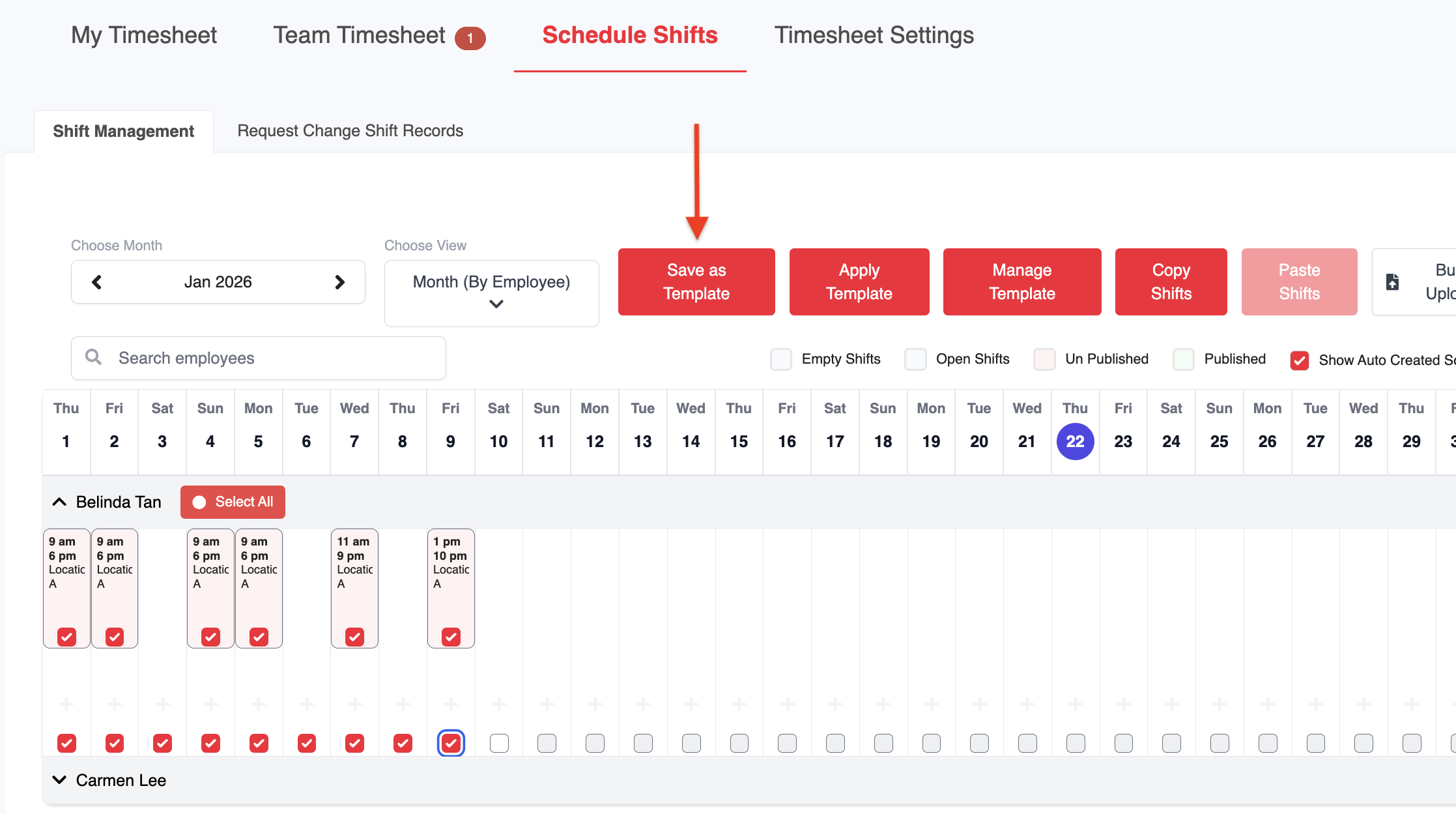
5. Enter the required details, such as the Template Name, then click Save.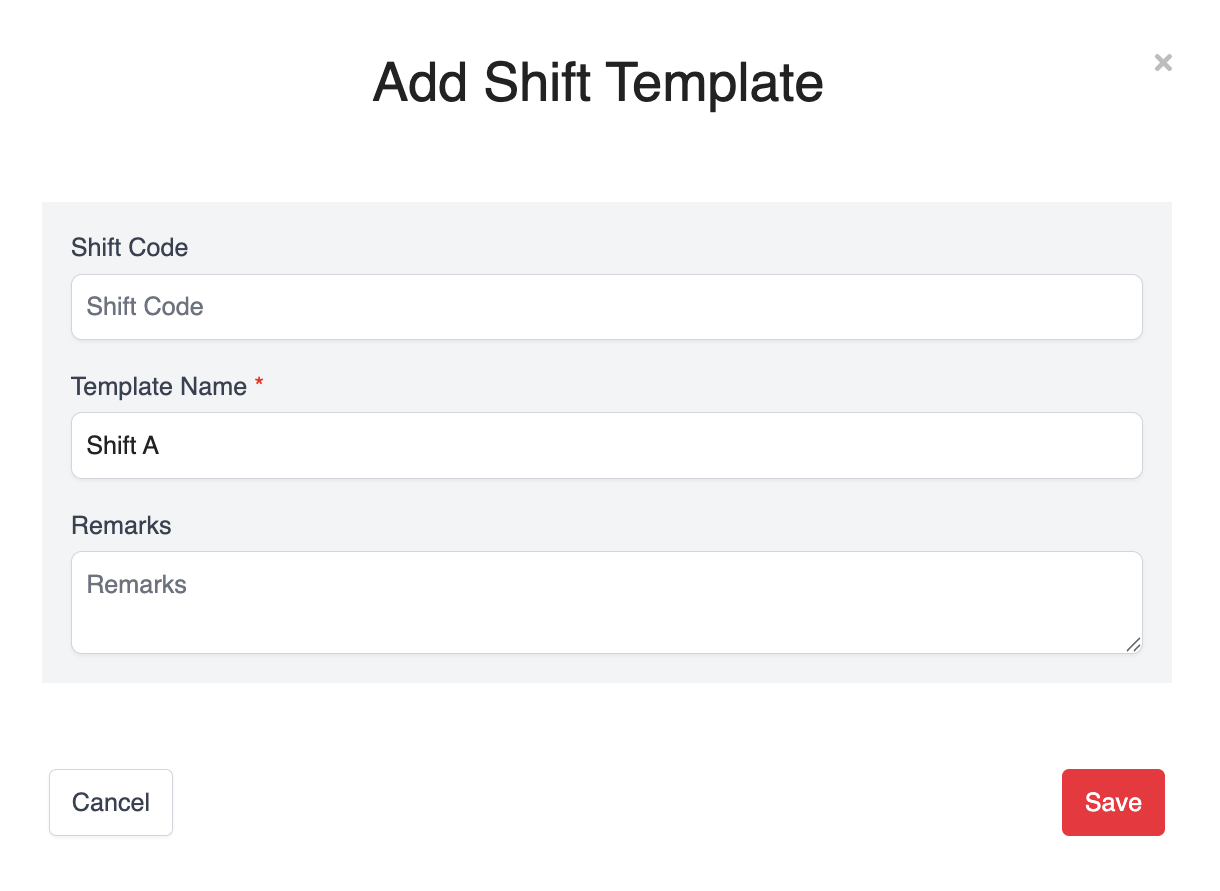
6. Once the template is created, click Apply Template to assign it to other employees.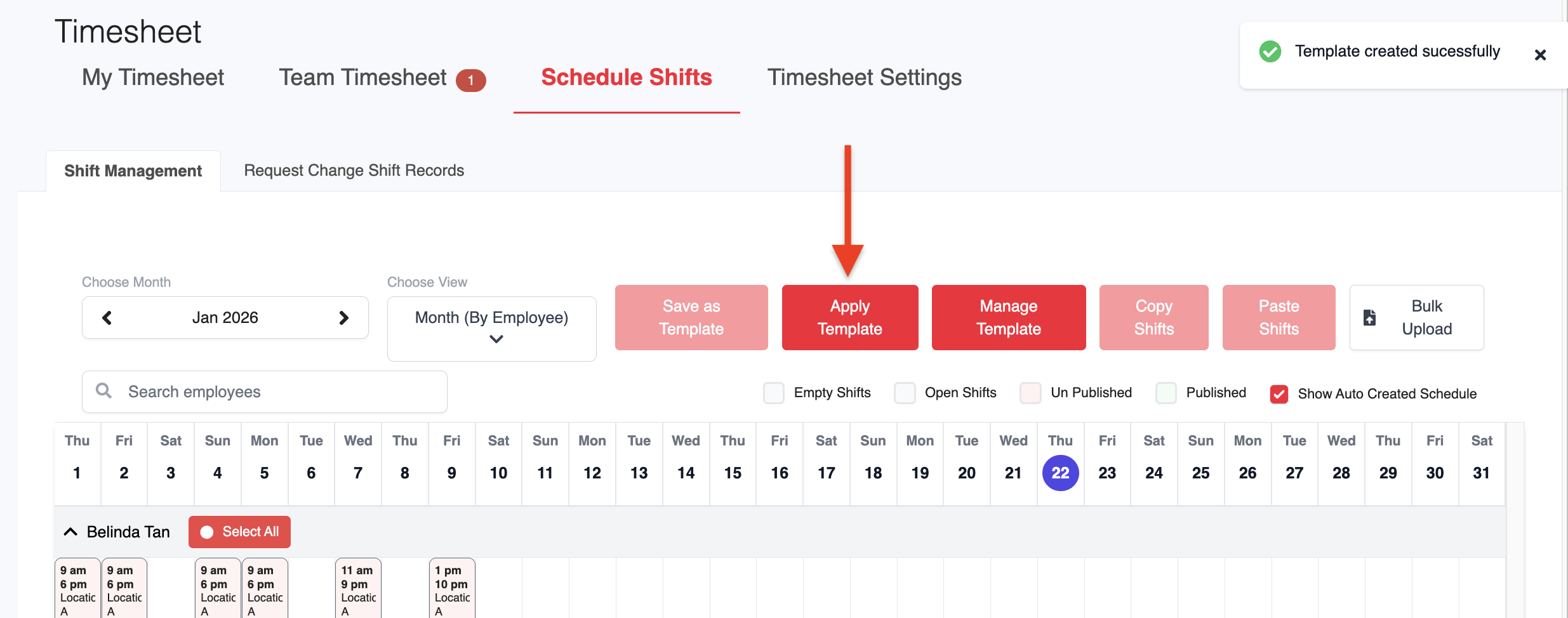
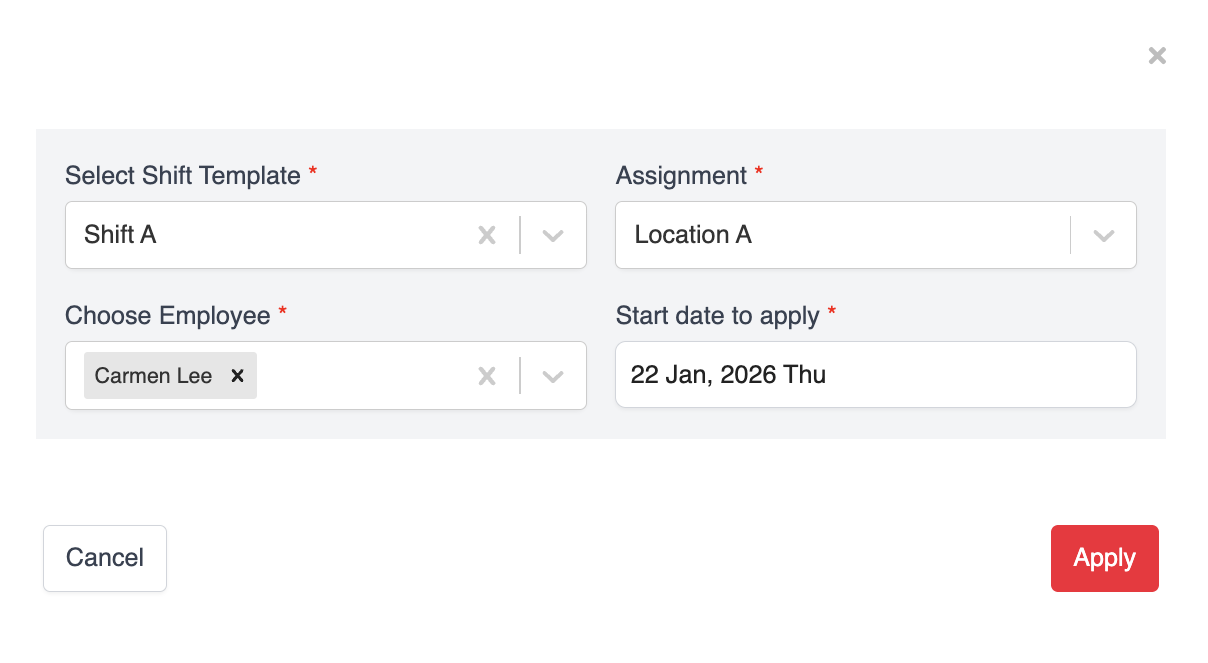
7. In the pop-up window, select the Shift Template, Assignment, Employee(s), and the Start Date. After confirming the details, click Apply.
8. Once applied, the shift pattern will be created for the selected employees.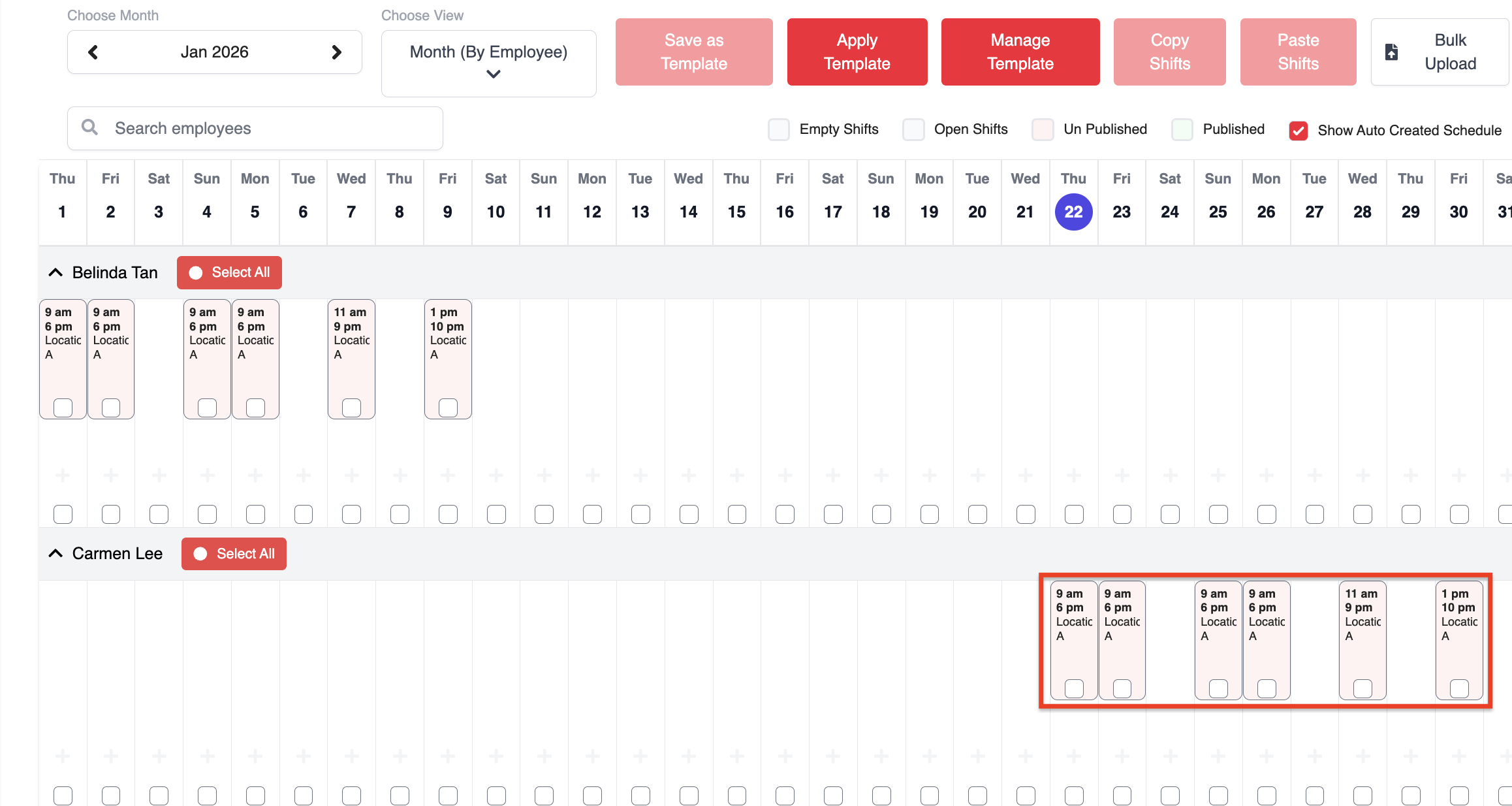
Was this article helpful?
That’s Great!
Thank you for your feedback
Sorry! We couldn't be helpful
Thank you for your feedback
Feedback sent
We appreciate your effort and will try to fix the article