Overview
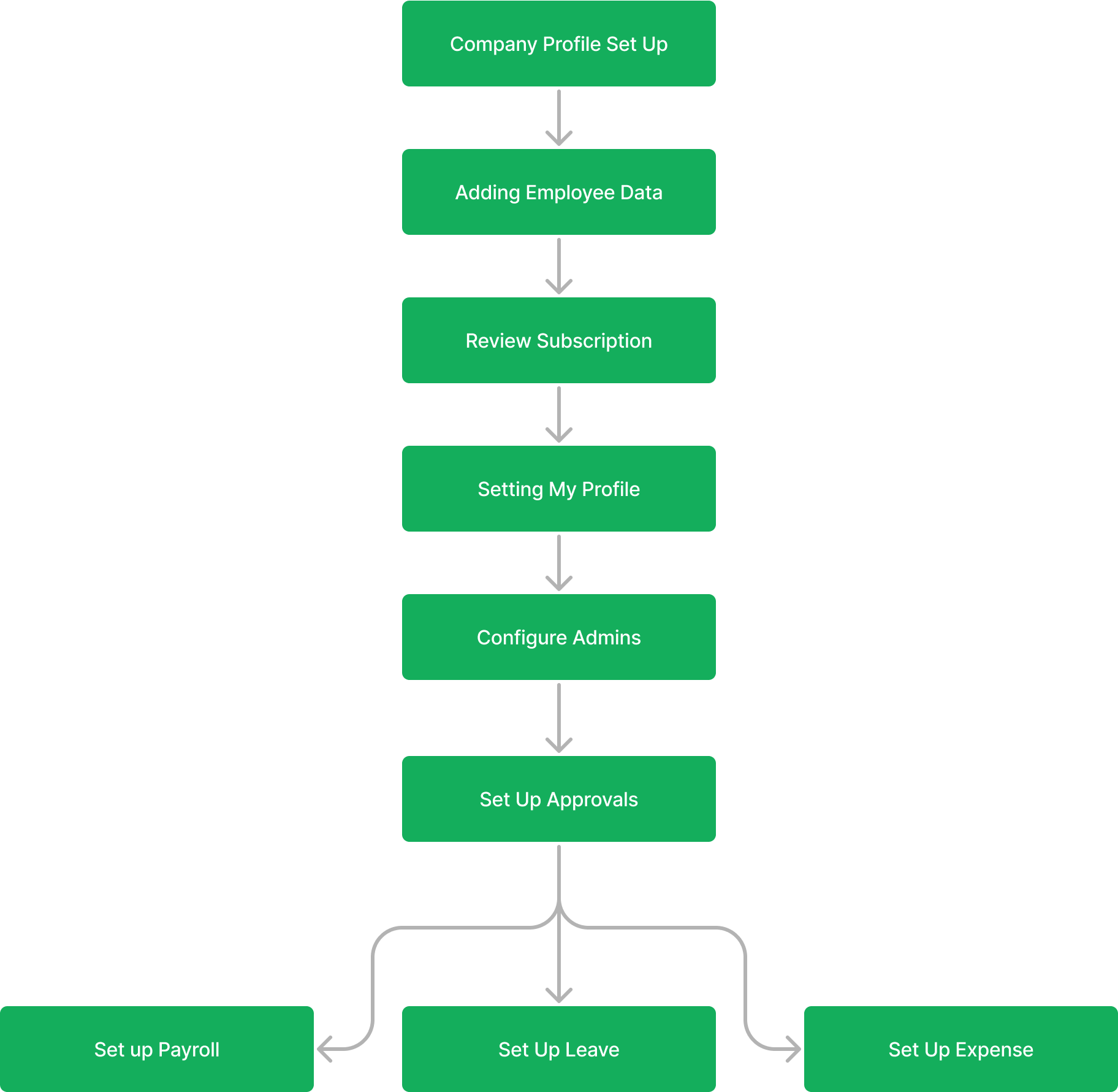
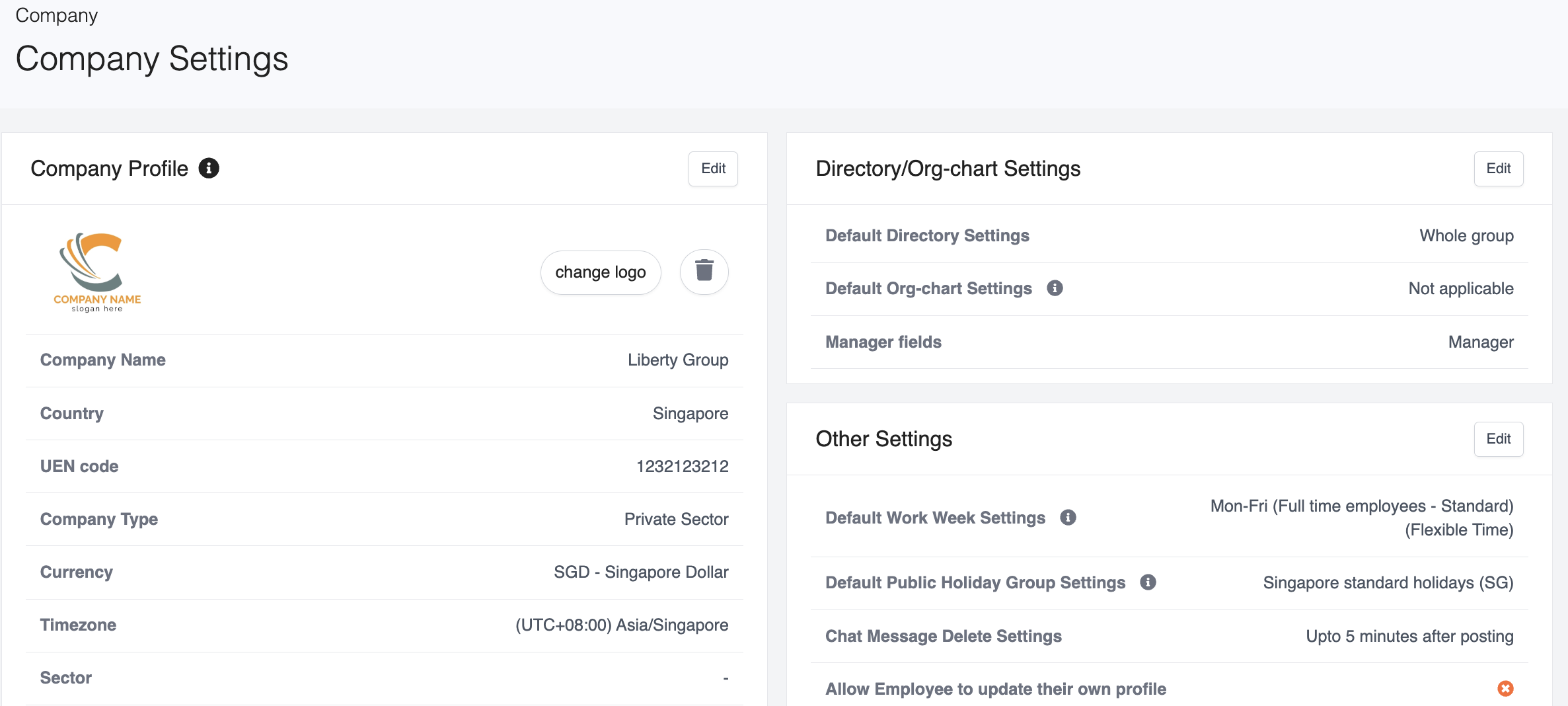
Step 1: Company Profile
Go to Company > Company Settings to enter your company's basic information.
For detailed guidance on configuring each setting, refer to the setup guide.
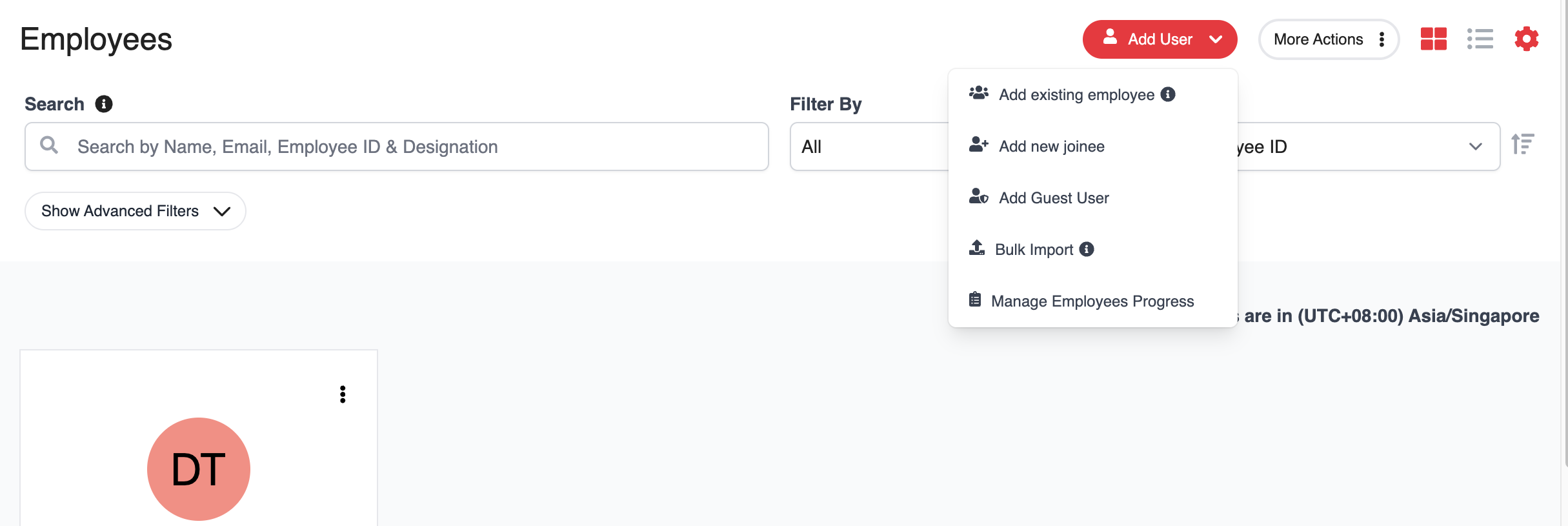
Step 2: Invite Employees
To invite employees to HReasily Pro, go to the My Employees page and create their accounts.
Click Add User > Add Existing Employee, then enter their Full Name and Email or Mobile Number (this will be used for login).
Alternatively, you can use the bulk import feature to add multiple employees at once.
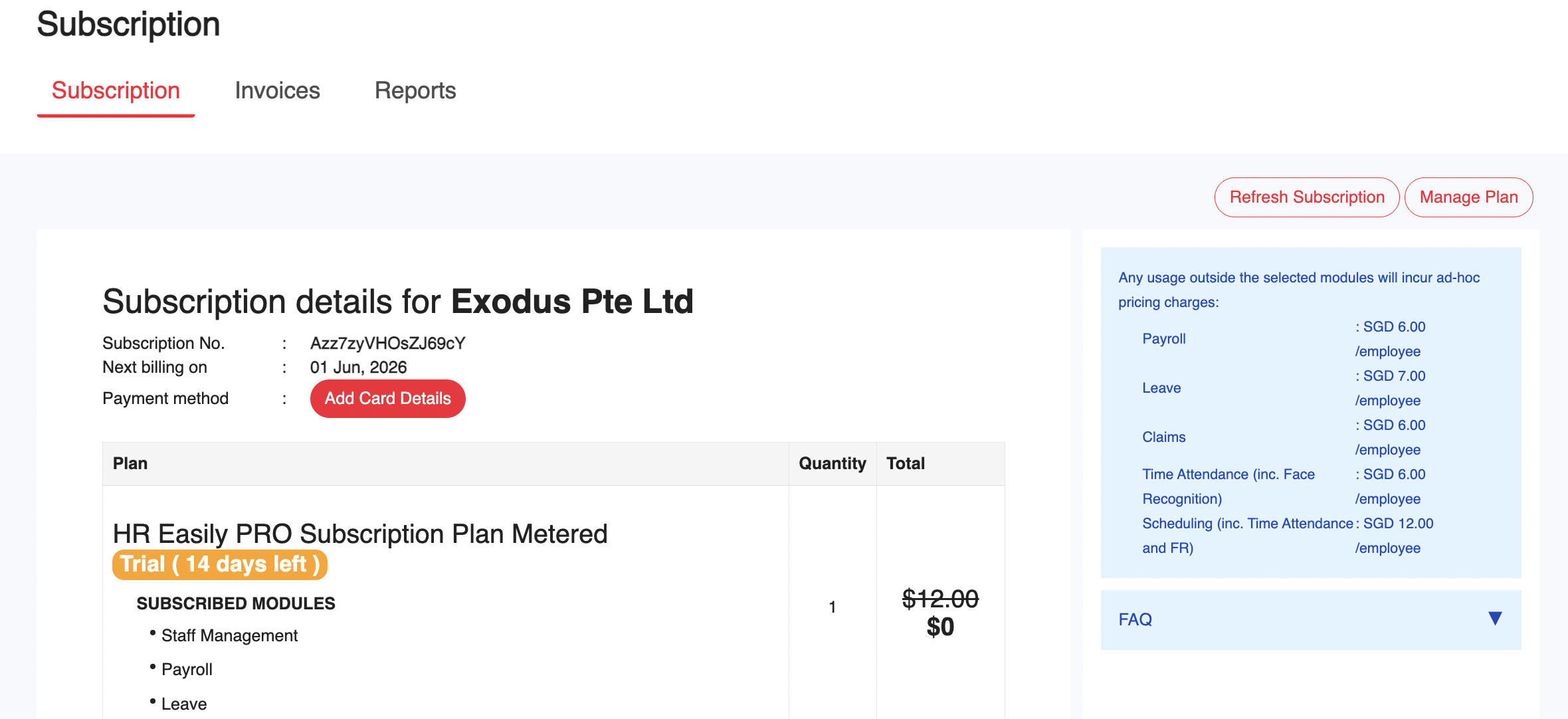
Step 3: Review Subscription
You will automatically be enrolled in a 14-day free trial (without credit card) or 30-day free trial (with credit card).
To ensure uninterrupted service after the trial ends, you can update your payment details under Manage Subscription.
Step 4: Complete Your Profile
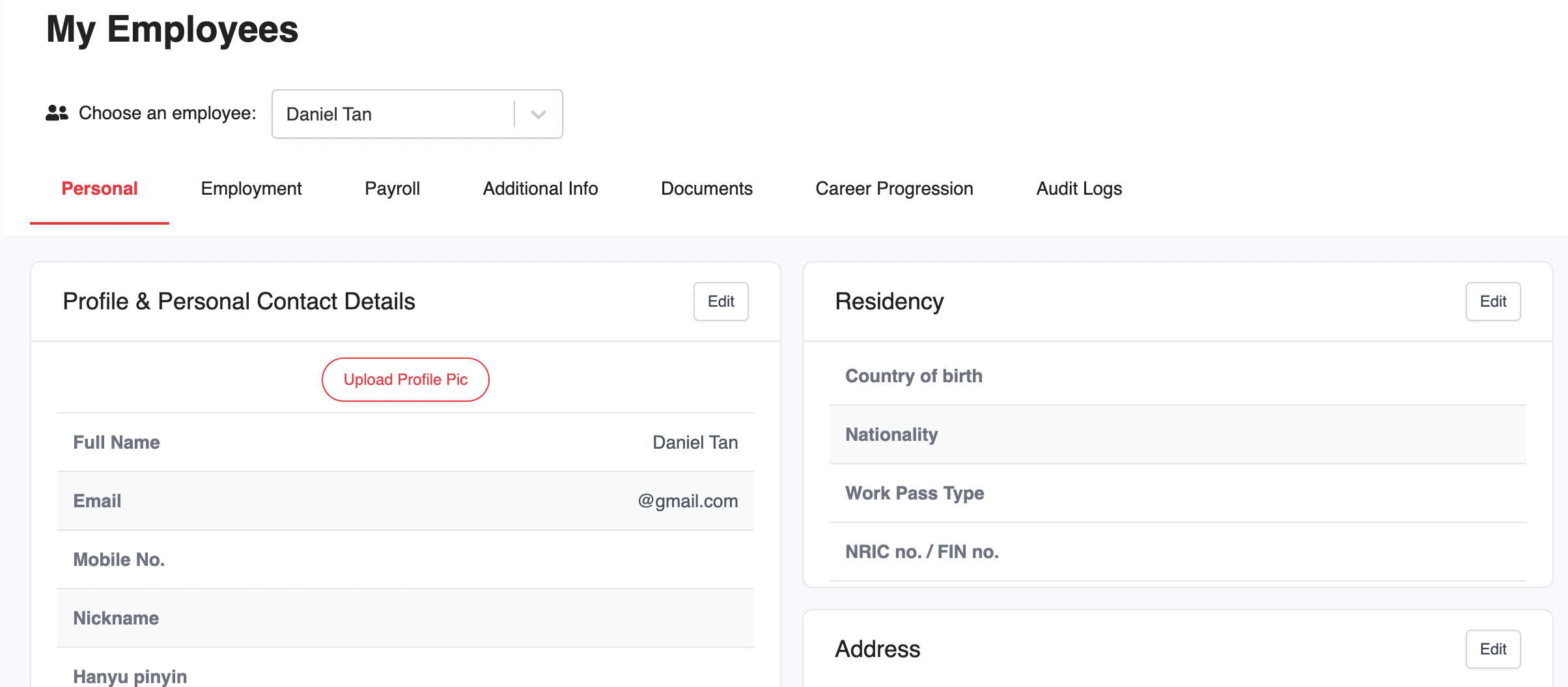
Go to My Employees, then click on your profile to fill in your personal details.
Use the Edit button at the bottom of each section to make updates.
Step 5: Download the Mobile App
Now that all the set up steps have been completed, be sure to download the HReasily Pro app on mobile for easy access.


Add Employees
Follow this guide to add employees to HReasily Pro.
Do note that this will not automatically invite employees to HReasily Pro—they will need to be invited manually in order to get access. So, rest assured that you will not have any employees accessing HReasily Pro while you are still setting things up.
Configure Admins
By default, the person who signed up the company will be a Super Admin, which means that they can control everything.
To assign other people admin rights, follow this guide.
Modules Setup
To configure the settings for individual modules, follow the guides below: