Follow the steps below to generate the CP22A form in HReasily Pro:
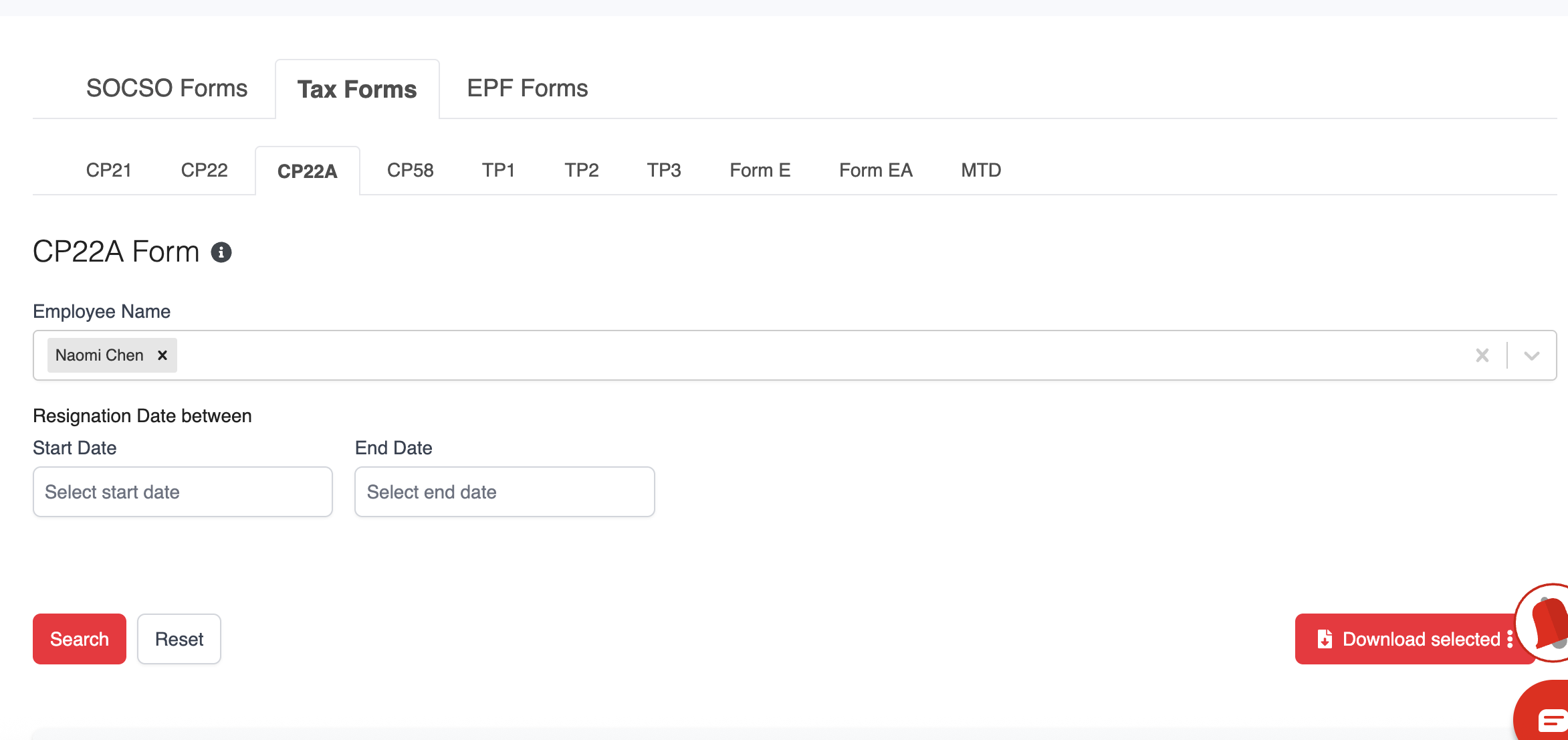
1. Go to Payroll > Forms > Tax Forms > CP22A.
2. Under the CP22A tab, select the employee’s name and/or enter the join date range, then click Search to display the relevant record.
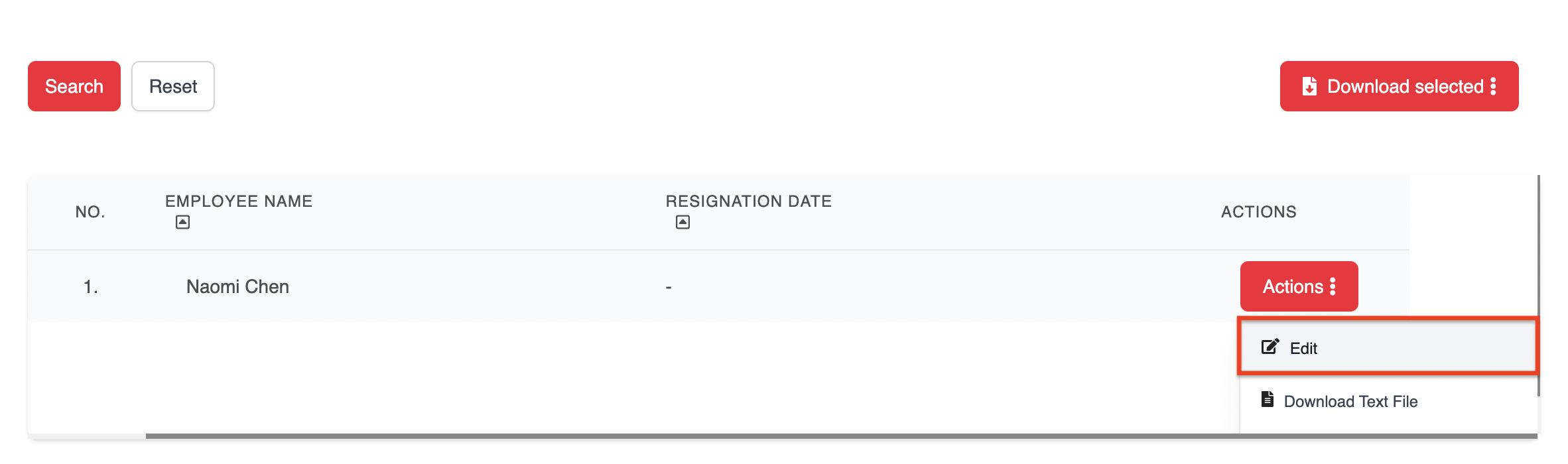
3. Click ACTIONS > Edit to add or update the required details.
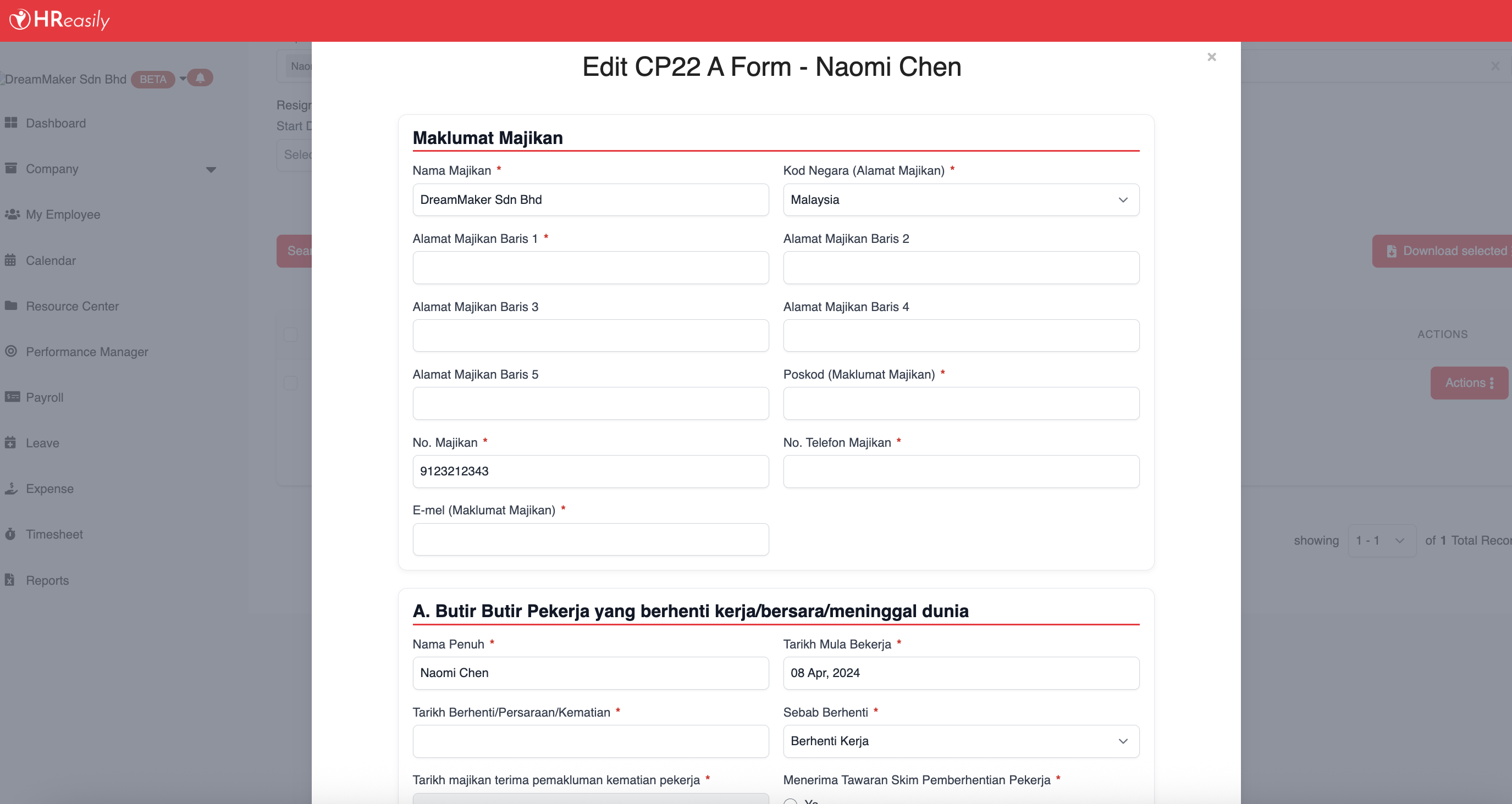
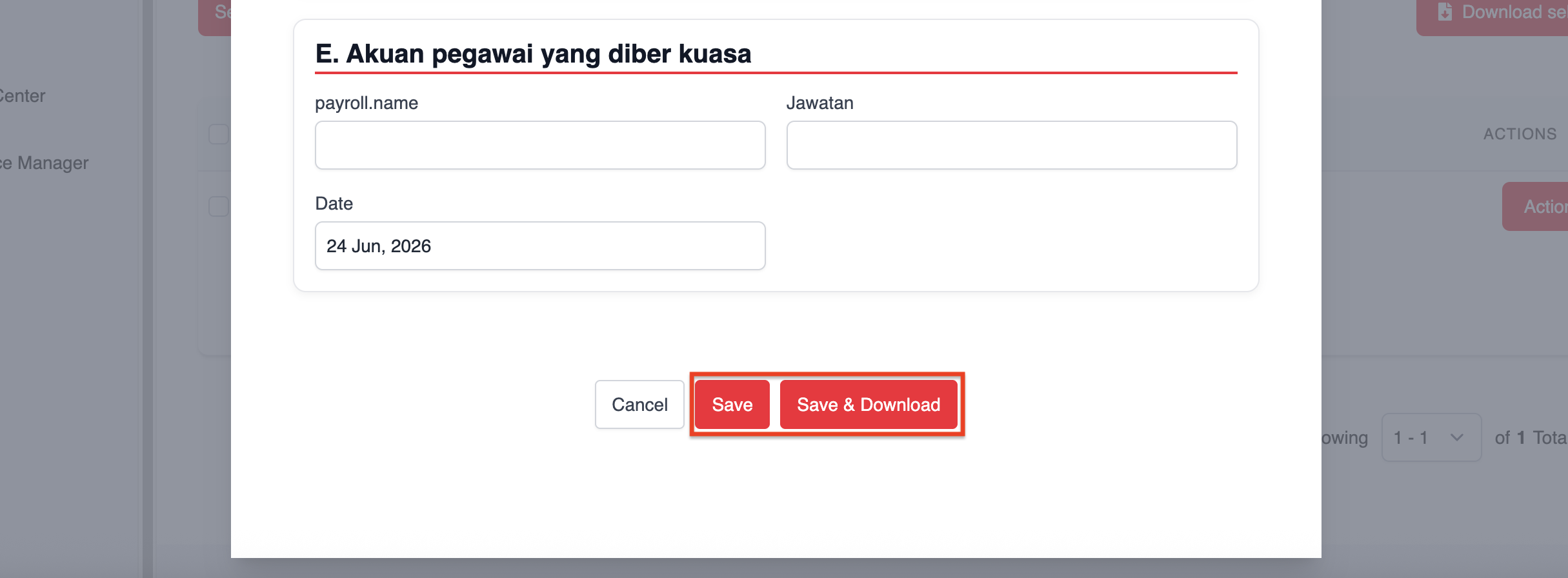
4. After making changes, click Save to store the information, or Save & Download to generate the form immediately.
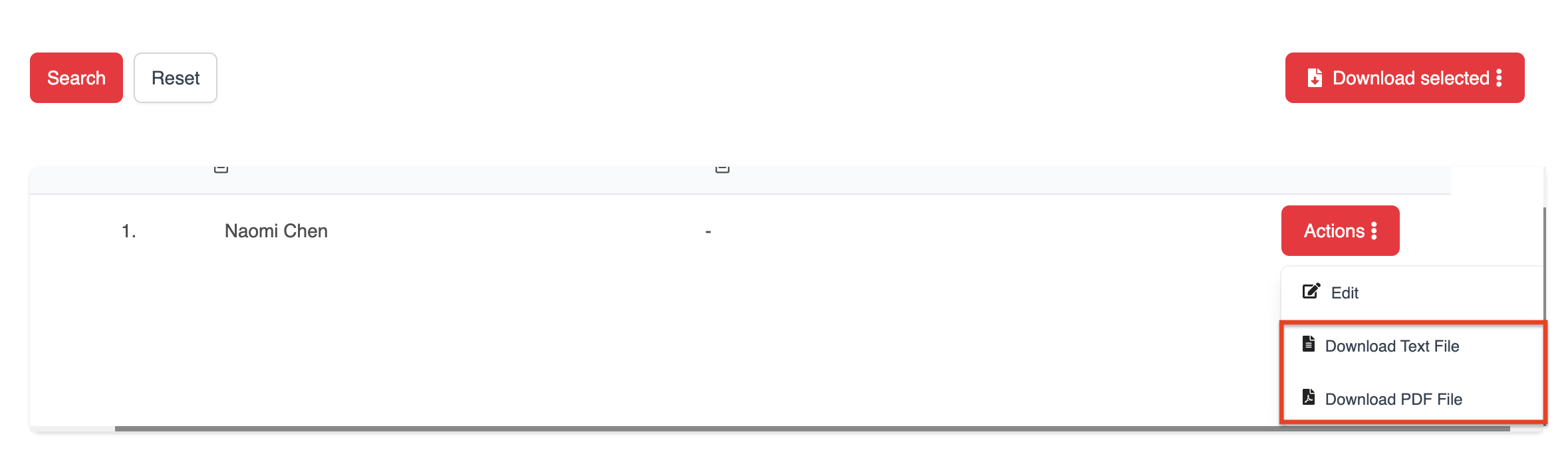
5. To download a single employee's CP22A form, click ACTIONS and select either:
- Download Text File, or
- Download PDF File
6. For bulk downloads, tick the employees you want and click Download Text File or Download Selected PDF to generate and download multiple CP22A forms at once.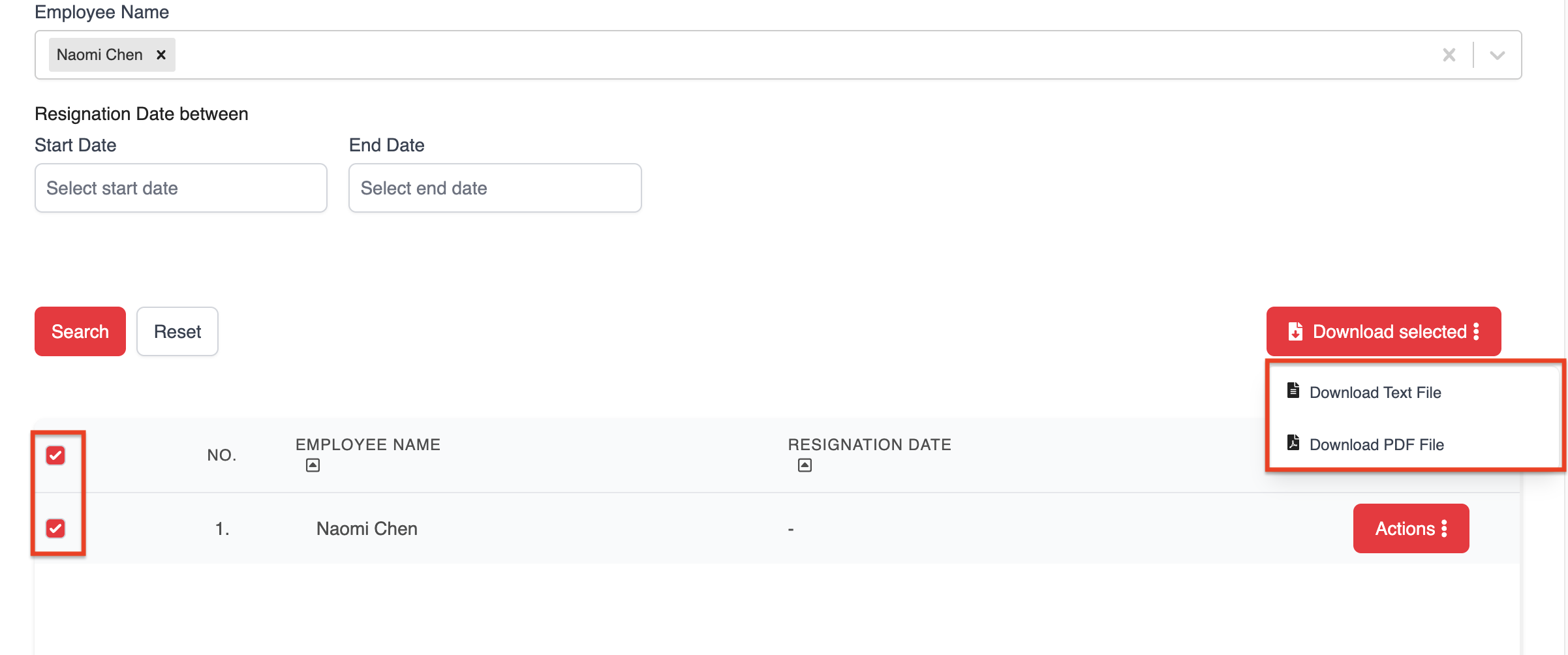
Was this article helpful?
That’s Great!
Thank you for your feedback
Sorry! We couldn't be helpful
Thank you for your feedback
Feedback sent
We appreciate your effort and will try to fix the article