Currently, the system allows filtering by one employee at a time. To filter multiple employees, you can first create an Employee Group and then use it as a filter in the Employee Audit Log.
Step 1: Create an Employee Group
1. Navigate to Company > Company Settings.
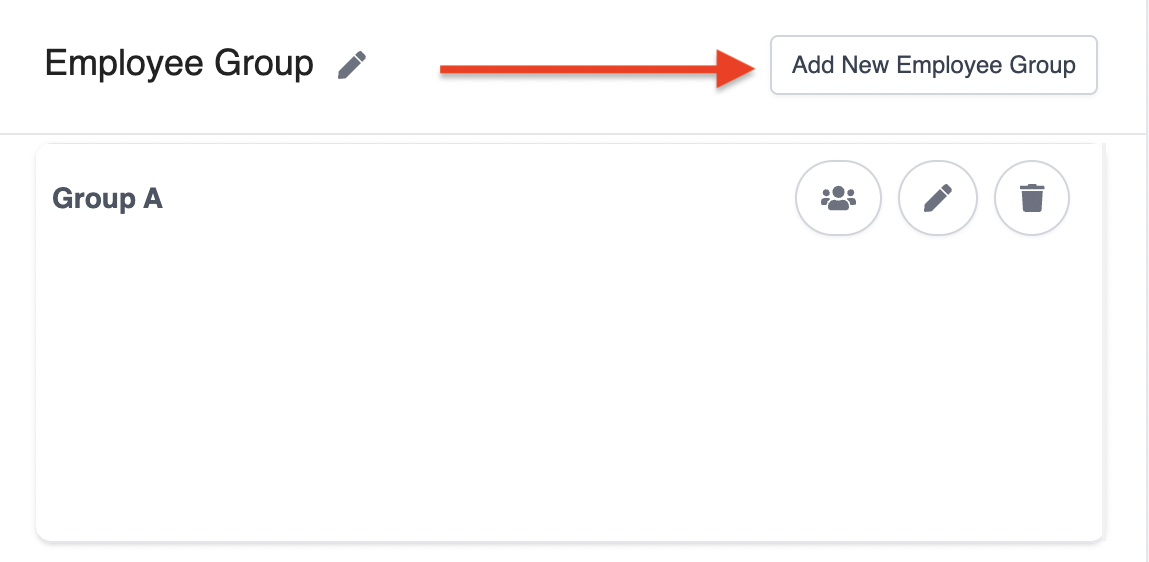
2. Scroll down to the Employee Group section and click Add New Employee Group.
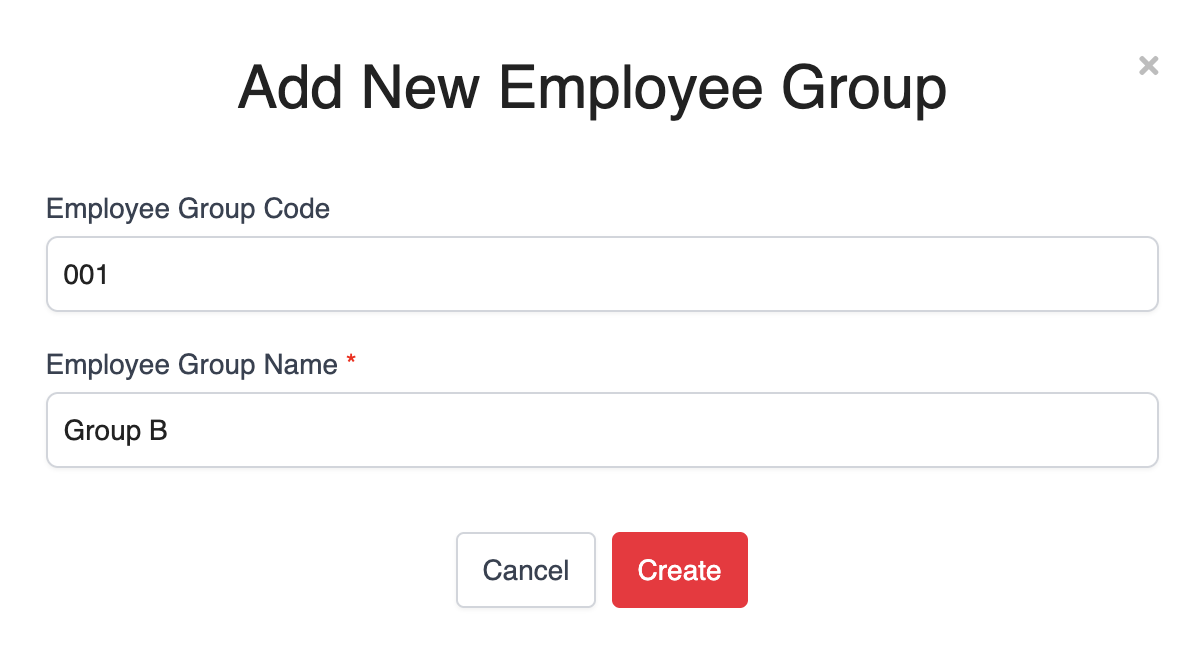
3. Enter a Group Name and click Create.
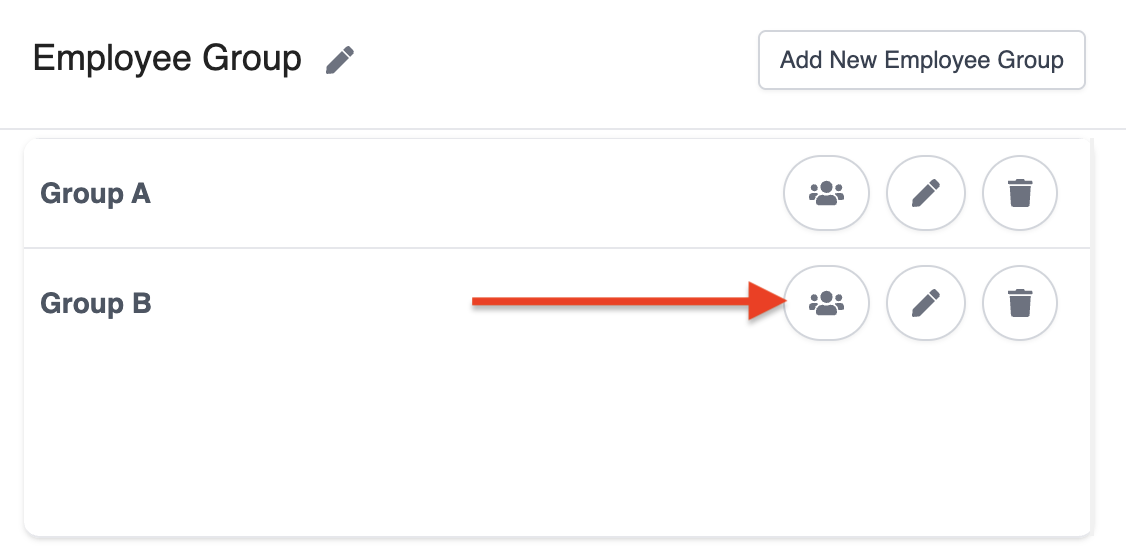
4. Next, click the group icon next to the group name.
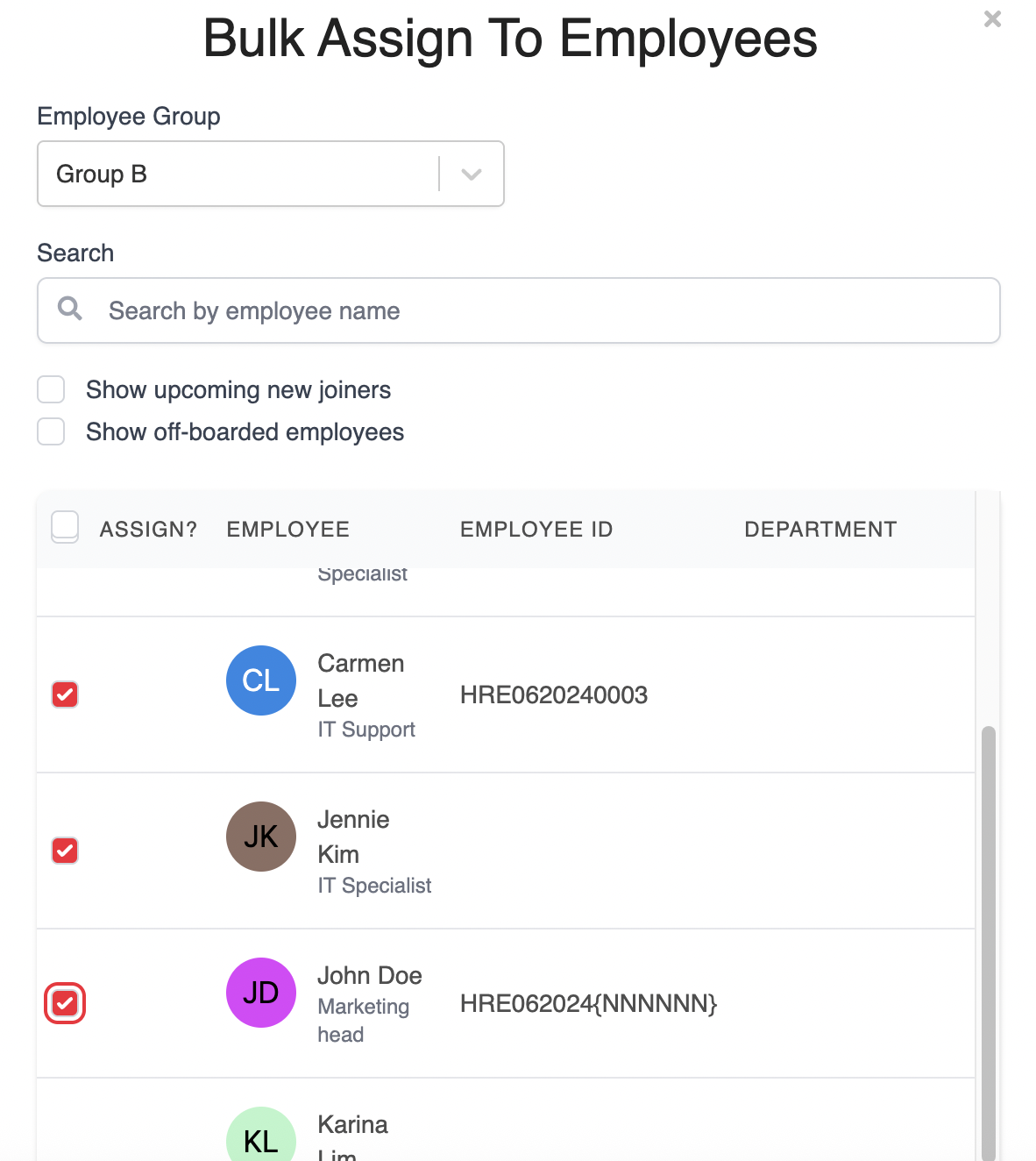
5. Select the employees you want to include. Your changes will be saved automatically.
Step 2: Filter the Employee Audit Log by Employee Group
1. Navigate to the Employee Audit Log page.
2. Use the Employee Group filter to select the group you created.
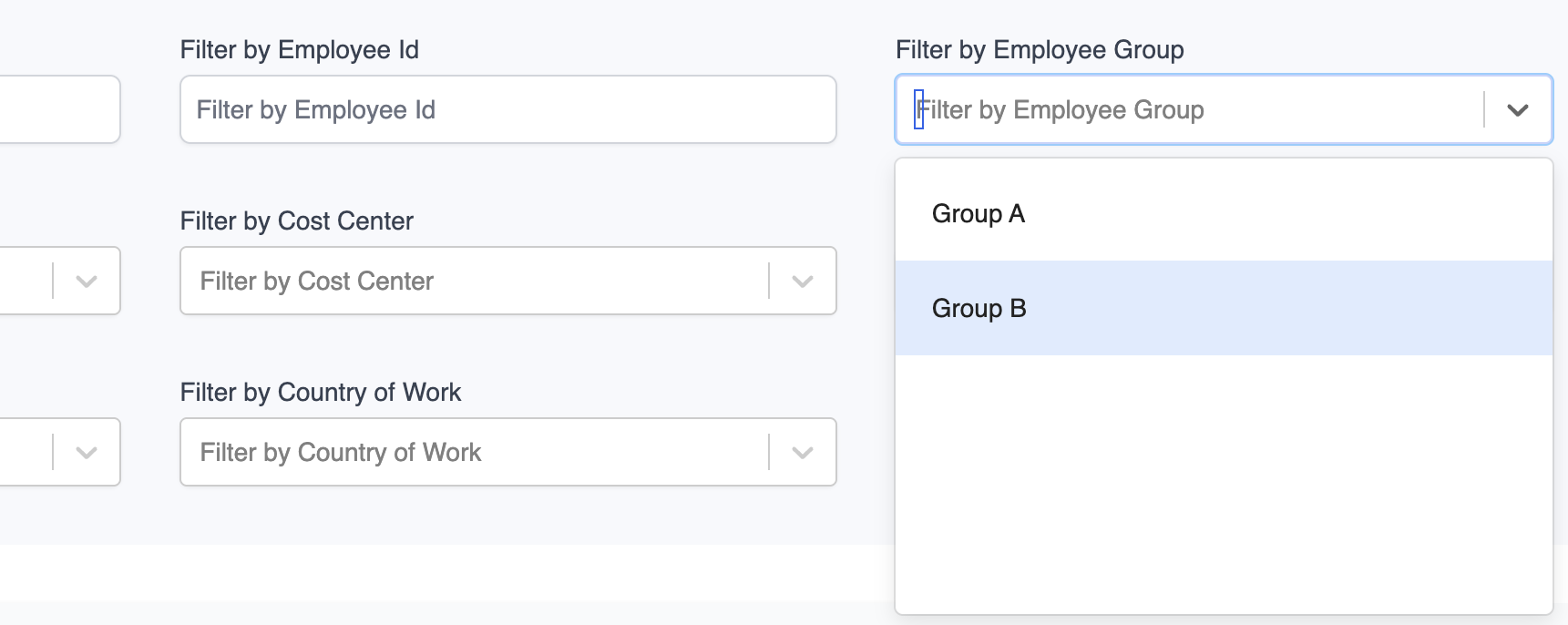
The audit log will display records for all employees included in the selected group.
Was this article helpful?
That’s Great!
Thank you for your feedback
Sorry! We couldn't be helpful
Thank you for your feedback
Feedback sent
We appreciate your effort and will try to fix the article