Set up tracking category mapping to automatically send the correct employee tracking data to Xero when Invoices (Bills) and Manual Journals are exported.
Before proceeding, ensure that the tracking categories are first created in Xero and that they match the list configured in HReasily. You may refer to the official Xero guide here.
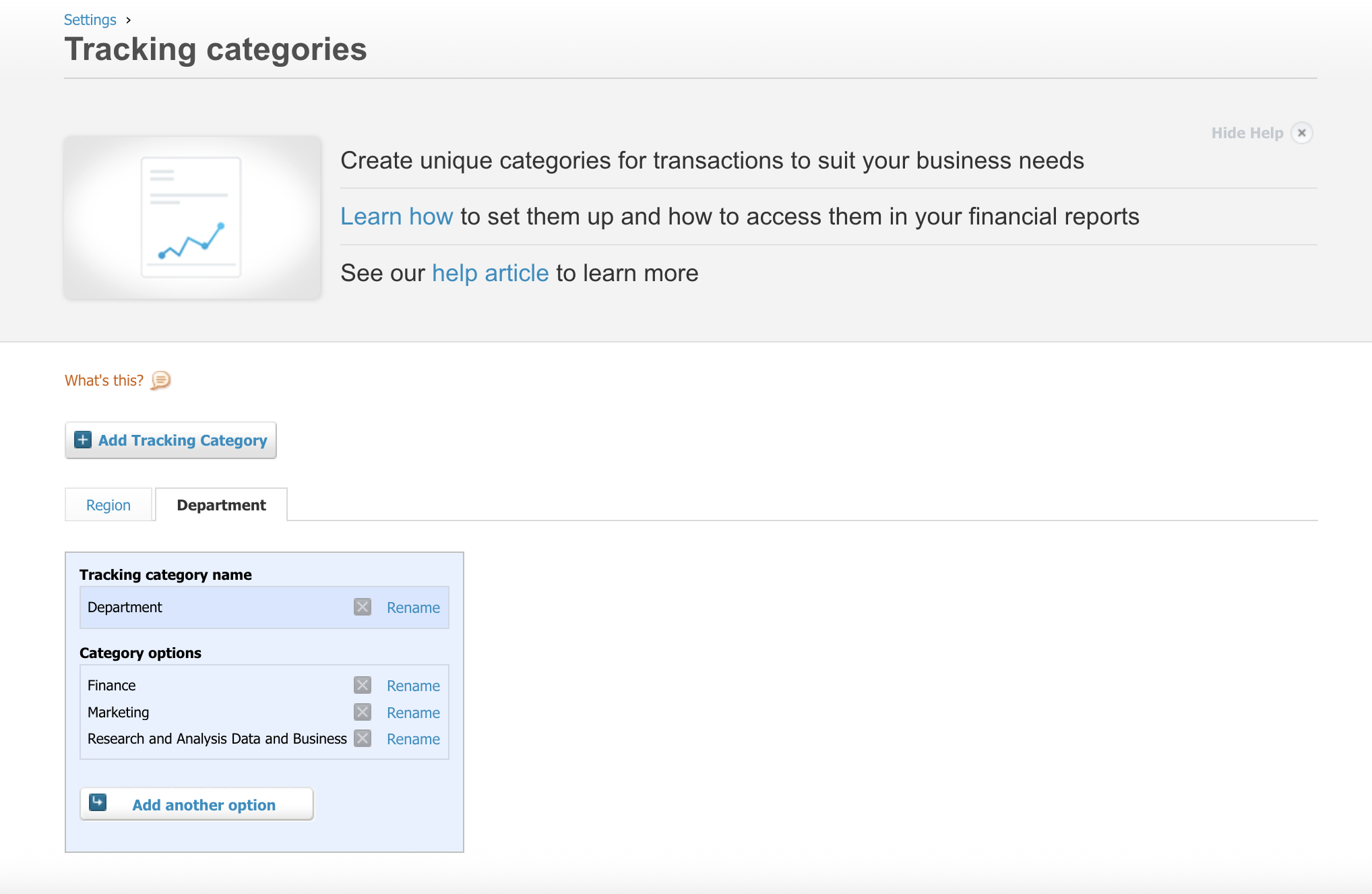
Follow the steps below to configure the tracking category mapping for both Bills and Manual Journals.
1. Integrate your Xero account. Refer to the integration guide.
2. Once connected, navigate to the Tracking Categories tab and map the Xero tracking categories accordingly.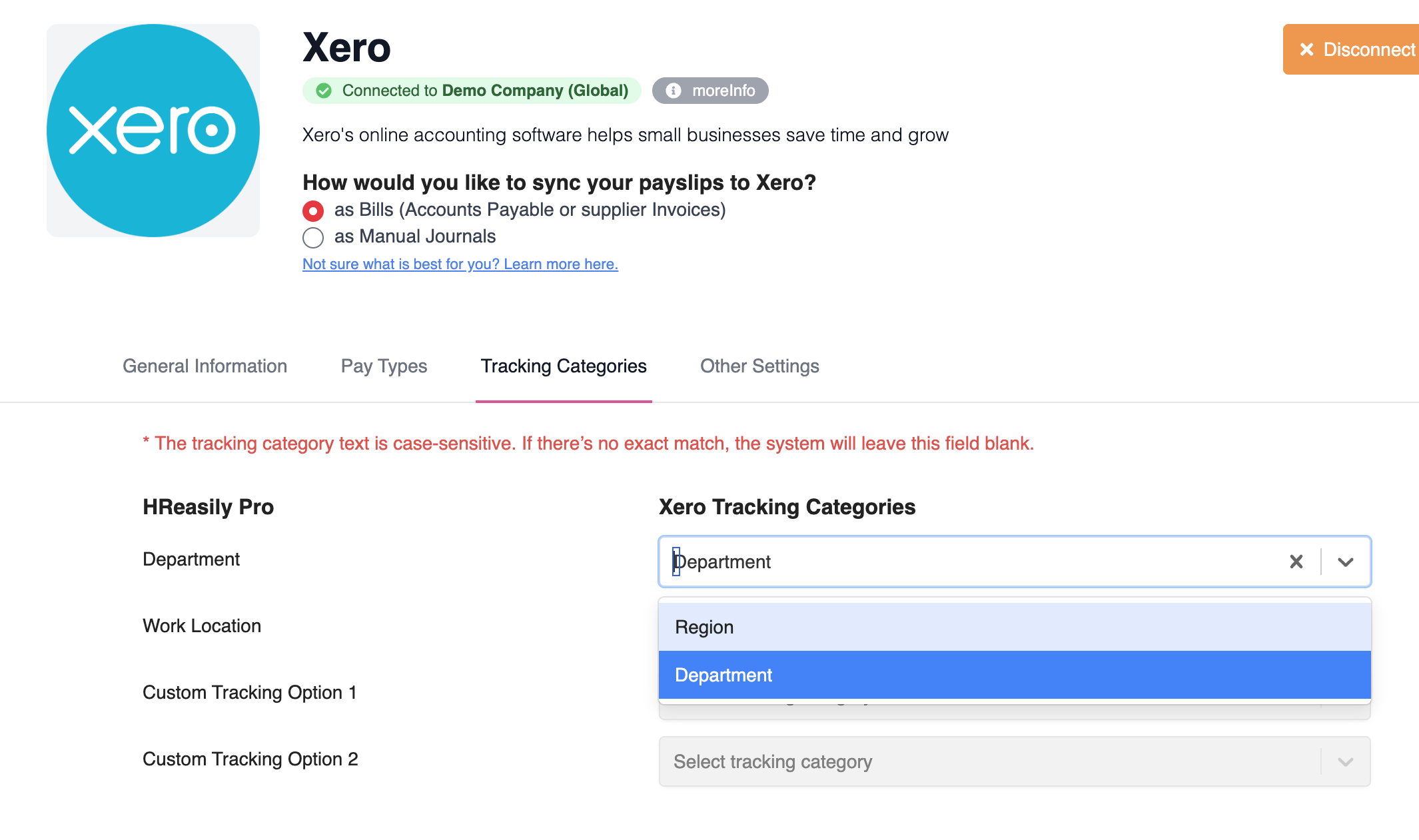
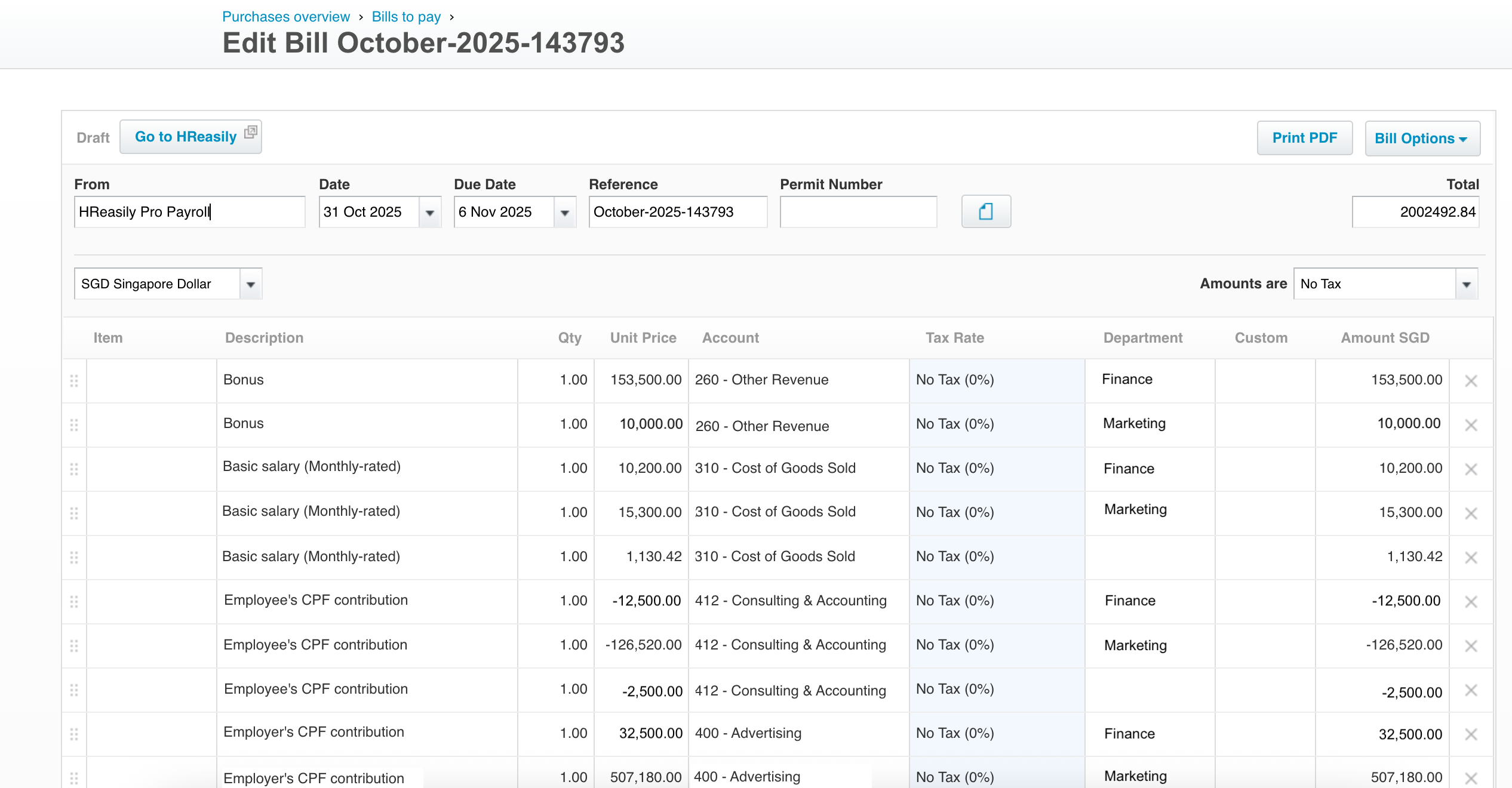
Below is an example of a synced Bill tracked by Department.
Important Notes
The system supports one tracking category at a time, depending on your configuration in Xero.
If the tracking category does not appear in the dropdown list, disconnect and reconnect your Xero account to refresh the data.
Was this article helpful?
That’s Great!
Thank you for your feedback
Sorry! We couldn't be helpful
Thank you for your feedback
Feedback sent
We appreciate your effort and will try to fix the article