Follow the steps below to configure how timesheets are synced to payroll:
1. Go to Timesheet > Timesheet Settings > Settings > Other Settings.
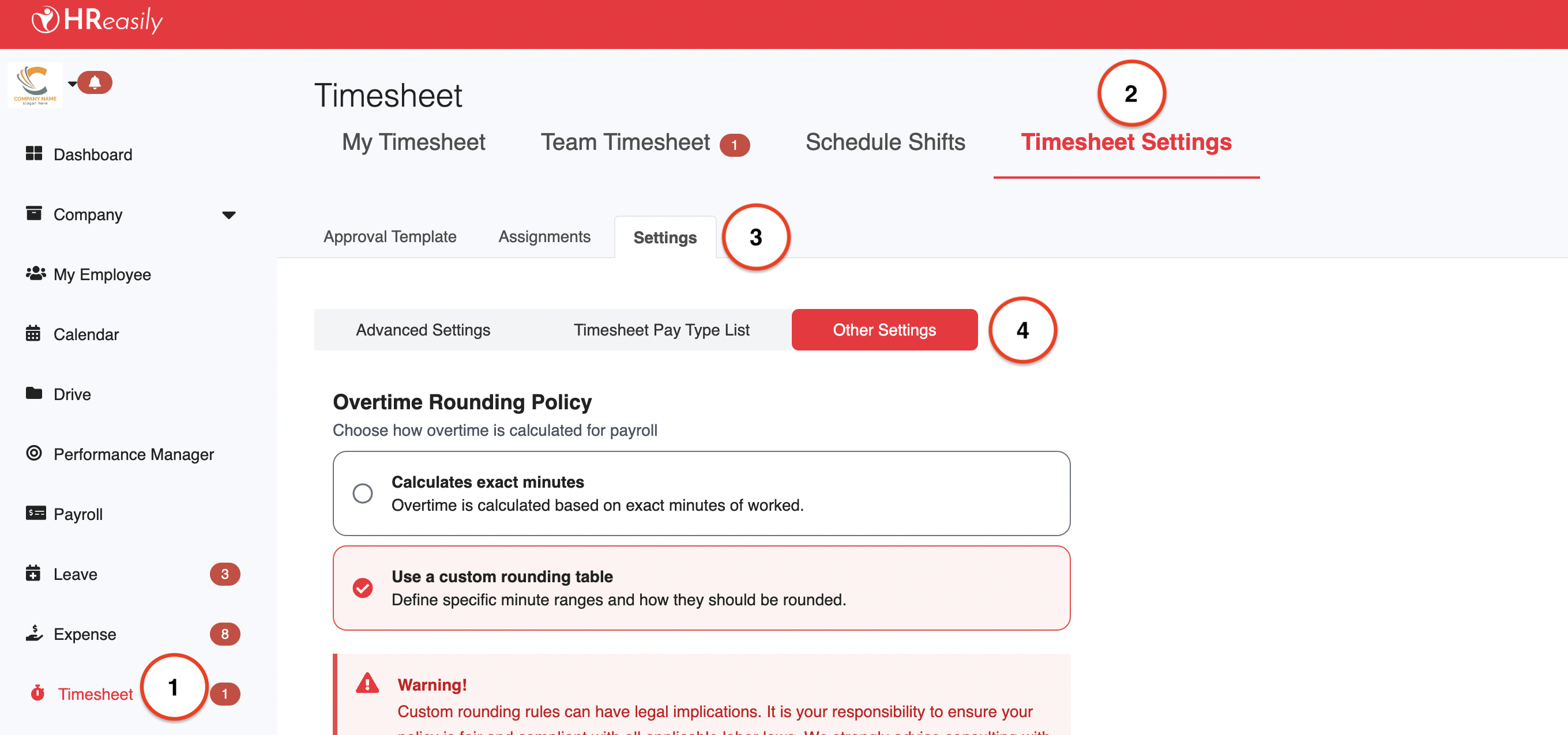
2. Under Timesheet Sync Setting, choose one of the following options:
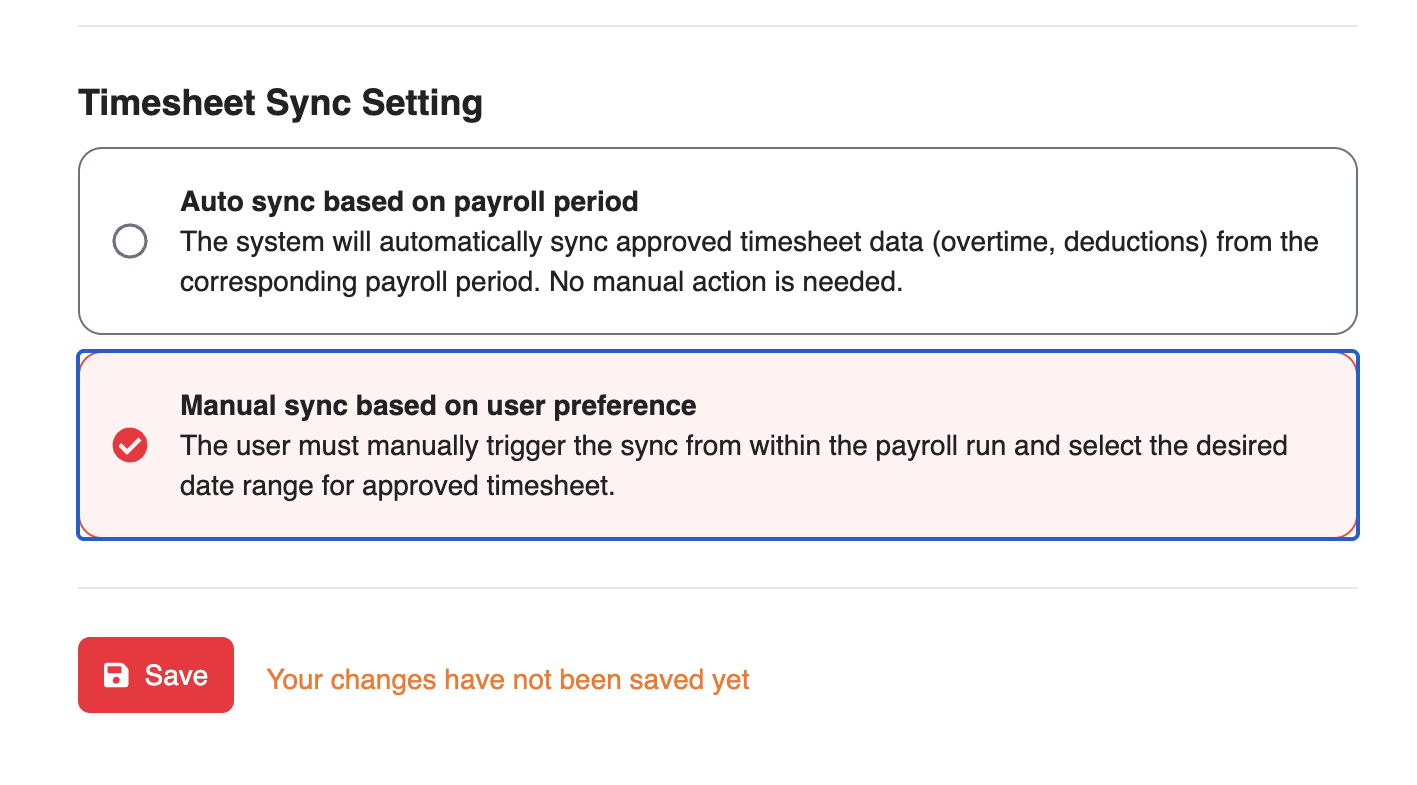
Automatic sync based on payroll period
- All approved timesheets within the payroll period are synced automatically.
- Recommended if you prefer a seamless, hands-off syncing process each payroll cycle.
Manual sync based on user preference
- Gives you full control over when timesheets are synced.
- Users can manually trigger the sync during payroll by selecting a specific date range for approved timesheets.
3. Once you’ve selected your preferred method, click Save to apply the changes.
Syncing Timesheets Manually
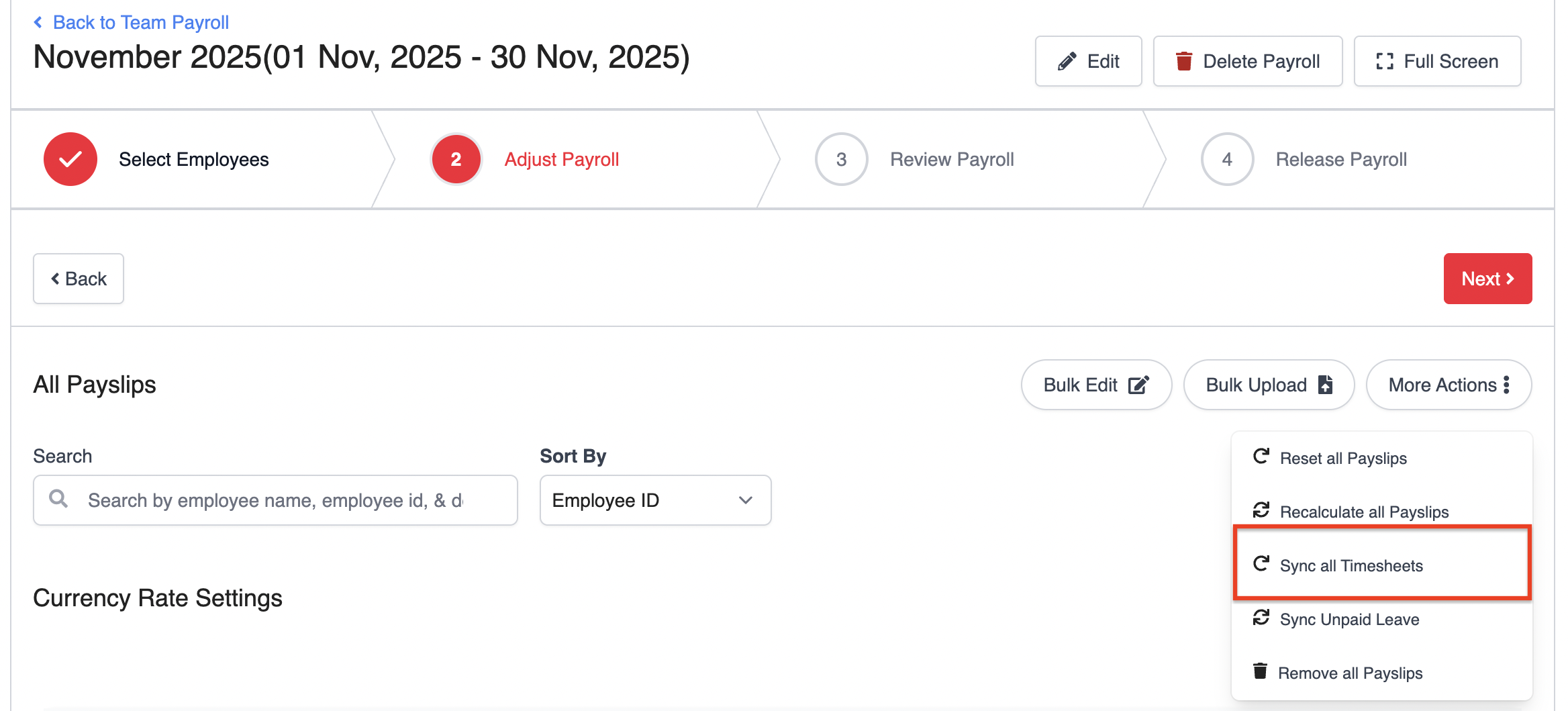
If Manual Sync is enabled, a Sync all Timesheets button will appear in the payroll module once a payroll run is created.
1. Open the relevant payroll.
2. Click More Actions > Sync all Timesheets.
3. Select the date range and Timesheet Category for the approved timesheets you want to include, then click Sync Timesheets.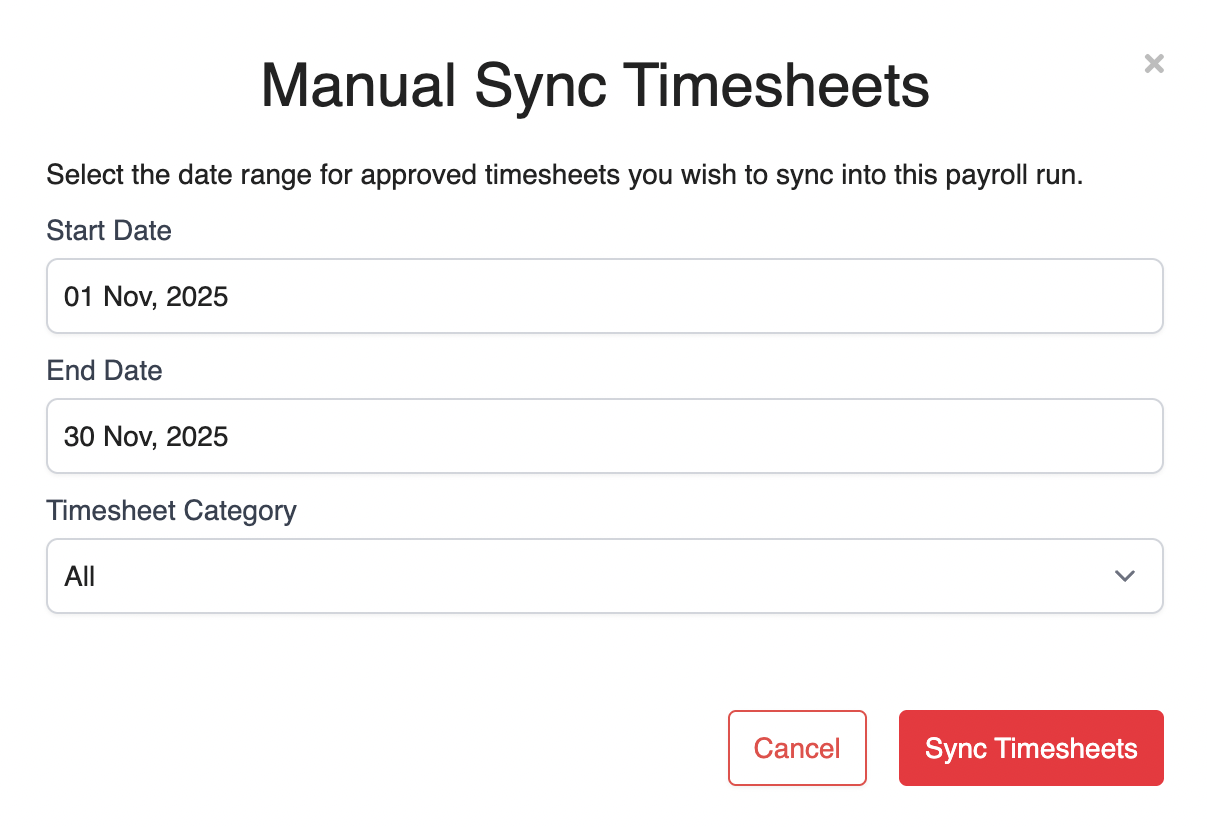
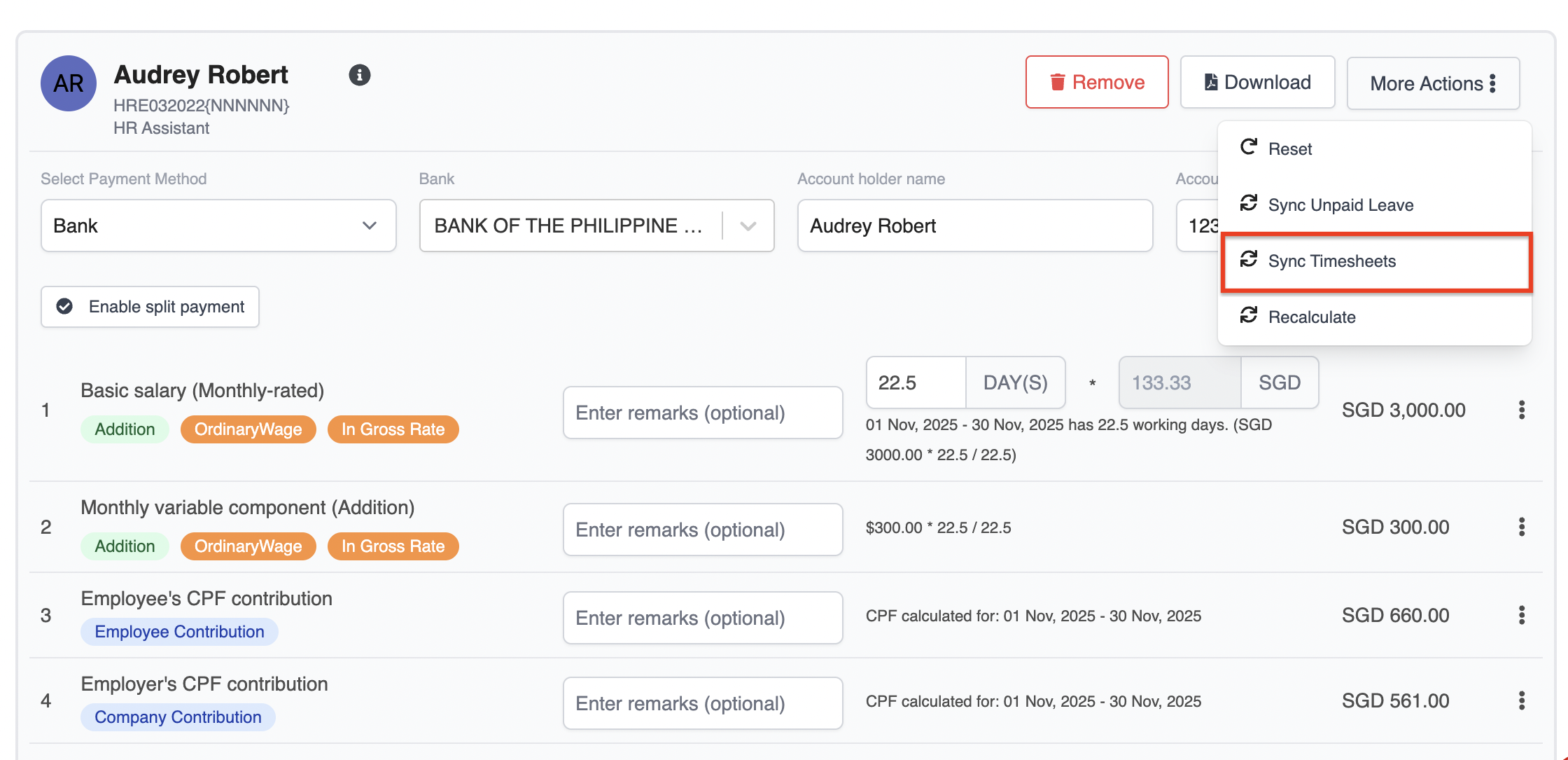
You can also sync timesheet for a specific employee:
1. Locate the employee's payslip.
2. Click More Actions next to the payslip and select Sync Timesheets.
Was this article helpful?
That’s Great!
Thank you for your feedback
Sorry! We couldn't be helpful
Thank you for your feedback
Feedback sent
We appreciate your effort and will try to fix the article