In situations where you want to temporarily remove an employee from the active staff list without fully offboarding them, you can utilize the archive function. It keeps the employee's profile and data intact for future use. This guide explains how to archive employees individually or in bulk and how to restore them as needed.
Archiving an Employee
1. Access the My Employees page from your dashboard.
2. Locate the employee you wish to archive and click on the three vertical dots next to the employee's profile. From the dropdown menu, click on the Archive option.
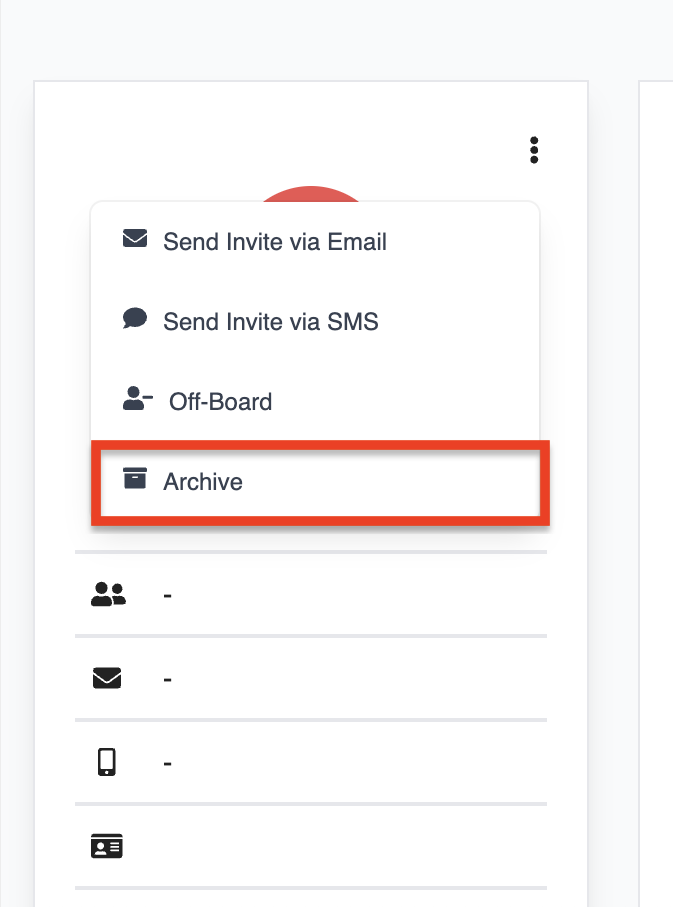
3. A confirmation pop-up will appear. Click Yes to archive the employee. Their profile will then move to the archived list.

Restoring Archived Employees
If you need to restore an archived employee back to the active list, follow these steps:
1. Go to the My Employees page and use the Filter By dropdown. Select Archived employees to display the list of employees who have been archived.
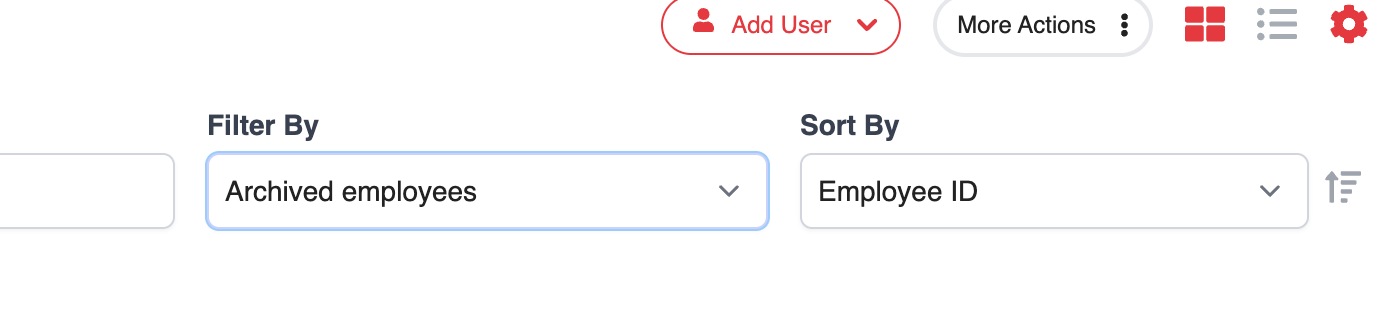
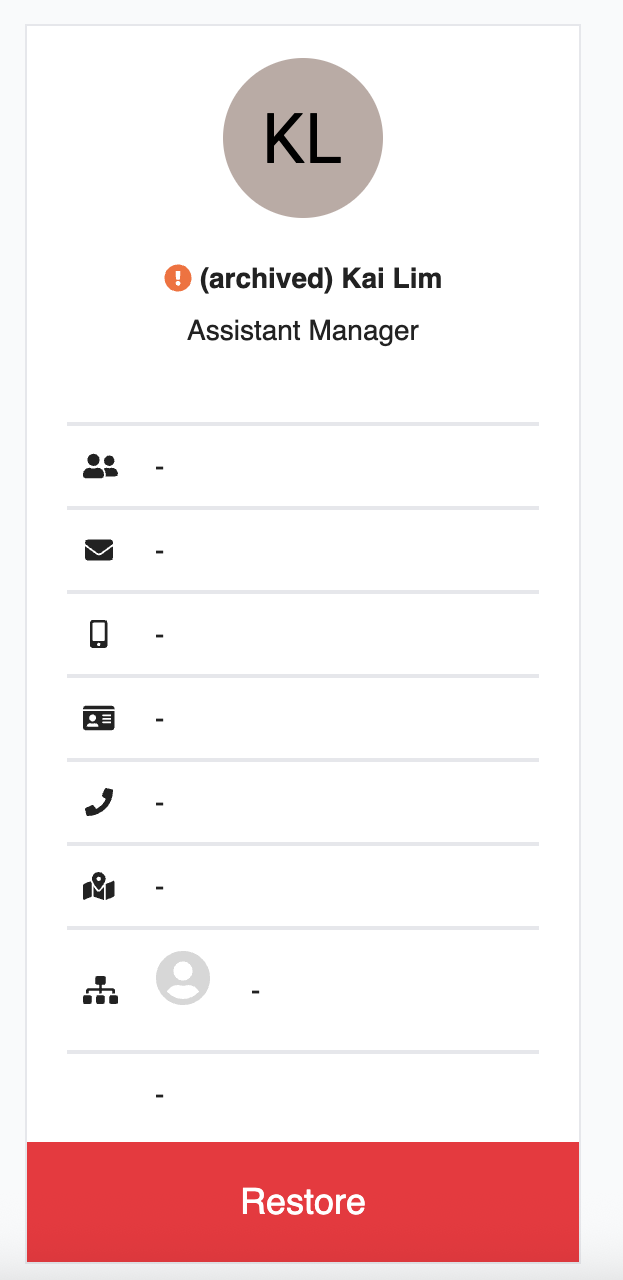
2. Find the employee you wish to restore and click on the Restore button.
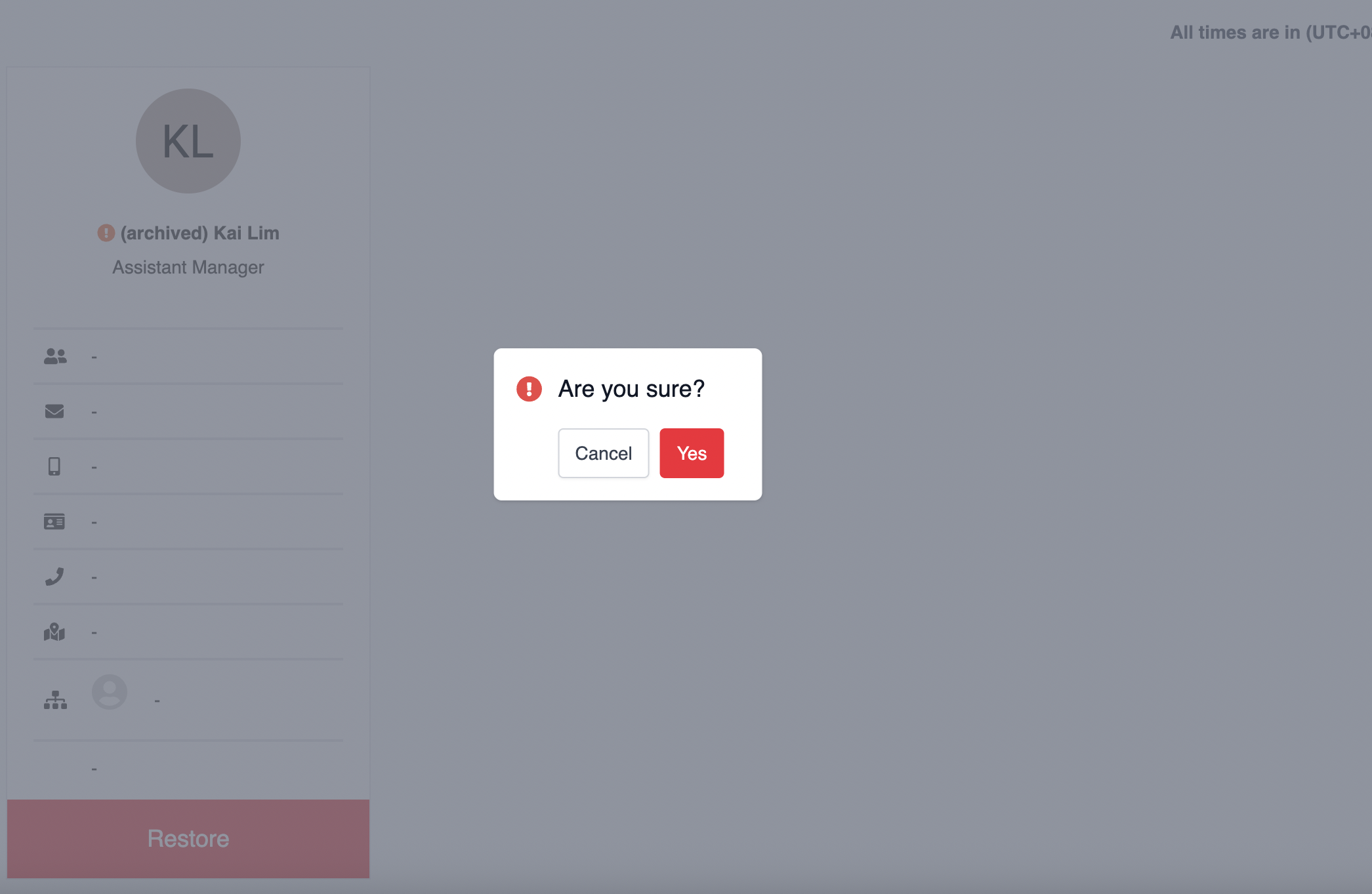
3. A confirmation pop-up will appear, asking if you're sure you want to restore the employee. Click Yes to complete the restoration. The employee will now be returned to the active staff list.
Was this article helpful?
That’s Great!
Thank you for your feedback
Sorry! We couldn't be helpful
Thank you for your feedback
Feedback sent
We appreciate your effort and will try to fix the article