Go to My Profile on the left navigation bar.
On this page, you can access the following tabs:
Personal
Employment
Payroll
Additional Info
Documents
Career Progression
For the purposes of this guide, we will be focussing on Personal, Employment and Documents.
Personal
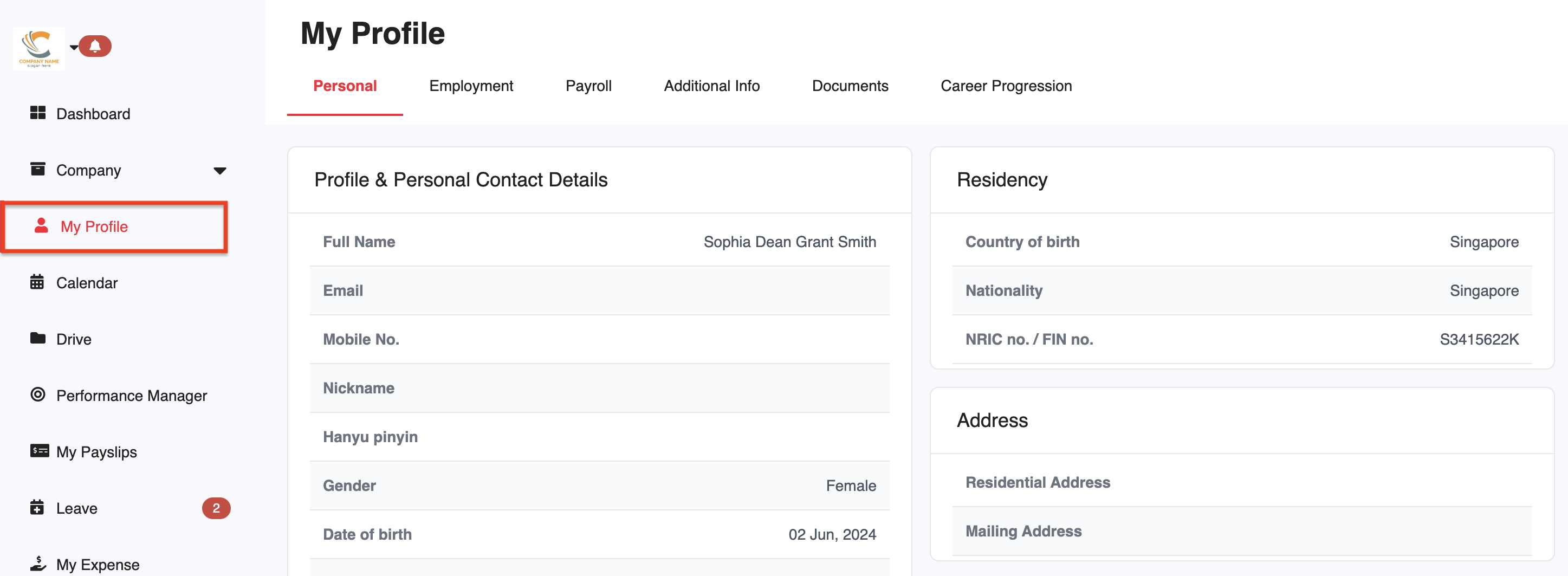
This tab contains your personal details, such as contact and identification information. Depending on your company's settings (i.e. whether employee self-service editing is enabled), you may be able to update certain fields by clicking the Edit button within each section.
However, certain fields (e.g. Nationality) are restricted and can only be updated by an admin.
Employment
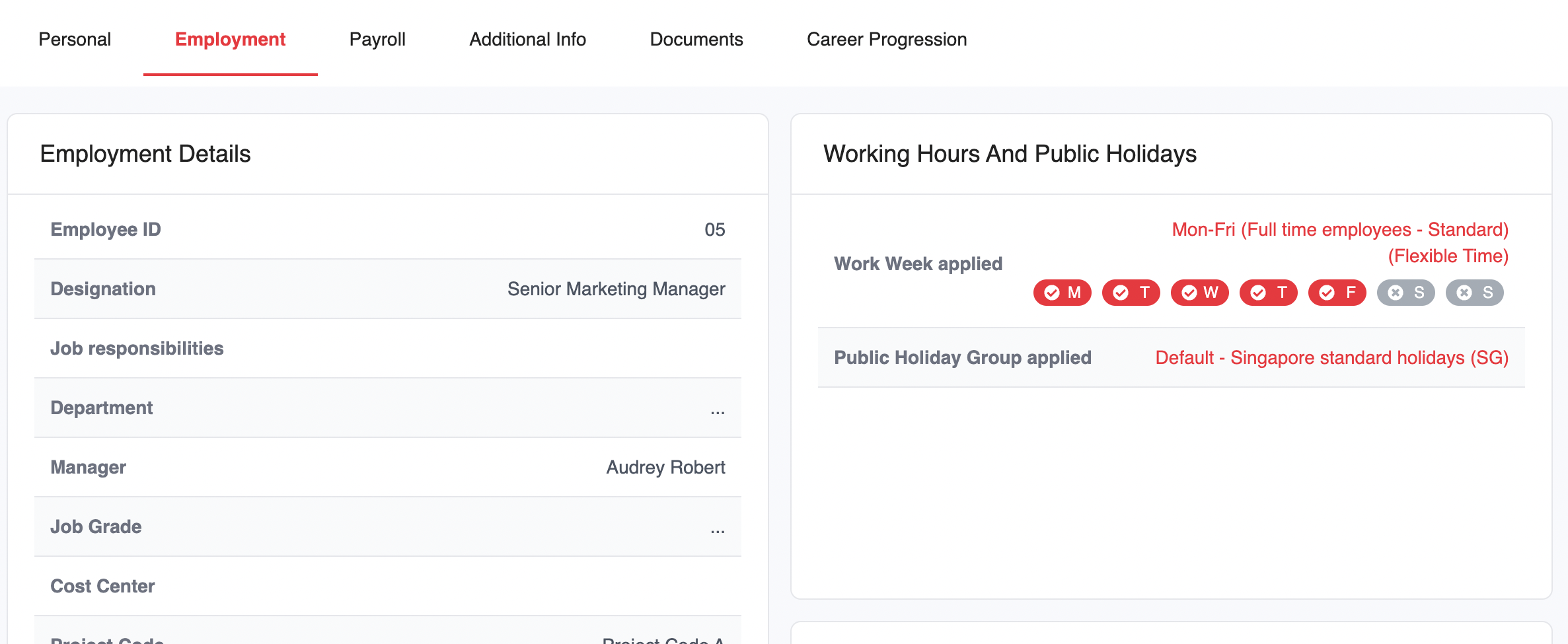
This tab displays your employment information, including your job title, department, and working hours.
This is a view-only section. If any updates are required, please contact your admin.
Payroll
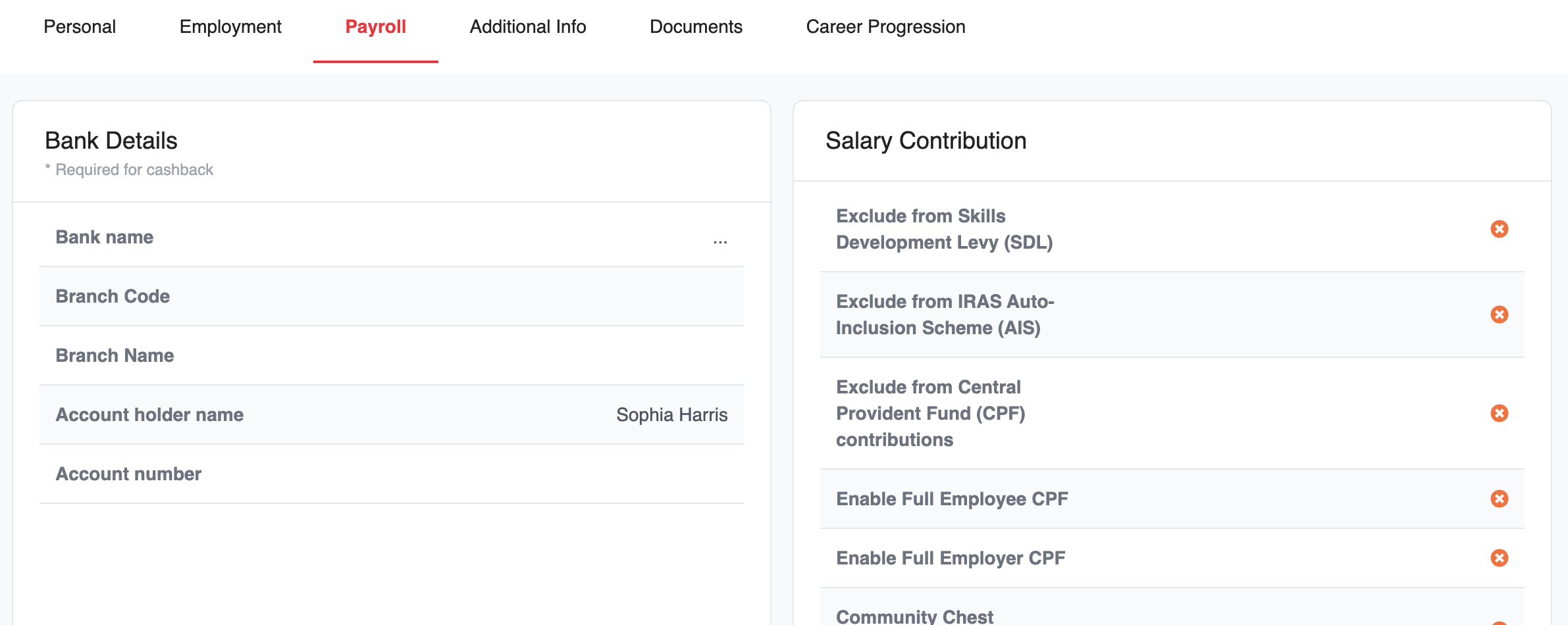
This tab displays your payroll-related information, such as salary and payment details.
This is a view-only section. Any changes must be handled by an admin.
Additional Info
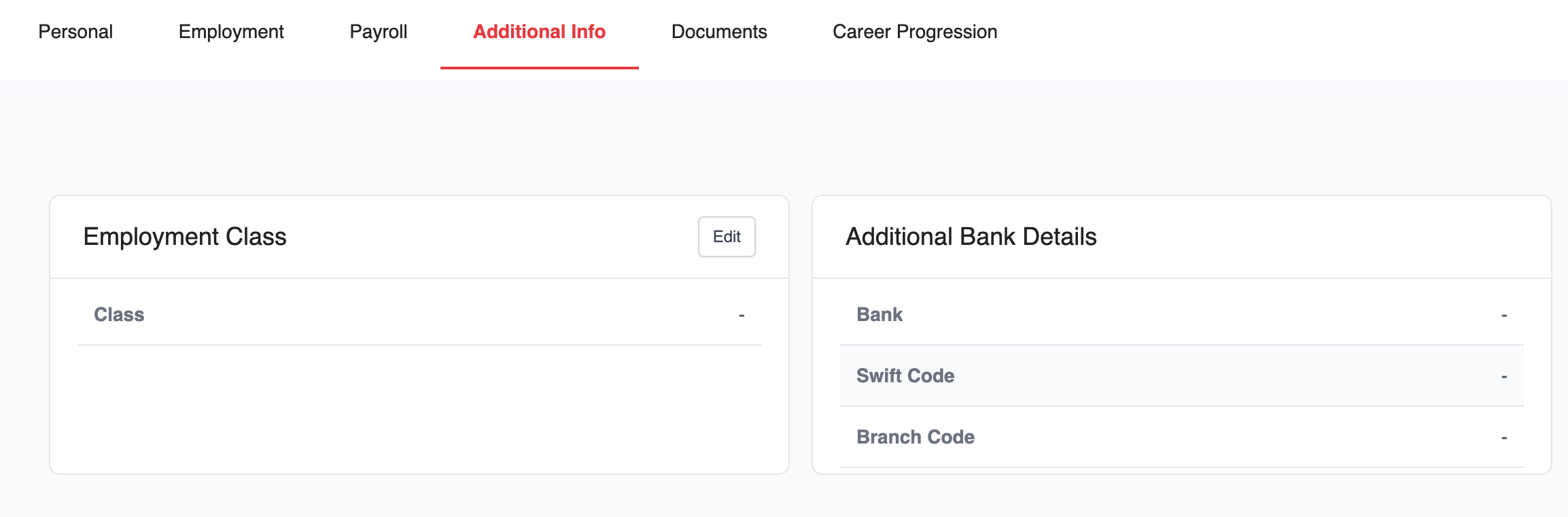
This tab contains any additional information configured by your company. Fields in this section are editable only if editing has been enabled for that specific section.
Documents
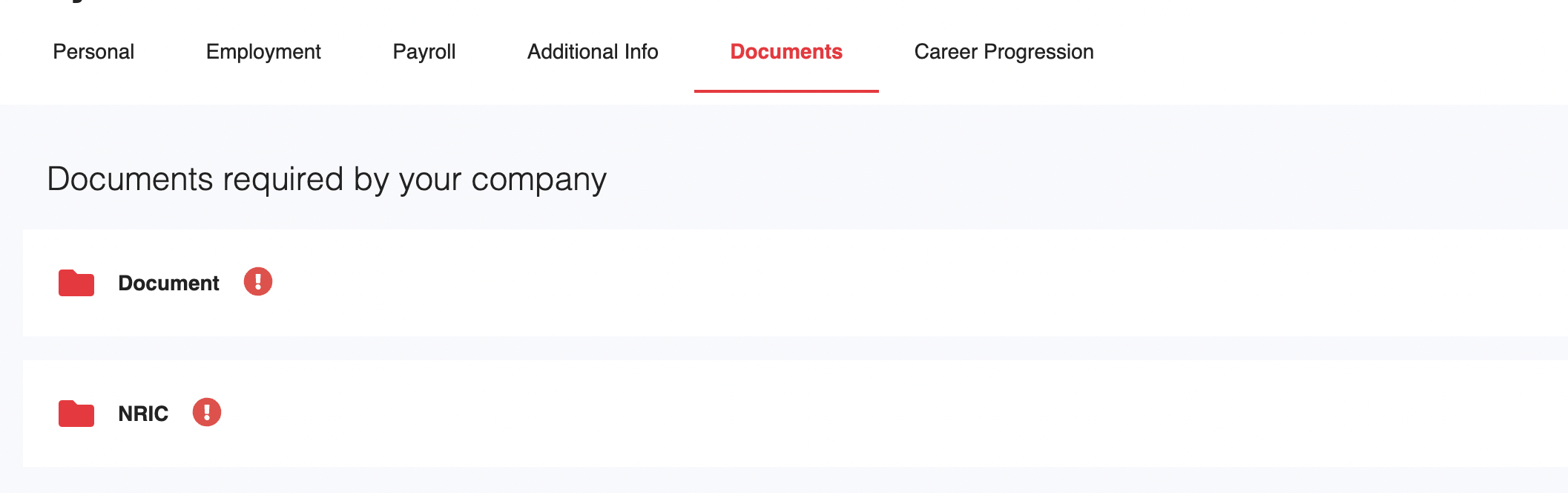
You can upload any required documents set by your company under this tab. Folders with missing documents or pending approval will be indicated with a '!' symbol.
Once a document is uploaded, the Approval Status will be shown as Pending.
You can then download or delete the uploaded document or upload another document.

Should an admin reject the submission, a message will be shown on the page with the Approval Status Rejected, with a comment. You can then delete the document and re-upload another document.
Approved documents can be downloaded, but not deleted.

Whenever an admin approves or rejects a document, a message will be sent via chat, mentioning the approval or rejection and the reason given (if any).

Career Progression
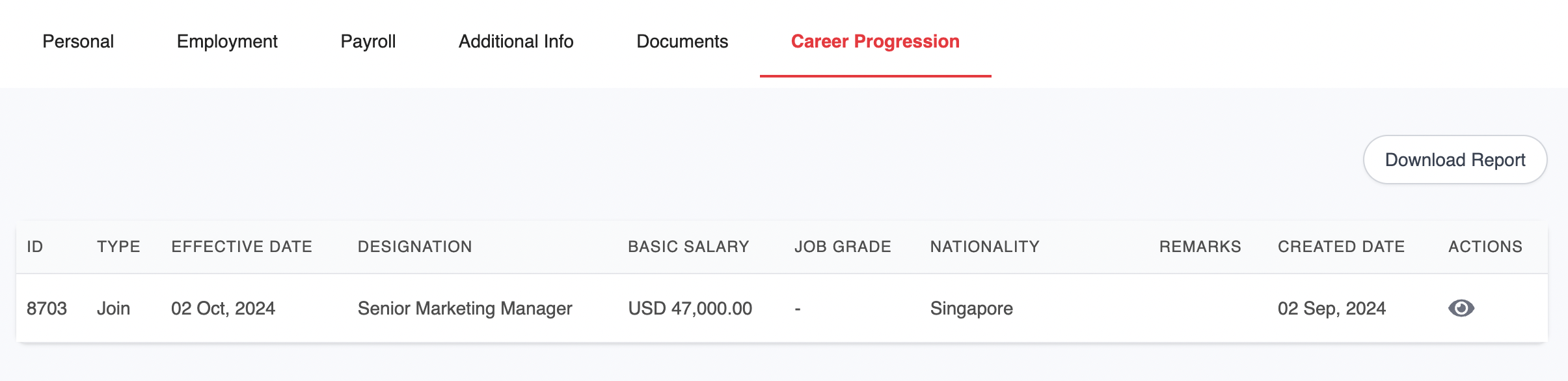
This tab provides a record of your employment history and progression within the company.
This is a view-only section. You can download the report, but any changes must be made by an admin.
Was this article helpful?
That’s Great!
Thank you for your feedback
Sorry! We couldn't be helpful
Thank you for your feedback
Feedback sent
We appreciate your effort and will try to fix the article