The Skim Kemalangan Bencana Bukan Pekerjaan (SKBBK) is an important social security contribution for eligible employees. Follow these simple steps to enable or update this contribution in the payroll system.
Configure for an Individual Employee
1. Navigate to My Employees > Select the employee > Payroll tab.
2. Under Salary Contribution, click Edit.
3. Scroll down to the Socso Details section and check the box for Does this employee contribute to Skim Kemalangan Bencana Bukan Pekerjaan (SKBBK)?
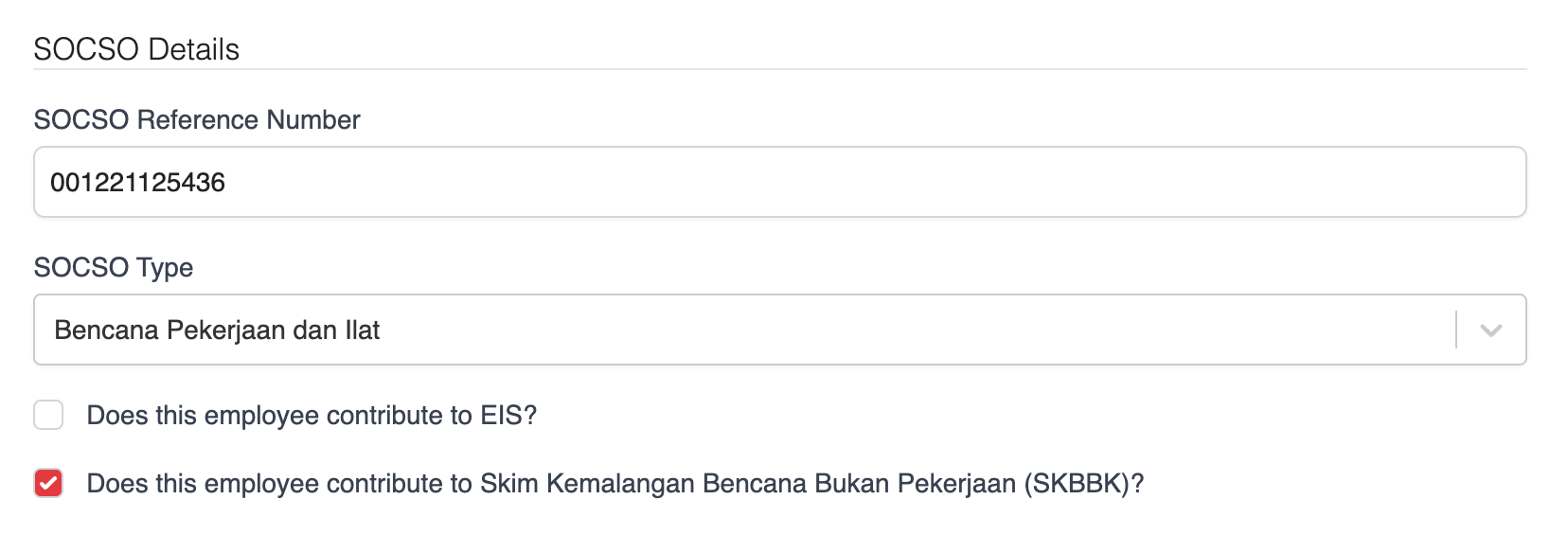
4. Review the selection and click Save at the bottom of the page to apply the changes.
Tip: Double-check that the employee's other SOCSO details are up to date before saving to prevent any payroll calculation discrepancies.
Configure SKBBK Contributions in Bulk
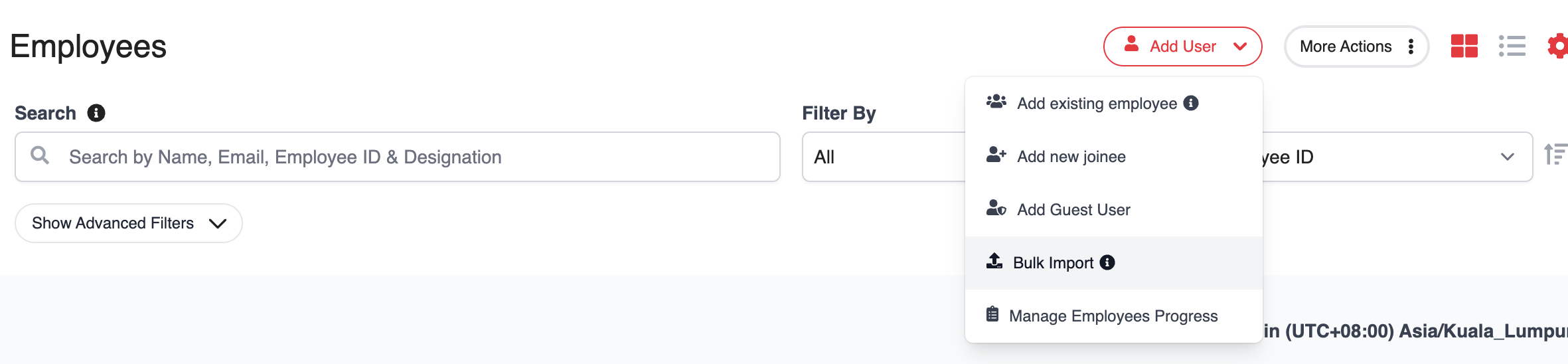
1. Go to My Employees > Add User > Bulk Import.
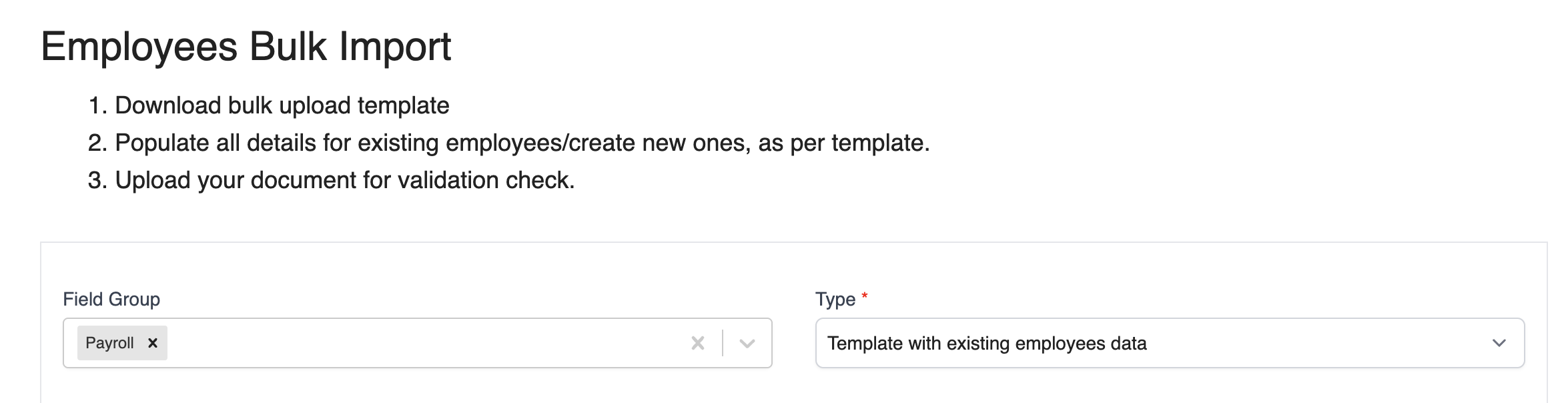
2. Under Template Type, select Template with Existing Data. Under Fields, select Payroll.
3. Select the employees you want to update, then click Generate Report.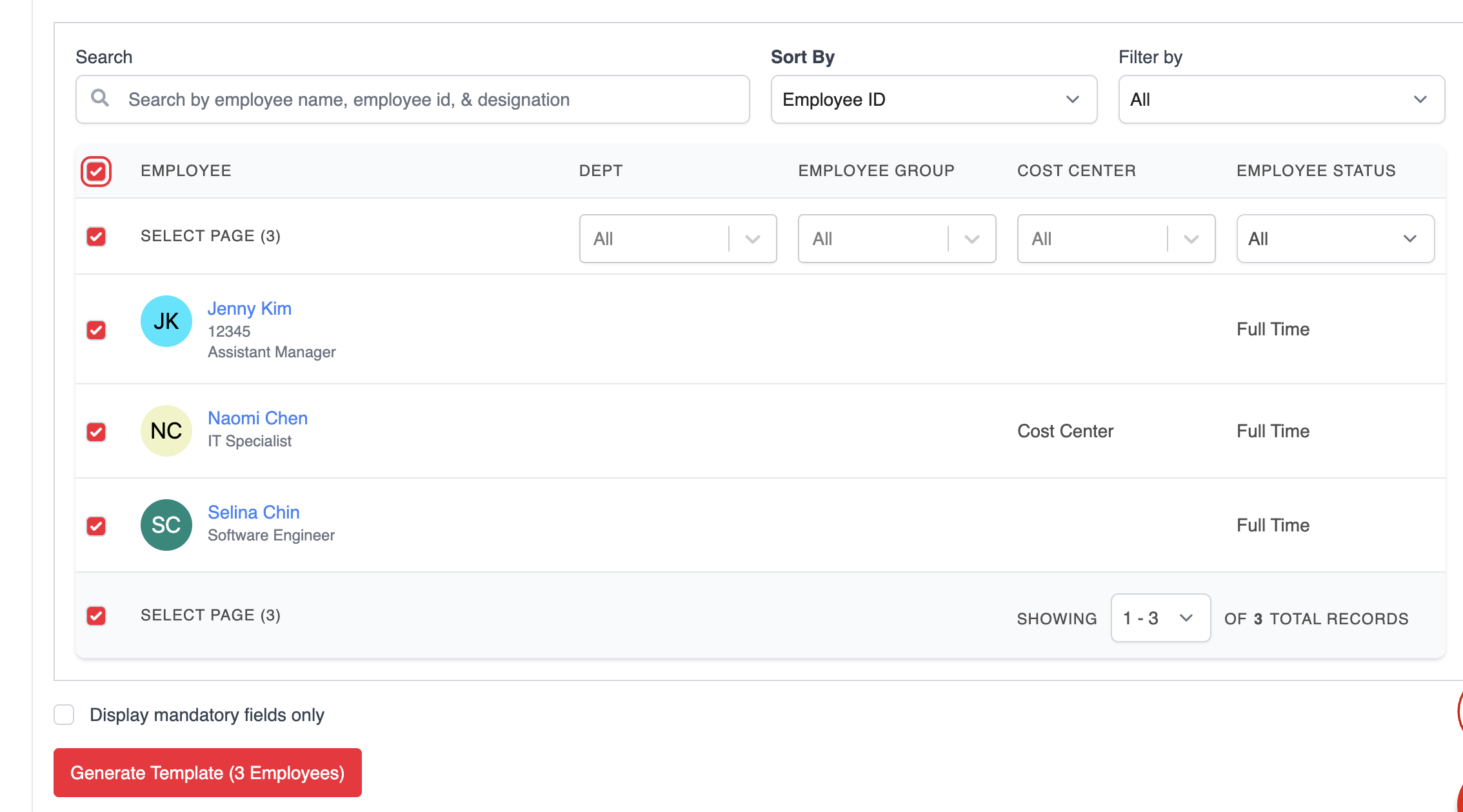
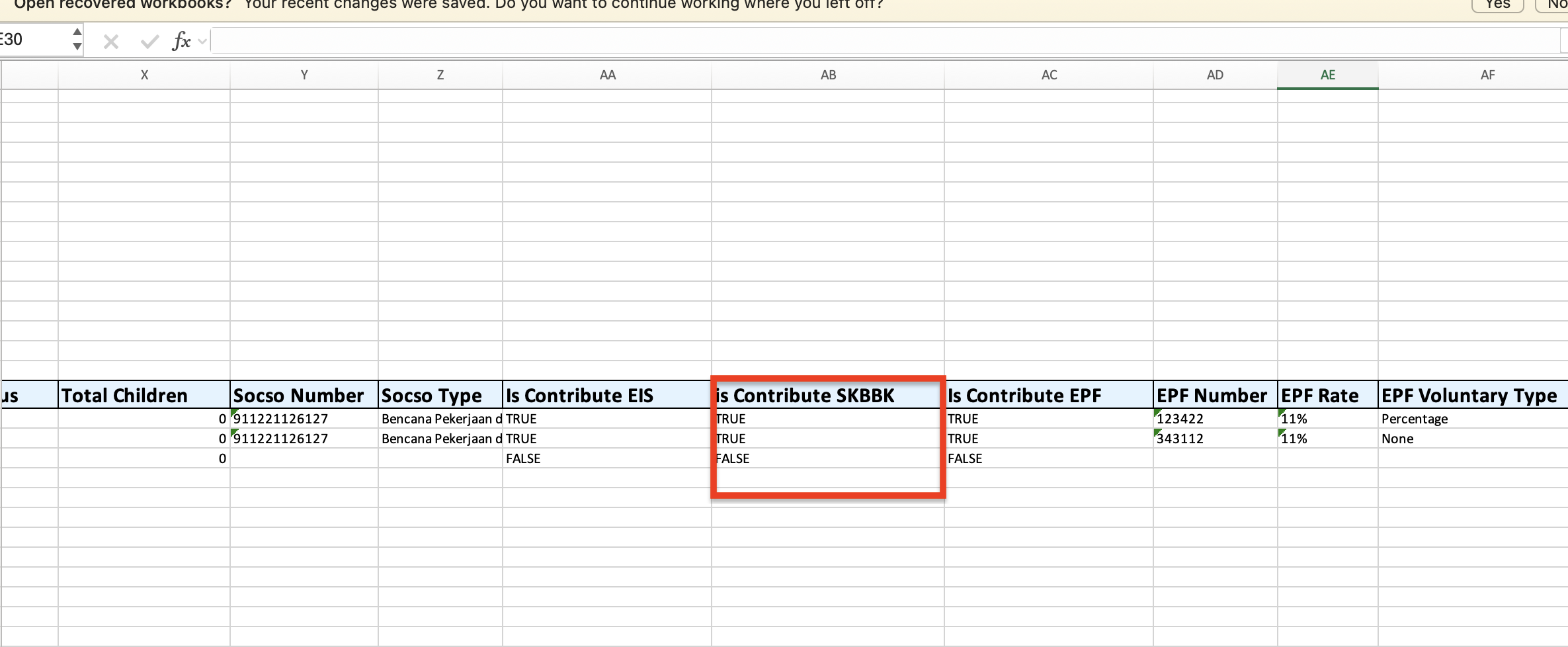
4. Open the downloaded template and locate the Is Contribute SKBBK column. Update the value for each employee:
- True: Employee contributes to SKBBK.
- False: Employee does not contribute to SKBBK.
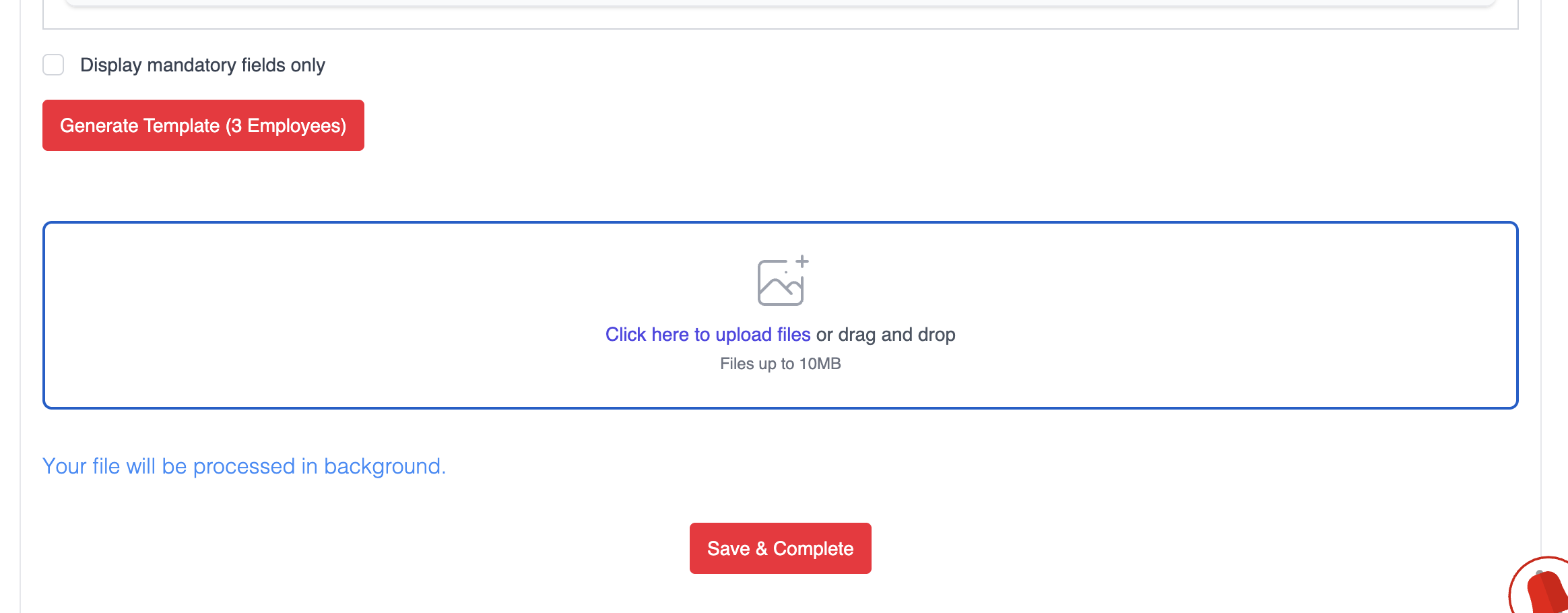
5. Save the completed template and upload it back into the system. Click Save & Complete to begin the import.
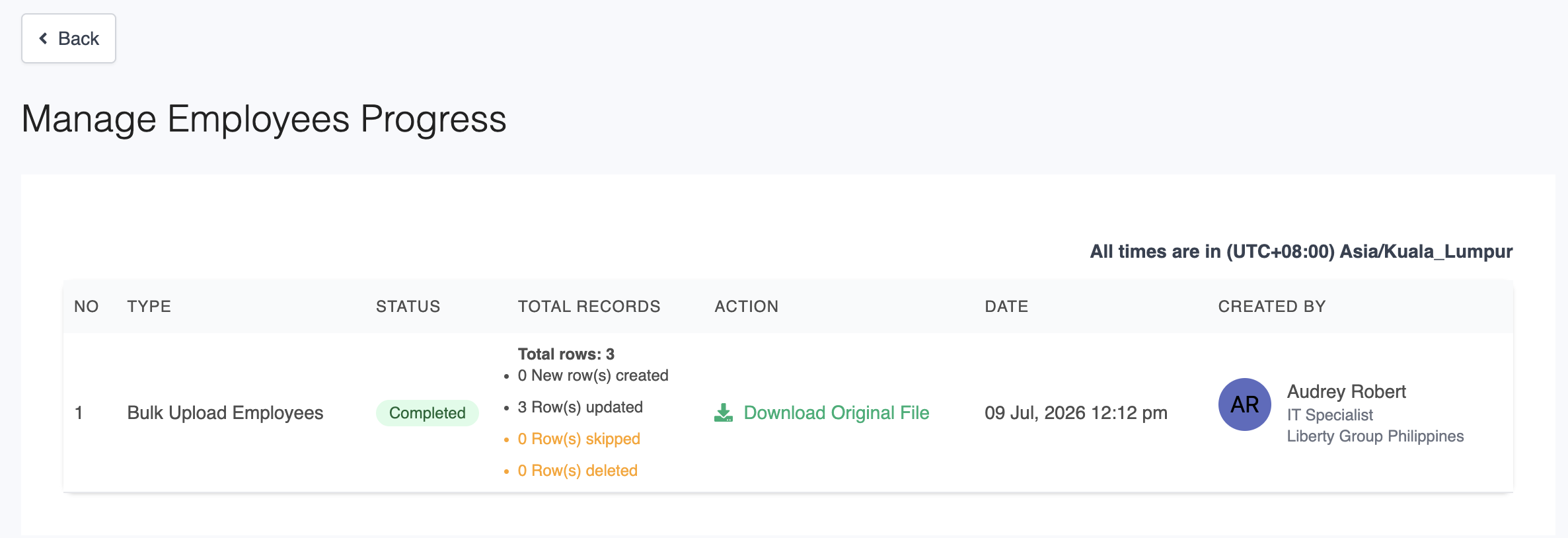
6. You will be redirected to the Manage Employees Progress page, where you can monitor the import status and confirm that the updates have been processed successfully.
Was this article helpful?
That’s Great!
Thank you for your feedback
Sorry! We couldn't be helpful
Thank you for your feedback
Feedback sent
We appreciate your effort and will try to fix the article