When an employee receives a salary adjustment, it’s important to record it accurately in the system so that payroll, reporting, and career progression records stay up to date. Follow the steps below to ensure the increment is properly captured.
1. Go to Manage Employees, select the employee, then click on Career Progression.
2. Click Add New Progression to create a new record.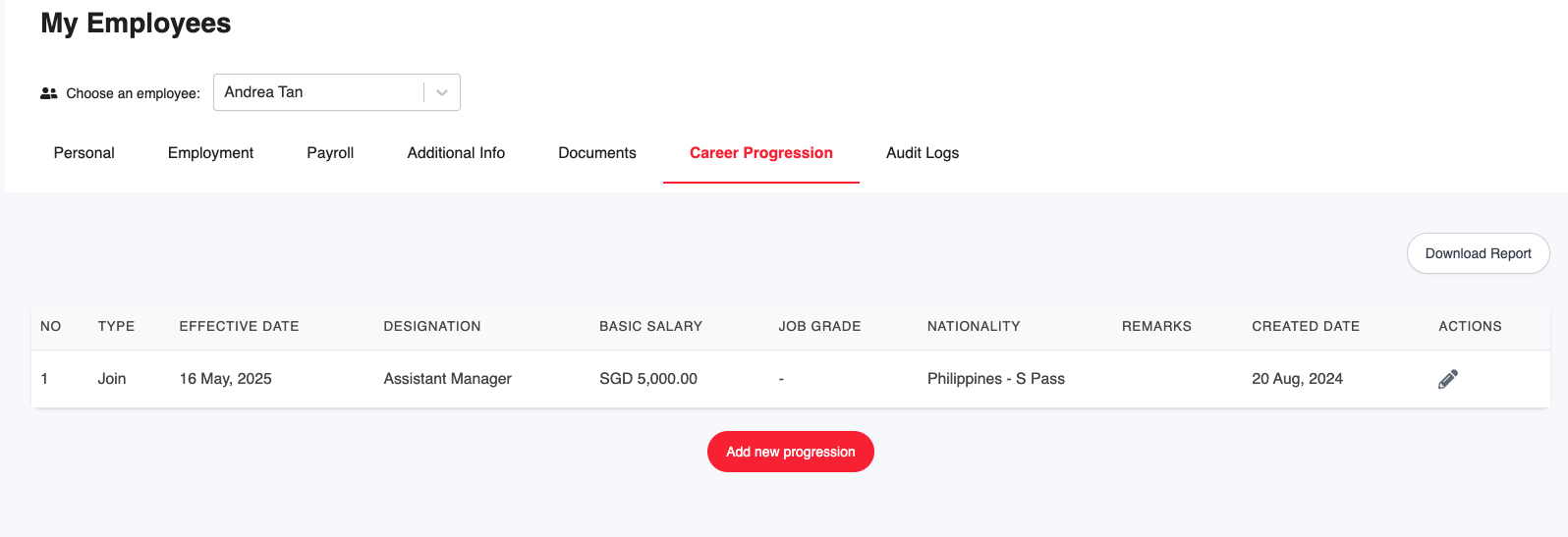
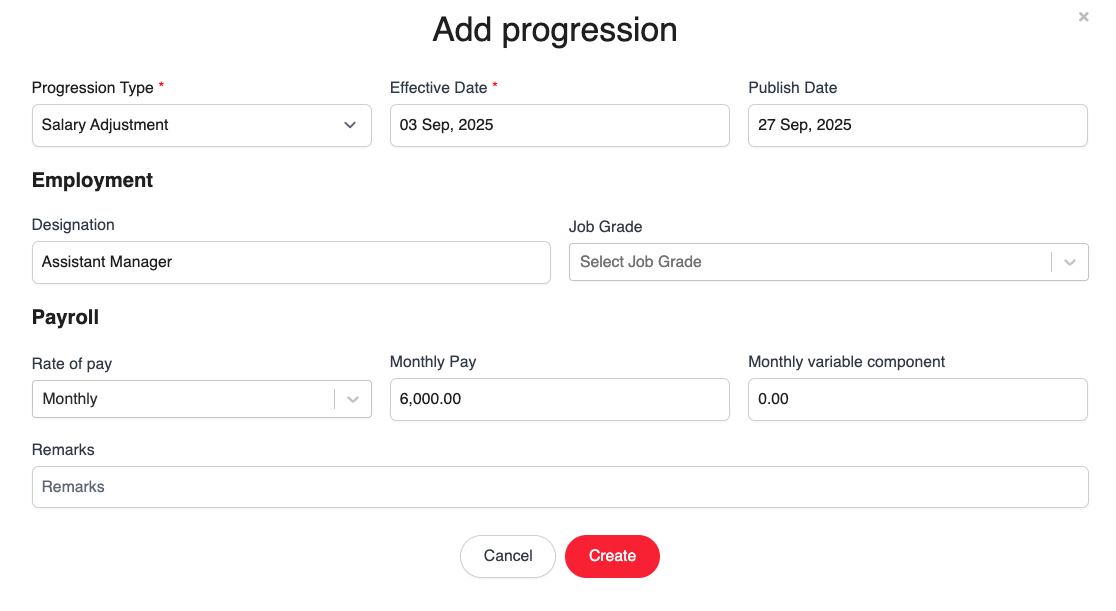
3. Choose Salary Adjustment as the Progression Type, then enter the new salary amount, effective date, and publish date, along with any other required details. Once completed, click Create to save the changes.
⚠️ Note: The publish date determines when the employee will see the updated salary on their Career Progression page. To avoid confusion, it's recommended to set the publish date after payroll for that period has been finalized.
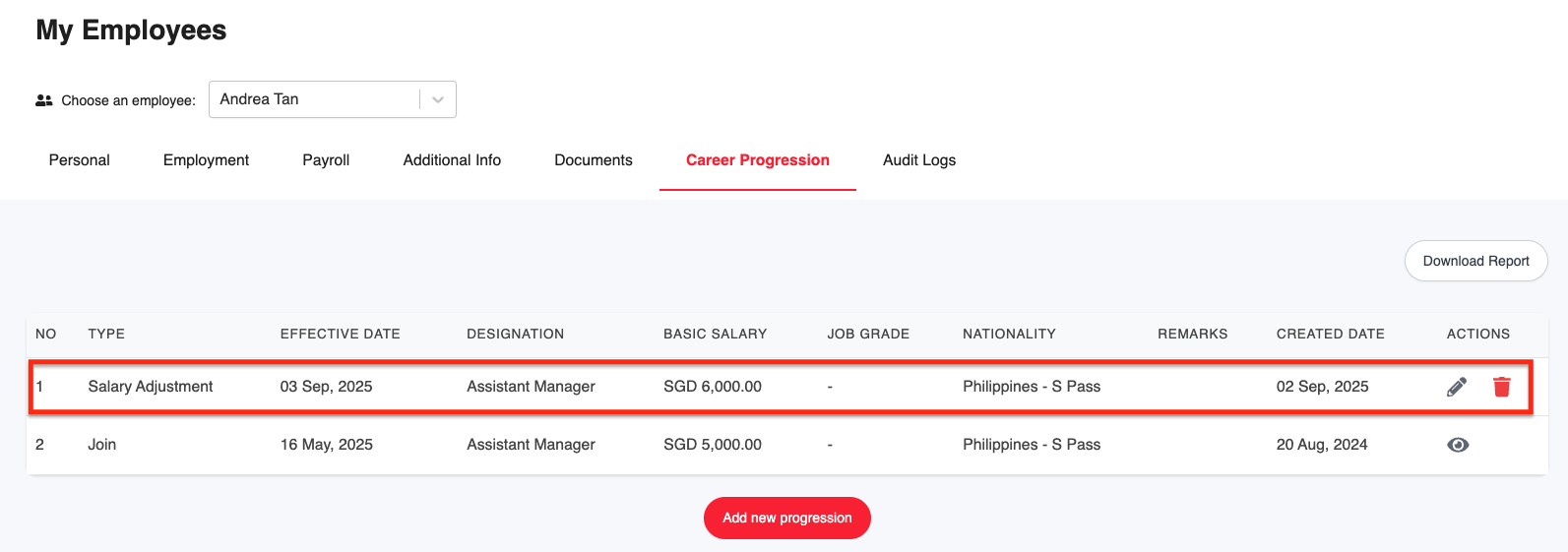
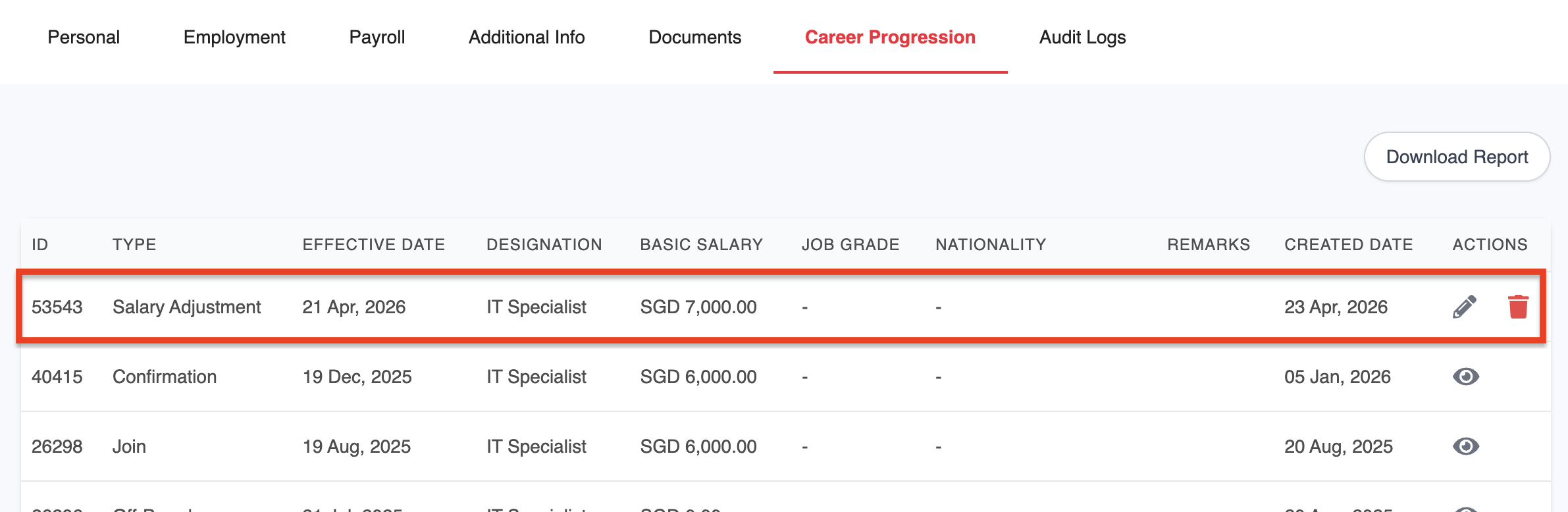
4. The updated salary adjustment will now appear in the employee's Career Progression page.
Bulk Update for Salary Increments
Use the bulk import function to efficiently update staff salary records. Follow the instructions below to either create new records or update existing ones.
Creating a New Salary Record
Use this method to add a new entry to an employee's career history (e.g., an annual increment).
1. Generate Progression (Create) along with the Template with Existing Data, then select the relevant employees.
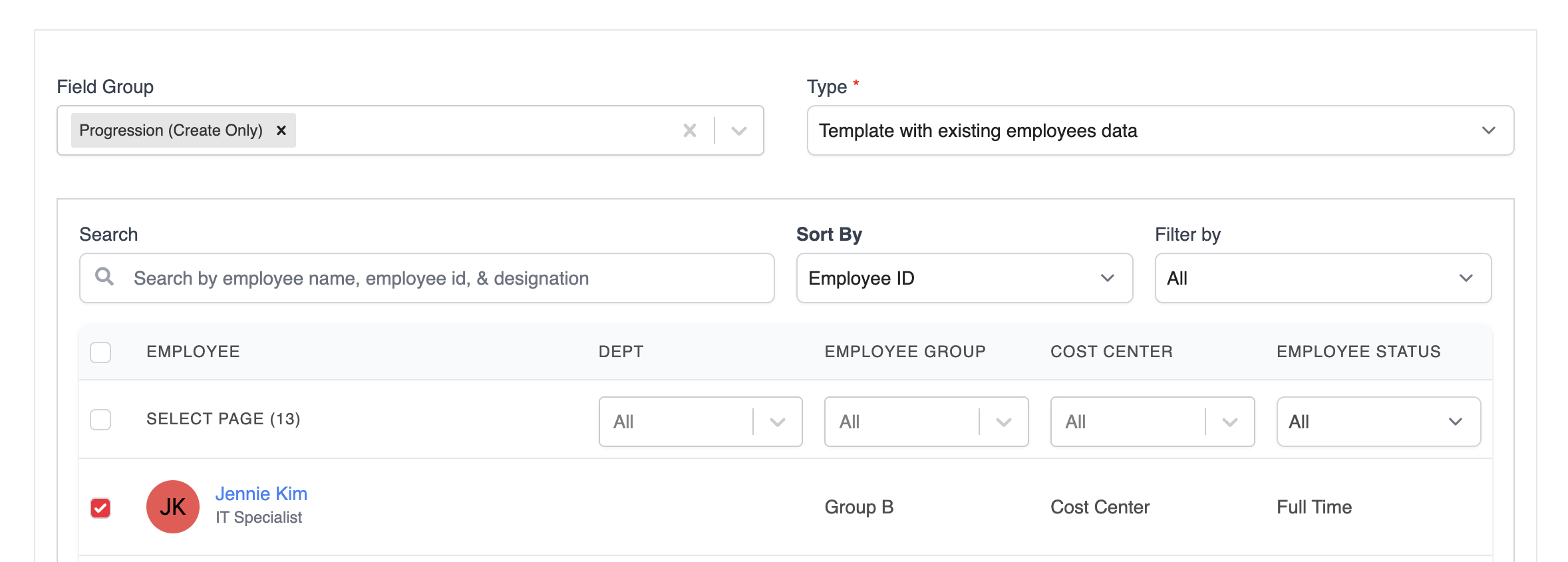
2. Click Generate Report to download the Excel file.
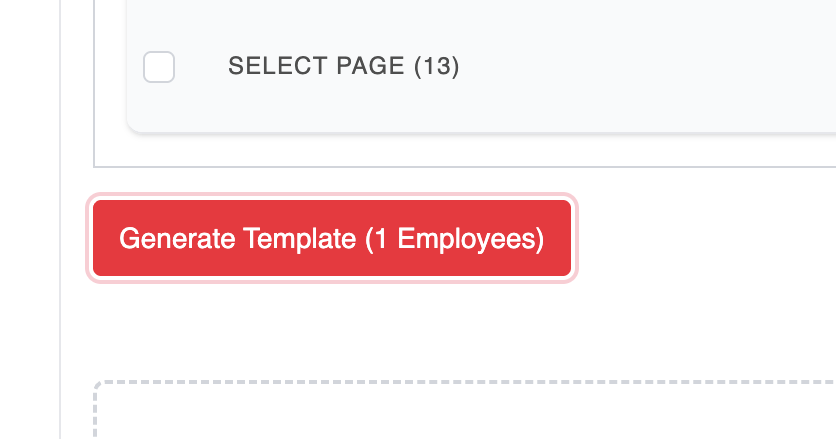
3. In the generated report, update the following fields:
- Progression Type*: Set to Salary Adjustment
- Effective Date*: Enter the new salary effective date
- Basic Salary: Input the updated basic salary
- Publish Date: Specify when the increment will be visible to the employee
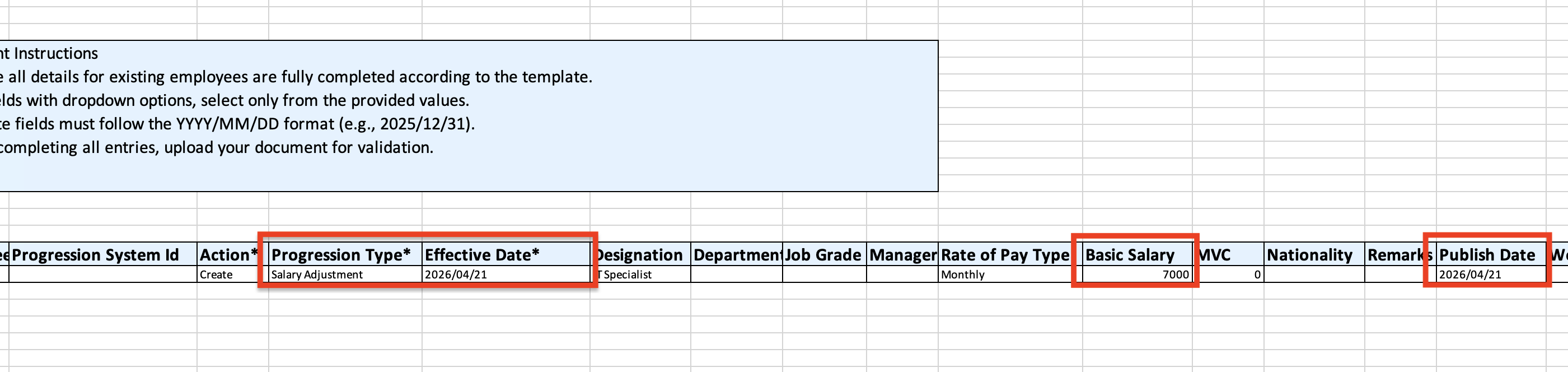
4. Save the file and upload the completed template.
5. The new record will be reflected under the employee's Career Progression.
Updating Existing Salary Adjustment Data
Use this method to correct or modify a salary record that has already been created.
1. Generate Progression along with the Template with Existing Data, select the relevant employees, and download the template.
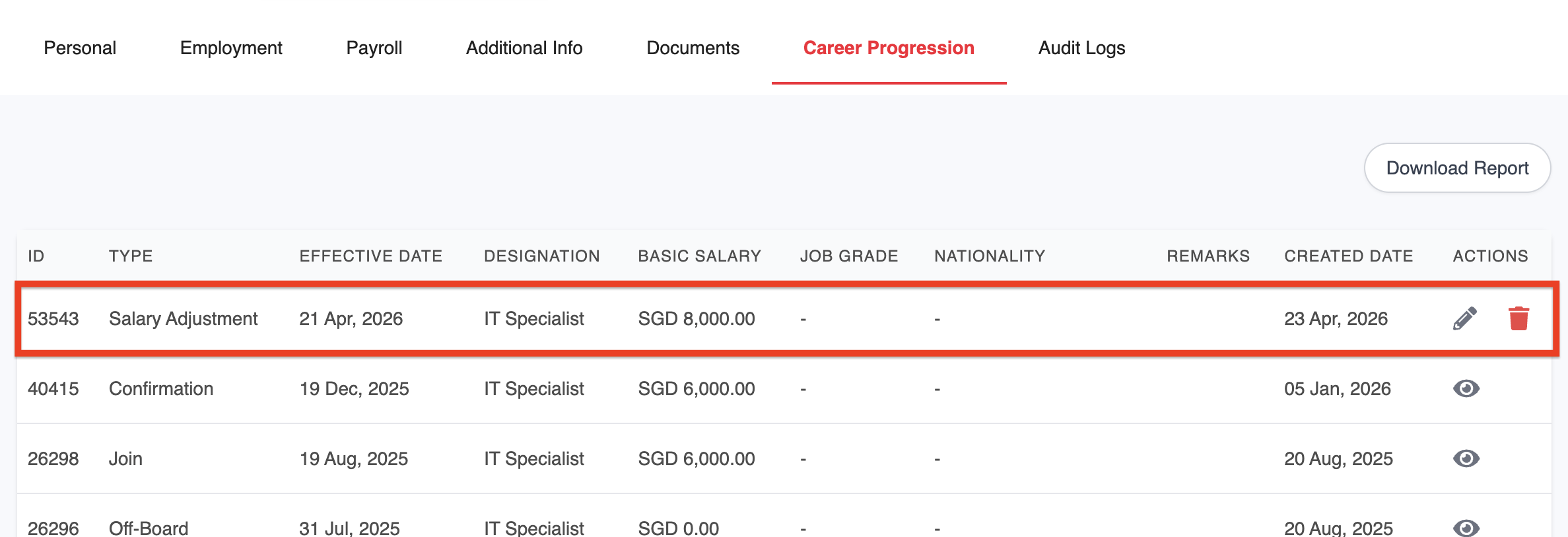
2. Locate the latest progression entry (the last row for each staff member) and update:
- Progression Type*: Set to Update.
Basic Salary: Enter the corrected salary amount.

3. Save and upload the template to apply the changes. The employee's latest salary will be updated accordingly.
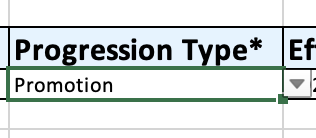
⚠️ Note: These steps apply specifically to salary adjustments. If you are also updating Job Titles, Managers, Job Grades, or Departments, please set the Progression Type* to Promotion.
Was this article helpful?
That’s Great!
Thank you for your feedback
Sorry! We couldn't be helpful
Thank you for your feedback
Feedback sent
We appreciate your effort and will try to fix the article