HReasily Pro now supports multiple languages, allowing you to personalize your experience in the language you're most comfortable with. Refer to the step-by-step below:
1. Use your usual email and password to log in to your account.
2. Click on your profile icon at the top right corner of the page. Select User Settings from the dropdown menu.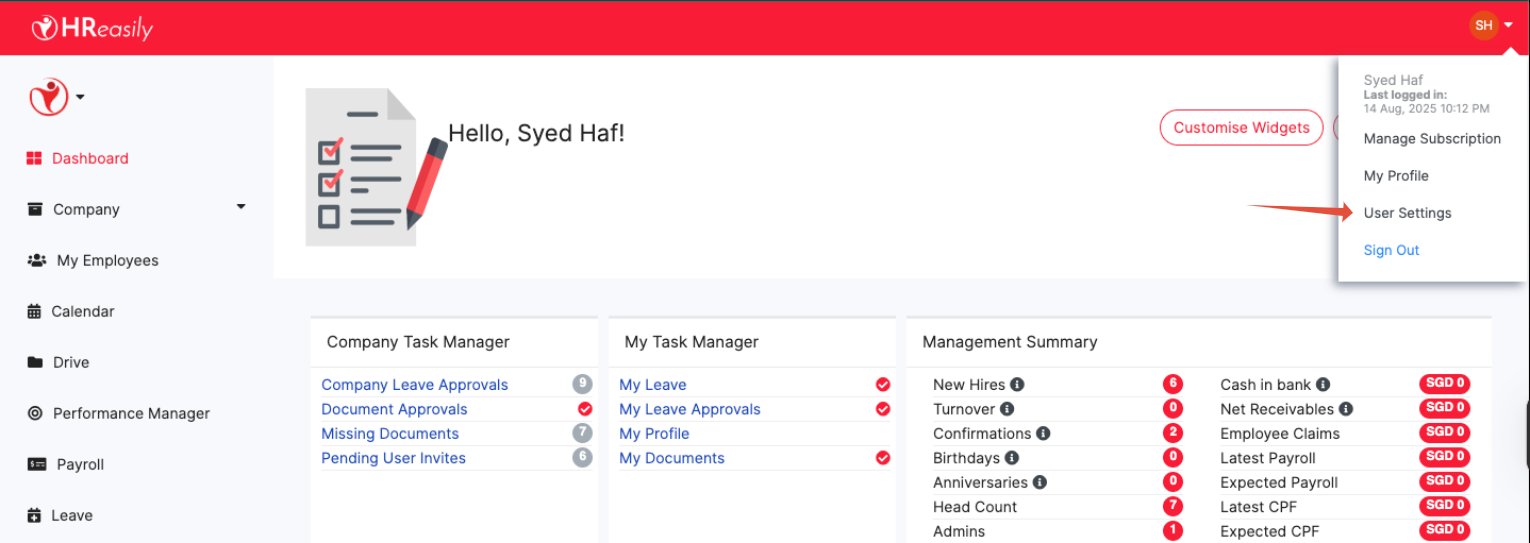
3. In the Language section, you'll see a dropdown menu with the list of supported languages. Choose your preferred language.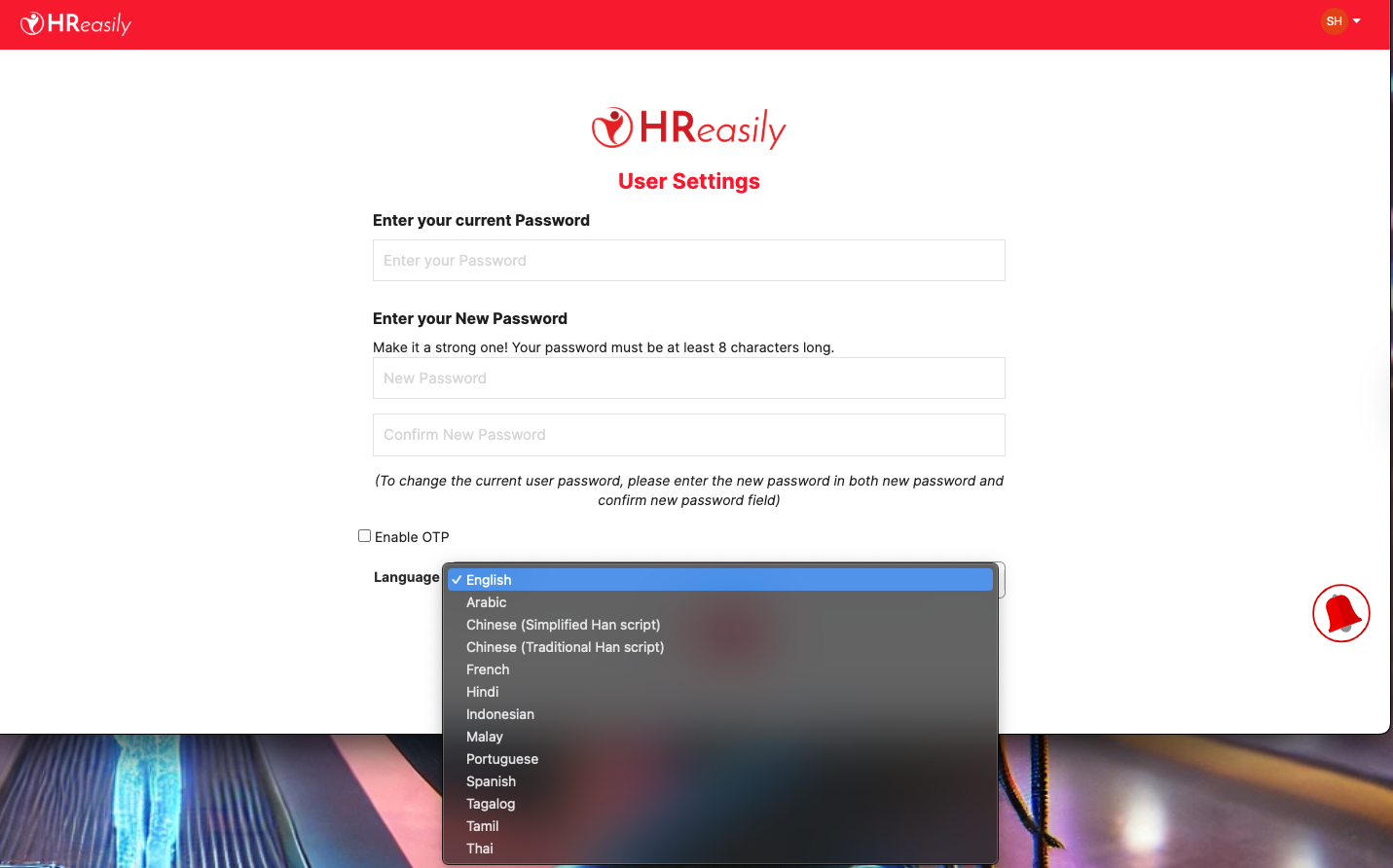
4. Click Save (or equivalent in the new language selected). The system will refresh, and your HReasily Pro account will now display in the chosen language.
Notes
The language preference you set only applies to your account. Other users in your company can choose their own preferred language.
If you change your language by mistake, just repeat the steps above to switch back.
Some features may still display in English if translations are in progress.
Frequently Asked Questions (FAQ)
Q: Will changing my language affect other users in my company?
A: No. Each user controls their own language settings.
Q: Can I switch back to English anytime?
A: Yes, you can switch between supported languages at any time through your User Settings.
Q: What happens if the system doesn't support my preferred language yet?
A: You can continue using HReasily Pro in English while we expand our language support.
That's it! You can now enjoy HReasily Pro in the language of your choice.
Was this article helpful?
That’s Great!
Thank you for your feedback
Sorry! We couldn't be helpful
Thank you for your feedback
Feedback sent
We appreciate your effort and will try to fix the article