You can assign pay types to employees either manually through the system or in bulk for quicker processing. Follow the steps below:
1. Navigate to the Payroll section in the left-hand menu and select Settings.
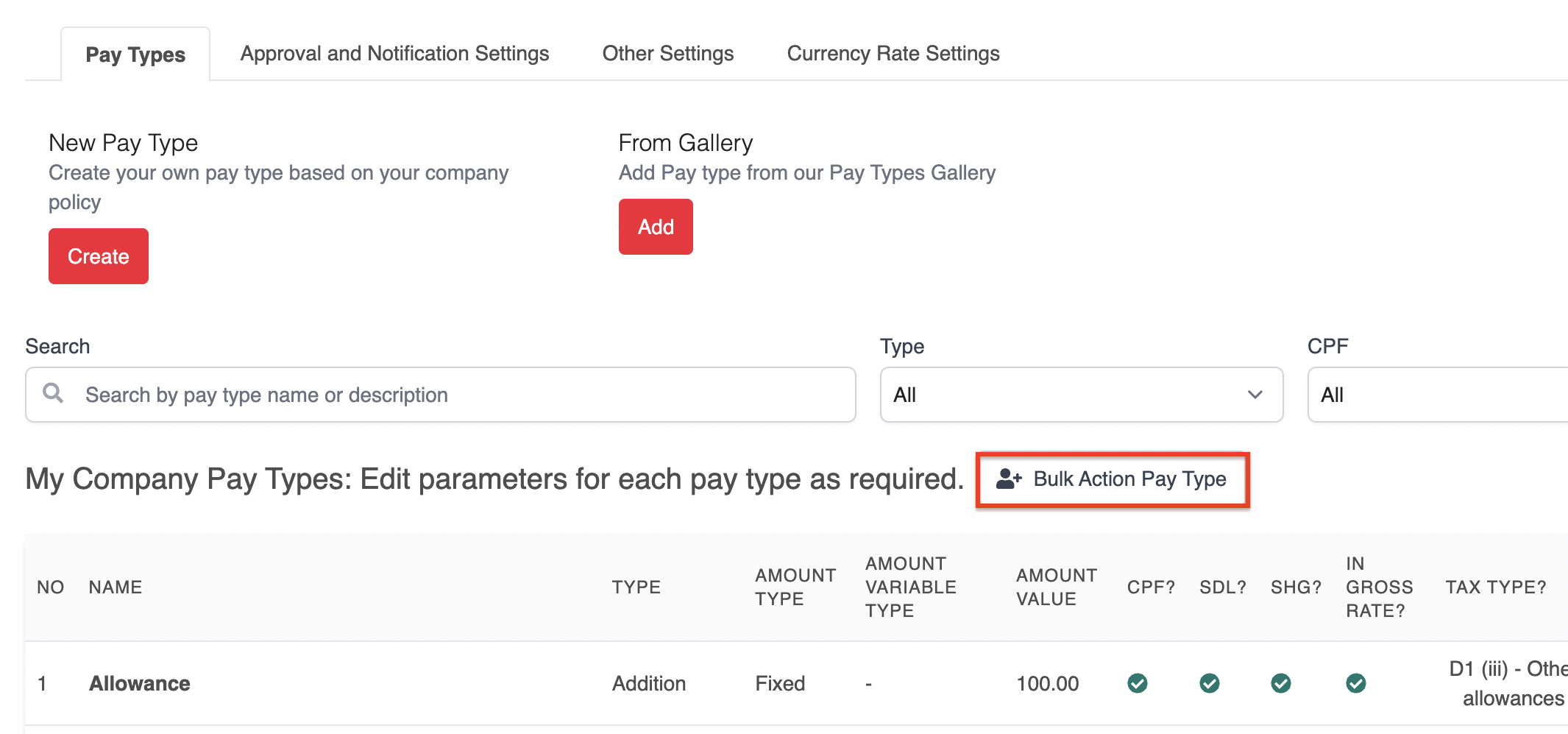
2. Under the Pay Types tab, click the Bulk Action Pay Type button.
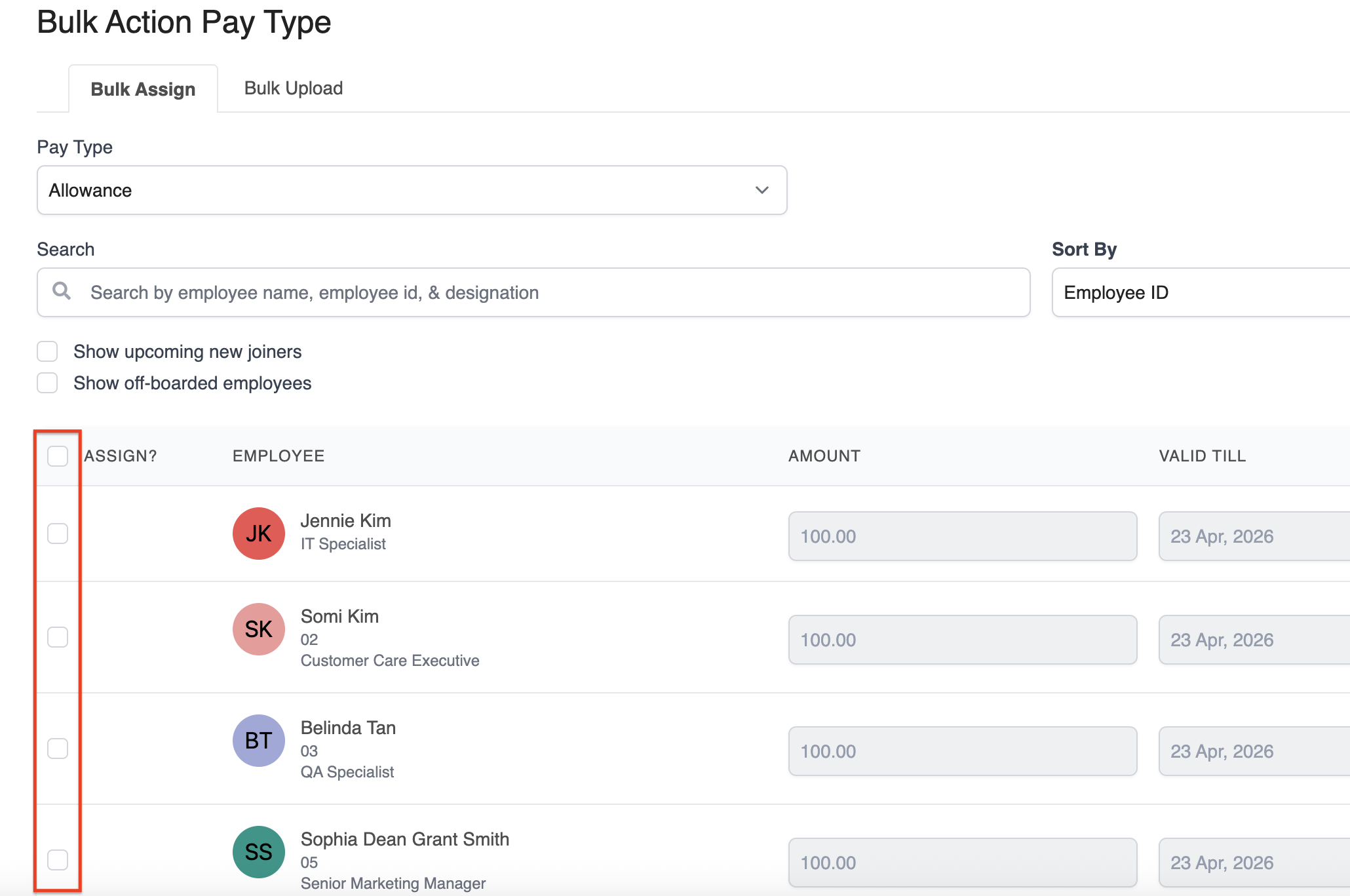
3. From the dropdown, choose the appropriate Pay Type and select the employees you want to assign it to.
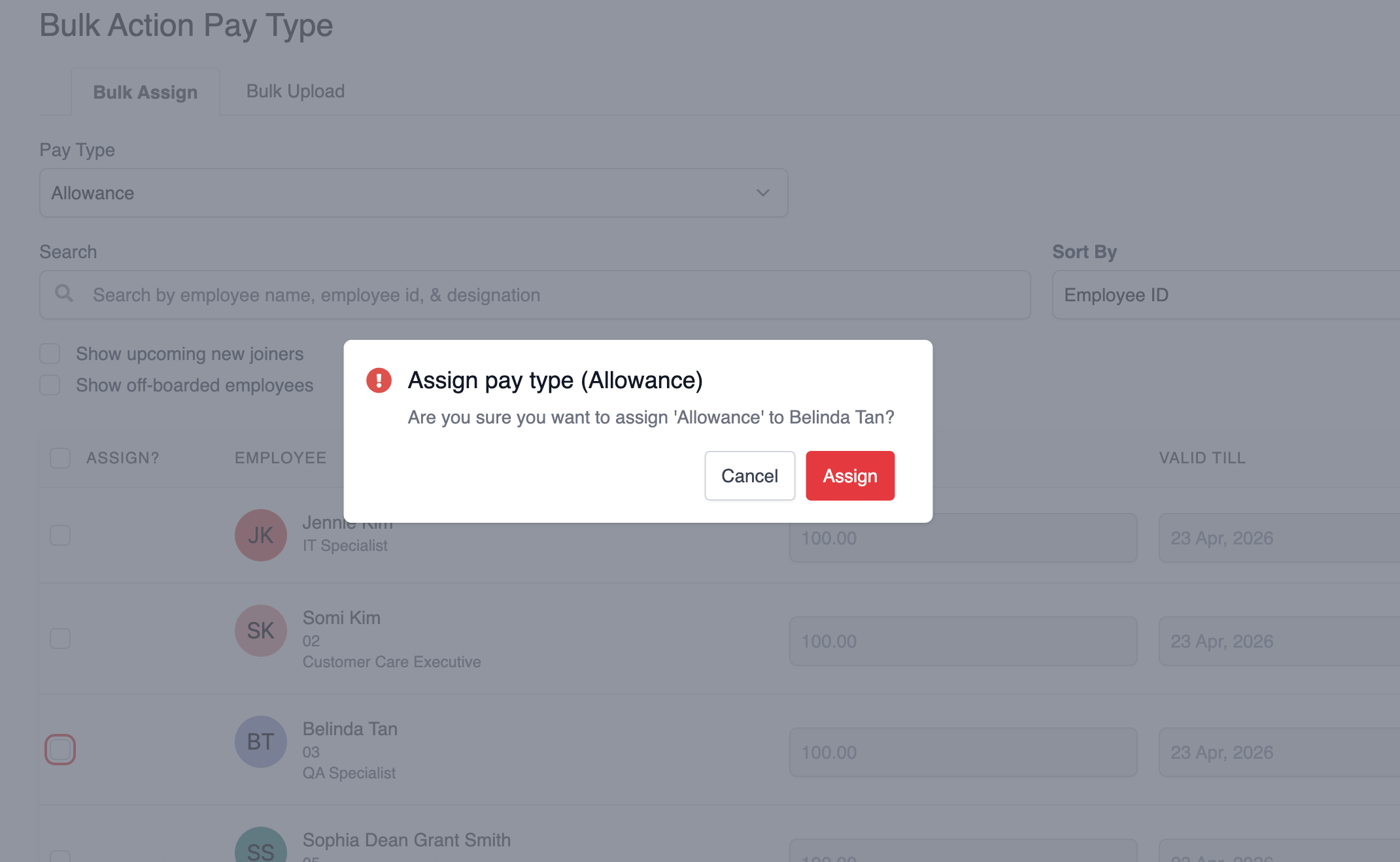
4. Click Assign to proceed.
5. Once assigned, you’ll be prompted to enter the fixed amount and specify the validity period for the pay type.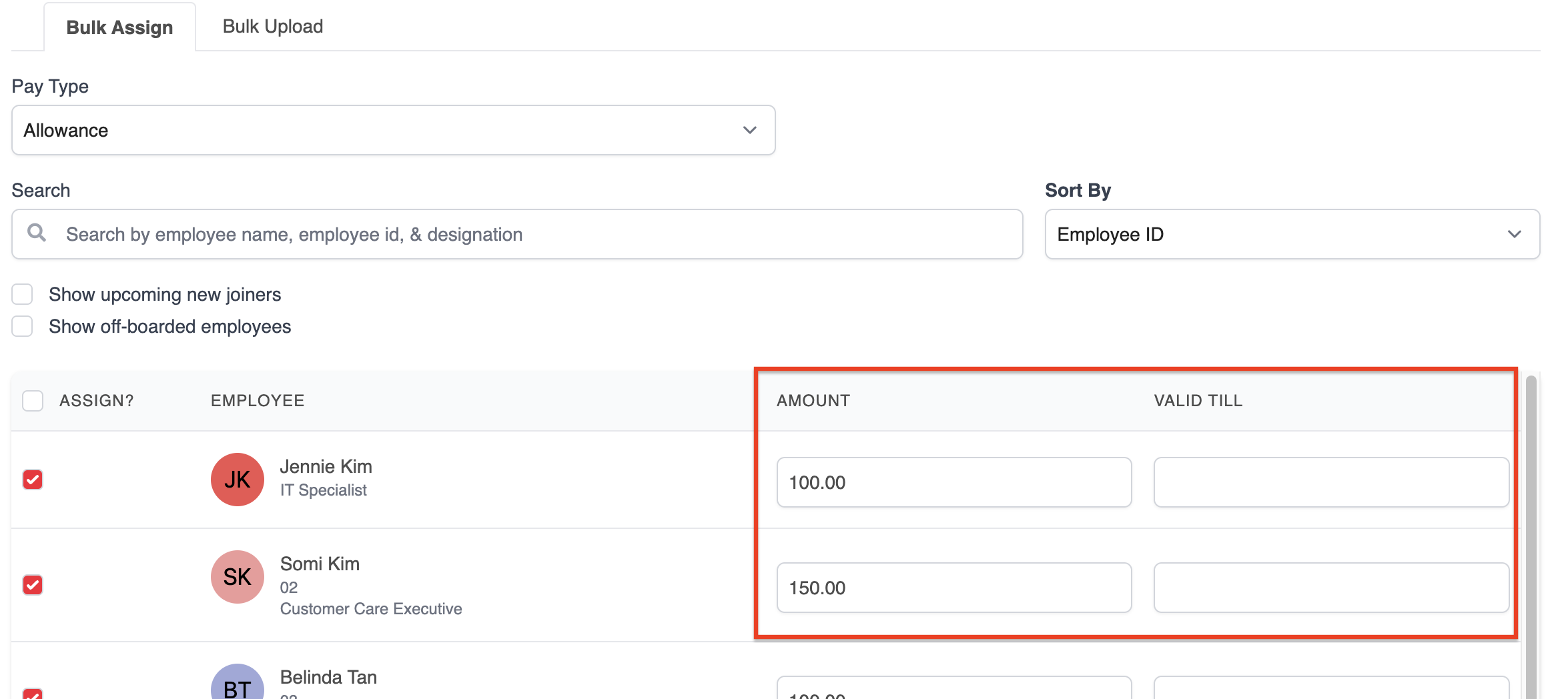
Proceed to repeat the same steps to remove pay types from employees.
Assigning via Bulk Upload
For faster updates, use the bulk import feature:
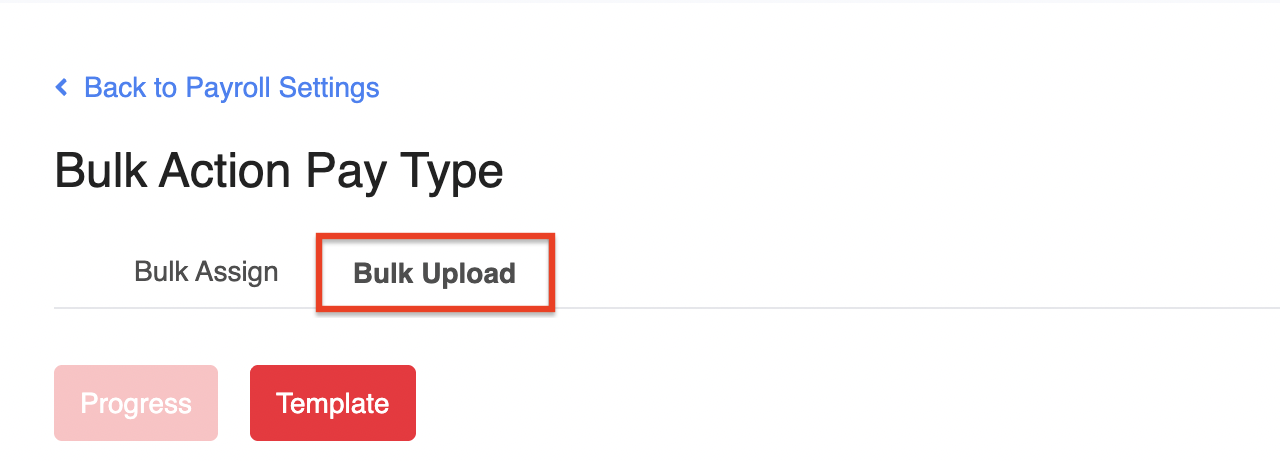
1. On the Bulk Action Pay Type page, click on the Bulk Upload tab.
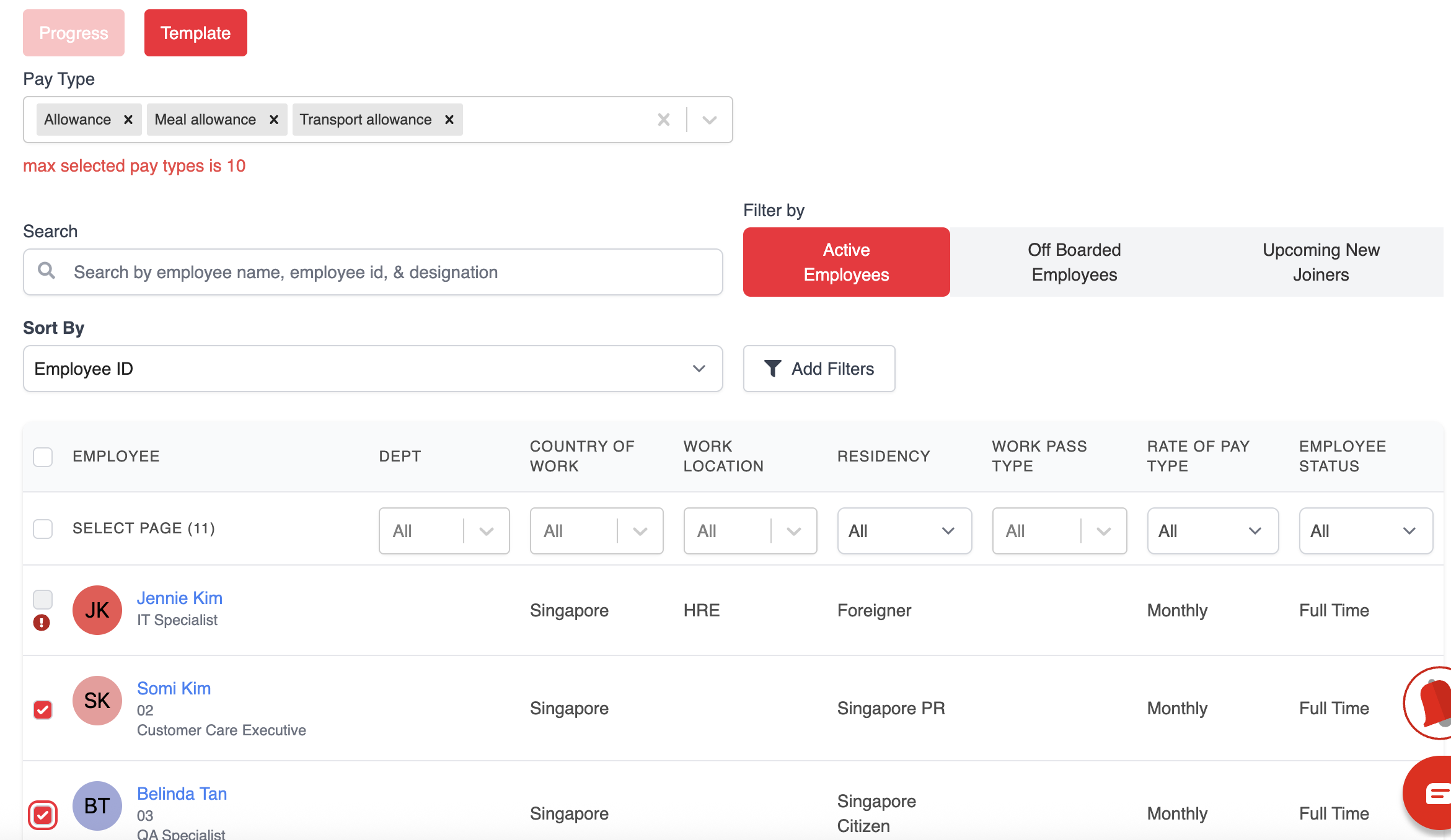
2. Select up to 10 pay types from the dropdown list, then choose the relevant employees. You may filter employees by status and sort them by Employee ID or full name.
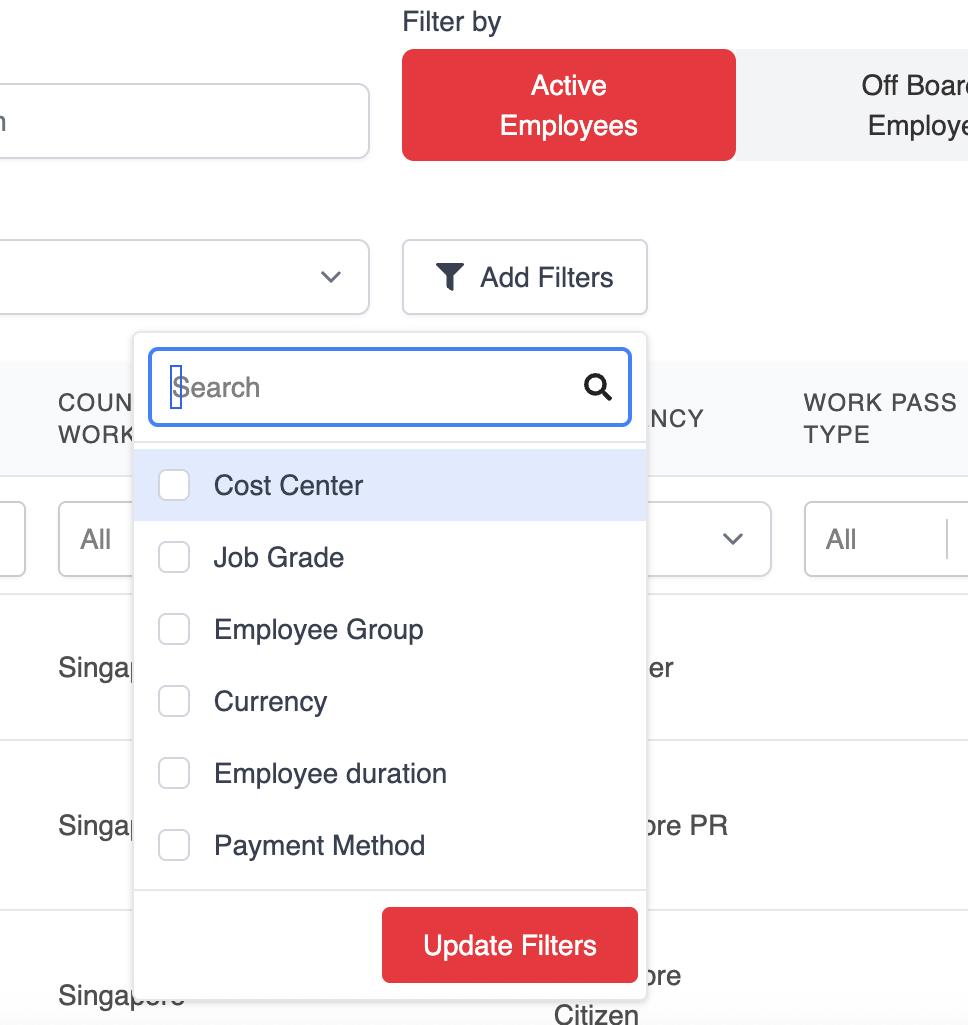
Click Add Filters to access additional filtering options.
3. Once your selections are complete, click Generate Template to download the file.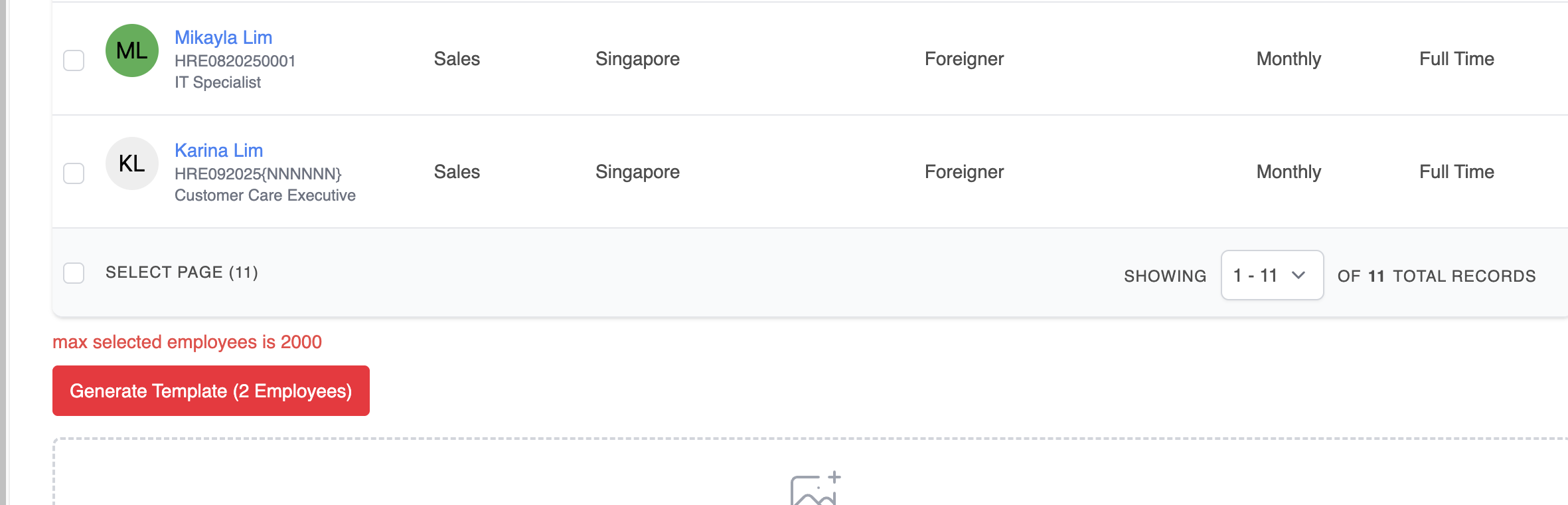
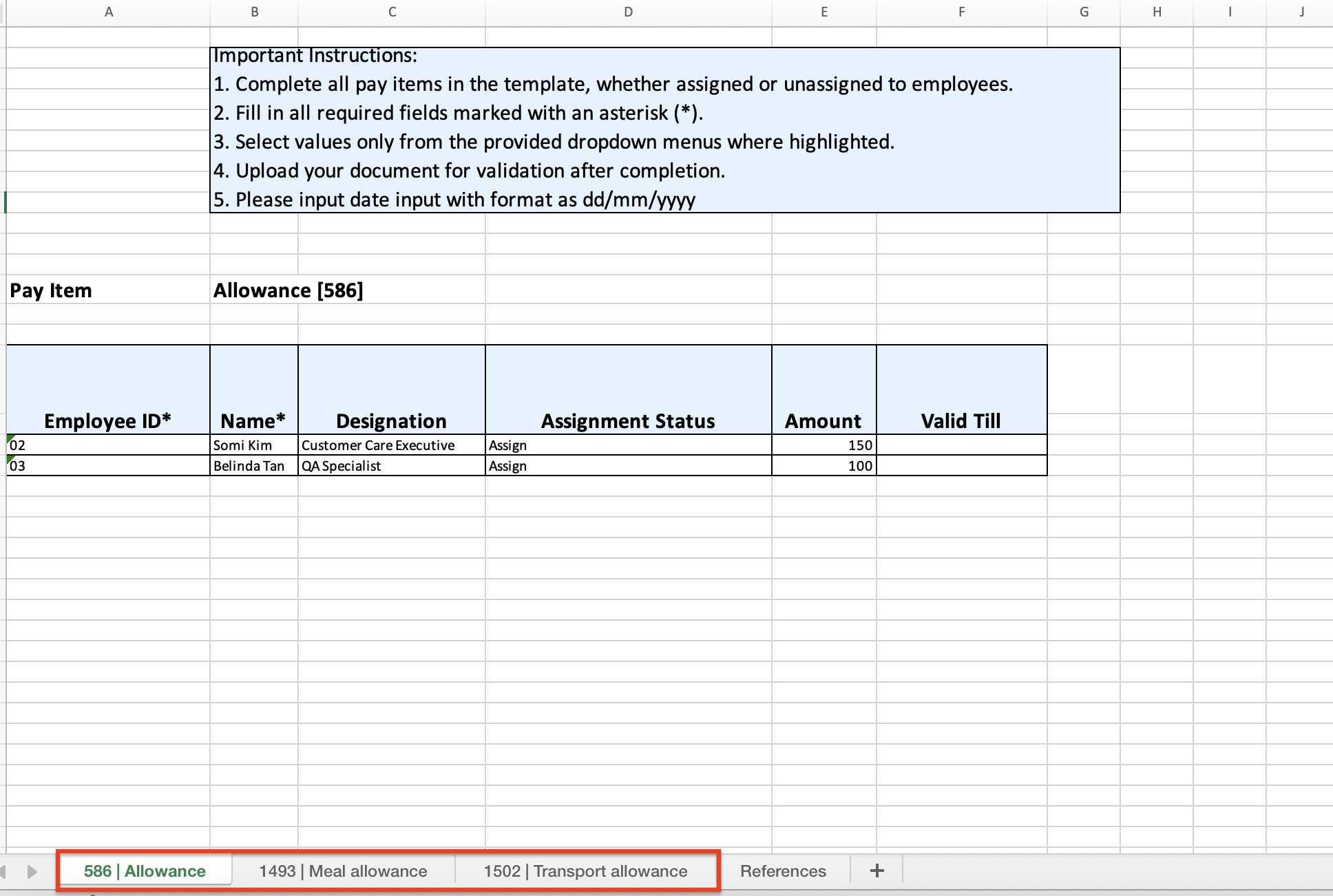
4. In the downloaded template, each pay type will appear in a separate tab. Complete the following fields for each pay type:
Assignment Status: Choose either Assign or Unassign.
Amount: Enter the applicable pay amount.
Valid Till: Specify the end date of the pay type (if applicable).
5. Save the file once completed. Return to the platform and click Click here to upload files to upload your completed Excel template.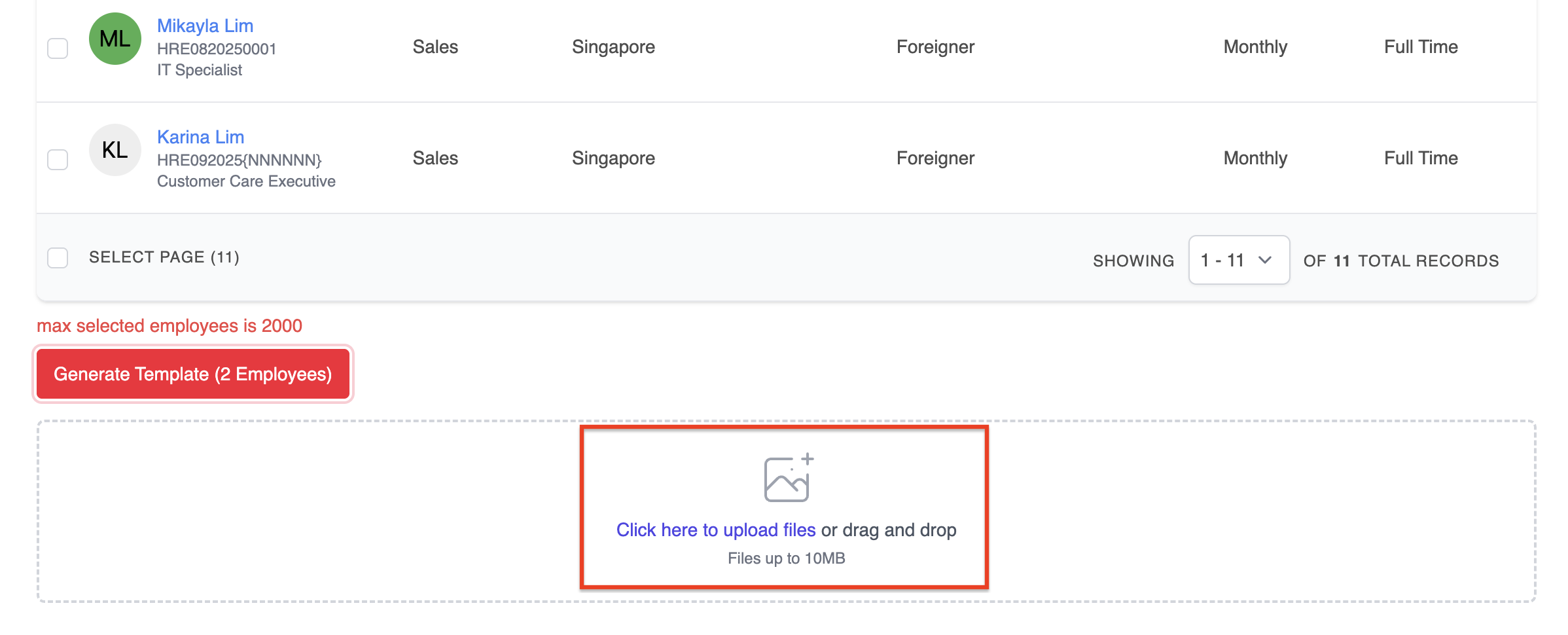
6. You can monitor the progress of the update on the Progress page.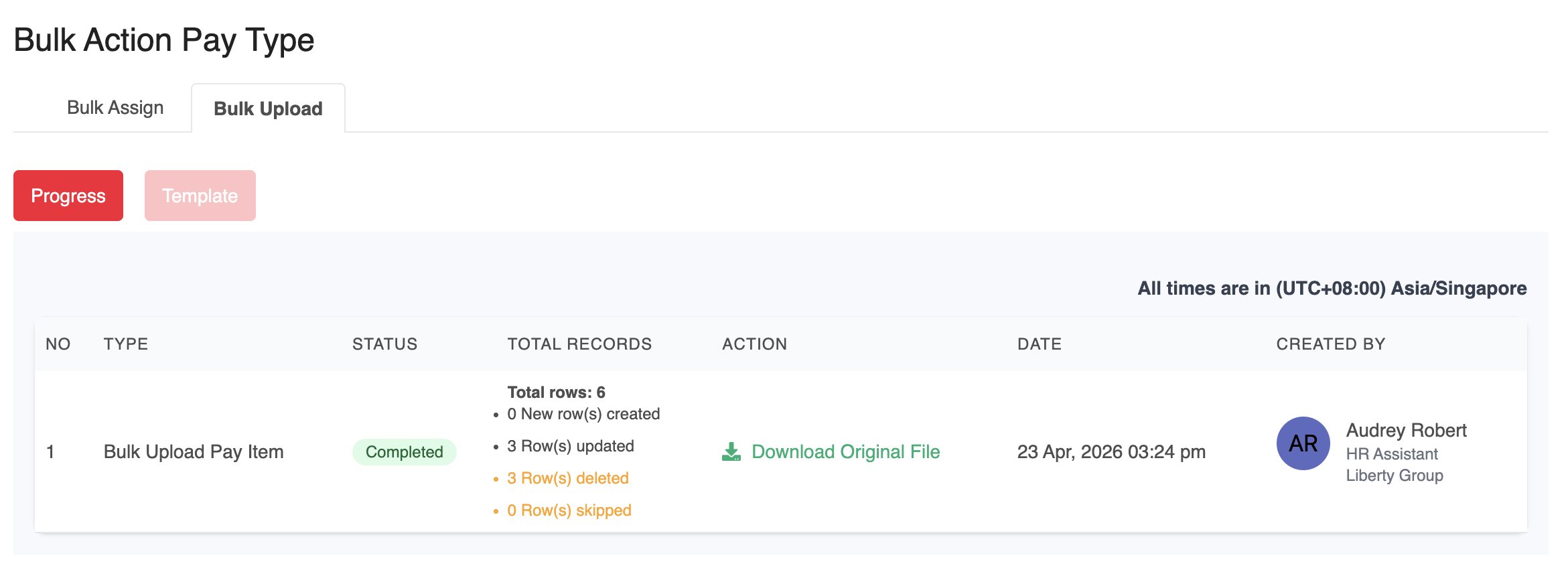
Important Notes
Ensure each employee has an Employee ID in the system. Only employees with Employee ID will appear in the Excel template.
If the process shows as Completed but changes aren't visible, refresh the page to see the latest updates.
Was this article helpful?
That’s Great!
Thank you for your feedback
Sorry! We couldn't be helpful
Thank you for your feedback
Feedback sent
We appreciate your effort and will try to fix the article