You can use the Survey module to create surveys and invite employees to participate in them.
Each survey is highly customisable with different types of fields, and the results of completed surveys will be visible as analytics.
How to Create a Survey
Go to the Survey module from the left navigation menu, then click on the Create button under New Survey Type.

Step 1: Survey Details
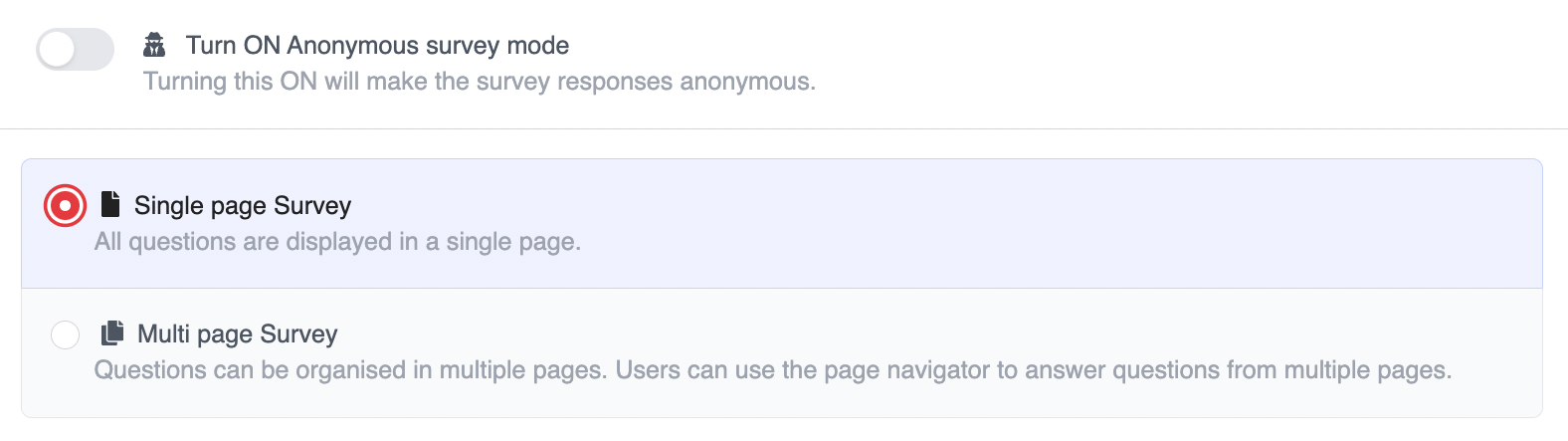
In the Create new Survey page, there will be an option to select the options below:
Step 2: Create/Edit Survey
Under the Survey Designer section, drag and drop elements from the Toolbox on the right side of the screen to build out your survey.
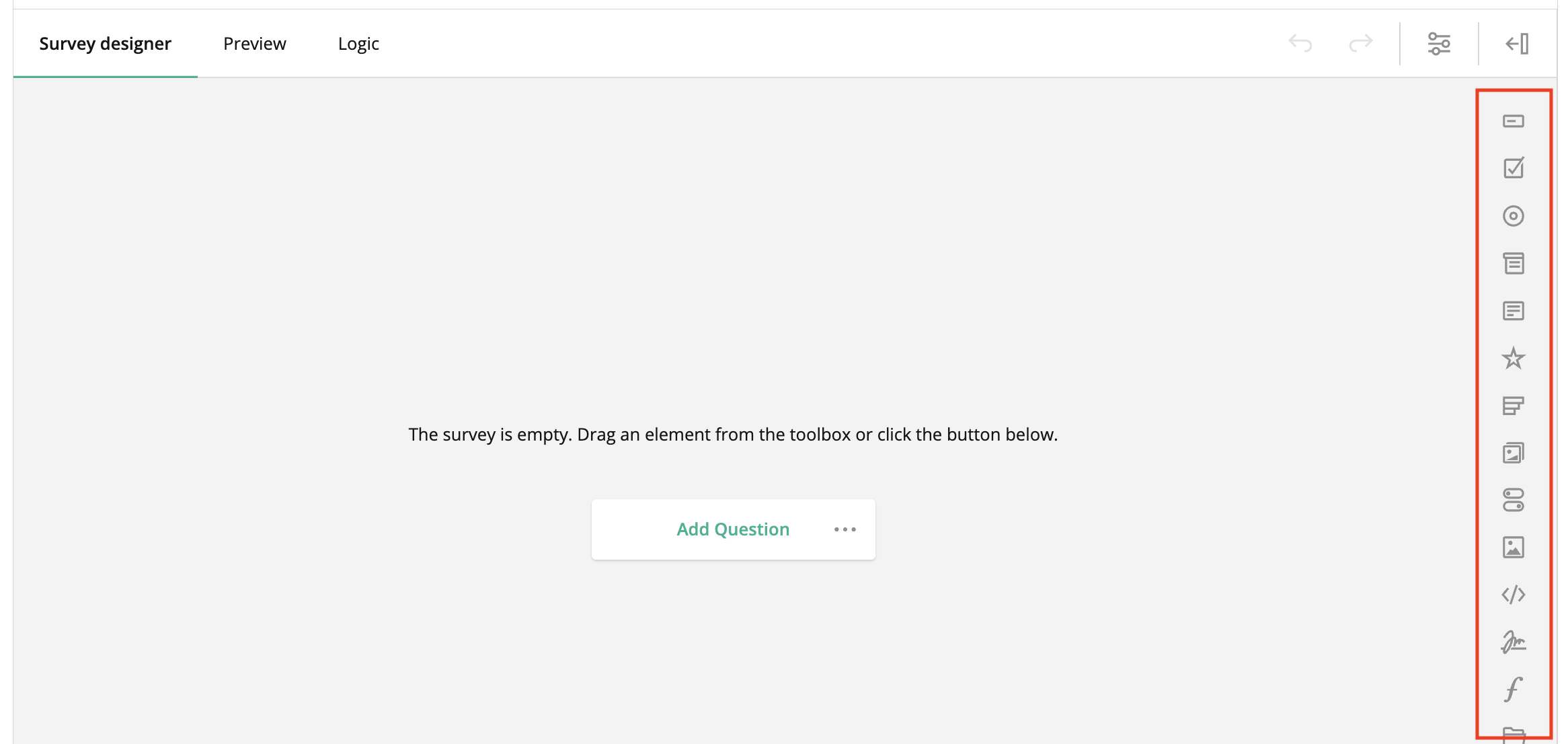
Once you're done adding the survey elements, scroll down and click on the Preview tab.
Step 3: Preview and Publish Survey
This is where you can preview what your survey will look like.
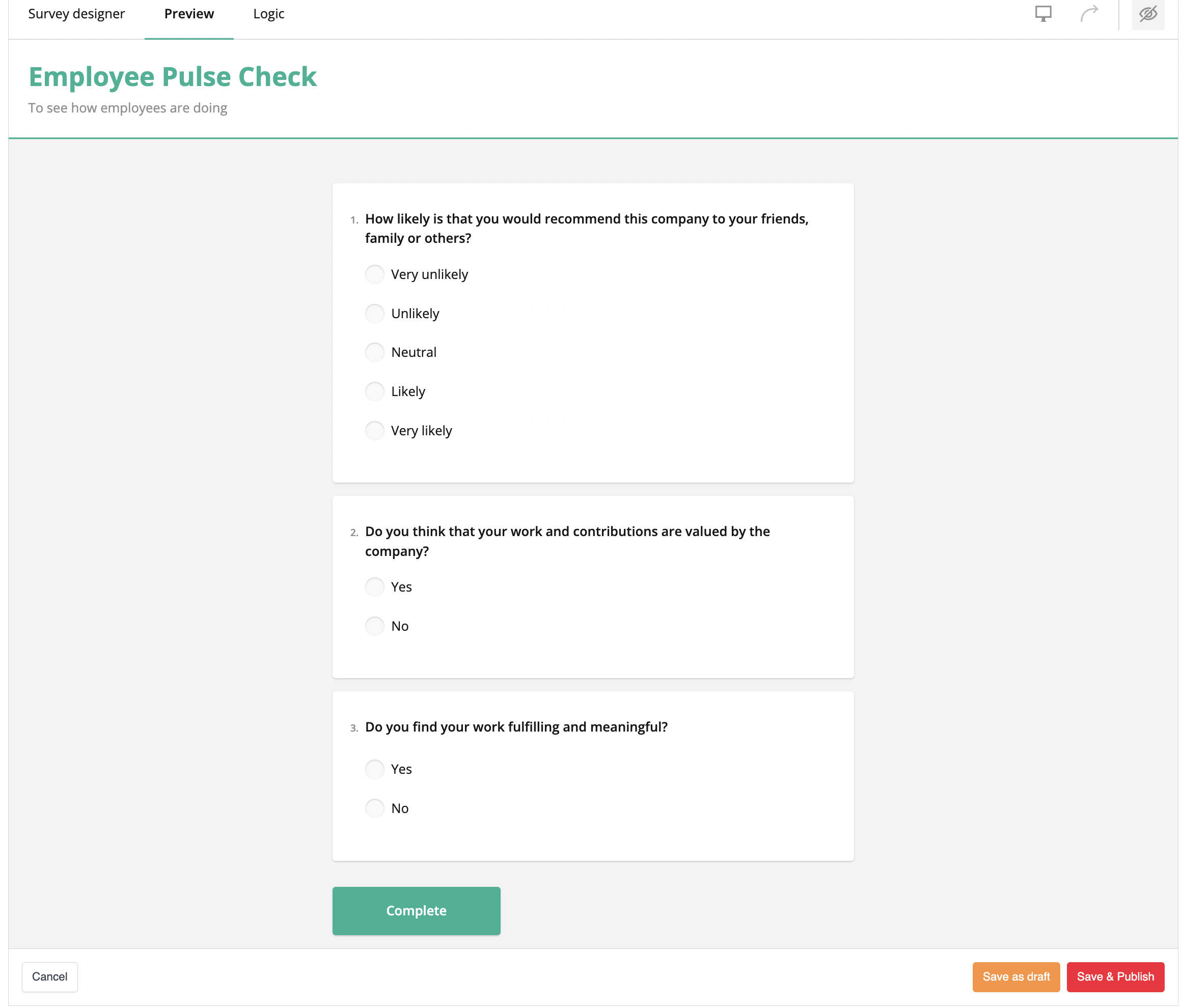
If you're happy with the survey and wish to publish it, click on the Save & Publish button. If you want to keep the survey as a draft, click on the Save as draft button.
Step 4: Send to Participants
Once published, click the Add Participants button.
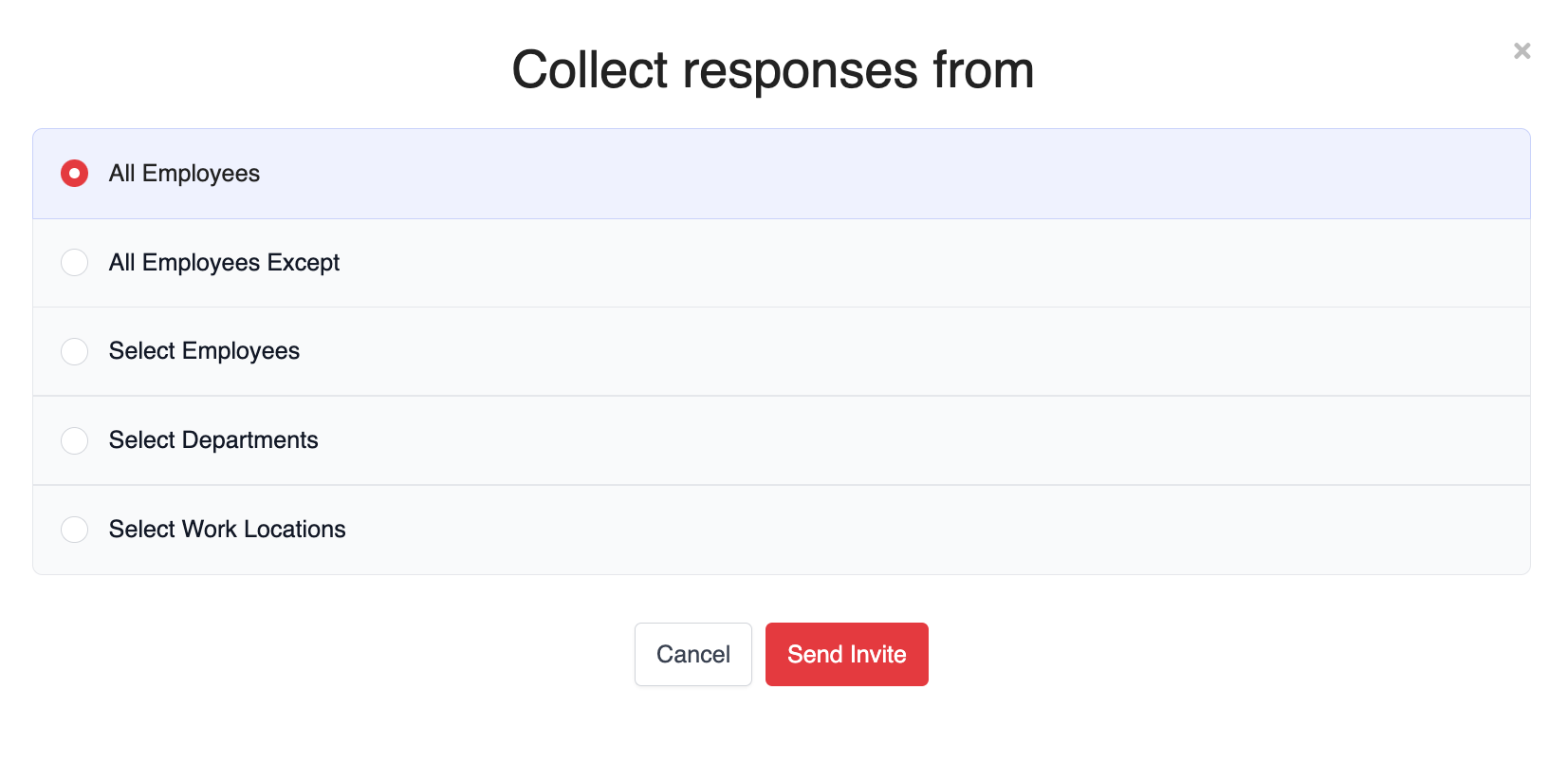
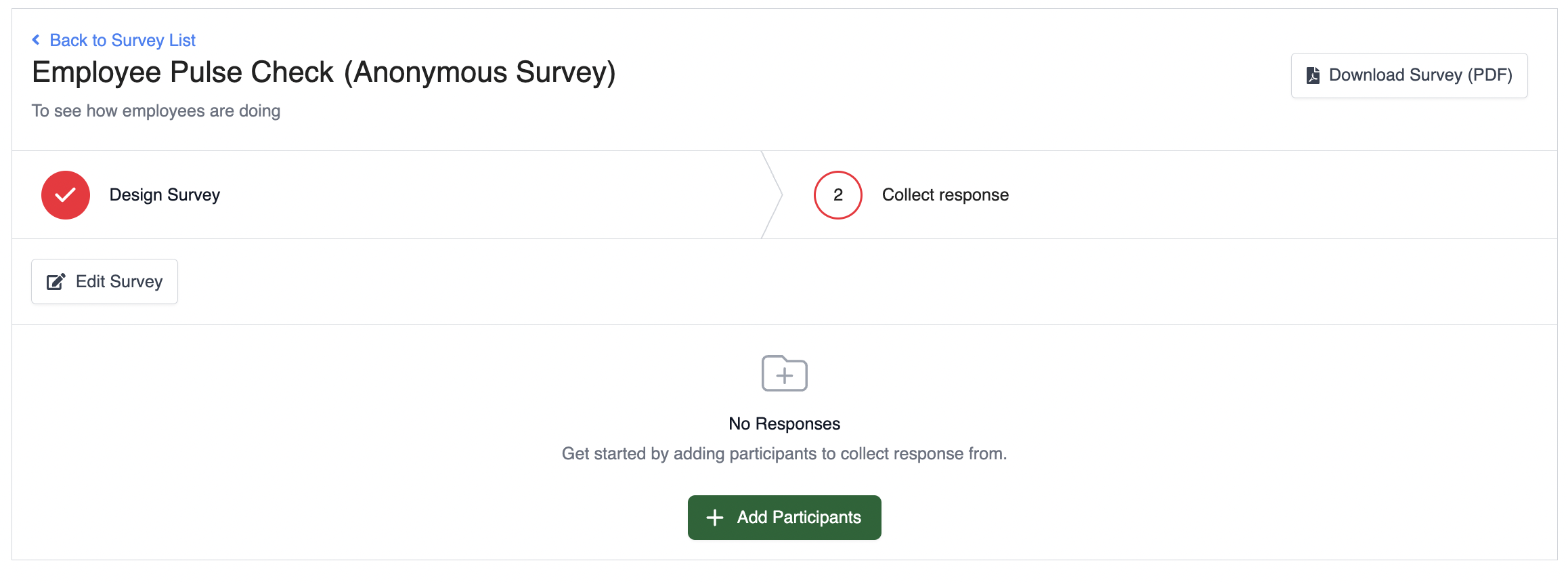 You can choose to send the survey to all employees, all employees with an exception, select employees, select departments or select work locations. Then, click Send Invite.
How to View Survey Progress
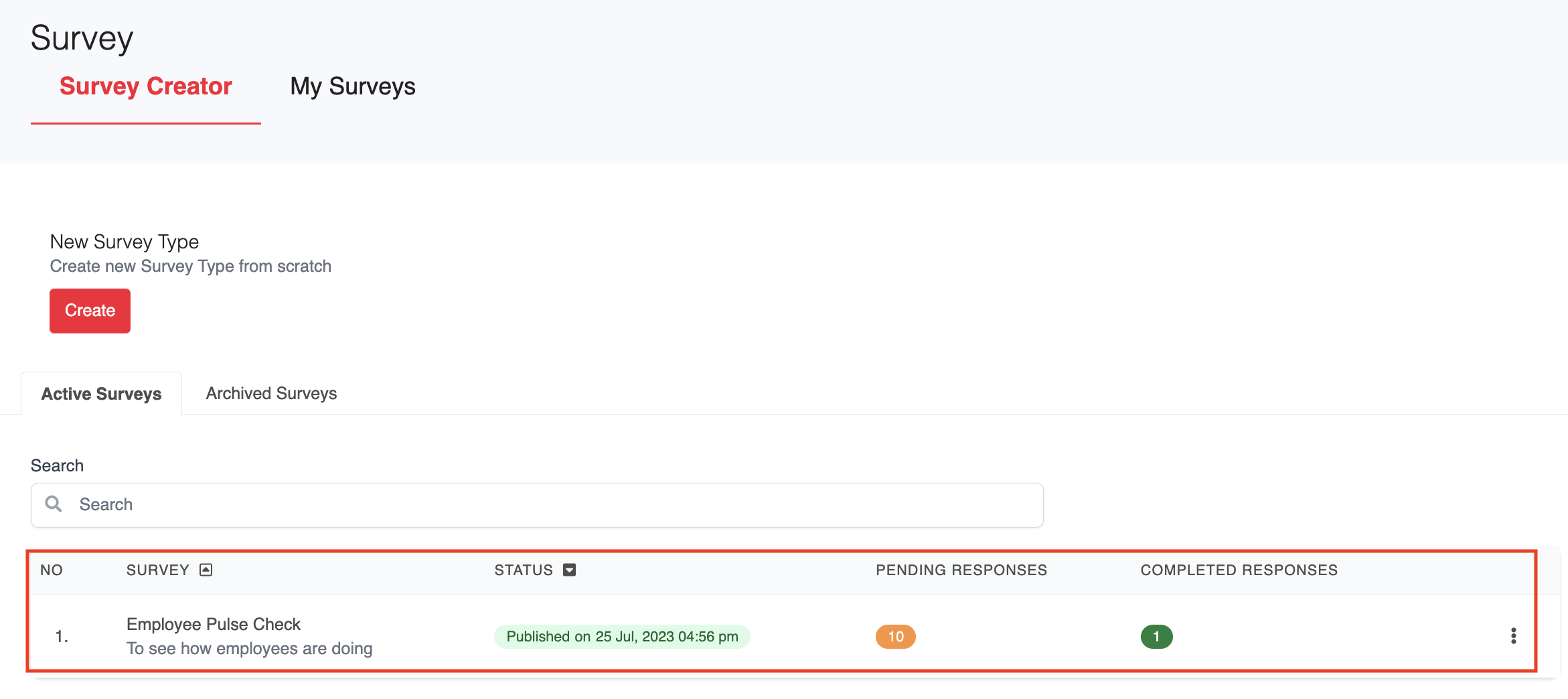
Find the survey that you want to view the progress for and click on the survey.
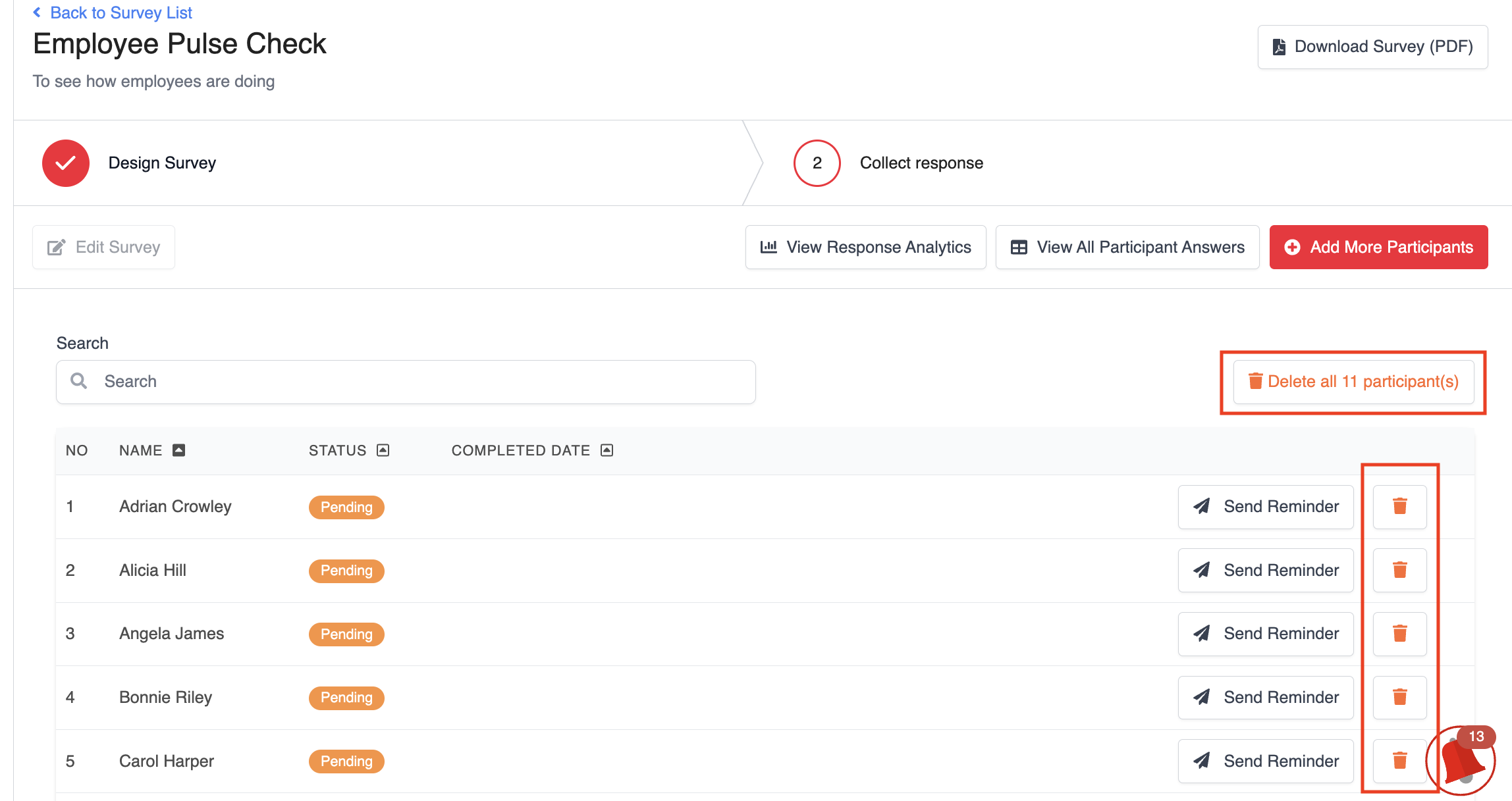
You'll be able to see the status of the survey for each employee, as well as remove employees as participants where necessary by clicking on the red delete icon.
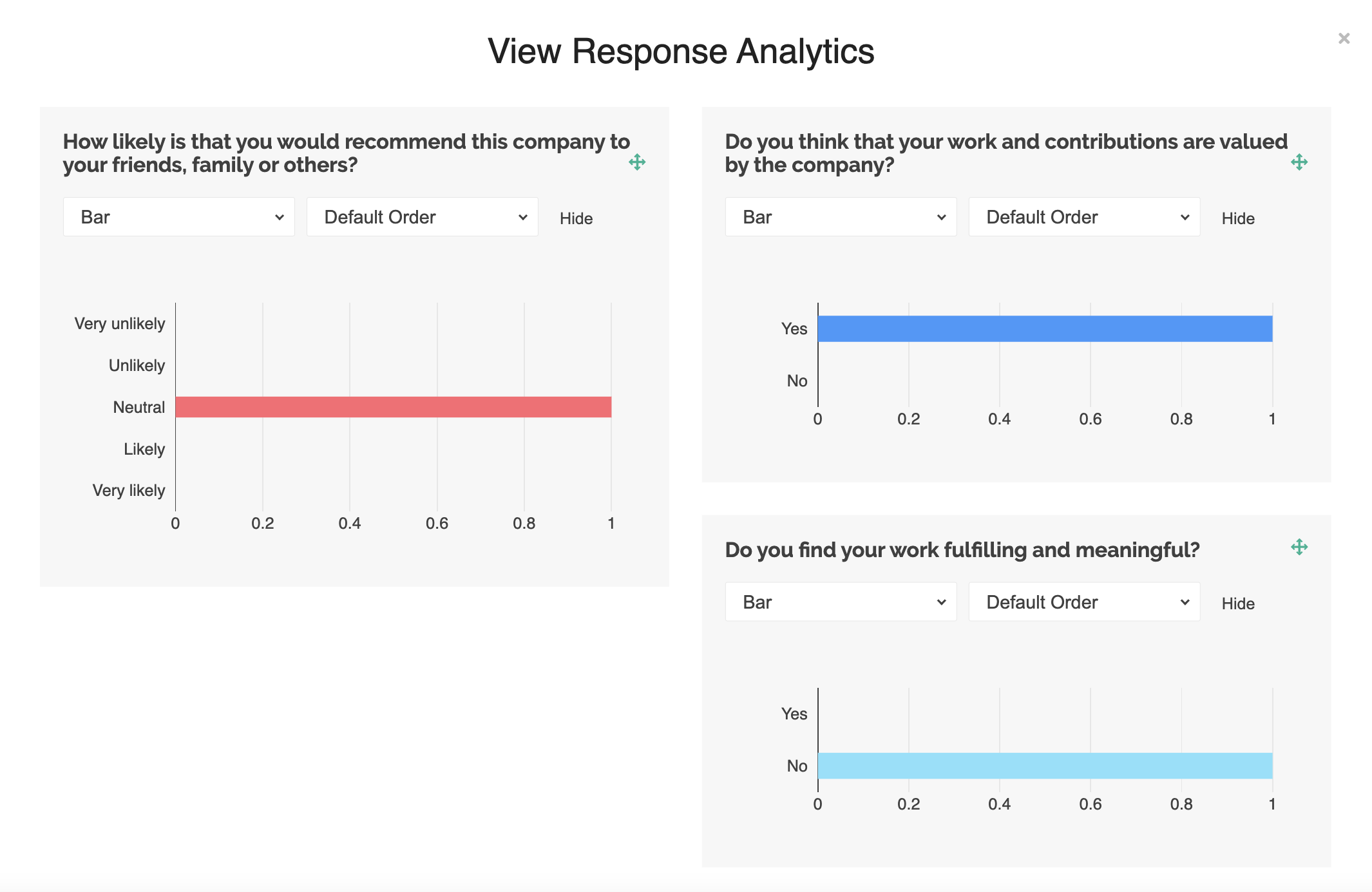
In the View Response Analytics page, you'll be able to see the consolidated results for each question in a graphical format.
In the View All Participant Answers page, you'll be able to see the detailed answers for each question for all employees.
You can also download this information in an Excel or CSV format by clicking on the respective buttons.

Was this article helpful?
That’s Great!
Thank you for your feedback
Sorry! We couldn't be helpful
Thank you for your feedback
Feedback sent
We appreciate your effort and will try to fix the article