This guide explains how to manually add and manage employee time attendance records in the system.
1. Go to Timesheet > Team Timesheet > All Time Attendance Data.
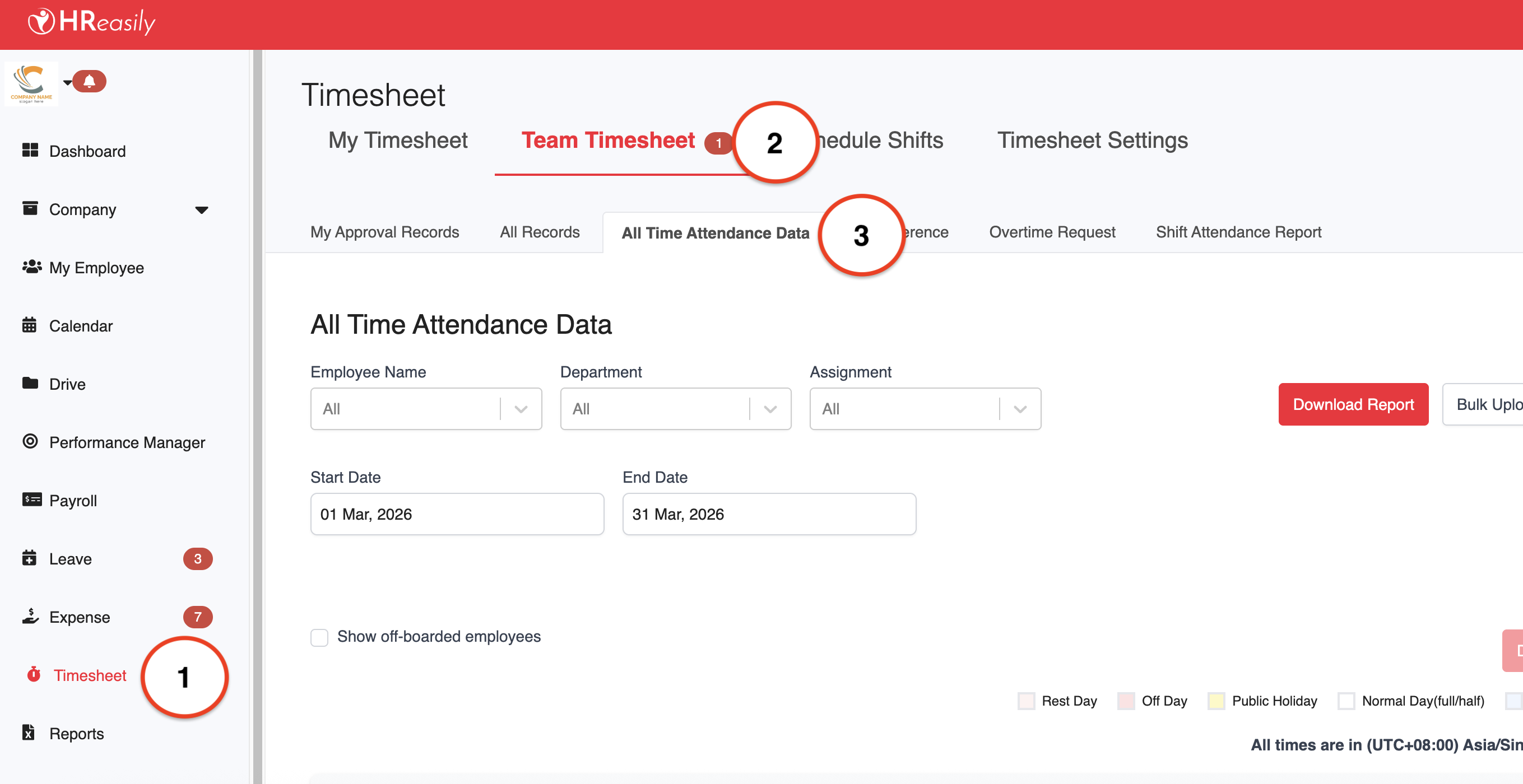
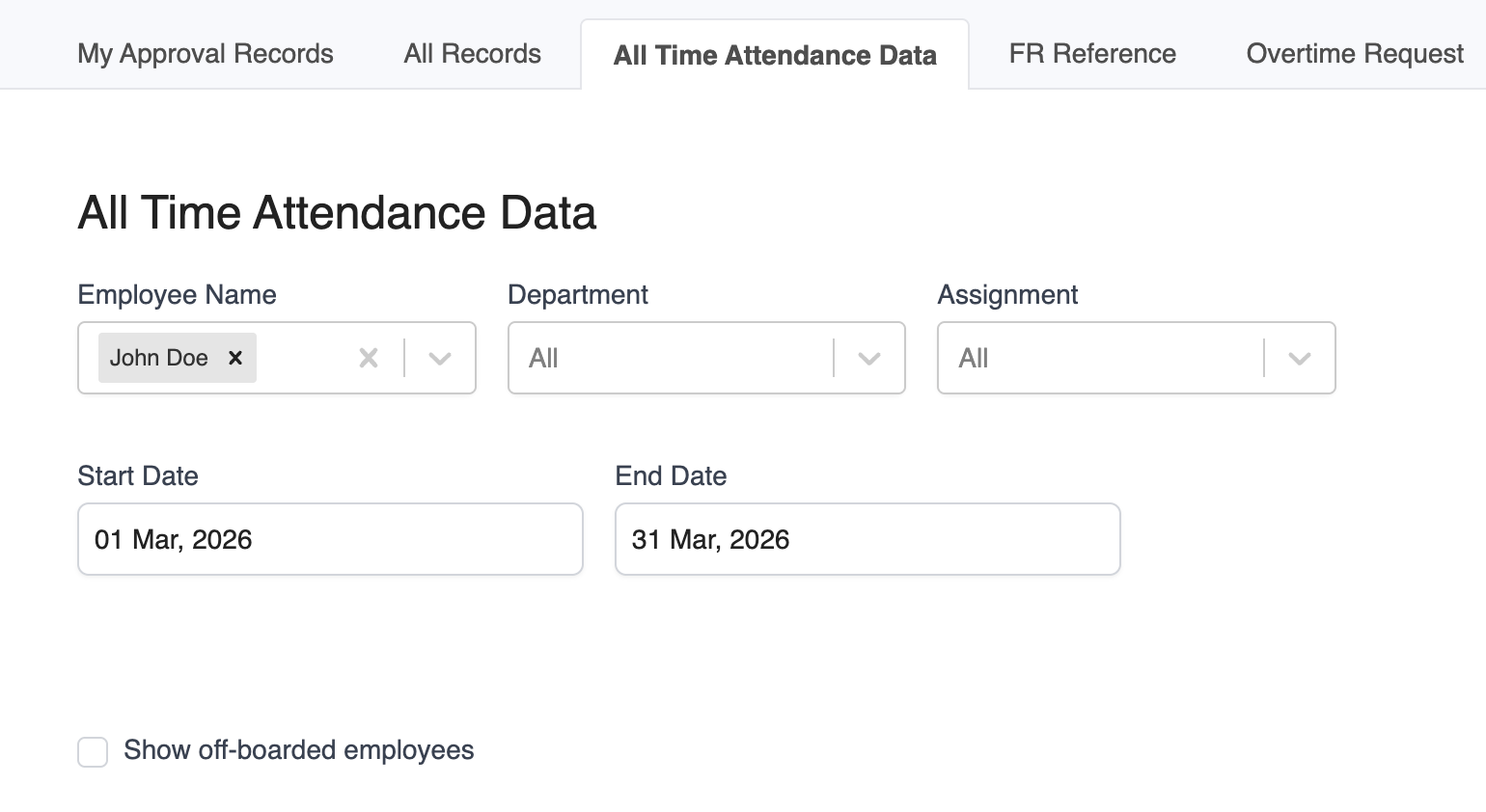
2. Use the filters (e.g. Employee Name or Department) to find the relevant records.
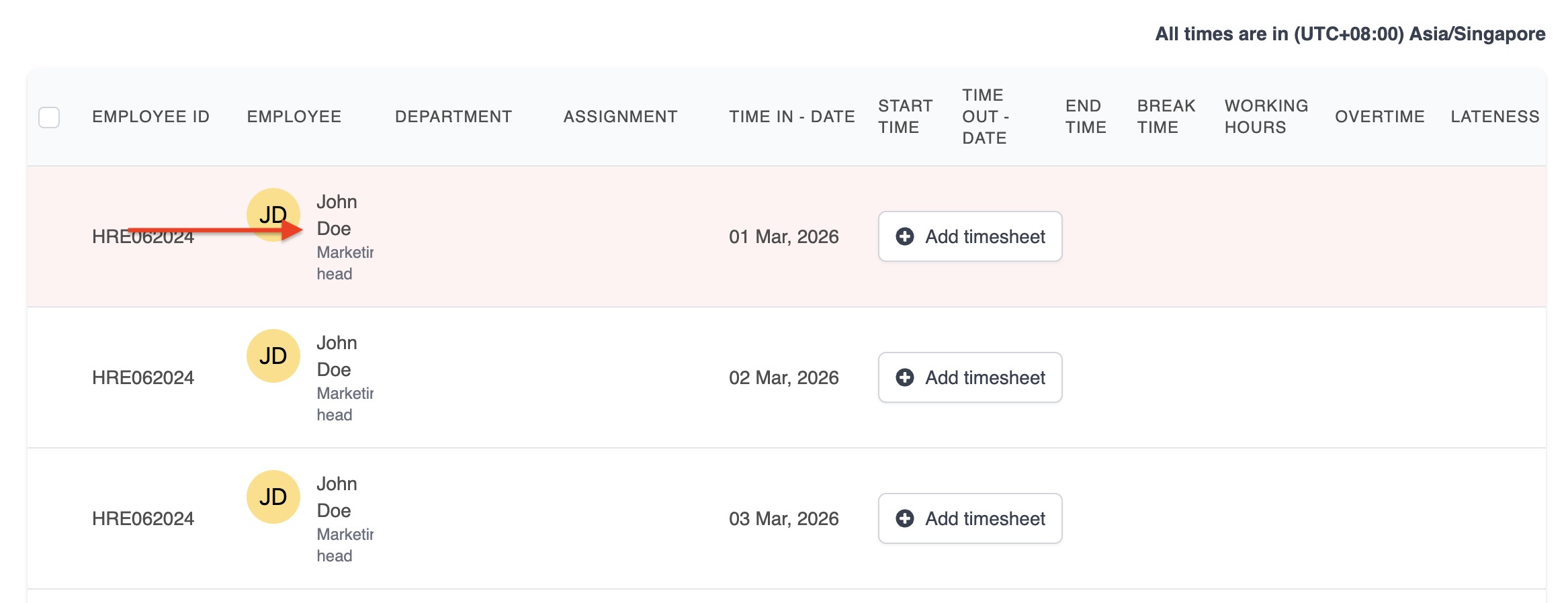
3. Click on the employee's name to open their individual timesheet page.
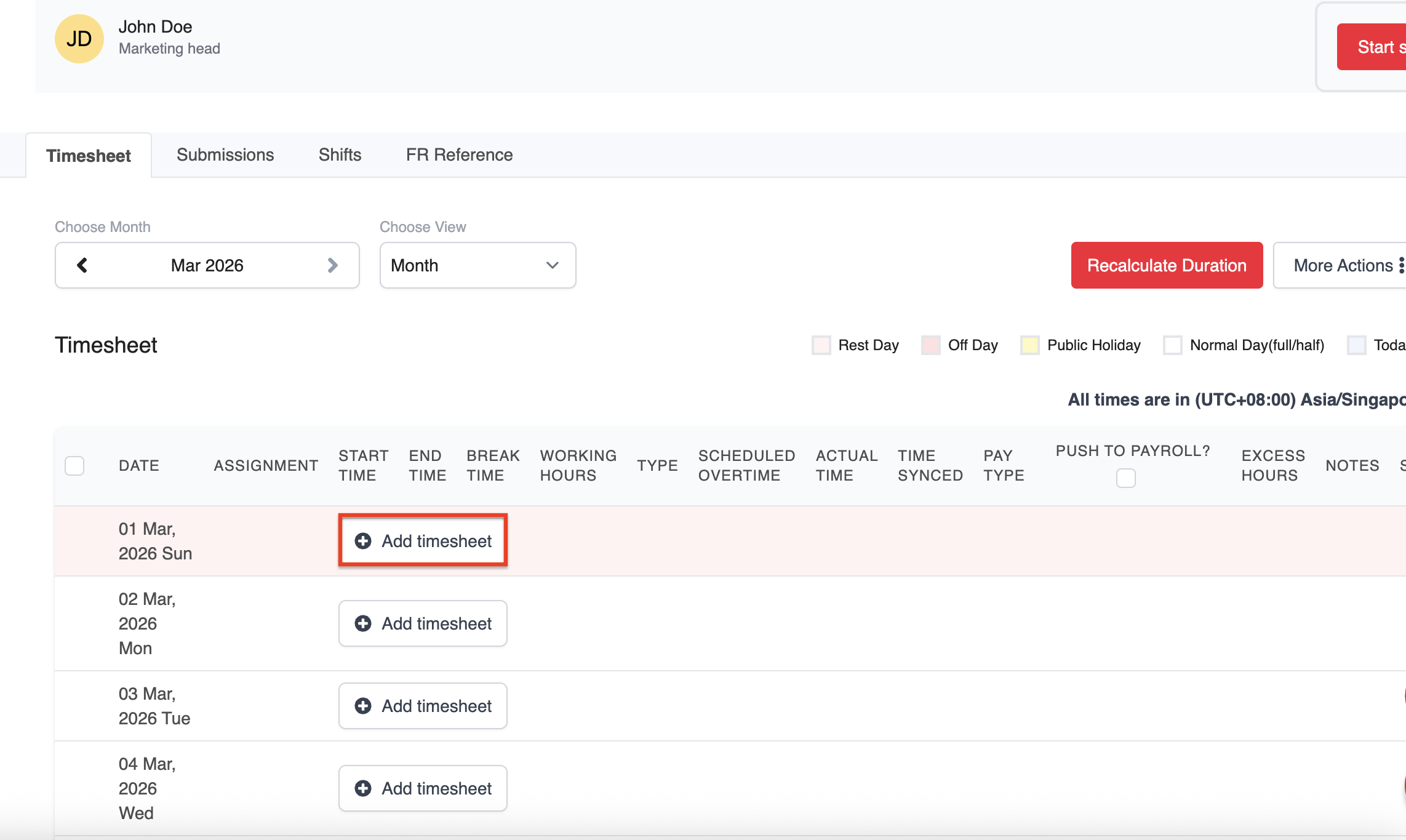
4. On the selected date, click Add Timesheet.
5. Enter the required details, such as Assignment, Start Time, End Time, and Break Time, then click Save.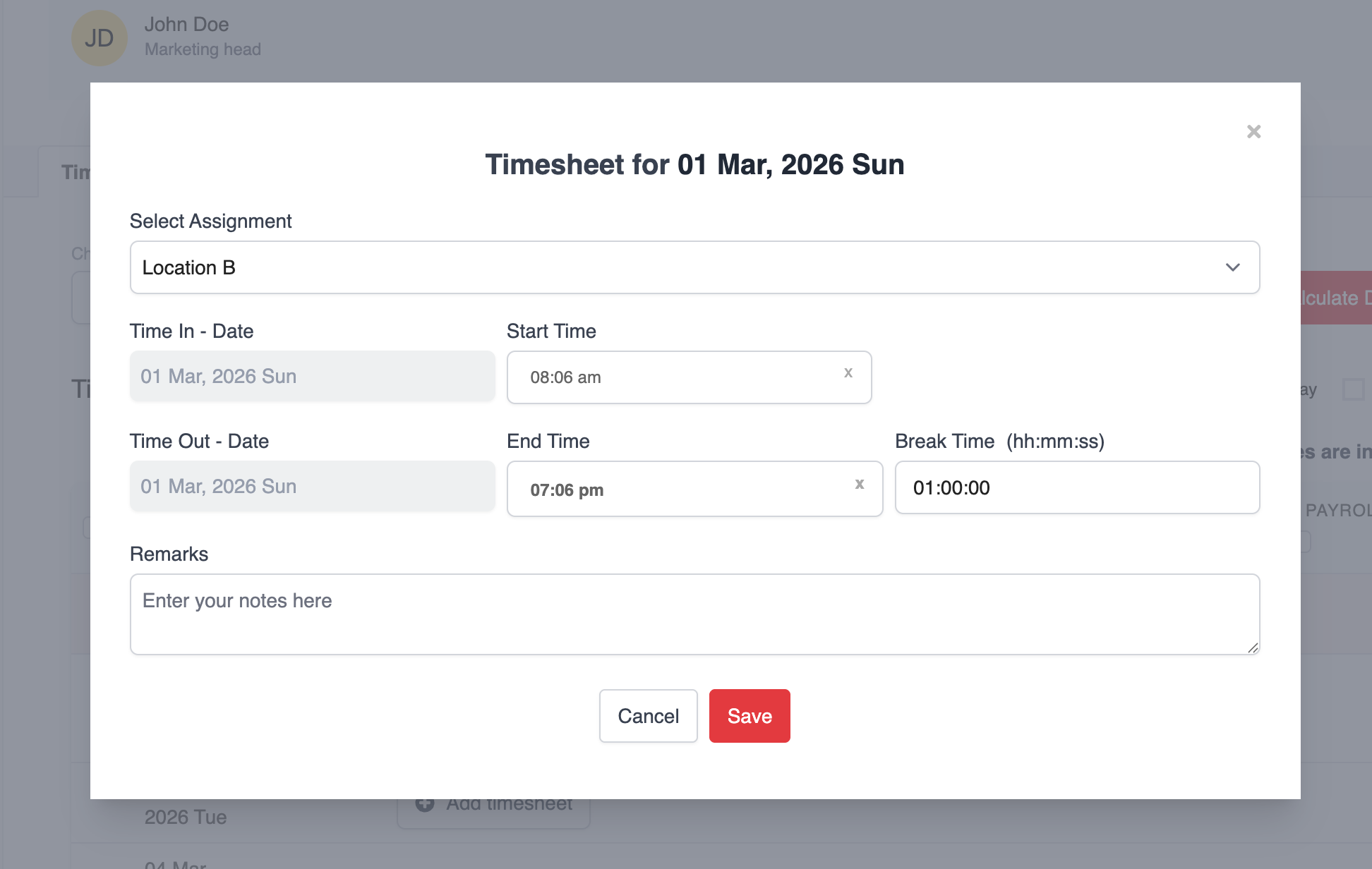
6. To add multiple entries for the same day, click the “+” button under the Actions column.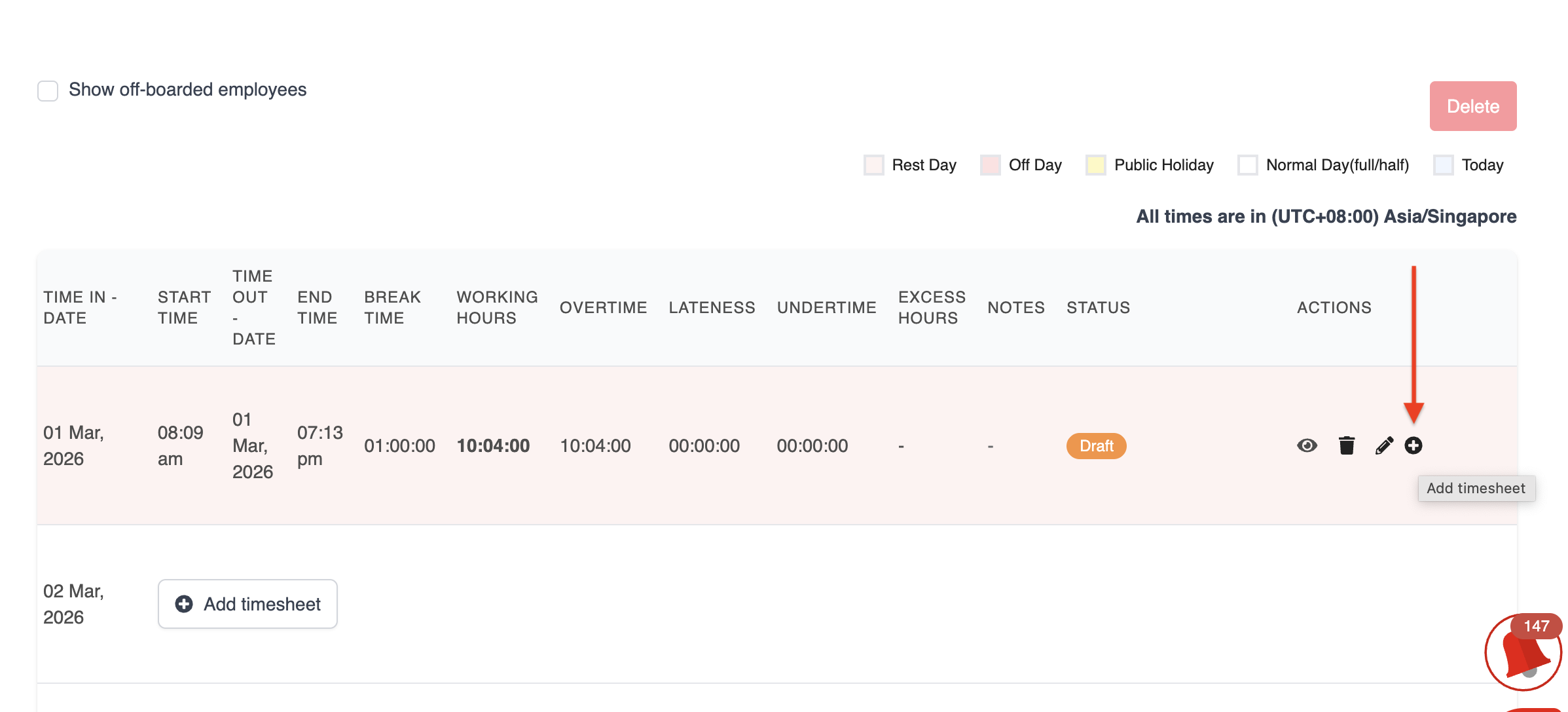
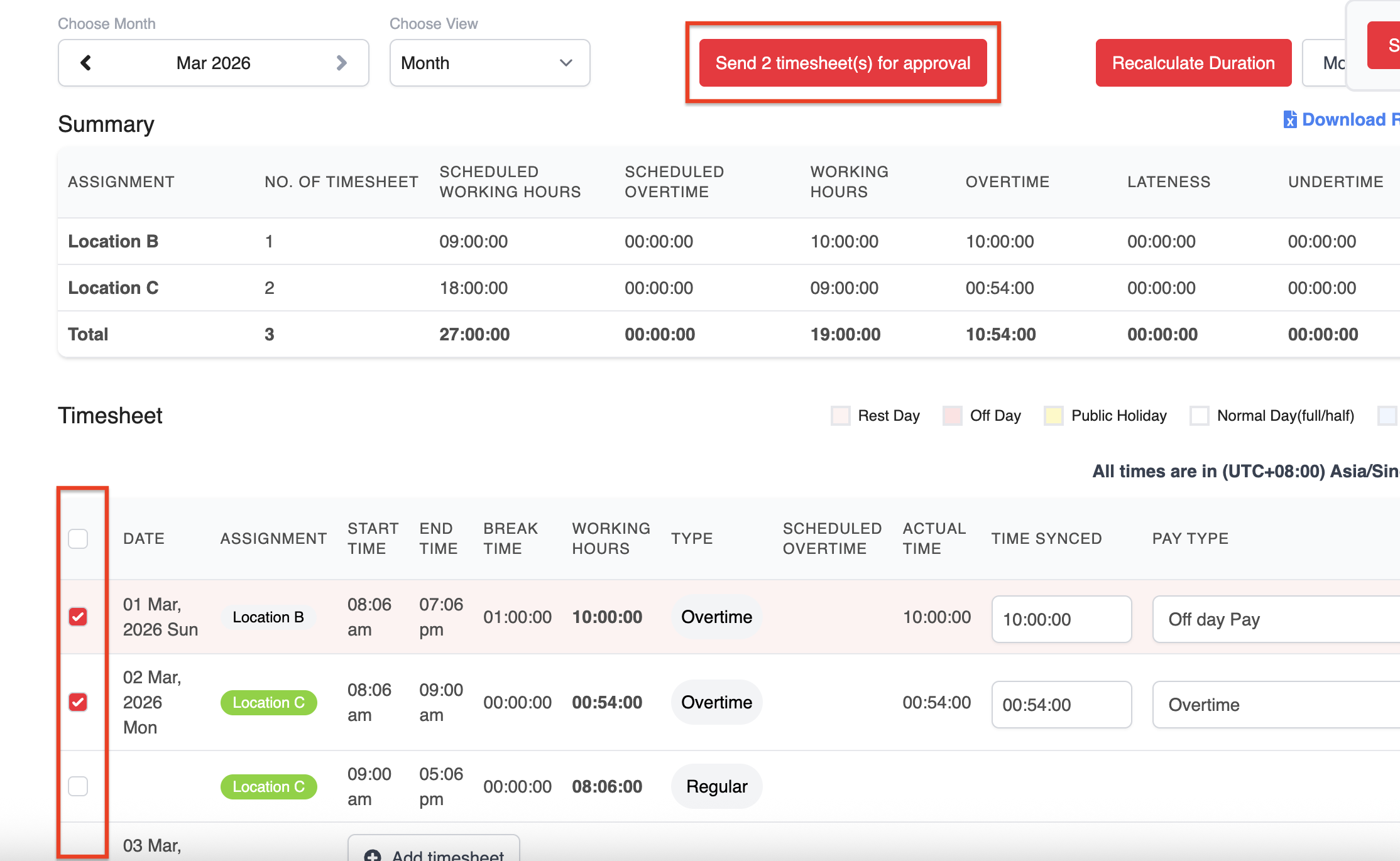
7. Review the employee's working hours, including any overtime. Refer to this guide for details on managing timesheets.
8. Once all entries are completed, submit the timesheet for approval.
Note: You can also add timesheets in bulk. Refer to the Bulk Upload or Clone Timesheets guide for more details.
Was this article helpful?
That’s Great!
Thank you for your feedback
Sorry! We couldn't be helpful
Thank you for your feedback
Feedback sent
We appreciate your effort and will try to fix the article